

Have you ever encountered the NW-2-5 error on Netflix and not known how to resolve it?
In this article, we will explain the possible causes of this error and guide you step by step to resolve the NW-2-5 error so that you can once again enjoy your favorite series and movies on Netflix.
What is error NW-2-5 and why does it occur?
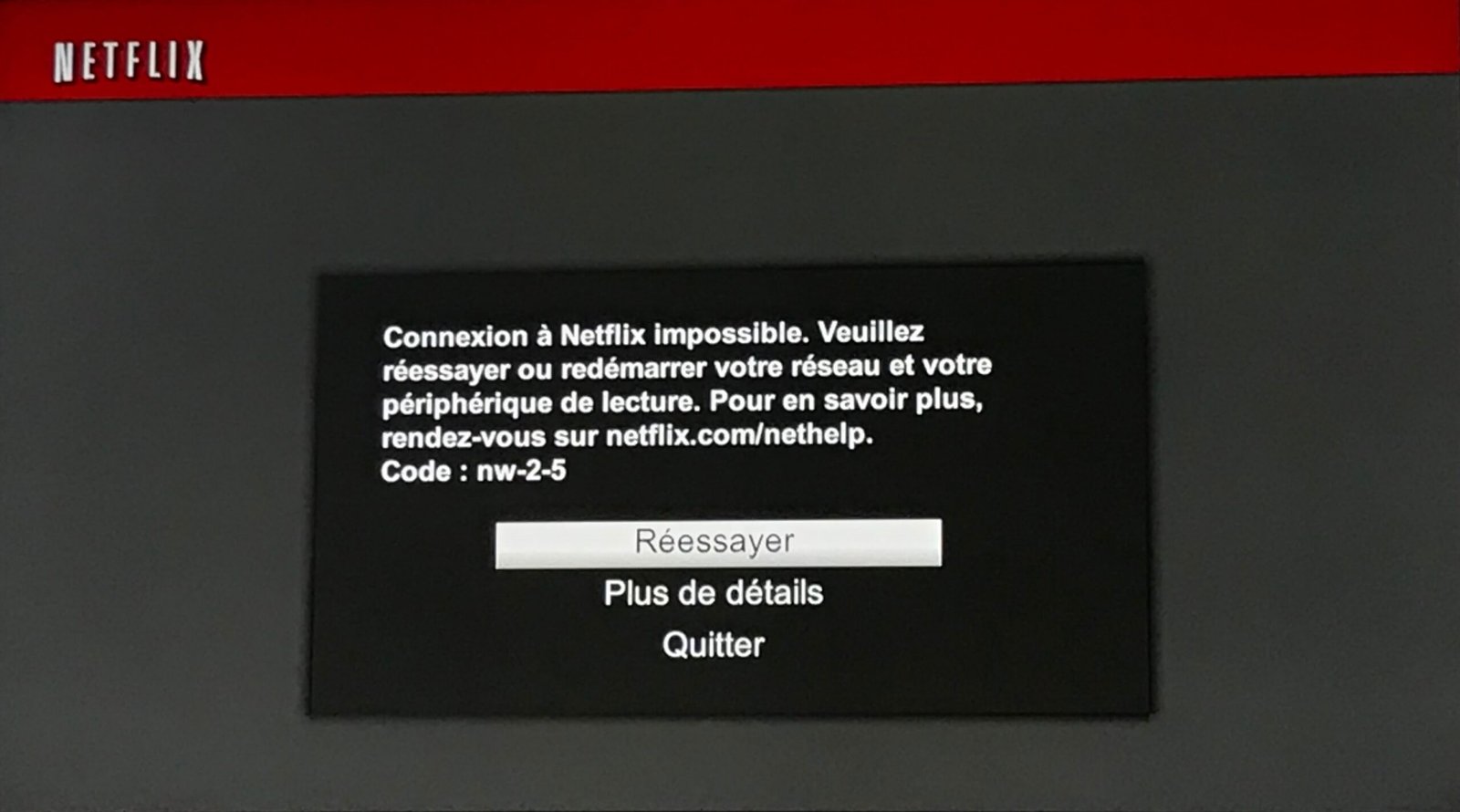
Error NW-2-5 is a connection error that primarily affects streaming devices such as game consoles, smart TVs, and Blu-ray players. This error typically indicates an internet connection , which can be caused by several factors, such as:
- Poor Wi-Fi signal quality
- A problem with your router or modem
- A problem with the Internet service provider (ISP)
- A DNS configuration problem on the device

How to resolve error NW-2-5?
Here are some steps to follow to resolve the NW-2-5 error and enjoy Netflix again:
1. Check the internet connection

Make sure your device is properly connected to the internet. You can test the connection by accessing a website or using another application that requires an internet connection.
2. Restart your device
Turn off your device, wait 30 seconds, then turn it back on. This may help resolve temporary connection issues.
3. Restart your router and modem
Unplug the power supply cord from your router and modem for at least 30 seconds, then plug them back in. Wait until the lights on both the router and modem indicate a stable connection, then try connecting to Netflix again.
You might like this article: How to fix error 0xc000007b on Windows ?
4. Improve Wi-Fi signal quality
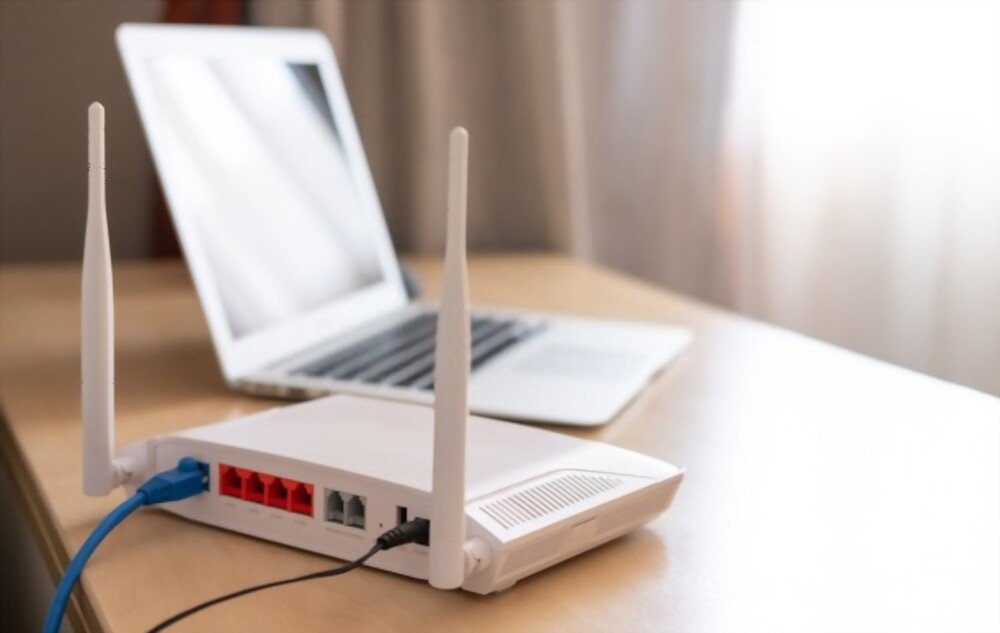
If you are using a Wi-Fi connection, try moving your device closer to the router or using an Ethernet cable to establish a direct connection. You can also try changing your router's Wi-Fi channel to avoid interference from other devices.
5. Contact your Internet service provider (ISP)

If the previous steps have not resolved the issue, contact your ISP to check if there is a problem with your internet connection or specific restrictions on the use of Netflix.
6. Change your device's DNS settings
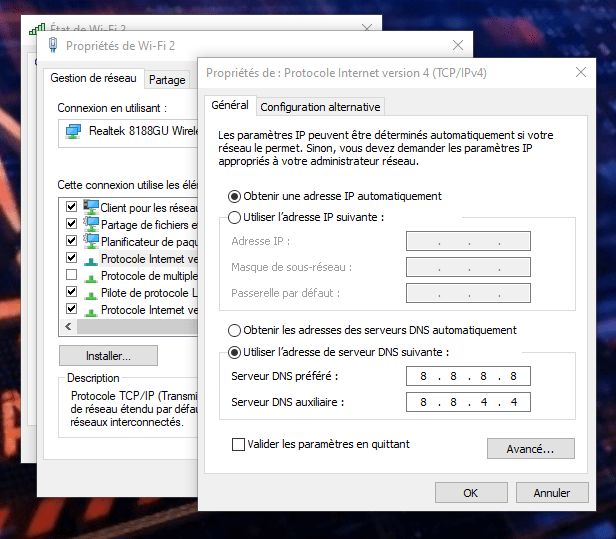
In some cases, a DNS configuration issue can cause the NW-2-5 error. Try changing your device's DNS settings to use Google's public DNS servers (8.8.8.8 and 8.8.4.4).
Also read: How to set a video wallpaper for the Windows
Comparative table of resolution steps
Here is a comparative table of the different steps for resolving the NW-2-5 error to help you choose the best solution based on your situation:
| Stage | Description | When should I try it? |
|---|---|---|
| 1. Check the internet connection | Make sure your device is properly connected to the internet. | Firstly, if you haven't checked your internet connection beforehand. |
| 2. Restart your device | Turn your device off and on again to resolve temporary connection issues. | If the error persists after checking the internet connection. |
| 3. Restart your router and modem | Unplug and replug the power supply cable from your router and modem to reset the connection. | If the error persists after restarting your device. |
| 4. Improve Wi-Fi signal quality | Move your device closer to the router or use an Ethernet cable to establish a direct connection. | If the error persists after restarting the router and modem and you are using a Wi-Fi connection. |
| 5. Contact your ISP | Contact your Internet service provider to check if there is a problem with your connection or any specific restrictions on using Netflix. | If the error persists after trying the previous steps. |
| 6. Change your device's DNS settings | Change your device's DNS settings to use Google's public DNS servers. | If the error persists after contacting your ISP and you suspect a DNS configuration issue might be the cause. |
By following these steps, you should be able to resolve the NW-2-5 error and enjoy your favorite shows and movies on Netflix again. Feel free to repeat the steps if necessary and search for other solutions online if the problem persists. We hope this information is helpful and allows you to quickly resolve this annoying error.
FAQ
Does the NW-2-5 error only affect Netflix or other streaming applications as well?
The NW-2-5 error is specific to Netflix, although other streaming apps may encounter similar errors related to internet connection issues. To troubleshoot connection problems with other streaming apps, you can follow similar steps to those mentioned for Netflix's NW-2-5 error, such as checking your internet connection, restarting your devices and routers, and contacting your internet service provider.
- Amazon Prime Video: error 1060, 9074
- Hulu: error RUNUNK13, P-EDU101
- Disney+: error 41, 83
If you are experiencing problems with multiple streaming applications, the issue may be related to your internet connection or network equipment.
What are some other common error codes on Netflix and how do you fix them?

Netflix has several error codes that can occur for various reasons. Here are some of the most common error codes and solutions to resolve them:
- Error UI-800-3: This error is often related to a data issue on your device. To resolve this, clear the Netflix app data, sign out, and then sign back in to your Netflix account.
- Error 100: This error typically occurs on mobile devices and indicates an internet connection problem. To resolve this issue, check your internet connection and restart your device.
- Error 12001: This error is specific to Android devices and is caused by outdated data on the device. To resolve this issue, clear the cache and data of the Netflix app in your Android device's settings.
- Error H7361: Windows computers and is related to problems with the browser or system components. To resolve this error, update your browser, clear your cache and cookies, and check your operating system settings.
If you continue to experience errors on Netflix, please visit the Netflix Help Center for information specific to your error code and additional troubleshooting instructions.
How can I tell if my internet service provider is blocking or limiting access to Netflix?

Some internet service providers may block or limit access to Netflix for various reasons, such as bandwidth limitations or regional restrictions. To find out if your ISP is blocking or limiting access to Netflix, follow these steps:
- Test your internet connection with another device to see if the problem persists on multiple devices.
- Try connecting to Netflix with a different network (e.g., using your phone's mobile data) to see if the problem is specific to your internet connection.
- Contact your ISP to find out if there are any network issues or specific restrictions on using Netflix.
- If you suspect your ISP is blocking or throttling access to Netflix, consider using a VPN to bypass these restrictions. However, keep in mind that using a VPN can also cause connection problems with Netflix, such as the NW-2-5 error.
If you continue to experience problems accessing Netflix, contact Netflix support for assistance.
Could the NW-2-5 error be caused by a problem with my Netflix account?
Error NW-2-5 is usually related to internet or network connection issues and is not caused by a problem with your Netflix account. However, if you are having trouble accessing Netflix on multiple devices or networks, your Netflix account may be experiencing problems. In this case, contact Netflix support for assistance.
Are there any differences in the resolution of the NW-2-5 error depending on the type of device used (game console, smart TV, Blu-ray player, etc.)?

The steps to resolve NW-2-5 error are generally the same, regardless of the type of device you use to access Netflix. However, some specific steps may vary depending on the device. For example, the way to change DNS settings or restart your device may be different on a game console compared to a smart TV. Consult the Netflix Help Center or your device's manual for instructions specific to your device.
Can using a VPN cause or help resolve the NW-2-5 error?

Using a VPN can sometimes cause connection problems with Netflix, including the NW-2-5 error. If you're using a VPN and encountering this error, try disconnecting from the VPN and reconnecting to Netflix without using the VPN. If this resolves the issue, it means the VPN was the cause of the error.
On the other hand, using a VPN can help resolve the NW-2-5 error if it's caused by restrictions imposed by your internet service provider. In this case, connect to a VPN server located in another country or region to bypass the restrictions and access Netflix.
How can I check if the Netflix servers are down and if this could be the cause of the NW-2-5 error?
If you suspect that the Netflix servers are down and that this may be the cause of the NW-2-5 error, you can check the status of the Netflix servers by following these steps:
- Visit a server status check website, such as Downdetector or IsItDownRightNow.
- Search for "Netflix" in the site's search bar and click on the corresponding result.
- Review the information provided about the status of the Netflix server, including recent problem reports and graphs showing reported issues over time.
If Netflix's servers are indeed down, this could explain the NW-2-5 error. In that case, you simply need to wait for the servers to be restored to access Netflix again.
What other troubleshooting steps can I try if the NW-2-5 error persists after following the steps mentioned in the article?
If the NW-2-5 error persists after following the steps mentioned in the article, you can try the following additional troubleshooting steps:
- Check if your device has the latest software or firmware version and update it if necessary.
- Try connecting to Netflix with another device on the same network to see if the problem is device-specific.
- If you are using a wireless network, try connecting to Netflix using a wired (Ethernet) connection to see if that resolves the issue.
- Contact Netflix support for assistance specific to your situation.
How do I report a persistent problem with error NW-2-5 to the Netflix support team?
If you've tried all the troubleshooting steps mentioned in the article and the NW-2-5 error persists, it's time to contact Netflix support . Here's how:
- Log in to your Netflix account on a working device or web browser.
- Go to the Netflix help page (help.netflix.com) and click on "Contact Us" at the bottom of the page.
- Choose the support option that suits you best: live chat, phone call or, in some cases, support via social media.
- Explain your problem to the Netflix support agent, providing as much detail as possible about the troubleshooting steps you have already taken.
The Netflix support team should be able to help you resolve the NW-2-5 error or provide you with additional information about the cause of the problem and the steps to take to resolve it.
Conclusion
The Netflix error NW-2-5 can be frustrating, but by following the troubleshooting steps outlined in this article and the answers to frequently asked questions, you should be able to resolve the issue and get back to watching your favorite shows and movies. If you're still experiencing problems after trying all the suggested solutions, don't hesitate to contact Netflix support for assistance.


