
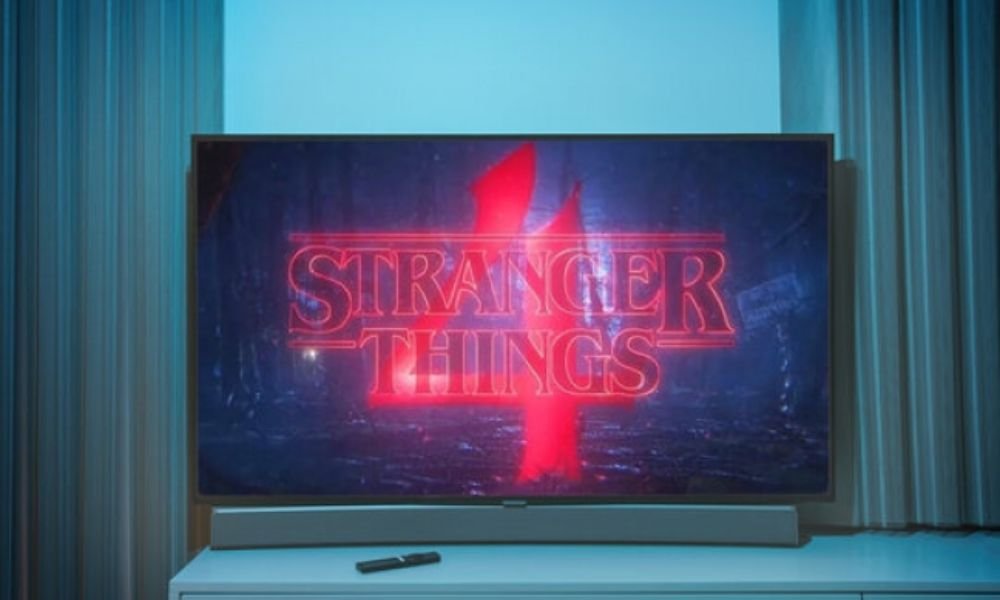
Stranger Things is an American television series created by the Duffer brothers and broadcast on Netflix since 2016. It features a group of teenagers confronted with supernatural phenomena in the fictional town of Hawkins , Indiana, in the 1980s. The series is an homage to the science fiction, horror and adventure films and series of that era, such as E.T. , The Goonies , Alien and The X-Files .
If you are a fan of Stranger Things , you may want to personalize your computer , phone or tablet with wallpapers inspired by the Stranger Things series.
Where can I find the best Stranger Things wallpapers?
To find the best Stranger Things wallpapers, you can check out the following websites:
- Netflix : The official website of the streaming platform also offers Stranger Things wallpapers for free download. You can choose from images of the main characters, promotional posters, or the series logos. You can also access other exclusive content, such as videos, games, and podcasts. If you encounter problems watching the series on Netflix, you can consult our guide to resolving Netflix Error NW-2-5 .
- Wallpaper Abyss : a website specializing in high-quality wallpapers. You'll find over 300 Stranger Things wallpapers, categorized by type (characters, locations, objects, etc.), resolution (HD, 4K, etc.) and aspect ratio (16:9, 4:3, etc.).
- Pinterest: a website that lets you share and discover images on various themes. You'll find original Stranger Things wallpapers there, created by fans or artists. You can also create your own board to save your favorite images.
- DeviantArt : a website that brings together the works of millions of artists from around the world. You'll find artistic Stranger Things wallpapers there, inspired by the series or by other universes (comics, video games, etc.).

Why choose a Stranger Things wallpaper?
If you're a Stranger Things fan, you'll probably want to personalize your computer, tablet, or smartphone with a wallpaper featuring the series. A Stranger Things wallpaper will allow you to:
- Show your passion for the series and its characters
- Dive into the fantastic and retro world of Stranger Things
- Enjoy a high-quality and original image
- Vary the styles according to your desires and moods
What are the criteria for choosing a good Stranger Things wallpaper?
There are a multitude of Stranger Things wallpapers on the web, but they are not all created equal. To choose a good Stranger Things wallpaper, you should consider the following criteria:
- Resolution: This refers to the number of pixels that make up the image. The higher the resolution, the sharper and more detailed the image. You must choose a resolution that is appropriate for the size and definition of your screen; otherwise, you risk having a blurry or distorted image.
- The aspect ratio: this refers to the ratio between the width and height of the image. You must choose a format compatible with your screen, otherwise you risk having black bars or cropped sections. The most common formats are 16:9 (widescreen), 4:3 (standard screen), and 9:16 (vertical screen).
- The theme: this is the main subject of the image. You should choose a theme that you like and that fits the spirit of the series. You can opt for a wallpaper depicting a character, a place, an object, or an iconic scene from Stranger Things.
- Style: This refers to the visual aspect of the image. You should choose a style that appeals to you and matches your personality. You can opt for a realistic, stylized, vintage, colorful, or dark wallpaper.
How do I change my computer's wallpaper?
Once you've found a Stranger Things wallpaper you like , simply download it to your computer and set it as your desktop background. The procedure varies depending on your operating system:
On Windows 11 or Windows 10
- Right-click on an empty area of the desktop and select “ Personalize ”.
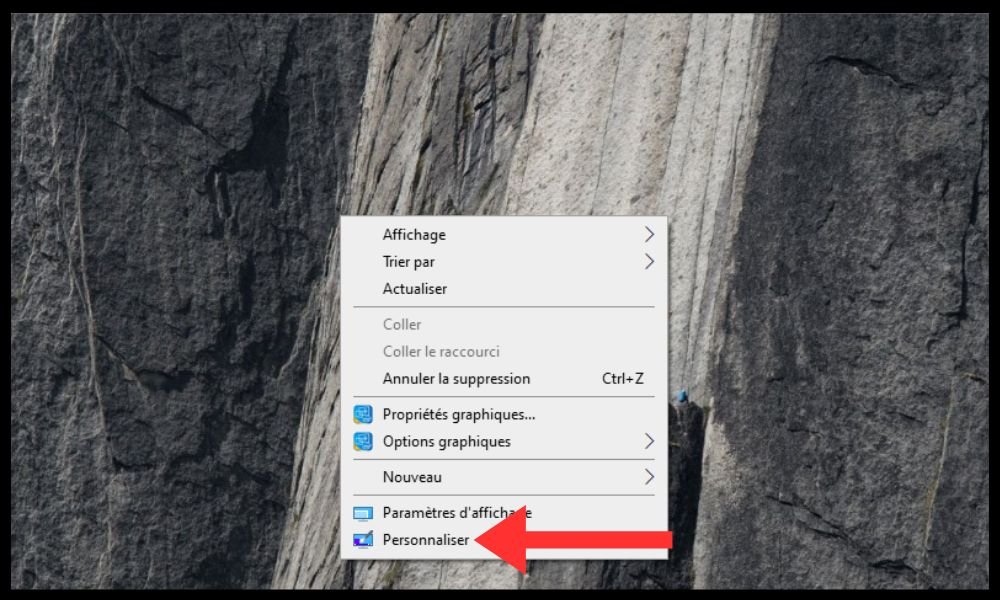
- In the window that opens, click on “ Background ” and choose “ Image ” from the drop-down menu.
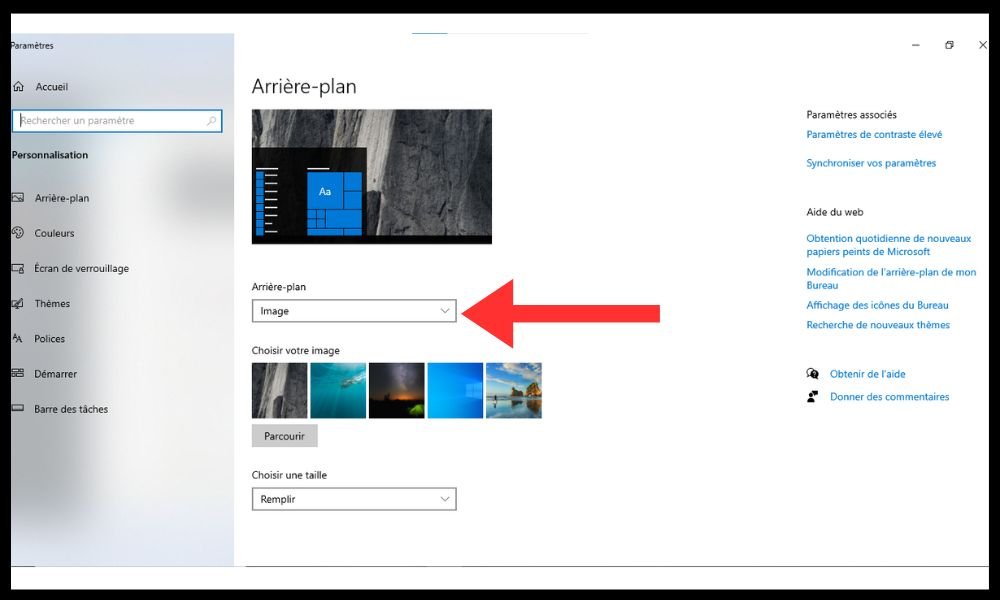
- Next, click on “ Browse ” and select the wallpaper file you downloaded.
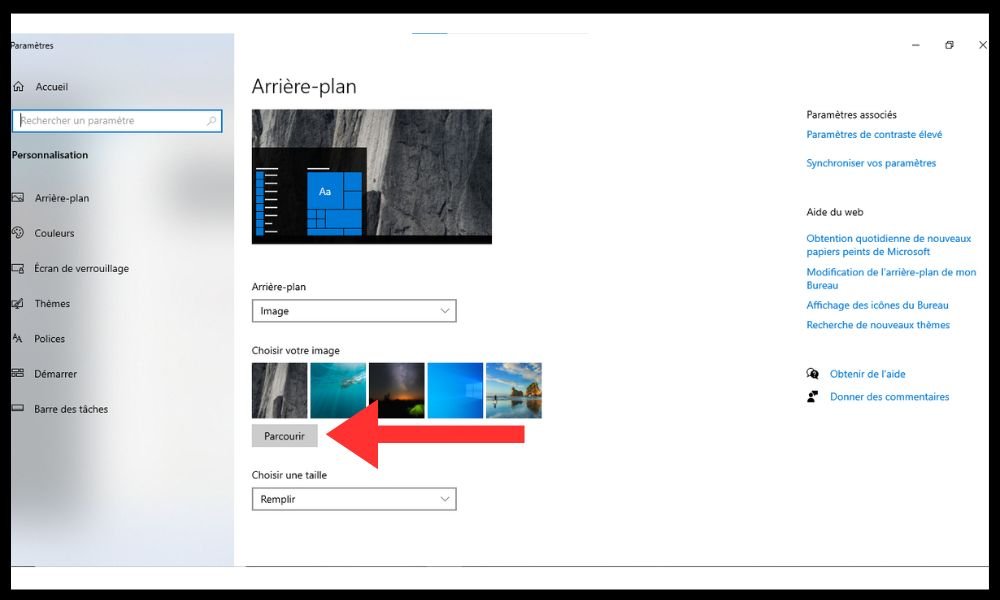
- You can also adjust the image position ( fill, adjust, stretch, etc. ) according to your preferences.
On Windows 7
- Right-click on an empty area of the desktop and select “ Personalize ”.
- Next, click on “ Desktop background ” at the bottom of the window and select the wallpaper file you downloaded.
- You can also adjust the image position ( center, mosaic, stretch, etc. ) according to your preferences.
On Mac
- Click the “ System Preferences ” icon in the dock or Apple menu, then click “ Desktop & Screen Saver ”.
- Click on the “ Desktop ” tab and select the wallpaper file you downloaded.
- You can also adjust the image position ( fill screen, fit screen, centered, etc. ) according to your preferences.
How do I change the wallpaper on my phone or tablet?
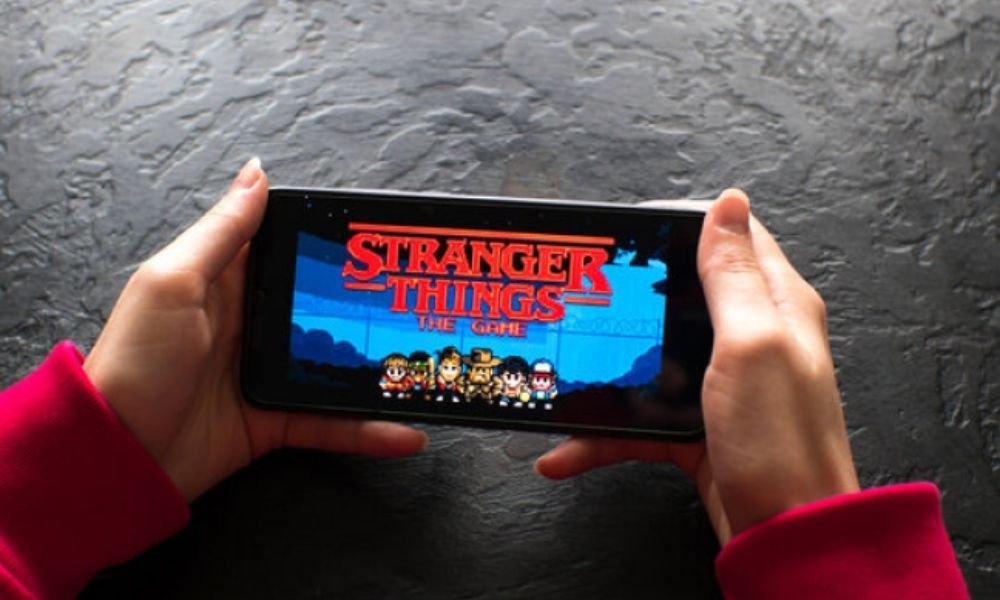
If you want to change the wallpaper on your phone or tablet , simply transfer the wallpaper file you downloaded to your device and then set it as your home screen or lock screen background. The procedure varies depending on the operating system you are using.
On Android
- Open the “ Gallery ” application and select the wallpaper file you transferred.
- Press and hold on the image and choose “ Set as ”.
- Next, select “ Wallpaper ” and choose between “ Home screen ”, “ Lock screen ” or “ Both ”.
You can also adjust the size and position of the image according to your preferences.
On iOS
- Photos application and select the wallpaper file you transferred.
- Click the “ Share ” button in the bottom left corner of the screen and choose “ Use as wallpaper ”.
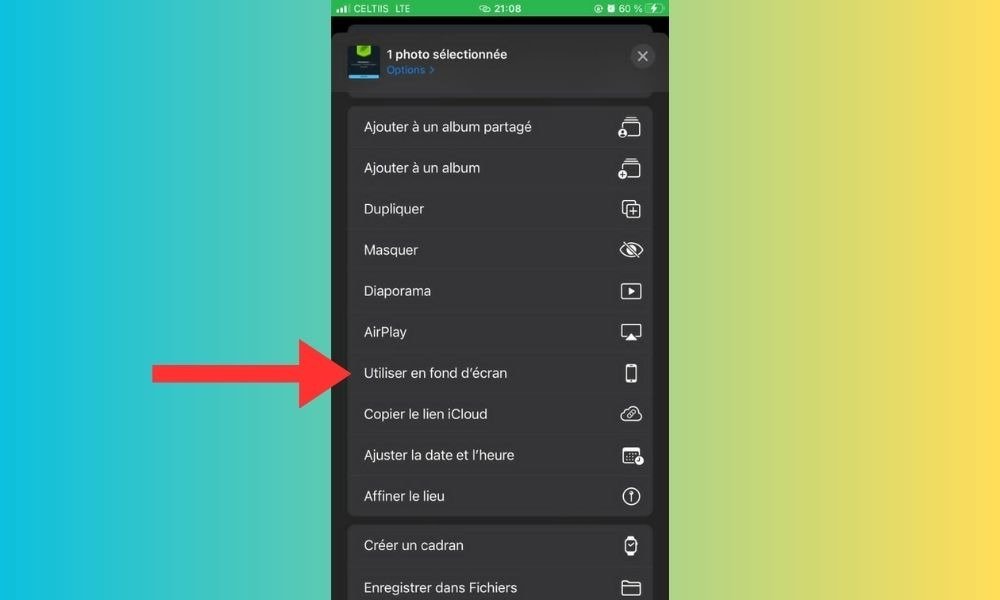
- Next, select “ Home screen ”, “ Lock screen ” or “Both ”.
You can also adjust the size and position of the image according to your preferences.


