
Outlook is an email service that lets you manage your emails, contacts, calendar, and tasks. Outlook is part of the Microsoft 365 suite, which also includes applications like Word, Excel, PowerPoint, and OneDrive.
Outlook offers several options for customizing its appearance, including dark mode. Dark mode is a feature that changes the interface colors to reduce eye strain and save your device's battery. Dark mode uses dark, high-contrast tones to make text more readable on a black background.
In this article, we will explain how to activate and configure dark mode on Outlook, whether on the web version, the application for Windows or Mac, or the mobile application for Android or iOS.
What are the advantages of using dark mode on Outlook?
Dark mode offers several advantages, including:
- It reduces eye strain by decreasing the contrast between the screen and the environment.
- It promotes concentration by eliminating visual distractions.
- It saves your device's battery by consuming less energy.
- It creates a cozier and more relaxing atmosphere .
How do I enable/disable dark mode in Outlook for the web?
To enable dark mode on Outlook web, you must first sign in to your Outlook account in your web browser. Then, follow these steps:
- Click on the gear icon in the top right corner of the page to access the settings.
- In the drop-down menu, click on “Show all Outlook settings”.
- In the window that opens, click on “General” and then on “Appearance”.
- Under the “Mode” section, check the “Enable dark mode” box.
- You can also check the “Use adaptive colors” box so that message colors adapt to dark mode.
- Click on “Save” to confirm your choices.


You will then see that the Outlook web interface changes color and switches to dark mode. You can return to light mode by unchecking the “Enable dark mode” box in the settings.
How to enable dark mode in Outlook for Microsoft 365 on Windows and Mac?
Outlook for Microsoft 365 is the desktop application for Outlook , which you can install on your computer to access your email . To enable dark mode in Outlook for Microsoft 365 on Windows or Mac, follow these steps:
- Open the Outlook on your computer.
- Click on the File in the top left corner of the window.
- Click on Office Account in the sidebar menu.
- Under Office Theme , choose Black from the drop-down list.
- Click the back arrow at the top to return to your inbox.
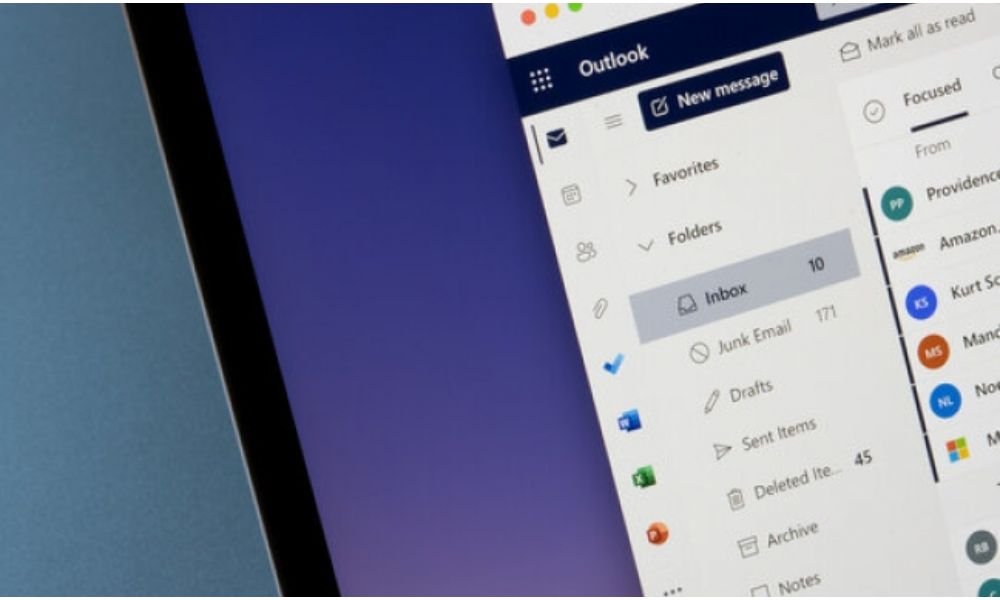
You'll then see that the dark theme applies to all applications in the Microsoft 365 suite, including Outlook . Dark mode is enabled by default when you use the dark theme, but you can disable if you prefer a white background for your messages. To do this, simply check the " Never change message background color" in Outlook's general settings.
To enable dark mode in Outlook for Windows or Mac, you need to open the Outlook application on your computer. Then, you need to follow these steps:
- Click on the “File” tab in the top left corner of the window.
- Click on “Options” in the menu that appears.
- In the window that opens, click on “General” in the left pane.
- Under the heading “Personalize your copy of Microsoft Office”, choose “Black” from the “Office Theme” drop-down menu.
- Click “OK” to confirm your choice.
You will then see that the Outlook interface for Windows or Mac changes color and adopts dark mode.
How do I enable dark mode on Outlook for Android or iOS?
To enable dark mode on Outlook for Android or iOS, you need to open the Outlook app on your smartphone or tablet. Then, you need to follow these steps:
- Tap the hamburger icon in the top left corner of the screen to open the side menu.
- Tap the gear icon at the bottom of the menu to access the settings.
- Tap on “Theme” in the list of options.
- Choose “Dark” from the menu that appears.
FAQs about dark mode in Outlook
How can I tell if dark mode is enabled or disabled?
You can tell if dark mode is enabled or disabled by looking at the background color of your inbox and messages. If the background is black or dark gray, dark mode is enabled . If the background is white or light gray, dark mode is disabled .
Does dark mode apply to all messages?
No, dark mode doesn't apply to all messages . Some messages may have a different background than dark mode, depending on the original message formatting or the recipient's choice. You can change the background color of a specific message by clicking the sun or moon icon at the top of the reading pane.
Does dark mode affect the readability of messages?
No, dark mode does not affect the readability of messages . Dark mode automatically adjusts the color of text and images so they are visible against a dark background. You can also adjust your screen's brightness and contrast to improve readability .
Does dark mode change the color of attachments?
No, dark mode does not change the color of attachments . Attachments retain their original color, whether they are documents, images, videos, or audio files. You can open attachments in their respective applications to view them .
Is dark mode available on all devices?
Yes, dark mode is available on all devices that can access Outlook , whether it's a computer, tablet, or smartphone. You can enable/disable dark mode depending on the device you're using and your preferences.
Can I program dark mode to turn on/off automatically?
Yes, you can schedule dark mode to turn on/off automatically depending on the time of day or your preferences. To do this, use the System in the theme settings. This option follows your device's dark mode setting, which can be configured in your device's general settings
Is dark mode compatible with other Outlook customization options?
Yes, dark mode is compatible with other Outlook customization options, such as font choice, text size, category color, background, and notification sound. You can personalize Outlook to suit your tastes and needs.
Conclusion
mode is a customization option that can offer you a better Outlook experience . Whether you use Outlook for the web , PC, or Android, or for Microsoft 365, you can enable/disable dark mode according to your preferences and needs. Dark mode can provide benefits such as reduced eye strain, improved concentration , better battery life, and enhanced visual comfort . But that's not the only interesting Outlook feature. You can also create an electronic signature in Outlook to authenticate your messages and make them look more professional. Outlook , a powerful solution , wouldn't you agree?


