

Do you have a Mac and want to customize the appearance of your folders ? We'll show you how to change folder colors on a Mac, using several simple and effective methods.
Whether you want to change the icon , background color , or folder label , we explain in detail how you can do it on your Mac!
How do I change the folder icon on a Mac?
One of the easiest ways to change folder colors on a Mac is to change the folder icon . There are two ways to do this: the classic method Get Info menu , and the alternative method using the Preview application. Here's how:
1. The easiest method
This method involves copying and pasting a new icon onto the old one , using the " Read information " menu.
To do this, you must follow these steps:
- Select the folder whose icon you want to change , then right-click and choose " Get Info ".
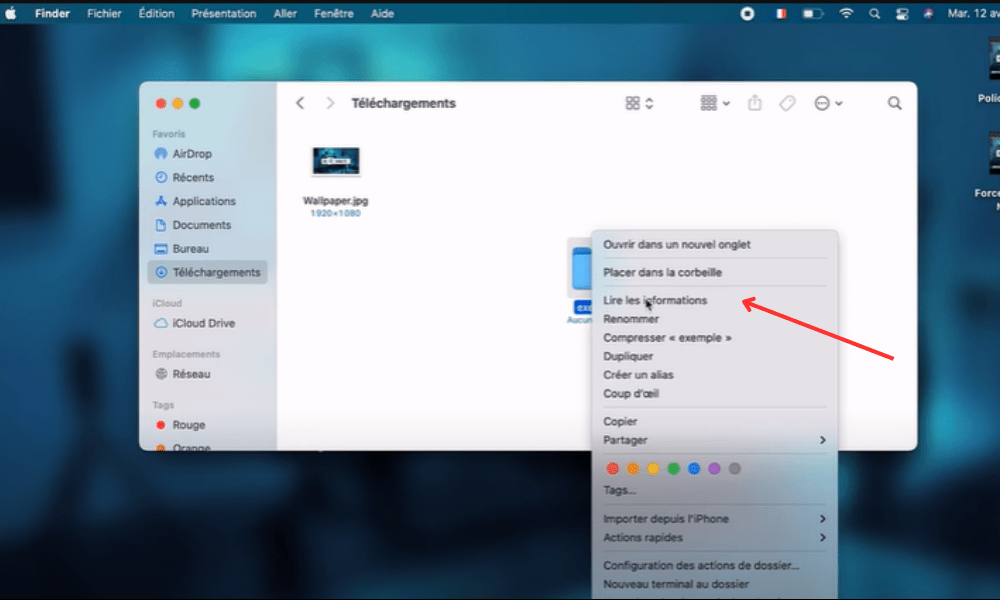
- In the window that opens, click on the folder icon in the top left corner, then press Command + C to copy it.
- Open the image you want to use as a new icon in another Finder window or in an application like Preview .
- Select the image , then press Command + C to copy it.
- Return to the Read Folder Info window , click the folder icon in the top left corner, and then press Command + V to paste it.
- Close the Read Information window . You will see that the folder icon has changed.
2. Alternative method
This method involves using the Preview application to directly modify the folder image and apply a new color to it.
To do this, you must follow these steps:
- Select the folder whose icon you want to change, then right-click and choose Show package contents .
- In the window that opens, go to the Contents > Resources and locate the file named icon.icns . This is the folder image.
- Right-click on icon.icns file and choose Open with > Preview .
- In the Preview application, click on the Tools and choose Adjust Color .
- In the window that opens, use the sliders to adjust the hue , saturation , brightness , contrast , or temperature of the image. You will see the folder's color change in real time.
- Once you have achieved the desired color, close the Preview application and save the changes .
- Close the package contents window . You will see that the folder icon has changed.
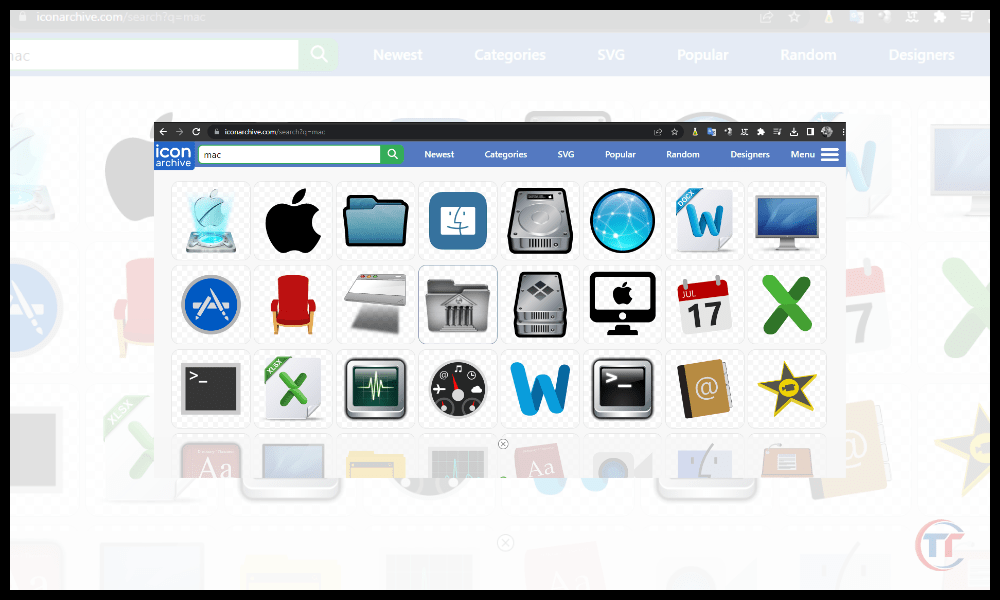
If you don't want to create your own folder icons, you can also download them from specialized websites like IconArchive, Flaticon, or Icons8. There you'll find thousands of free and paid icons in various styles and colors that you can use to personalize your folders. You can also use applications like Iconizer or Image2icon, which allow you to easily create icons from your own images .
How do I change the folder color on a Mac using the preview?
Still using the Preview app , this method is even faster and easier than the previous one, and doesn't require copying and pasting or modifying the package contents. Here's how to do it:
- The steps to follow to change the color of an existing folder :
- Select the folder whose color you want to change, then right-click and choose Open with > Preview .
- In the Preview application, click on the Tools and choose Adjust Color .
- In the window that opens, use the sliders to adjust the hue , saturation , brightness , contrast , or temperature of the image. You will see the folder's color change in real time.
- Once you have achieved the desired color, close the Preview application and save the changes .
- Tips for creating a new colorful folder :
- Select any folder, then right-click and choose Duplicate .
- Rename the duplicated folder as you wish.
- Follow the steps described above to change the color of the duplicated folder using the Preview application.
Good to know : How to get Snapchat on a Mac – MacBook?
FAQ
How do I change the background color of the folder?
To change the background color, you need folder's display options choose a background color for each folder, regardless of the icon or label.

Here's how to do it:
- The procedure for accessing the folder display options:
- Open the folder whose background color you want to change, then click on the View and choose Display Options .
- In the window that opens, check the Background color , then click on the color square on the right .
- Choosing the background color from the palette or selector:
- In the window that opens, you can choose a background color from the palette provided, or click the Color Picker to access more options.
- In the color selector, you can use the different modes (wheel, scale, pencil, etc.) to find the color that suits you, or directly enter the hexadecimal code of the color in the corresponding field.
- Once you have chosen your background color, close the color picker window and the display options window . You will see that the folder's background color has changed.
The impact of background color on file readability :
When changing the background color of a folder, you must ensure that the files it contains remain readable . To do this, avoid colors that are too similar to those of the icons or file names, or that create a glare or camouflage effect.
How to color your folders on Mac using labels?
To change the color of folders on a Mac, you can use the labeling system built into macOS. This method allows you to assign a colored label to each folder, which can help you organize them by category, priority, or status.

Here's how to do it:
- Make a Right-click on the folder and choose Label in the context menu. Next, select the color that you want to assign to him.
- Select the folder and click on the File . Then choose Label and select the color you want to assign to it.
- Select the folder and press Command + I to open the Get Info . Click the Label in the top right corner and select the color you want to assign it.
- Select the folder and drag it to the Label in the Finder sidebar. Release it on the color you want to assign it.
How do I customize the names and colors of the labels?
If you want to customize the names and colors of the labels, you can follow these steps:
- Click on the Finder and choose Preferences .
- In the window that opens, click on the Labels .
- You will see the seven predefined labels, with their name and color.
- Click on it and type the new name .
- Click on the color square on the right and choose a new color from the palette or selector.
- Close the preferences window.
You will see that the labels on your folders have changed.
What are the other solutions for changing the color of folders on a Mac?
If none of the methods presented suit you, you can also opt for alternative solutions , such as applications dedicated to folder customization. Several are available on the market, offering more options and ease of use for changing folder colors on a Mac.
Here are some examples:
- Folder Color is an application that lets you change the color of your folders with a single click. You can choose from 24 predefined colors or create your own custom colors. You can also apply effects like gradients, blurs, or embossing to your folders.
- Folder Designer is an application that lets you create original and stylish folder icons. You can use images, text, emojis, or symbols to decorate your folders. You can also adjust the size, shape, rotation, or opacity of your icons.


