
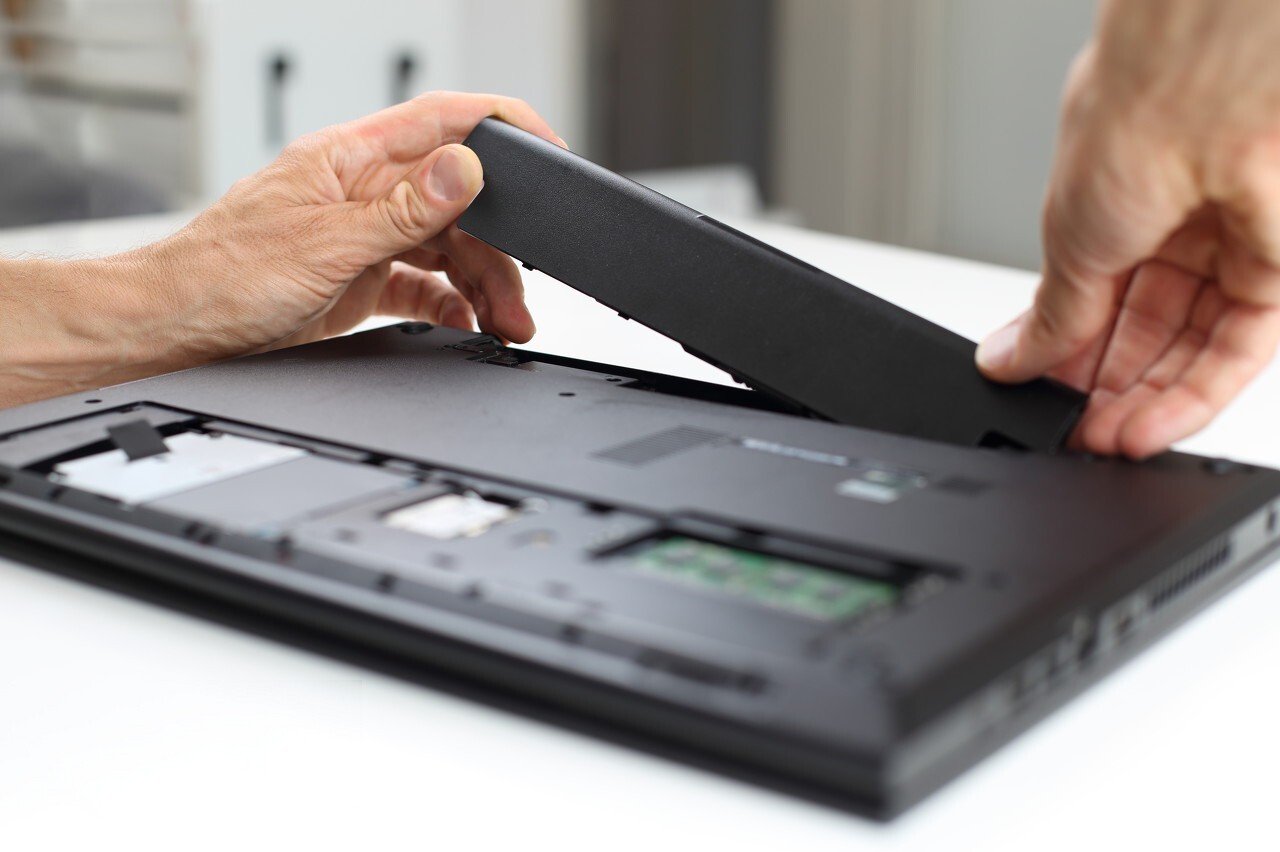
The main advantage of a laptop is its battery life. However, when the battery starts to fail or no longer holds a charge, it becomes a problem. Fortunately, in most cases, there are solutions!
These solutions apply to laptops with easily accessible batteries . This means you have a slot with a physical slider to unlock and remove the battery.
Warning : Having trouble accessing your battery? If so, you'll need to disassemble your laptop! These steps must be performed with care. Improper handling can damage your computer! To help with the disassembly, consider searching on YouTube. Type "Laptop battery replacement + your laptop brand" into the search bar.

Buy a new battery
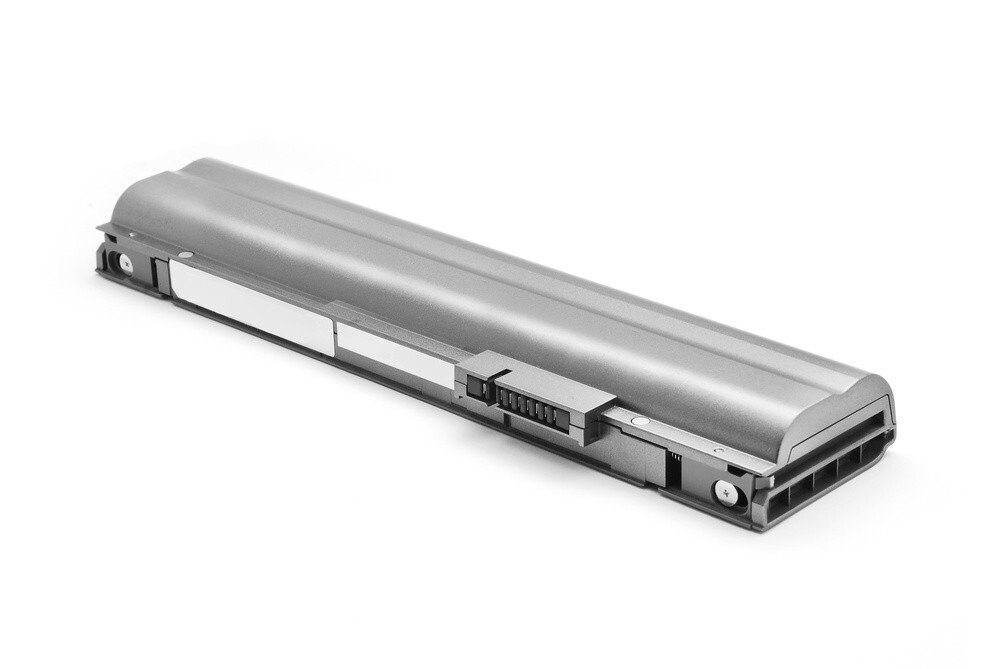
If you want to replace your laptop battery, avoid buying a used one. Here's why:
- You don't know how long it was actually used.
- You have no guarantee that it will work.
Required information
To avoid making a mistake when buying a new battery, gather all the necessary information about your equipment:
- Laptop brand
- Model
- Serial number
Good to know External batteries for laptops are now available !
Replacing the battery in an HP laptop

Step 1: Retrieve the product information from the label on the computer.
If the label is missing or damaged, you can launch the "HP Support Assistant" program. From the list of options, select your computer. This will give you access to the serial number and product name.
Step 2: Purchase the new battery. Once you have received the battery, you can proceed to the next step.

Step 3: Make sure your laptop is turned off, then turn it over. The battery should be on top, facing you.
Step 4: Unlock the battery using the latch, then remove the old battery.
Step 5: Remove all packaging from the new battery, then place it in the old battery's position. You should hear a click, which confirms that the battery is properly seated.
Changing the battery of an Asus laptop

Step 0: Note your computer model. This should be written on a label.
Step 1: Make sure your computer is turned off. Feel free to unplug it from the power outlet.
Step 2: Place the computer flat in front of you. Turn it over.
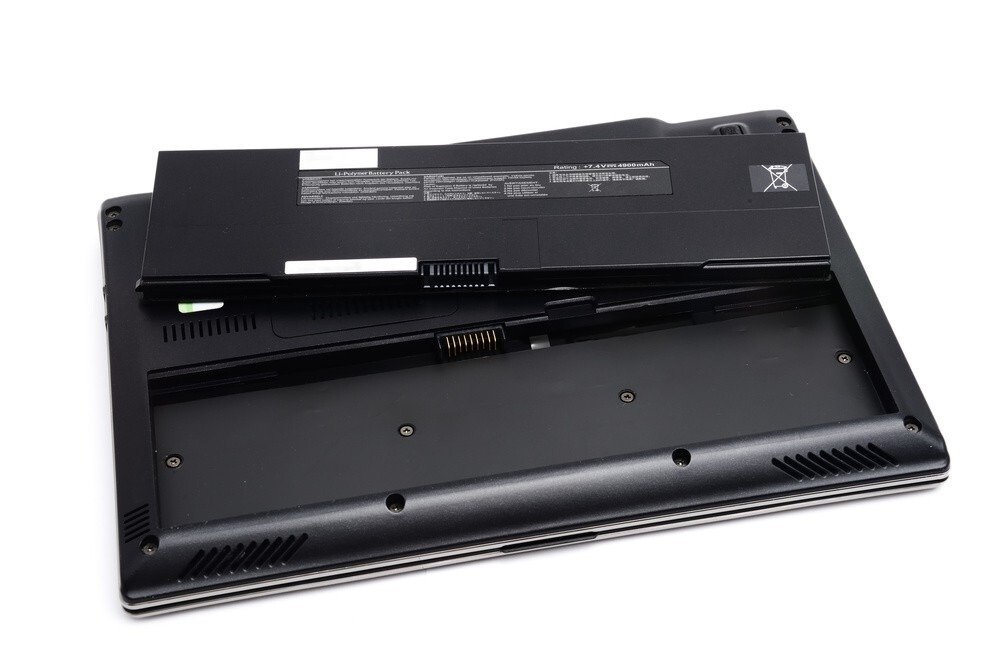
Step 3: Remove the battery by prying the latches apart.
Step 4: Note the battery information: voltage in Volts (V), capacity in milliampere-hours (mAh), and power in Watt-hours (Wh). These are usually Lithium Polymer (Li-Po) or Lithium Ionide (Li-ion) batteries.
Step 5: Order the new battery using the information gathered.
Step 6: Upon receiving the new battery, replace the old one.
Replacing the battery in an Acer laptop

Please note the information needed to change an ACER battery:
- The computer model
- The original battery reference number
The battery reference can be found in several places: on a label on the battery, in the battery compartment, or directly on the computer.
Step 0: Order the new battery using the part number. Once you have received the new battery, proceed to the next step.
Step 1: Turn off your computer.
Step 2: Close the screen and then turn the computer over.
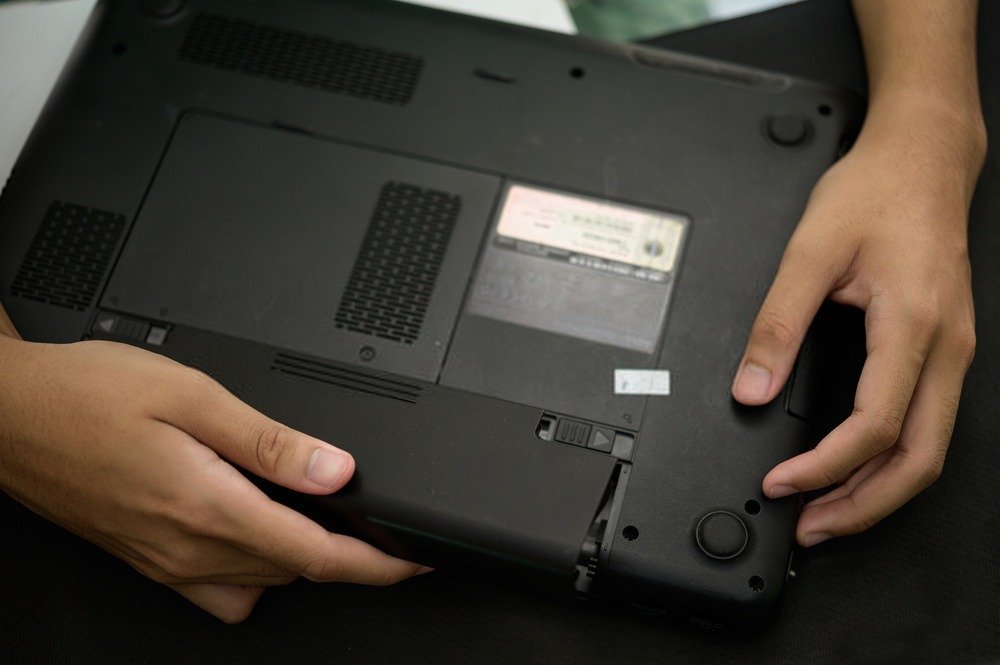
Step 3: Slide both latches outwards simultaneously. On some models, you may need to use a pen to unlock the battery.
Step 4: Remove the battery.
Step 5: Insert the new battery in place of the old one. You should hear a click confirming that the battery is properly seated.
Replacing the battery in a Lenovo laptop

Manufacturer's Warning: Use only batteries supplied by Lenovo. Other batteries may catch fire or explode.
Step 0: Using your computer's model information and serial number, order a new battery. Once you receive it, proceed to the next step.
Step 1: Turn off the computer. Disconnect all cables from the laptop. Also remove any USB drives or other peripherals that could be damaged during the process.
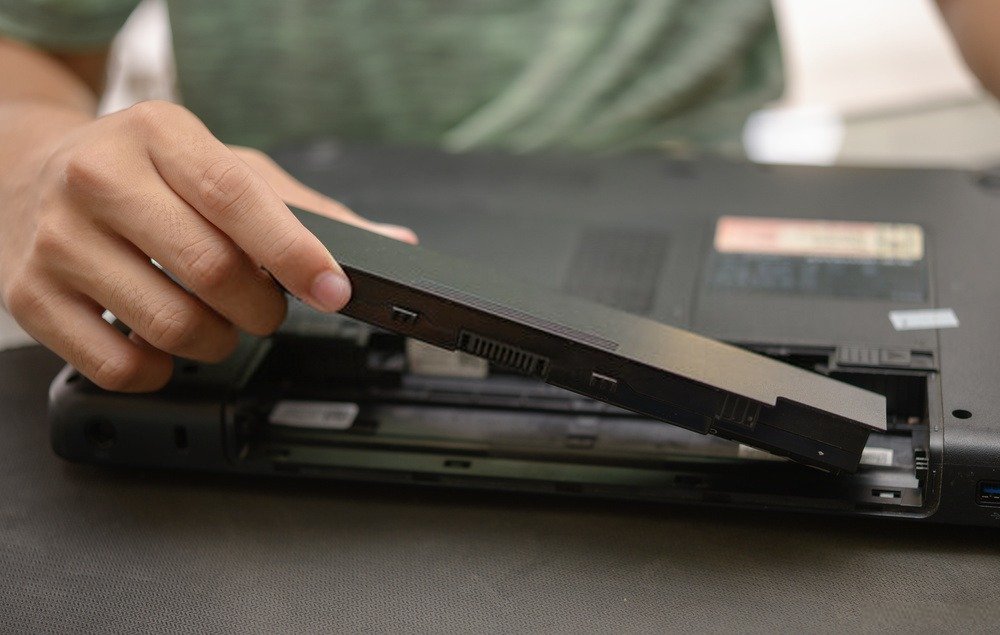
Step 2: Close the screen, then turn the computer over.
Step 3: Unlock the battery to eject it. Be careful to remove it in the direction indicated (from bottom to top).
Step 4: Install the new battery.
Replacing the battery in a Dell laptop

Step 0: Note the model and serial number of your computer. Also note the battery specifications.
Step 1: Order a new battery.
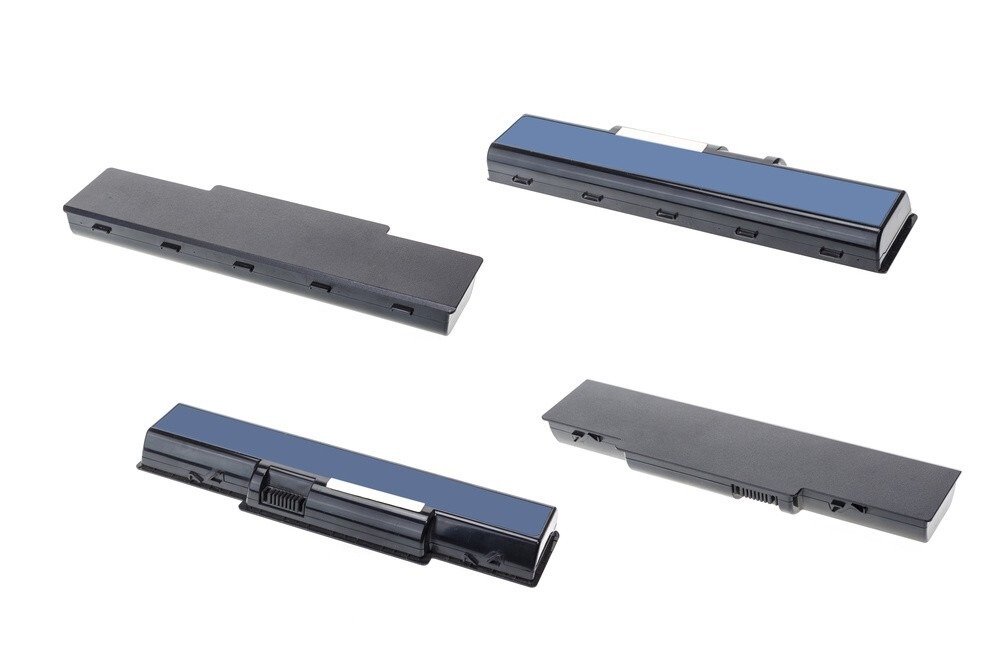
Step 2: With the computer turned off, unplug all cables.
Step 3: Turn your computer over, then unlock the battery.
Step 4: Place the new battery in place of the old one. Press lightly until you hear a click.
Final word!
Replacing a laptop battery is fairly easy when the battery is accessible. If you do the preparation beforehand and order the correct replacement battery, it can all go quickly. However, manufacturers are increasingly complicating things. With a few exceptions, batteries are no longer directly accessible, and you have to get your hands dirty to get to them. This therefore requires a bit more experience to succeed…


