Google Chrome is a very popular web browser used by a large number of people. Unfortunately, sometimes errors occur when opening it or browsing the web. The most frequent error you might encounter is: “ err_cache_miss ”!
If you have already seen this message, it is very likely that Google Chrome is asking you to re-enter some of your important information.
Panicked, you're wondering what this error is, why it's there, and what effective and quick solutions exist to correct it? This guide addresses the subject correctly and perfectly answers all your concerns.
What exactly does the term "ERR_CACHE_MISS" mean?

ERR_CACHE_MISS error indicates that the website you are visiting requires data submission to continue functioning. In other words, the error occurs when the data sent from a browser to a server is interrupted.
In general, data plays a crucial role in loading web pages. This error often occurs when you fill out a form and use the "return" and "submit" keys too frequently or too quickly.
In this situation, err_cache_miss, which is related to caching , will force you to provide a new data transfer, something you absolutely must avoid. Why? Well, because you might end up doing the same thing twice!
For example, you've just placed an online order and completed the purchase form containing all your payment information. When an error occurs, you still have to submit your data, resulting in two separate transactions.
What causes the "err_cache_miss" error to appear in Google Chrome?

As explained previously, the error is related to the transfer of data between the Chrome browser and the website you are browsing.
Several reasons can cause the Err_Cache_Miss error to appear in the Google Chrome browser :
- The browser data is not compatible with the website's data
- The data that should have been transmitted to the website was duplicated by the browser
- The Chrome browser cannot access the various cache files via the destination web server
- The data transferred from the web browser to the site contains cache errors
- The website you are visiting has incorrect coding or server-related problems
According to Google, the ERR_CACHE_MISS error indicates that information is missing from the webpage you are viewing . You will need to re-enter the information for the error to disappear . In some cases, this solution is not recommended, as you could unknowingly complete two transactions if you are buying an item online.
There are several ways to correct this error if you see it appear during your browsing.
How to fix the "err_cache_miss" error on Google Chrome?

Want to quickly fix the " err_cache_miss " error on Google Chrome? We invite you to watch this short video:
If you did not understand how to do it, please follow these other methods to permanently correct the error.
Clear the cache and delete cookies from your Chrome browser

The err_cache_miss error in Google Chrome is very often related to the cache and cookies present in your browser.
To remove them, follow these steps:
Step 1: Enter Google Chrome and then open a new tab.
Step 2: In the address bar, type "chrome://settings" (excluding the quotation marks).
Step 3: "Clear browsing data" option to proceed with the permanent deletion.
Step 4: In the new window that opens, find and then select the "All data" in the "Period" .
Step 5: Check all three boxes that appear and then click on the "Clear data" option.
Done! You have just deleted your cookies and cleared your browser cache. Please note, however, that clearing the cache may result in the loss of all saved passwords. If you have sensitive data, we advise against using this option.
Disable any extensions you don't use

It is very likely that the err_cache_ miss error comes from a plugin or extension that is incompatible with your browser.
Therefore, if you have any plugins that you don't use or that you just installed, we recommend disabling them. To do so, follow these steps:
Step 1: "chrome://extensions" in the address bar
Step 2: You will then see all the extensions installed in your browser. Those that are functional will be activated and those that are not will be deactivated.
To completely remove a plugin, you must click on the "Remove" option. Repeat this process until all unnecessary extensions are removed from your browser.
Removing plugins is one of the most common solutions to fix the err_cache_miss error in Google Chrome. If that doesn't work, try the third solution.
Reset your Google Chrome web browser

If you've tried the first two methods without the error disappearing, it might be time to take more drastic measures. You'll need to reset your Chrome browser settings.
To achieve this, follow the steps below:
Step 1: Open a new tab in Google Chrome and then type "chrome://settings" in the address bar.
Step 2: Scroll down the page that appears until you find the "Advanced Settings"
Step 3: In the "Reset and clean" cell, click on the "Restore default settings"
Step 4: It will appear again! Look for the "Reset settings" and then click on it.
This operation will remove all settings beyond the default Chrome browser settings. Before resetting your browser, we recommend using online storage software to back up any sensitive data you have.
At this stage, if all the methods presented above have not worked, the problem is undoubtedly system-related.
Here's what you need to do to fix the err_cache_miss error on Google Chrome!
Troubleshoot your Windows 10 operating system
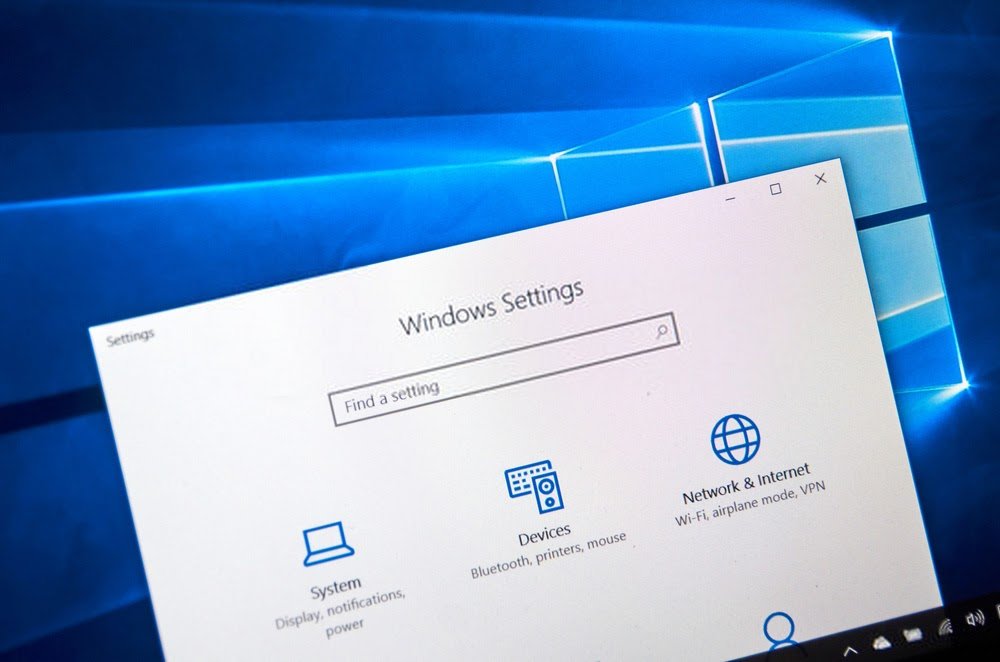
The err_cache_miss error in Google Chrome may be directly related to your computer's operating system.
If after trying the methods presented above you are still experiencing this problem, we recommend that you run the Windowstroubleshooting assistant.
To successfully complete the execution, proceed as follows:
Step 1: Windows settings , then click on the "Security and Update"
Step 2: In the left section, select the options: "Troubleshooting" >>> "Additional Troubleshooting Utilities"
Step 3: "Run the troubleshooter" option "Internet Connections" , "Network Adapter" and "Incoming Connections" sections
Then restart your PC to complete the operation. Upon startup, check if the err_cache_miss error has disappeared.
If the problem persists, proceed to the next method.
Use a different web browser
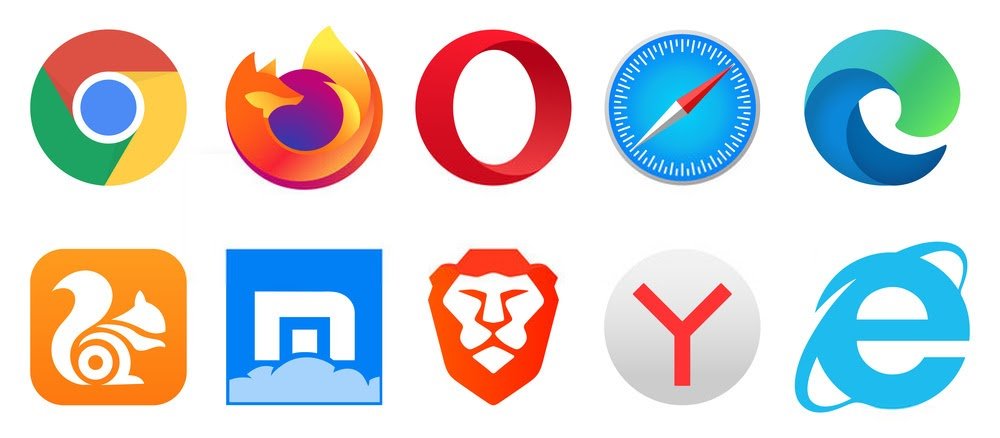
If none of the solutions presented above work, it is best to try another browser, such as Firefox, Opera or even Brave .
Please note, however, that using a different browser is only a temporary solution. It will not resolve the issue in Google Chrome.
Reset the network you are connected to

If the problem persists even with other browsers, a complete solution is to completely reset your network.
If you're using Windows 10, it's very simple. Just follow these instructions:
Step 1: First, go to the "Network & Internet" of the settings and then select the "Reset network" option.
Step 2: "Reset now" option.
Then restart your computer! All Windows network settings will then be reset. This includes private network membership and all your login passwords.
You have everything you need, don't wait any longer!
Thanks to this guide, you now know what the err_cache_miss error is on Google Chrome, why it appears and how to solve it.
The only thing you need to do now is apply one of the methods.
If that doesn't work, and in the worst-case scenario causes other problems on your PC, we advise you to start over by booting Windows 10 into Safe Mode ! You can also consider reinstalling Windows . However, this last option is not recommended.
Did you enjoy this article? Feel free to let us know by leaving a comment! See you soon for more tutorials!