

Are you an artist, graphic designer, illustrator, or architect looking to take your art to the next level by going digital? That's an excellent idea. Technological advancements and various graphic design software programs offer vast possibilities for your professional or personal projects. But don't assume that all laptops are created equal when it comes to drawing and creating.
Not all laptops have the power needed to create detailed and precise illustrations. To help you choose the right one while staying within your budget, this buyer's guide compares the best laptops for drawing and gives you the information you need to make the best choice based on the criteria and features you'll need to put away your pens or brushes.
Good to know before buying a laptop for drawing
- The components of your future laptop for drawing must be powerful and process information quickly to support graphics software, video editing, 3D modeling …
- The size of your screen is crucial for your comfort
- The screen resolution for drawing needs to be high for crisp, clear results
- choose a laptop with the best color gamut
- Your drawing laptop should meet your usage and needs as well as your budget; don't just go for the most expensive one. Take the time to compare!
Comparison of the best laptops for drawing!

If you're an artist—graphic designer, illustrator, portrait artist—forget traditional tools! Treat yourself to a laptop that lets you draw directly with a digital stylus. Several high-performance, powerful models are designed to help you express your inspiration, wherever you are. With touchscreens and high-resolution graphics, we're sharing our selection of laptops specially chosen for you, artists.
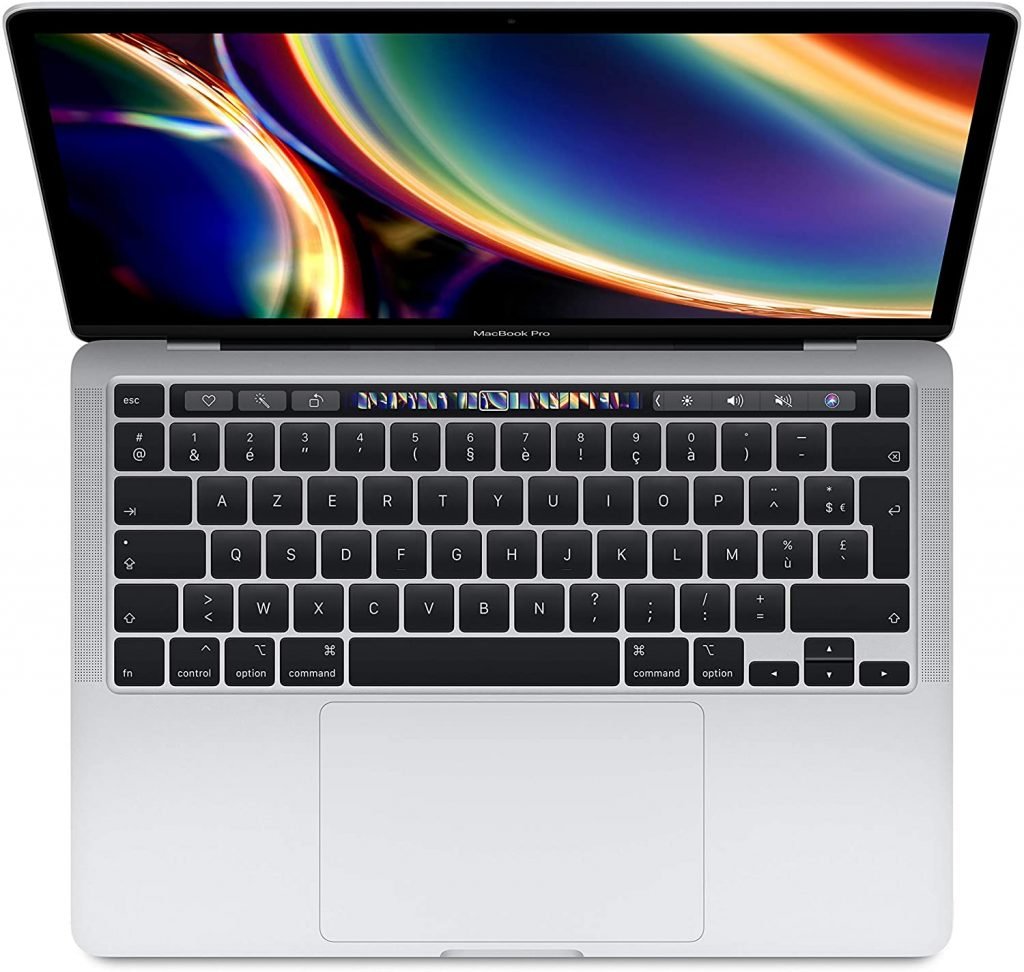
1. MacBook Pro: Apple, always a quality product
Features and Reviews
It's no surprise that a product from the American giant Apple is among the best in our selection. Indeed, with its MacBook Pro, Apple offers users a powerful laptop that meets the needs of artists. With its 8GB of RAM, this computer has no limits and can handle demanding software. With its 13-inch Retina display and True Tone technology, your drawings will have unparalleled graphic quality, and colors will be displayed with brilliant vibrancy.
The screen is designed to protect your eyes from glare. Equipped with an 8th generation Intel Core i5 quad-core processor at 1.4 GHz and 128 MB of eDRAM, its Intel Iris Plus Graphics 645 card allows this drawing laptop to deliver high-quality images and videos. It measures 1.56 x 30.41 x 21.21 cm and weighs a light 1.4 kg. It features two Thunderbolt 2 ports and Bluetooth 5.0 connectivity.
2. Microsoft Surface Book 2: ideal for drawing and graphic design
Features and Reviews
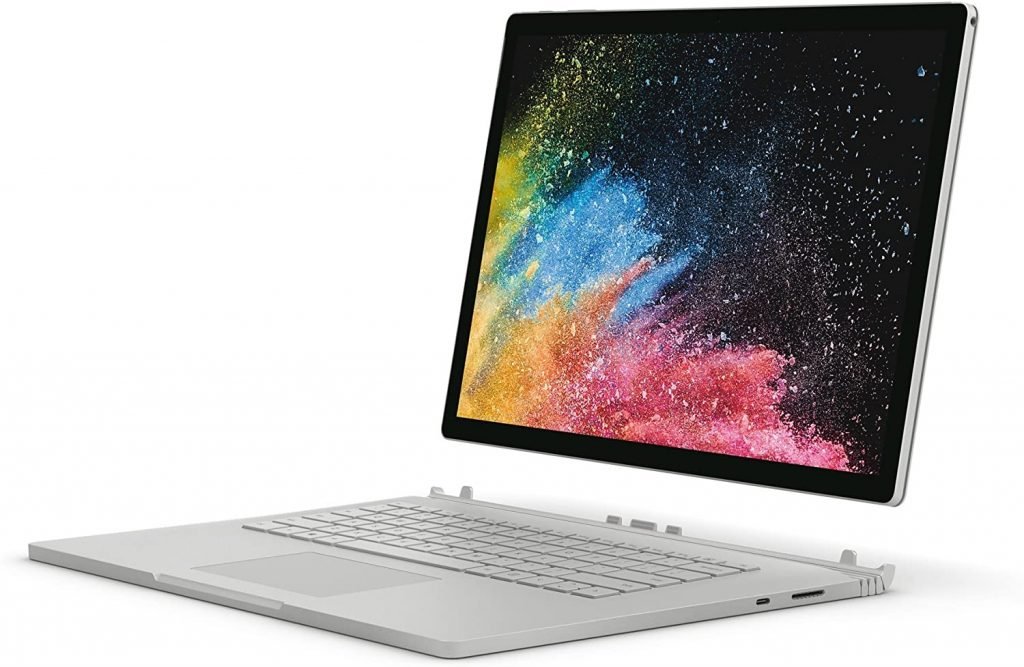
The Microsoft Surface Book 2 is ideal for professional illustrators and graphic designers. It's powered by an 8th-generation Intel Core i7 processor, 16GB of RAM, and a 512GB hard drive. To deliver superior image and video quality, Microsoft has equipped it with an NVIDIA GeForce GTX 1060 graphics card. Featuring a 15-inch Vibran Pixel Sense display, it offers a resolution of 3260 x 2160 pixels.
The screen can be detached to switch to tablet or ink mode, or flipped and reattached by folding it to create an angled screen ideal for drawing. The screen size is perfectly suited for comfortable drawing sessions. The Surface Pen is compatible with this touchscreen, but unfortunately, it is not included. The battery lasts for 9 to 10 hours, allowing you to fully enjoy the laptop's performance.

3. HP Spectre x360: an unparalleled touchscreen
Features and Reviews
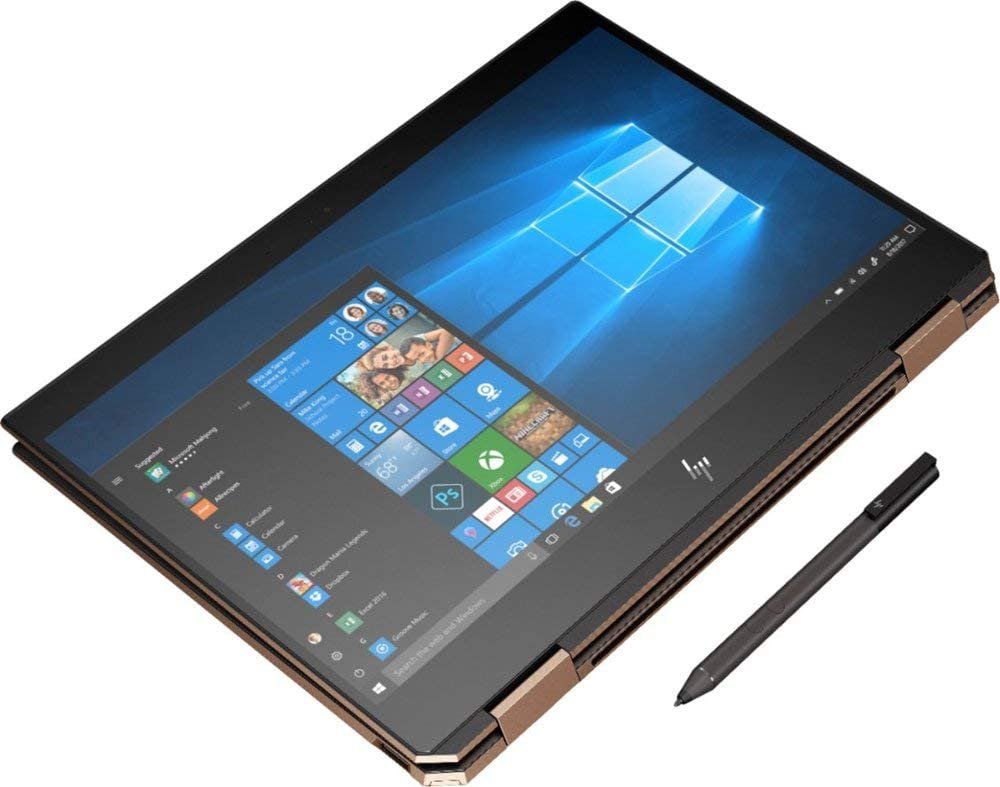
HP is offering its Spectre x360 model exclusively to artists. This 2-in-1 convertible allows you to switch from a laptop to a tablet. It's powered by an Intel Core i7-856U processor with a base clock speed of 1.8 GHz, which can boost up to 4 GHz. It also features an Nvidia GeForce GTX 1650 graphics card with 4 GB of dedicated memory and 16 GB of RAM. Wherever you are, enjoy its 15.6-inch AMOLED touchscreen with 4K Ultra HD resolution.
Share your art and drawings using the stylus with this high-performance laptop. Its compact design and light weight make it easy to hold, carry, and store. The Spectre x360 model's configuration is powerful enough to run video editing software and Photoshop. Other features of this laptop include a backlit keyboard and a fingerprint reader for added security.

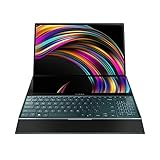
4. Asus ZenBook Duo: a PC dedicated to artists!

Features and Reviews
The top-rated drawing laptop in our selection is undoubtedly the ASUS ZenBook Duo. This high-end laptop is specifically designed for artists. It features a 15.6-inch 4K screen and a 14-inch matte touchpad. Its exceptional design allows you to expand your creative possibilities. Whenever your imagination strikes, you can draw directly on the screen with the included ASUS stylus.
Equipped with a 1.6 GHz quad-core Intel Core i5 processor, 8 GB of RAM, and integrated Intel UHD Graphics 620, this laptop boasts impressive power and performance. Not to mention its unparalleled graphics. With its sophisticated design and spun-metal finish, this model stands out. It measures 323 x 223 x 19.9 mm and weighs a mere 1.5 kg. The ZenBook's battery life is estimated at 8 hours.
It offers a revolution in sound quality with its speakers.
5. Dell XPS 15 7590: the smallest and most powerful in the brand
Features and Reviews
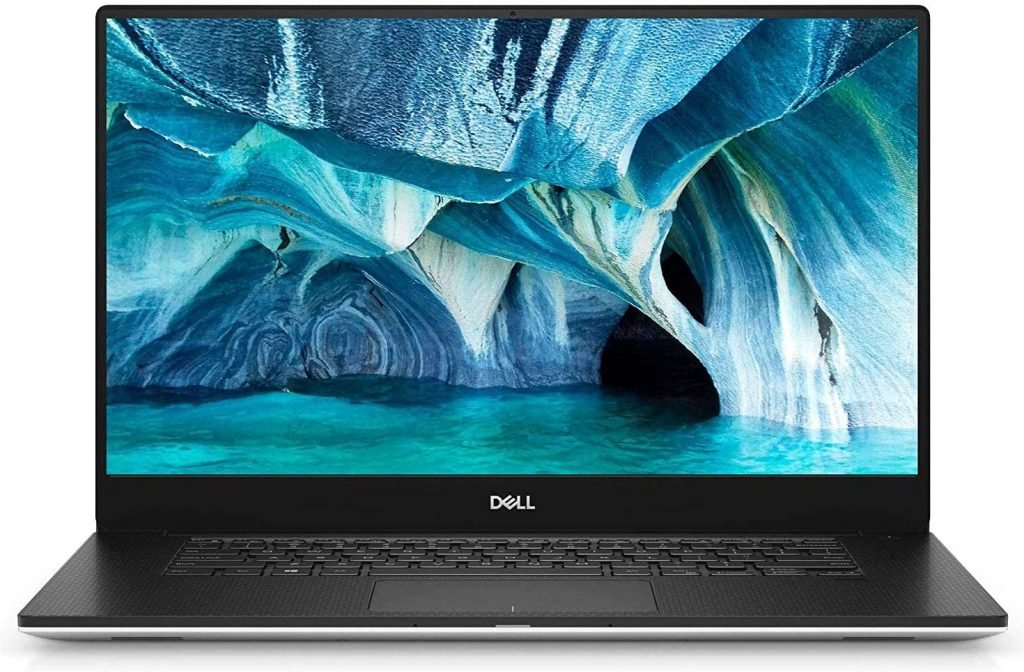
This Dell XPS 15 7590 model stands out at first glance with its understated design. Its Infinity Edge OLED display, with its virtually borderless design, is remarkable, boasting 4K UHD resolution. A major advantage for this laptop, especially for drawing. It's powered by an Intel Core i7 processor, 16GB of RAM, and a 512GB hard drive.
To deliver high-quality graphics, Dell has equipped this model with an NVIDIA GeForce 1650 graphics card with 4GB of dedicated memory. It measures 1.7 x 35.7 x 23.5 cm and weighs 1.75 kg. Even with its 15-inch screen, this computer is lightweight and easy to carry. Battery life is approximately 11 hours. Offering enhanced performance and high resolutions, it allows users to draw or even use powerful and sophisticated graphics software. For added convenience, Dell has included a backlit keyboard.

6. Lenovo Flex 6: Performance at a low price
Features and Reviews
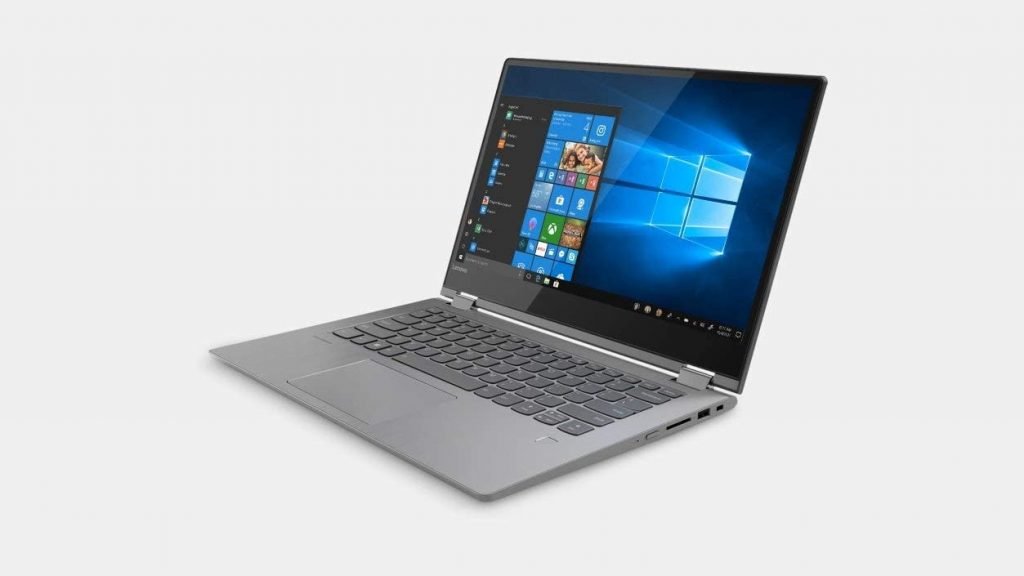
The Lenovo Flex 6 2-in-1 convertible laptop is an excellent choice for artists seeking high performance on a budget. Its main advantage is its exceptional value. This 2-in-1 device features a 360° rotating, anti-glare, backlit touchscreen, allowing it to be used as a laptop or tablet. With its 14-inch Full HD screen and 10-point multi-touch functionality, it's ideal for artists.
Equipped with an 8th generation Intel Core i5-8250U 1.6 GHz processor (up to 3.4 GHz), this PC combines power and responsiveness to meet your needs. Thanks to its AMD Radeon Vega 8 graphics card, it delivers high-quality graphics and 8 GB of DDR4 SDRAM for smoother performance. This PC features a 256 GB PCIe SSD for storing your data. Its keyboard is backlit and includes a fingerprint reader. Supplied with a stylus and a lithium polymer battery offering approximately 8 hours of battery life, you can draw anywhere, whenever inspiration strikes.

Buyer's guide to choosing your drawing laptop

Whether you're a professional or a beginner in graphic design , equipping yourself with a reliable and powerful laptop for drawing makes perfect sense. To allow you to work easily and mobilely on all your projects, take a close look at the features of your laptop.
Laptops, whether for drawing or office work, are now faster, more powerful, and offer higher resolution display quality. However, not all laptops are suitable for creating graphics using professional software .
Do you see the specifications tables for laptops when you're making a purchase? Let's focus on the essential points that shouldn't be chosen haphazardly. Let's break down all the important features that will make your laptop a durable and high-performing work tool.
A closer look at the required performance
Essential for any laptop suitable for drawing , it must be able to run all the software and programs you need to bring your creativity to life. Whether you're using the Adobe Creative Suite or other software for video editing, retouching, etc., your laptop must be able to handle them.
The processor: the brain of your computer
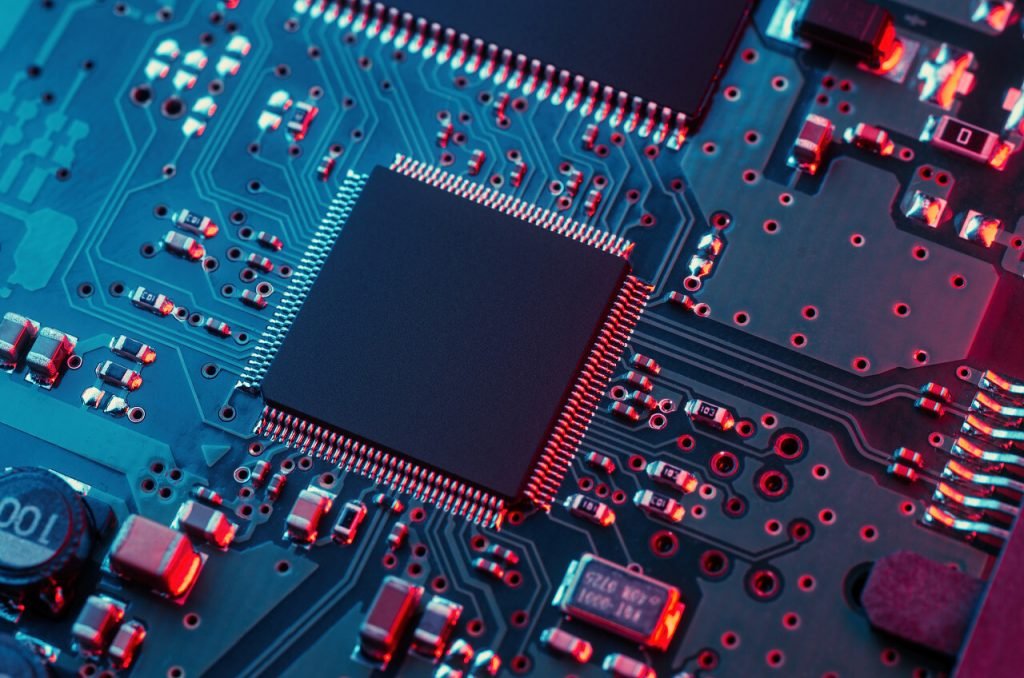
The processor is the central hub that coordinates the components. If you work on 3D modeling, it's the most important component. The processor only processes one piece of information at a time, but at very high speed. The more powerful it is, the faster it processes that information.
Here are the two most well-known processor brands: Intel and AMD. If you choose an Intel processor, make sure it's at least an i7; the i9 is better. For AMD, go for the Ryzen 7 or 9. With these types of processors, your programs will launch smoothly and without slowdowns.
Another point of comparison is its clock speed. This is expressed in GHz (information found next to the processor in the specifications grid). It provides additional information about the execution speed of your programs and its multitasking capabilities. Therefore, the higher the clock speed, the faster your computer is, and thus the better suited it is for drawing. For example, Photoshop uses the processor for most tasks, so look for a 2.5 GHz or higher model.
RAM or random access memory
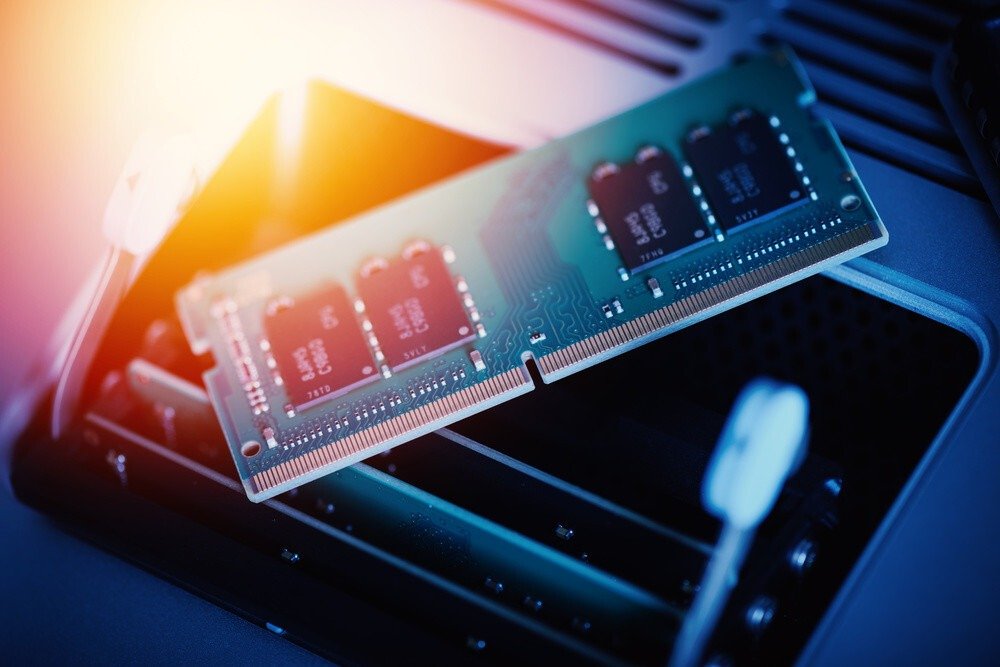
This refers to the memory used at any given moment while you're working. Using powerful graphic design software therefore requires more RAM. Upgrading or changing the RAM on a laptop to increase its performance is difficult. It's best to choose a basic laptop with at least 8 GB of RAM for drawing. Keep in mind that this is a minimum; for a more comfortable experience, opt for 16 GB or more .
The graphics card or GPU
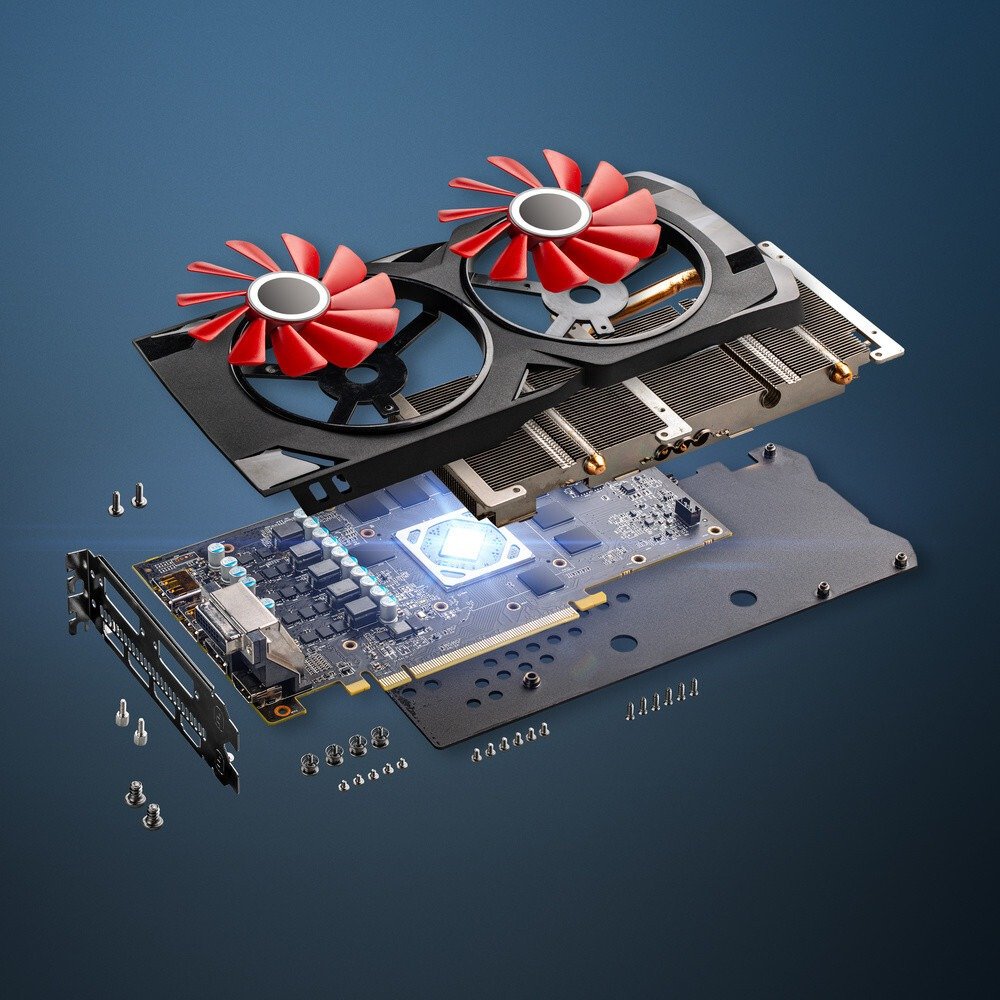
It is the processing unit specialized in graphics calculations and visual rendering . A laptop for drawing does not require a relatively low GPU because the work is often done on a single image at a time, even if there are several layers to process.
If you need 4K display or video editing, then you'll need a dedicated graphics card. The standard GPU in a laptop has at least 2GB of VRAM, but for this type of task, 4GB is preferable.
Hard Drive and/or SSD
The SSD has significant advantages because this storage system is based on flash technology. It is less bulky and also less fragile than a hard drive. The SSD offers high transfer speeds, making opening and booting the computer, copying files, and launching applications faster. An SSD is perfect for video editing.
If you only do graphic design on your laptop, one or the other doesn't really matter. However, note that with an SSD, the laptop's boot time and the loading time of your software are reduced.
One other point to consider is that SSDs do have one drawback: their storage capacity. Most models don't exceed 256 GB. Therefore, we recommend adding a hard drive with a larger storage capacity; consider an external hard drive to store all your projects. This way, you can enjoy a laptop that's both fast and has ample storage, making it ideal for drawing.
Check the available connections
When making your selection, check for the presence of certain connections: an HDMI port, at least 3 USB ports, a Gigabit Ethernet port, a headphone jack, and a microphone port. Also, check for Wi-Fi and Bluetooth.
For a laptop suitable for drawing, it's certainly not essential to have all the ports listed. An HDMI port remains fundamental, especially if you want to connect a second monitor, do projections, etc. The lack of USB ports means you won't be able to connect additional peripherals like a mouse, hard drive, or speakers. It's up to you to define your needs, but think ahead and consider how your work might evolve.
Battery life
If you're traveling with your laptop, you won't always have a power outlet available. Check the battery life at full charge in the criteria grid. The higher the value, the better.
Good ergonomics are crucial for drawing

Graphic design requires a fairly large screen for comfortable working. But beyond its size, resolution and color accuracy are just as important. When buying a laptop for drawing, you need to be able to create precise images with vibrant colors. Whether viewed on your screen or projected to present your work, nothing is more frustrating than a drawing that doesn't look true to the intended result.
Good to know : To fully enjoy your drawing laptop, consider using an ergonomic drawing mouse.
IPS panels
Graphic designers prefer IPS panels to TN or VA. IPS monitors offer a wider viewing angle: 178/178 degrees. This allows you to view the screen from any angle without affecting the image quality.
In addition to the viewing angle, the colors are also more vibrant. OLED/QLED panels are just as appealing, but be sure to choose high-end equipment.
The size of your laptop screen
Graphics are all about visuals! While a 13-inch screen might seem small, it's actually easier to carry around. If you're not very mobile, then a 15- or 17-inch screen is a safe bet. Also, choose a high resolution: at least Full HD , and ideally 4K.
Color accuracy
A laptop suitable for drawing must offer consistent and accurate colors. There are different standards for color accuracy:
- sRGB: This is the industry standard for controlling your monitor's capabilities. For rendering suitable for graphics or photography, sRGB should be greater than 100%.
- RGB: Adobe RGB is superior to sRGB and is the professional standard. For optimal image quality, your monitor should be able to reproduce at least 90% of the colors in the Adobe RGB color space.
- NTSC: This is the primary color standard. If it indicates NTSC72%, this is equivalent to approximately sRGB 100%.
The refresh rate
For video editing or creation, check your laptop's refresh rate. This counts the number of times your image changes on the screen. The average rate is 60 Hz (60 frames per second), but some laptops can reach up to 144 Hz. This performance is often sought after by gamers, but it's also a good option for a computer suitable for drawing and video editing.
FAQ – Let's go into more detail about drawing laptops

Now that we have covered the points to consider when choosing your future laptop for drawing, let's go into more detail.
PC or Mac?
A big dilemma, isn't it? First of all, most graphics software is compatible with both Mac OS and Microsoft Windows .
The Mac's biggest strength is its screen. It offers excellent display quality and accurate colors. Macs were long the leaders in graphic design; indeed, many software programs were specifically designed to run on Mac OS. However, this trend seems to be fading as PCs become increasingly well-suited for drawing.
By choosing a PC, you have the distinct advantage of being able to use all common software. A PC offers more flexibility, is easier to configure than a Mac, and has more ports. Macs offer an increasingly thin and elegant design, gradually removing ports that may be important for your work.
What are the cores of a processor and what are they used for?
A standard processor has only one core; it is therefore called a single-core processor. This type of processor can only process one piece of information at a time. A multi-core processor consists of two or more independent cores. Each core processes information completely independently. A dual-core processor has two cores, a quad-core has four, a hexa-core has six, and so on
Having a multi-core processor allows you to run several tasks simultaneously without experiencing slowdowns. Therefore, choosing a processor with multiple cores is very useful, especially if you use several programs at once. Some photo editing, drawing, and video editing software utilize multiple cores; the advantage of having a processor with more cores is that it allows your programs to run faster.
The cores are powerhouses, but don't focus solely on that point; as mentioned earlier, other components ensure the performance and power of your laptop.
Laptop for drawing, with or without a touchscreen?

It all depends on how you intend to use it. If you're using it as a tablet, then opt for a touchscreen. It can be practical if you want to work with a connected stylus ; you draw directly on the screen, giving you the same feel as drawing on canvas or paper, with the same precision. This choice depends entirely on your workflow.
And what about the price?
A decent laptop for drawing definitely comes at a price. Just like gaming laptops , you need cutting-edge equipment to work in the best possible conditions.
It's possible to cut corners on certain features to lower the price: touchscreen functionality or screen size, for example. But keep in mind that it's your primary work tool; it's an investment that will ensure durability and performance for years to come.
Are there any well-known brands for graphic designers?
Apple is, of course, the benchmark in terms of innovation. MacBooks, in particular, are renowned for their design and are equipped with important features. They are also appreciated for their robustness, performance, and ease of use. But as mentioned earlier, take the operating system into account!
The DELL brand offers laptops geared towards professionals. Overall, you can confidently choose Apple, LENOVO, HP, and DELL.
Laptop for drawing or graphics tablet?

Either one, or both! There are two types of graphics tablets: with or without a screen. The screenless version allows you to draw on your laptop screen without using a mouse.
You then use the graphics tablet to draw with its stylus; the drawing is displayed on the screen. This type of tablet is ideal for students or beginners. Be sure to choose the right size tablet, as it replicates the size of your computer screen; a tablet that is too small can be difficult to use. In this setup, remember to look at your screen while drawing, not at your hand.
For professionals, a graphics tablet with a screen offers added precision. You therefore benefit from a second screen for working; one can give you the overall look and feel, while the other allows you to refine the details of lines, colors, shadows, and more.
With or without a graphics tablet, your laptop can provide beautiful visuals for drawing and allow you to unleash your imagination. Start with just your computer, and then, if you feel it's necessary, opt for a graphics tablet. A buyer's guide on this topic has been written to help you make your choice.
Alternatively, there's a simple and effective solution to enjoy the ergonomics of a tablet while using it just like a laptop! We invite you to read our article on tablets with keyboards !
Desktop vs. Laptop for Drawing

It all depends on what you want to do and where you work. All components generate heat during operation, but with a laptop, the dissipation of this heat is less efficient. Therefore, the components of a laptop don't operate as quickly as those of a desktop PC.
In terms of durability, the components of both types of computers offer the same longevity. However, it's generally easier to upgrade or even modify the configuration of a desktop computer than a laptop designed for drawing.
If you're frequently on the go, then yes, a laptop is the right choice.
However, if your budget allows, having both is even better. It's important to consider your business in the long term, especially if you're planning to invest in a laptop. Upgrading its configuration becomes more difficult if your work requires more powerful software. This isn't about pushing you towards the most expensive option, but rather about encouraging you to ask the right questions. Choosing equipment varies from one job to another, and from one colleague to another, and remains a personal decision.
Is a gaming PC suitable for drawing?
Not really. Even though a gaming PC demands high performance, that doesn't necessarily mean it's suitable for using graphics software. The monitor is important, as is the ability to store large files. A gaming PC configuration might be more or less suitable for video editing, for example. But again, specific needs must be considered, as mentioned above
Why choose a laptop with integrated Office suite?
In today's digital world, choosing a laptop with integrated Microsoft Office seems like a no-brainer. Ease of use , functional efficiency , and cost savings are three key factors.
Pre-installing the Office suite, which includes tools like Word, Excel, and PowerPoint, offers undeniable convenience. Users, whether professionals or amateurs, avoid the sometimes complex intricacies of software installation. This saves valuable time , always appreciated in our fast-paced world. The integrated suite is immediately operational and conducive to instant efficiency.
Another key advantage lies in the inherent functional performance of the Office suite. The tools it contains are highly regarded by millions of users for their robustness and versatility. They meet the needs of everyone, from writers and analysts to students. It's an ideal companion, essential for high-quality work .
The third aspect not to be overlooked is the cost. Purchasing a computer with integrated Microsoft Office is often more advantageous than buying these two components separately. It must therefore be acknowledged that this option represents a cost-effective solution, especially for entrepreneurs or small businesses with limited budgets.
Purchasing a laptop with integrated Office is therefore a suitable response to the demands for simplicity, performance, and affordability in today's ubiquitous digital world. It's a wise choice that deserves our full attention.


