

The ENT ( Digital Workspace ) is a tool that allows students, parents, and teachers in the Auvergne-Rhône-Alpes academy to access online services related to schooling. It is a secure portal that offers features such as:
- view grades, absences, timetables, homework assignments, etc.
- communicating with teachers, classmates, school life, etc.
- access to educational resources, educational activities, collaborative projects, etc.
- managing one's career path, future plans, internships, etc.
To log in to your Auvergne-Rhône-Alpes digital workspace (ENT) , you need to follow a few simple steps, which we will explain in this article. We will also give you some tips for resolving any connection problems and getting the most out of this digital tool.
Step 1: Go to the ENT website

The first step to connect to your Auvergne-Rhône- Alpes digital workspace (ENT) is to go to the official website of the academy's ENT. There are several ways to access it:
- by typing the address https://ent.auvergnerhonealpes.fr/ in the address bar of your web browser
- by clicking on the “ ENT ” link on your school's website
- by using a search engine like Bing and entering the keyword “ ENT auvergne rhone alpes ”
Once on the ENT website , you will see a homepage with the academy's logo and a drop-down menu that allows you to choose your profile: student, parent or staff .
Step 2: Choose your profile and enter your login details
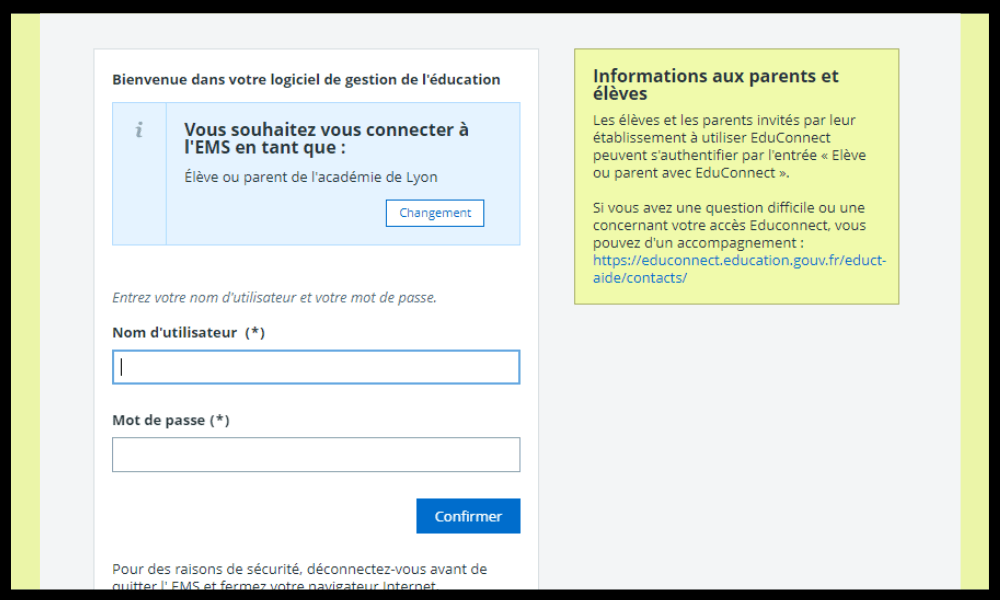
The second step to log in to your Auvergne-Rhône-Alpes online learning platform (ENT) is to choose your profile and enter your login details. To do this, click on the drop-down menu and select the category that applies to you . You will then be redirected to a login page specific to your profile.

To log in , you must enter your username and password. This information was provided to you by your school during registration or at the start of the school year . If you don't know them or have forgotten them, you can click on the " Need help? " link located below the " Login " button. You can then request to receive your login details by email or SMS, or contact technical support .
Once you have entered your credentials, simply click on the “ Login ” button to access your ENT.
Step 3: Navigating your LMS
The third step to log in to your Auvergne-Rhône-Alpes digital learning environment ( ENT) is to navigate within the platform. Once logged in, you will see your personal page with your name, photo, and school. You will also have access to a horizontal menu that will allow you to access the various services offered by the ENT :
- News : to view information relating to school life, events, projects, etc.
- Messaging : to send and receive messages with members of the educational community
- Notebook : for accessing lessons, exercises, documents, and instructions given by teachers
- Notes : to view his grades, averages and ratings
- Absences : to view your absences and tardiness
- Timetable : to view your weekly timetable
- Resources : to access educational resources, educational activities, collaborative projects, etc.
- Guidance : to manage one's career path, future trajectory, internships, etc.
To navigate your online learning platform , simply click on the desired service and follow the on-screen instructions. You can also personalize your personal page by adding or removing widgets , changing your photo, or changing your password.
Some tips for connecting to your Auvergne-Rhône-Alpes digital workspace (ENT)
To connect to your Auvergne Rhône Alpes ENT without difficulty , here are some tips to follow:
- Check that you have a stable and secure internet connection
- Use a recent web browser that is compatible with the ENT (Chrome, Firefox, Safari, Edge, etc.). If you do not yet have a web browser, you can download Google Chrome for free from the official Google website.

- Please respect the case ( uppercase and lowercase letters ) when entering your login details.
- Do share your login details with third parties and log out after each use
- Contact technical support if you have any problems or questions.
FAQ
Here are some frequently asked questions about the Auvergne-Rhône-Alpes digital workspace (ENT):
What is the ENT?
ENT stands for Digital Workspace . It is a secure portal that allows students, parents and teachers in the Auvergne-Rhône-Alpes academy to access online services related to schooling.
What is the purpose of the ENT?

The digital learning environment (ENT) facilitates communication and collaboration among members of the educational community . It offers features such as access to grades, absences, timetables, messaging, educational resources, guidance, etc.
How do I get my login details?
Your login details are provided by the school upon registration or at the start of the school year . If you don't know them or have forgotten them, you can click on the " Need help? " link located below the " Login " button and request to receive your login details by email or SMS.
How do I change my password?
To change your password, log in to the ENT (Digital Workspace), click on your name in the top right corner of the page, then on “ My Account” . Next, click on “ Change my password ” and follow the on-screen instructions.
How do I contact technical support?

To contact technical support , click on the “ Need help?” located below the “ Login ” button and fill out the online form. You can also call the toll-free number 0 800 730 730 from Monday to Friday, 8 a.m. to 6 p.m.
How to access educational resources?
To access educational resources, log in to the digital learning environment (ENT), click on the “ Resources ” menu, and select the desired service. You can then access resources such as EduThèque , Eduthèque Visual Arts , Eduthèque Cinema, Eduthèque Art History, and others . These resources are provided by institutional partners such as the Centre Pompidou , the Cinémathèque française , the Louvre , and others. They enrich lessons and educational activities with high-quality cultural content.
How to access educational activities?
To access educational activities , log in to the digital learning environment (ENT), click on the “Resources” menu, and choose the desired service. You can then access activities such as eTwinning , Folios, Pix, etc. These activities are offered by educational partners such as the Canopé Network, Onisep, and Cned. They help develop digital, linguistic, and civic skills, among others.
How to access collaborative projects?
To access collaborative projects , log in to the digital learning environment (ENT), click on the “ Resources ” menu, and choose the desired service. You can then access projects such as eTwinning, e-primo, e-collège, etc. These projects are offered by European partners such as the European Commission , the Erasmus+ Agency , etc. They allow you to work in teams with students from other countries on a variety of topics.
How to manage your career path?

To manage your career guidance , you need to log in to the ENT (Digital Workspace), click on the “ Career Guidance ” menu, and choose the desired service. You can then access services such as Folios , Parcoursup , My Online Internship , etc. These services are offered by institutional partners such as Onisep, the Ministry of National Education, Youth and Sports , etc. They allow you to build your future path, discover professions and training programs, register for higher education, find an internship, and more.
How to customize your digital learning environment (ENT)
To personalize your online learning platform (ENT) , log in, click on your name in the top right corner of the page, then click on “ My Account ”. Next, click on “ Personalize my page ” and choose the widgets you want to add or remove. You can also change your profile picture or password.
Conclusion
The Auvergne-Rhône-Alpes Digital Workspace (ENT) is a digital tool that facilitates communication and collaboration between students, parents, and teachers within the academy. It provides access to online services related to schooling, such as viewing grades, absences, timetables, and more. To log in to your Auvergne-Rhône-Alpes ENT , go to https://ent.auvergnerhonealpes.fr/, select your profile, and enter your login credentials. Then, navigate your ENT and use the available features . If you encounter any problems or have any questions, contact technical support or consult the FAQ. If you are taking an exam (brevet, baccalaureate, BTS, etc.), you can also access your Cyclades account from your ENT . Cyclades is an application that allows you to view your results, exam invitations, transcripts, and more . To access your Cyclades account , click on the [Cyclades] link in your ENT and enter your login credentials.


