
Android Auto is a system that allows you to your smartphone's apps on your car's screen . Simply connect your phone to your vehicle via a USB cable or wirelessly. You can then enjoy navigation, music, calls, messages, and other Android Auto-compatible services.
But did you know that Android Auto recently received a major update called Coolwalk ? It's a new interface that brings many new features and improvements to the user experience. In this article, we'll explain what Android Auto Coolwalk is, its main features, and how to get it on your smartphone and in your car.
What is Android Auto Coolwalk?
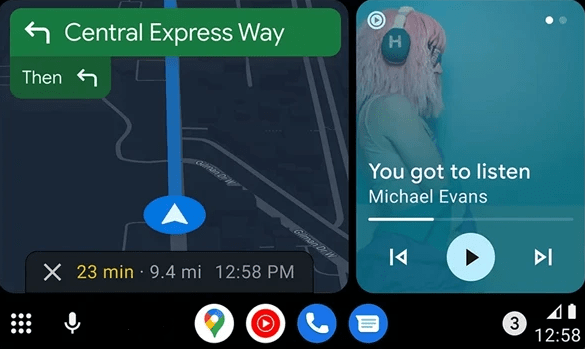
Coolwalk is the codename for the new version of Android Auto that was announced by Google at the Google I/O conference in 2021. It is a complete overhaul of the interface that aims to make Android Auto more adaptive, more customizable and more intuitive.
Coolwalk was designed to adapt to the different screen formats and sizes of cars compatible with Android Auto. Whether you have a small or large screen, vertical or horizontal, Coolwalk will offer you an optimized and harmonious interface.
Coolwalk also introduces the ability to display two apps simultaneously on the split screen. For example, you can view Google Maps and Spotify side-by-side, saving you from having to switch apps every time you want to check the map or change the music.
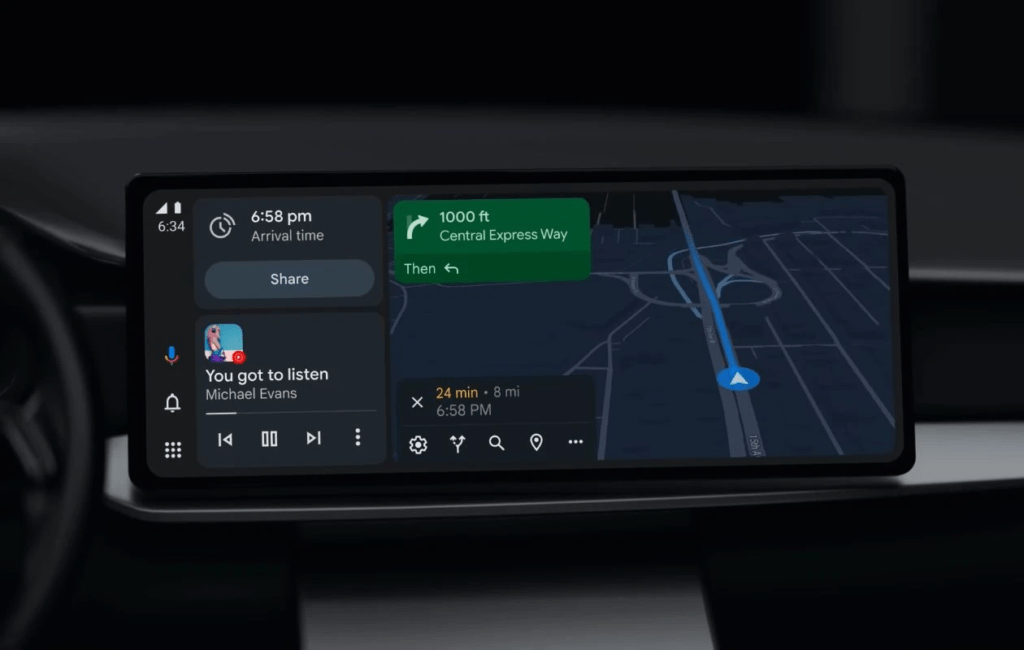
Coolwalk also offers a new home screen that brings together the most relevant information and actions for your journey. Here you'll find maps showing weather, traffic, reminders, destination suggestions, and more. You can also personalize this screen by choosing which maps you want to display or hide.
Finally, Coolwalk enhances interaction with the system thanks to the integrated Google Assistant. You can use your voice to control Android Auto without taking your eyes off the road. Simply say “ OK Google ” followed by your command. For example, you can ask Google to make a call, send a message, launch an app, adjust the volume, and so on.
How do I get Android Auto Coolwalk?

To use Android Auto Coolwalk, you need a smartphone running Android 6.0 or higher and a car compatible with Android Auto. You also need to download the latest version of the Android Auto app from the Google Play Store.
If you meet these conditions, Coolwalk may already be activated on your smartphone and in your car. To check, launch Android Auto on your phone and see if the interface matches the one described above.
If this isn't the case, Coolwalk may not yet be available in your region or for your car model. Google is rolling out the Coolwalk update gradually worldwide and for different vehicle brands, so you'll have to wait a little longer before you can use it.
If you are impatient, you can try forcing Coolwalk to activate by following these steps:
- Open the Android Auto app on your smartphone
- Tap the menu in the top left corner and select Settings
- Tap the app version at the bottom of the screen several times until a message tells you that you are a developer
- Tap the menu in the top left corner and select Developer settings
- Activate the Coolwalk option
Once these steps are completed, restart your smartphone and your car. Connect your phone to your vehicle and launch Android Auto. You should then see the new Coolwalk interface.
What are the main features of Android Auto Coolwalk?

Here is a summary of the main features of Android Auto Coolwalk:
- An adaptive interface that adjusts to the different screens of cars
- A split screen that allows you to display two applications at the same time
- A customizable home screen that gathers useful information for your journey
- Improved integration of Google Assistant, which facilitates voice control of the system
- Compatibility with more applications, including Waze, which has adopted the latest revision of Coolwalk
FAQ
Here are some frequently asked questions about Android Auto Coolwalk:
What is the difference between Android Auto and Android Automotive?
Android Auto is a system that allows you to use your smartphone's apps on your car's screen. Android Automotive is a system that runs directly on the car's system without needing a smartphone. Both systems use the same Coolwalk interface.
Which apps are compatible with Android Auto Coolwalk?
Android Auto Coolwalk is compatible with over 3,000 apps, including Google Maps, Waze, Spotify, YouTube Music, WhatsApp, Telegram, and more. You can find the full list of compatible apps on the official Android Auto website.
How to disable Android Auto Coolwalk?
If you don't like the new Coolwalk interface and would prefer to revert to the older version of Android Auto, you can disable Coolwalk by following these steps:
- Open the Android Auto app on your smartphone
- Tap the menu in the top left corner and select Settings
- Tap the app version at the bottom of the screen several times until a message tells you that you are a developer
- Tap the menu in the top left corner and select Developer settings
- Disable the Coolwalk option
If you don't like the new Coolwalk interface and would prefer to revert to the older version of Android Auto, you can disable Coolwalk by following these steps:
- Open the Android Auto app on your smartphone
- Tap the menu in the top left corner and select Settings
- Tap the app version at the bottom of the screen several times until a message tells you that you are a developer
- Tap the menu in the top left corner and select Developer settings
- Disable the Coolwalk option
Next, restart your smartphone and your car. Connect your phone to your vehicle and launch Android Auto. You should then see the old Android Auto interface.
How do I update Android Auto Coolwalk?
To update Android Auto Coolwalk, you need to update the Android Auto app on your smartphone. To do this, open the Google Play Store, search for Android Auto, and tap Update. You can also enable automatic updates to receive the latest versions without having to download them manually.
How do I resolve connection problems between Android Auto Coolwalk and my car?
If you are experiencing connection problems between Android Auto Coolwalk and your car, you can try the following solutions:
- Check that your smartphone and car are compatible with Android Auto
- Make sure you are using a good quality USB cable in good condition
- Make sure you have enabled developer mode and the Coolwalk option on your smartphone
- Check that you have allowed the necessary notifications and permissions for Android Auto
- Restart your smartphone and your car
- Reset the Android Auto settings on your smartphone and your car
- Contact Google technical support or your car manufacturer's support if the problem persists
We hope these solutions help you resolve connection issues between Android Auto Coolwalk and your car. If you have any further questions or comments, please feel free to leave them below.
Conclusion
Android Auto Coolwalk is an update that revolutionizes the interface of Google's infotainment system. It brings greater adaptability, personalization, and intuitiveness to the user experience. It also allows users to enjoy more apps, including Waze, which is finally compatible with Coolwalk.
If you have a smartphone running Android 6.0 or higher and a car compatible with Android Auto, you can get Coolwalk by downloading the latest version of the Android Auto app from the Google Play Store. However, you might encounter a common problem: the message “Google Play Services has stopped” appears on your screen . This means that the Google Play Services app, which is essential for Android Auto to function correctly, has stopped working properly.
To solve this problem, you can try the following solutions:
- Make sure you have the latest version of Google Play Services on your smartphone
- Clear the cache and data of Google Play Services in your smartphone's settings
- Uninstall and reinstall Google Play Services on your smartphone
- Restart your smartphone and your car
If the problem persists, you can try manually activating Coolwalk by following the steps described above.
We hope this article has given you a better understanding of what Android Auto Coolwalk is and how to get it. If you have any questions or comments, please feel free to leave them below.


