

Tired of your laptop lagging every time you use it? Wondering how to make it faster and more efficient ? Look no further! In this article, we present 10 simple and effective tips to boost your laptop's performance. Follow the guide!
1. Clean your computer regularly

To improve the performance of your laptop :
- Remember to clean it regularly by deleting unnecessary files, obsolete programs, and temporary files.
- Use free software like CCleaner for deep cleaning.
This will free up storage space and improve the overall performance of your laptop.
How can I regularly clean my computer to improve its performance?
To regularly clean your computer and improve its performance, follow these steps:
- Delete temporary files Windows Disk Cleanup utility or a third-party program like CCleaner to delete temporary files, log files, and other unnecessary files.
- Uninstall unused programs : Go to the control panel and uninstall programs that you no longer use or that have become obsolete.
- Clean the Windows : Use a registry cleaning tool, such as CCleaner, to remove invalid or obsolete registry entries.
- Organize your files and folders : Sort your files and folders, remove duplicates and move large files to an external hard drive or online storage service.
- Check for disk errors Windows disk error checking utility to scan for and repair disk errors.
- Optimize Windows startup : Disable unnecessary programs that launch when your computer starts to speed up the startup process.
2. Uninstall unnecessary programs
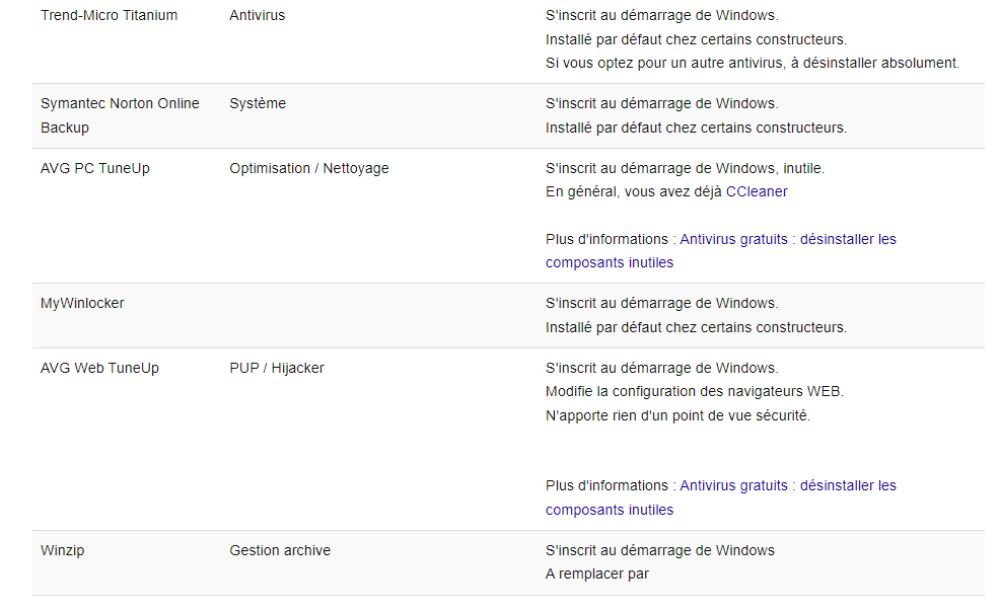
Uninstall programs you no longer use or that are unnecessary to free up storage space and avoid slowing down your computer.
What unnecessary programs should I uninstall to speed up my laptop?
Here are some examples of unnecessary programs you can uninstall to speed up your laptop:
- Manufacturer pre-installed software (bloatware) : Remove pre-installed software from your computer that you do not need.
- Browser toolbars and extensions : Uninstall unnecessary browser toolbars and extensions that may slow down your internet browsing.
- Unnecessary maintenance programs : Remove maintenance utilities that you do not need or that are redundant, such as registry cleaners and system optimizers.
- Outdated software : Uninstall software that you no longer use or that has been replaced by newer versions.
To uninstall these programs, open the control panel, select "Programs and Features", choose the program to uninstall and click "Uninstall".

3. Update your drivers and operating system
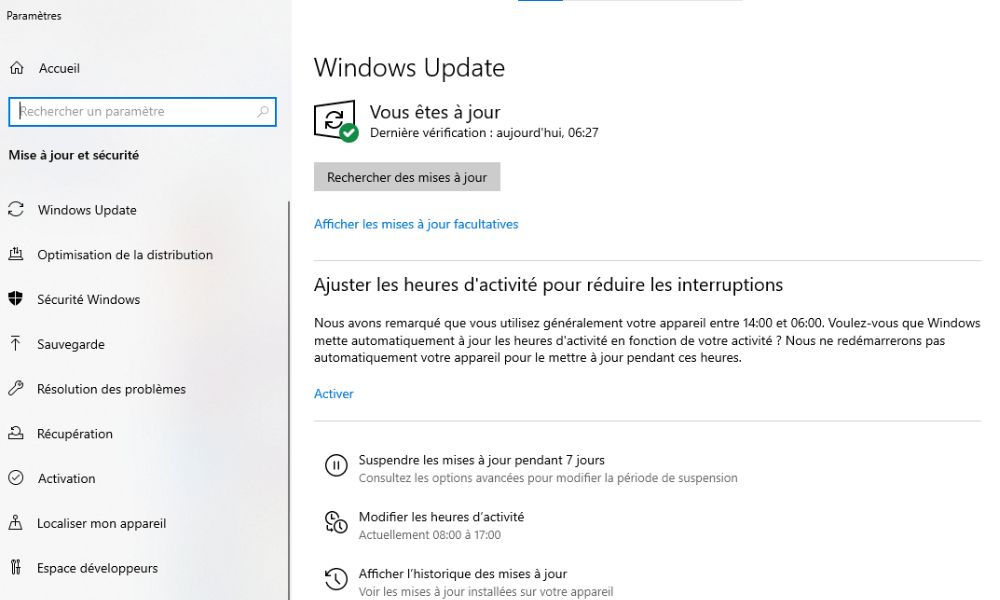
Regularly update your drivers and operating system to improve stability, security, and fix bugs on your computer. Go to Device Manager and your computer's settings to check for available updates.
See also: How to easily reboot a PC? The complete guide
How do I update my drivers and operating system to optimize my computer?
To update your drivers and operating system, follow these steps:
Step 1: Open Device Manager by right-clicking on the "Computer" or "This PC" icon and selecting "Manage", then "Device Manager".
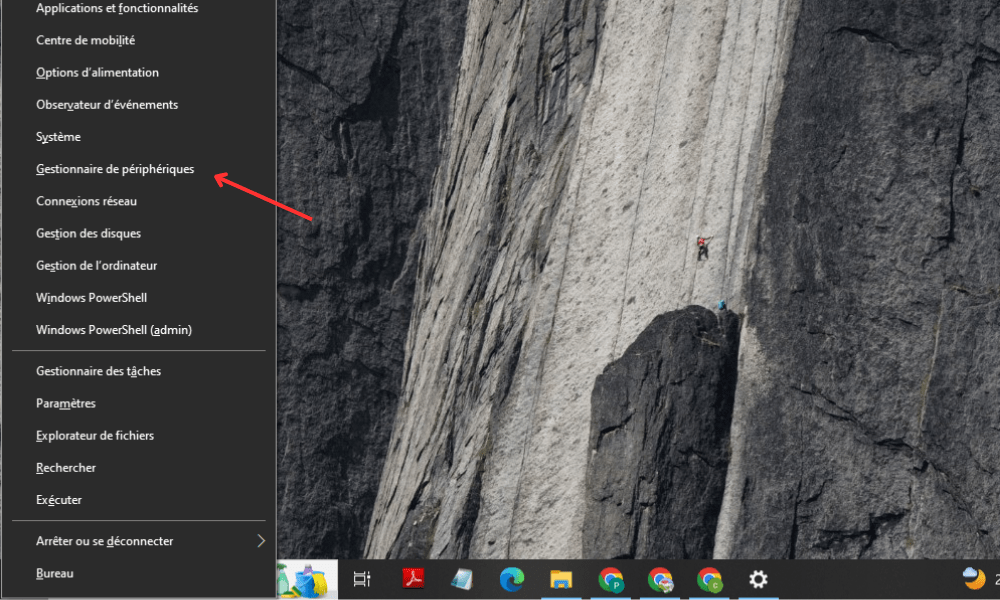
Look for devices with a yellow triangle, indicating that an update is available. Right-click on the device and choose "Update driver".
Follow the on-screen instructions to install driver updates.
To update your operating system, go to Windowssettings, then select "Update & Security".
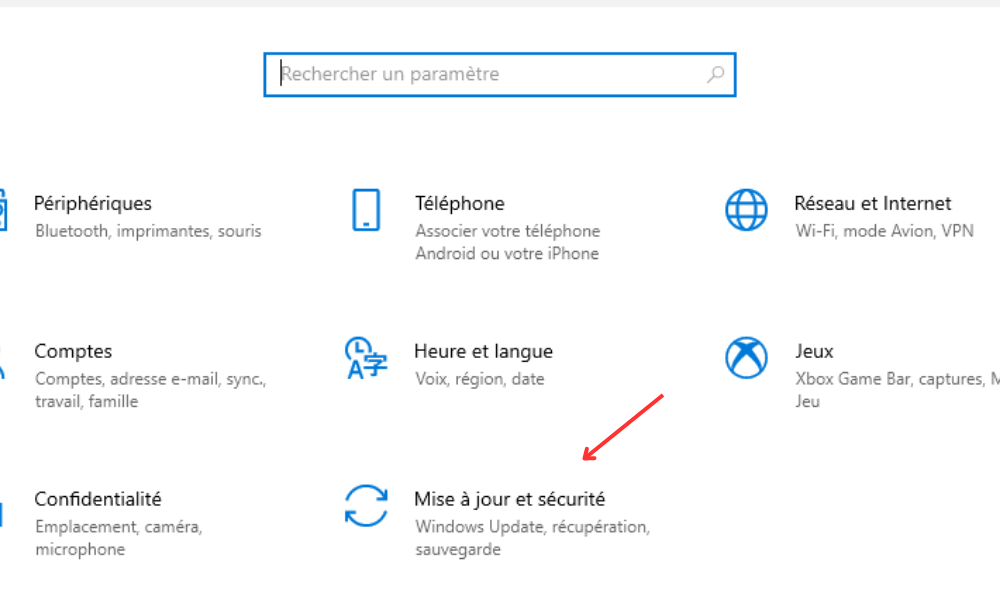
Click on "Check for updates" and install any available updates.
4. Add more random access memory (RAM)

Adding RAM increases your computer's temporary storage capacity and improves its overall performance. This is especially useful if you use multiple programs simultaneously or resource-intensive programs.
What are the steps to add RAM to my laptop?
To add RAM to your laptop, follow these steps:
- Consult your laptop's documentation or search online to find out the compatible RAM type and maximum supported capacity.
- Purchase the appropriate RAM modules.
- Turn off your computer and unplug all cables.
- Open the RAM compartment, usually located on the back of the laptop. You may need to remove some screws to access it.
- Insert the new RAM modules, aligning them correctly and gently pushing them into the available slots.
- Close the compartment, reconnect the cables, and turn on the computer. Verify that the new RAM is recognized and functioning correctly.
5. Use an external hard drive to store large files
Store large files such as videos, photos, or games on an external hard drive rather than on your laptop to free up space on your internal hard drive and improve your computer's performance.
How can I use an external hard drive to store large files and improve the performance of my laptop?
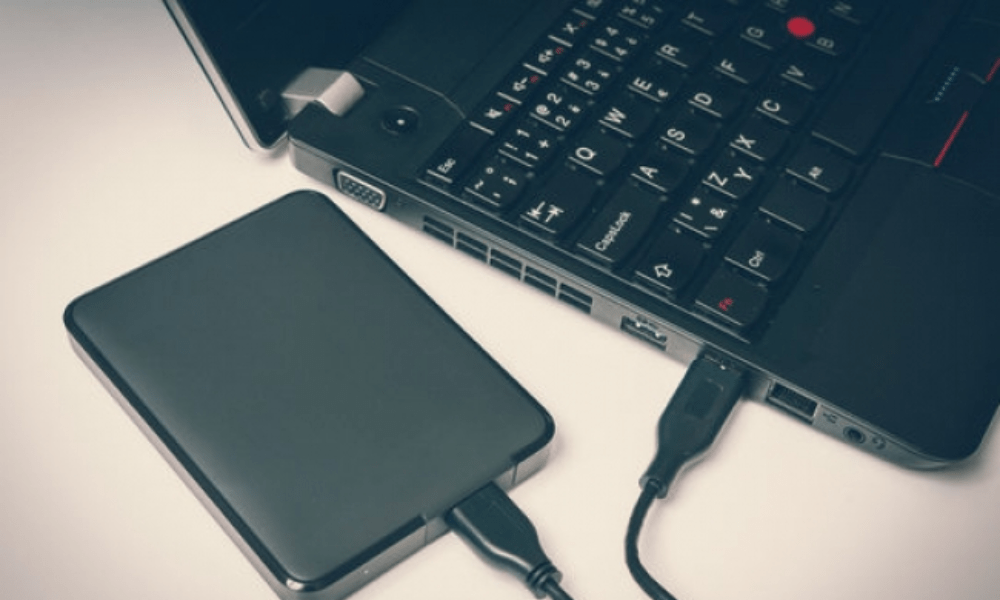
Use an external hard drive to store large files and improve your laptop's performance by following these steps:
- Purchase an external hard drive with a storage capacity that suits your needs.
- Connect the external hard drive to your laptop via USB or another compatible port.
- Transfer large files (videos, photos, games, etc.) from your laptop's internal hard drive to the external hard drive.
- Organize your files and folders on the external hard drive for easier access and searching.
- laptop 's battery .
6. Install a faster browser and software

Opt for a faster browser like Google Chrome and lightweight software such as LibreOffice to improve speed and efficiency on your laptop.
Which faster browsers and software should I install to improve my computer?
To improve your computer's performance, it's important to use fast and optimized browsers and software. Here are a few suggestions:
- Google Chrome : This browser is known for its speed and ease of use. It also offers a wide range of extensions to personalize your browsing experience.
- Mozilla Firefox : Firefox is another fast and secure browser, with many customization options and an emphasis on privacy protection.
- LibreOffice : This is a free and open source office suite that offers similar features to Microsoft Office , while being less resource-intensive.
- VLC Media Player : A lightweight and versatile multimedia player, capable of playing almost all audio and video file formats without requiring additional codecs.
Feel free to try these software programs and other lightweight alternatives to improve your computer's performance.
7. Adjust the Windows visual effects
Adjust the visual effects settings in Windows by selecting "Adjust for best performance" to optimize the performance of your laptop.
How do I adjust the visual effects (appearance) of Windows to optimize my laptop?
Windows visual effects can impact your laptop's performance . Here's how to adjust them:
Step 1: Press the Windows key and type "Advanced system settings", then press Enter.
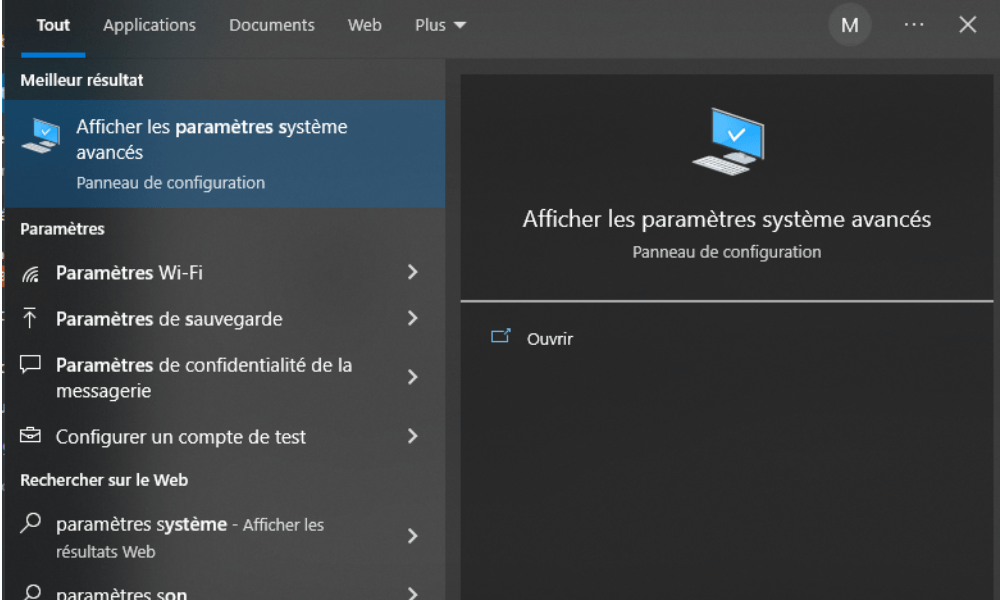
Step 2: Click on the "Advanced system settings" tab, then on "Settings" in the "Performance" section.
Step 3: Choose "Adjust for best performance" to disable all visual effects, or select "Custom" to individually disable effects you deem unnecessary.
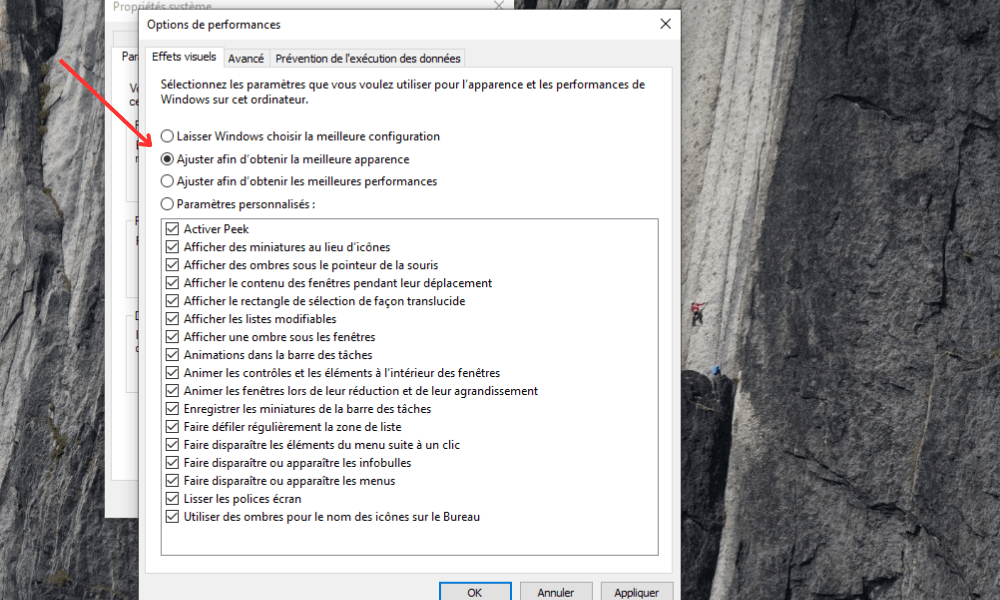
Step 4: Click "OK" to apply the changes.
By reducing visual effects, you can free up system resources and improve the performance of your laptop.
8. Free up space on the hard drive or replace it
Uninstall unused programs and delete large, unnecessary files to free up space on your hard drive. Consider replacing your hard drive with a faster, more efficient SSD to boost your laptop's performance.
How can I free up space on my hard drive or replace it to boost my computer's performance?
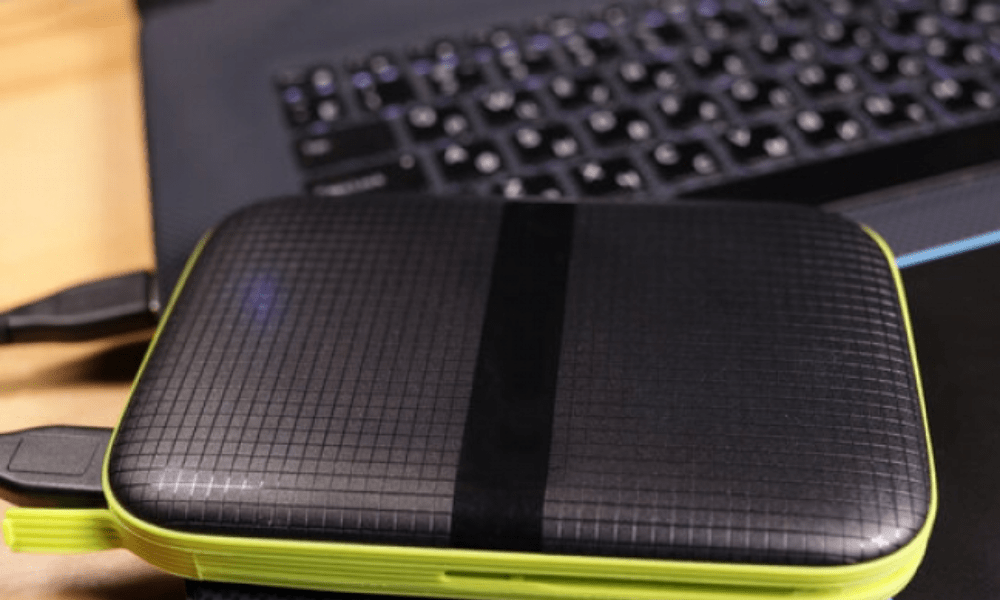
Freeing up hard drive space can improve your computer's performance. Here are some tips to help you do so:
- Uninstall unnecessary programs
- Clean up temporary files and duplicate files
- Use an external hard drive to store large files
- Consider replacing your current hard drive with an SSD for increased performance
An SSD is faster and more responsive than a traditional hard drive , which can significantly improve your computer's performance. Be sure to check compatibility before buying a new SSD.
9. Prevent programs from launching automatically at startup
Disable programs that launch automatically when your laptop starts up to reduce boot times and improve performance. Use the Windows + R key combination, type "msconfig", and disable unwanted programs in the "Services" tab and the Task Manager.
How can I prevent programs from launching automatically at startup to speed up my laptop?
Automatic program launches at startup can slow down your laptop. To disable this feature:
- Access your PC settings and click on the "Application" option
- In the left section, locate and then tap the "Start" option.
- Disable all programs that run automatically at startup
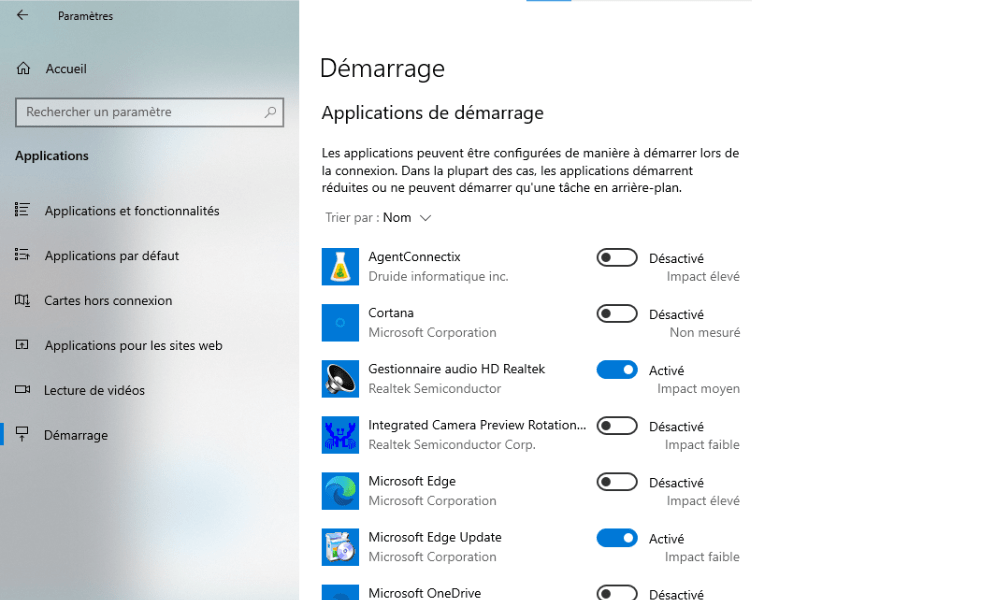
This will speed up the startup of your laptop by preventing the launch of unnecessary programs.
10. Defragment the hard drive
Defragment your mechanical hard drive to reorganize files and improve read speed. This operation is not necessary for SSDs, which do not require defragmentation.
Why does defragmenting the hard drive improve my computer's performance?
Defragmenting your hard drive reorganizes fragmented files, improving data read and write speeds. This can lead to improved computer performance. To defragment your hard drive:
Step 1: Press the Windows key and type "Defragment and optimize drives", then press Enter.
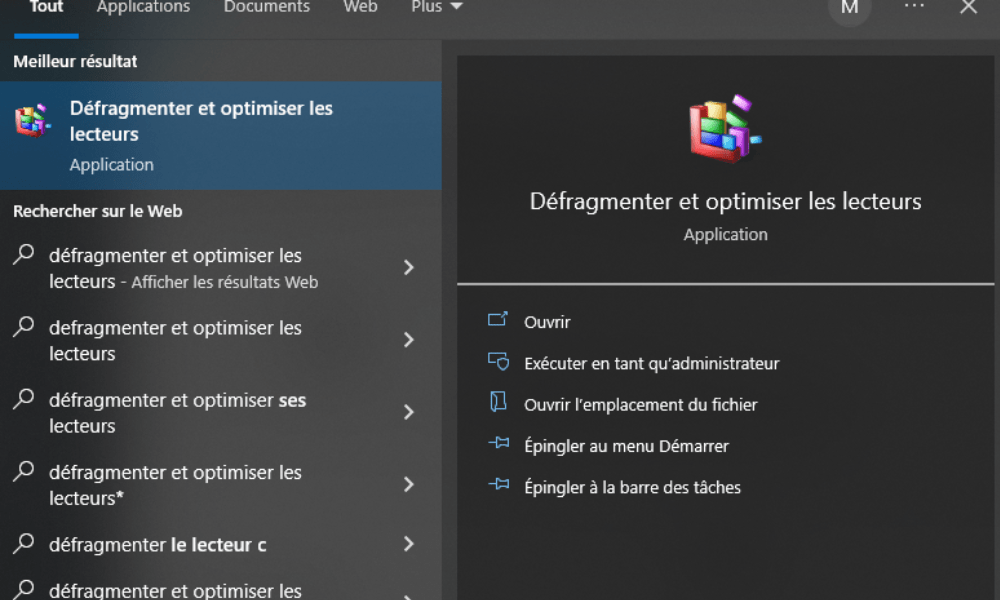
Step 2: Select the drive you want to defragment and click "Optimize".

Good to know : If you are using an SSD, defragmentation is not necessary and may even reduce the lifespan of the SSD.
Conclusion
Boost your laptop's performance by following these 10 simple and effective tips. Remember to regularly clean your computer, update your drivers and operating system, and optimize Windows . Also consider adding RAM, replacing your hard drive with an SSD, and checking the compatibility of your hardware components. With these tips, your laptop will be faster and more powerful than ever!


