
Is your computer screen constantly turning off and on ? This problem can be very annoying and prevent you from working or playing properly. It can have several possible causes, such as a faulty cable , an outdated driver, a virus, or overheating. Fortunately, there are solutions. In this article, we'll explain how to identify the source of the problem and how to fix it.
Check your monitor cables
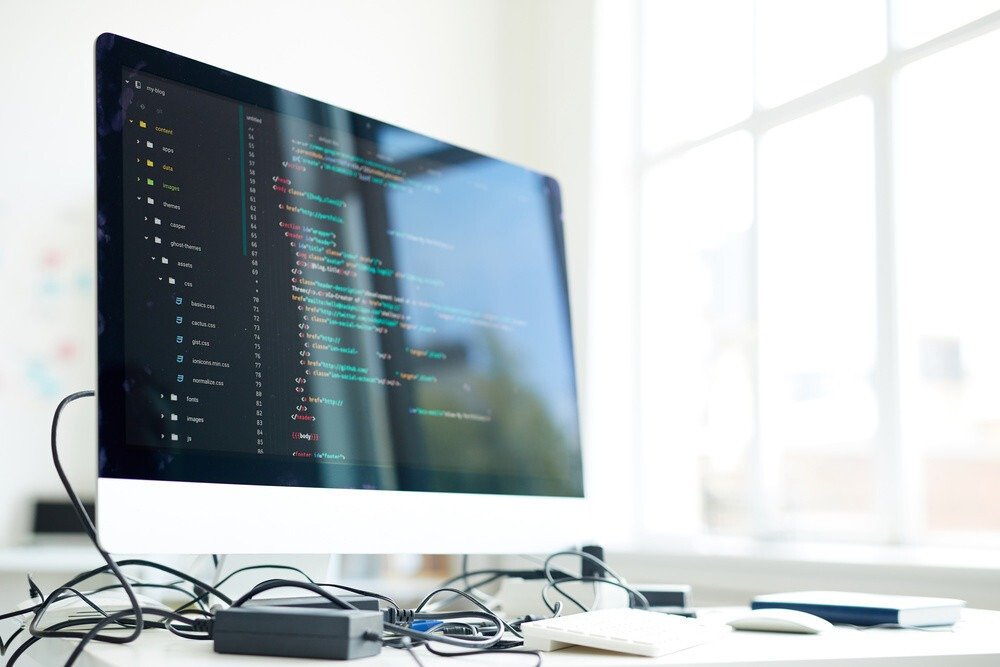
First, you should check if your monitor is properly connected. If the monitor keeps turning off and on again , it could be due to a faulty cable. Therefore, first check the monitor cable that connects the device to your PC. Make sure it's securely plugged in at both ends and that it's not damaged. You can also try a different cable or port to see if the problem persists.
Update your graphics card drivers
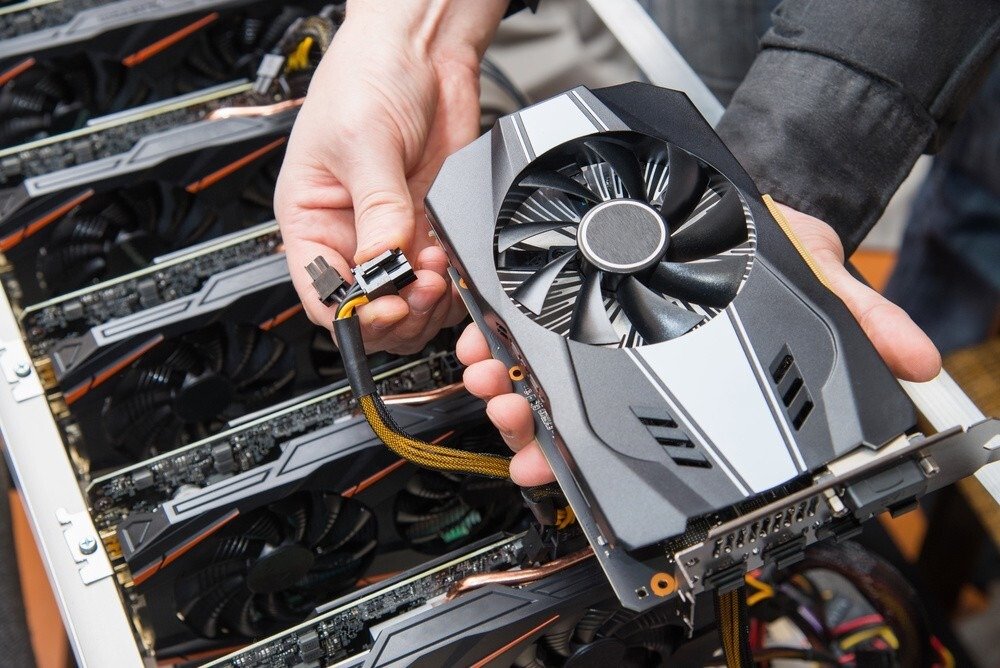
If the cables aren't the problem, the issue might be with your graphics card drivers . Drivers are software programs that allow your PC to communicate with external devices, such as your monitor. Outdated or incompatible drivers can cause malfunctions.
To find out if your drivers are up to date, you can use the Windows Update tool which automatically checks if updates are available for your system.
Here's how to do it:
- Open the Start menu and click on Settings (the icon representing a gear).
- Click on Update and Security.
- Click on Windows Update. You will see it in the navigation menu on the left side of the window.
- Click on Check for updates. It's at the top of the page.
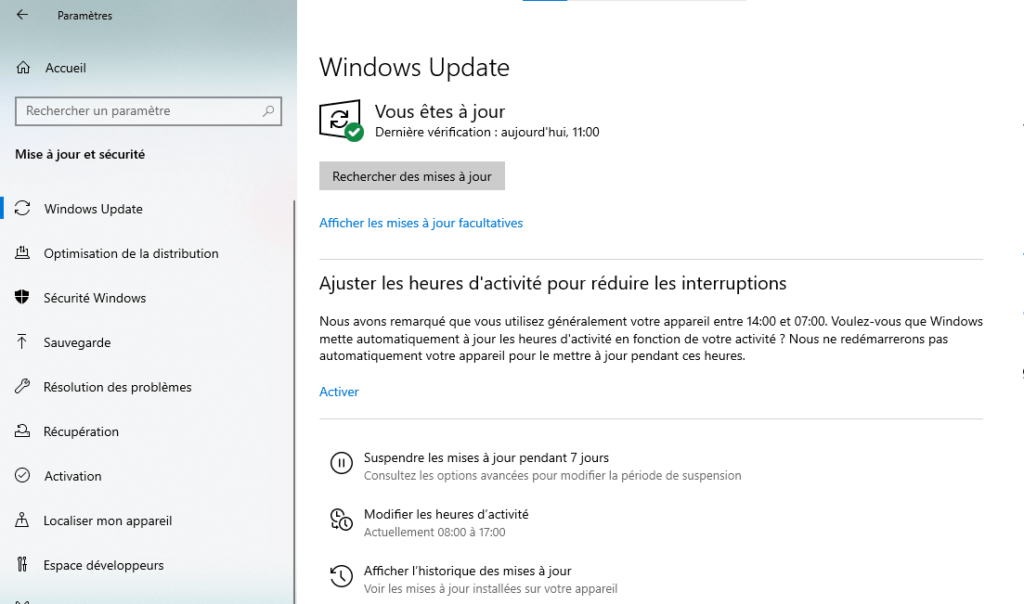
- If driver updates are available, click Install Now to download and install them.
To update your graphics card drivers , you can follow these steps:
- Download the Intel® Driver & Support Assistant to your computer.
- Run the downloaded file and follow the on-screen instructions to install the software.
- Launch the Intel® Driver & Support Assistant and let it analyze your system.
- If driver updates are available, click Install to download and install them automatically.
You can also consult this guide for more details and options.
Scan your PC with an antivirus program
Another factor that can cause the screen to turn off and on again is the presence of a virus or malware on your PC . These programs can infect your system and disrupt its operation. To get rid of them, you should scan your PC with a reliable and effective antivirus program, such as Avast, Kaspersky, or Bitdefender. You can also use software like Malwarebytes or AdwCleaner to remove any adware or spyware that might be slowing down your PC.
Clean your PC and check its temperature

Finally, the problem could be related to overheating of your PC or monitor. If your PC or monitor gets too hot, it may shut down and restart to prevent irreversible damage . To avoid this, you should regularly clean your PC and monitor with a soft cloth and a suitable cleaning product. You should also dust the fans and air vents with compressed air or a vacuum cleaner. You can also use software like SpeedFan or HWMonitor to check your PC's temperature, prevent overheating , and adjust the fan speed if necessary.
Summary table of solutions
| Possible cause | Solution |
| faulty cable | Check the cables and replace them if necessary |
| Outdated driver | Update your graphics card drivers |
| Virus or malware | Scan your PC with an antivirus and anti-malware program |
| Overheated | Clean your PC and monitor and check their temperature |
FAQ about the problem of the screen turning off and on again
In this section, we will answer the most frequently asked questions about the problem of the screen turning off and on again.
Why does my screen turn off and on again when I play?
If your screen turns off and on again while you're playing , it could be due to your PC or monitor overheating. Video games are very resource-intensive and can cause your hardware to overheat. To prevent this, you should clean your PC and monitor, check their temperatures, and adjust your game's graphics settings.
How can I tell if my screen is defective?
If you suspect your monitor is faulty , you can perform a simple test to check. Simply connect your monitor to another PC or device, such as a game console or DVD player. If the problem persists, it means your monitor is faulty and needs to be replaced. If the problem disappears, it means the issue lies with your PC or its cable.
How to fix a flickering screen?
If your screen is flickering, it could be due to a problem with the refresh rate or resolution . The refresh rate is the number of times per second the screen displays an image. The resolution is the number of pixels the screen displays. If these settings are not suitable for your screen, they can cause flickering. To adjust them, you can follow these steps:
- Click the Start button, then click Settings
- Click on System, then on Display
- Click on Advanced display settings
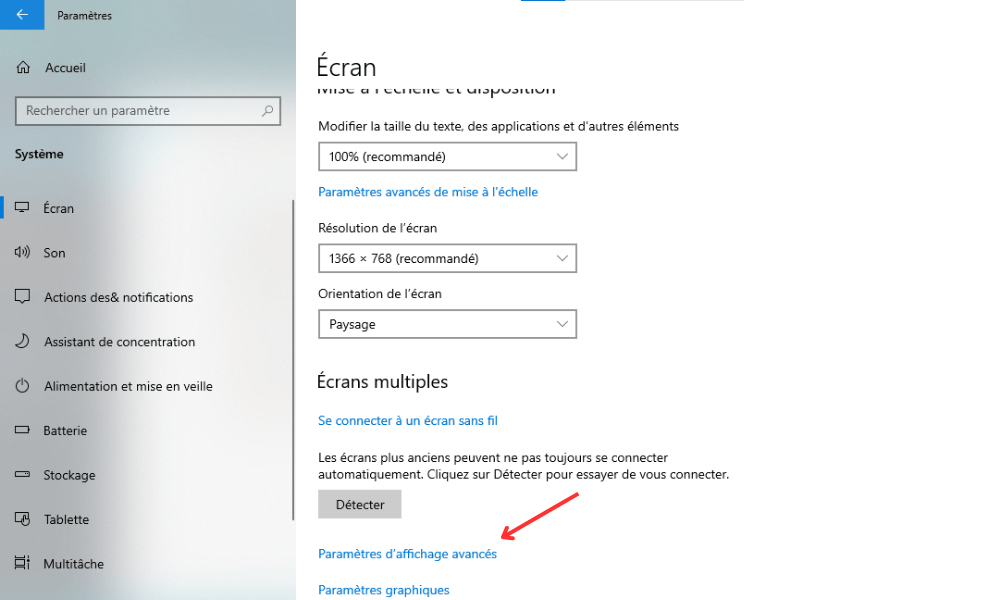
- Click on Video card properties for screen 1
- Next, click on the Screen tab
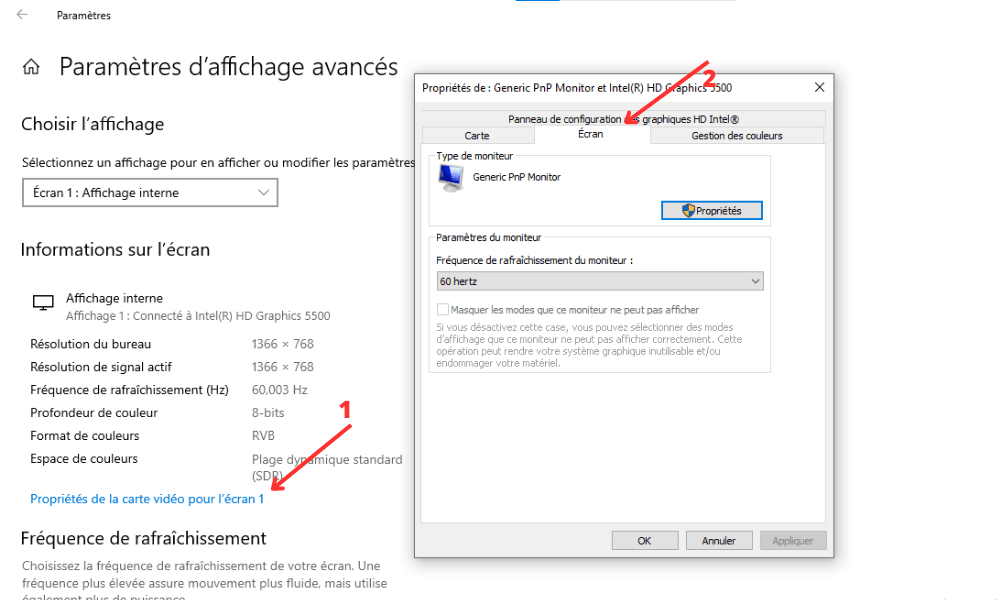
- Choose a refresh rate and resolution compatible with your screen
- Click Apply and then OK
Conclusion
In summary, this article has offered solutions to the problem of a screen turning off and on repeatedly. We've identified possible causes of this issue, such as a faulty cable, an outdated driver, a virus, or overheating. We've also outlined the steps to check cables, update drivers, scan your PC with antivirus software , and clean both your PC and monitor. We hope these tips will help you get the most out of your screen. For further information, you can consult other resources on best practices for maintaining your computer hardware and preventing malfunctions .