Since the release of Windows 11, Microsoft has updated many elements of the user interface, including the Task Manager. If you prefer the simpler and more straightforward older Task Manager, you should know that it's still possible to use it in Windows 11. Here are several methods to do so.
Method 1: Keyboard shortcut

The easiest way to open the old Task Manager is to use a keyboard shortcut. Press Ctrl + Shift + Esc , and the old Task Manager will open instantly.
Method 2: Start Menu
You can also find the old task manager in the Start menu.
- Click the Start
- In the search bar, type "Task Manager"
- Click on the result "Task Manager (Desktop)"
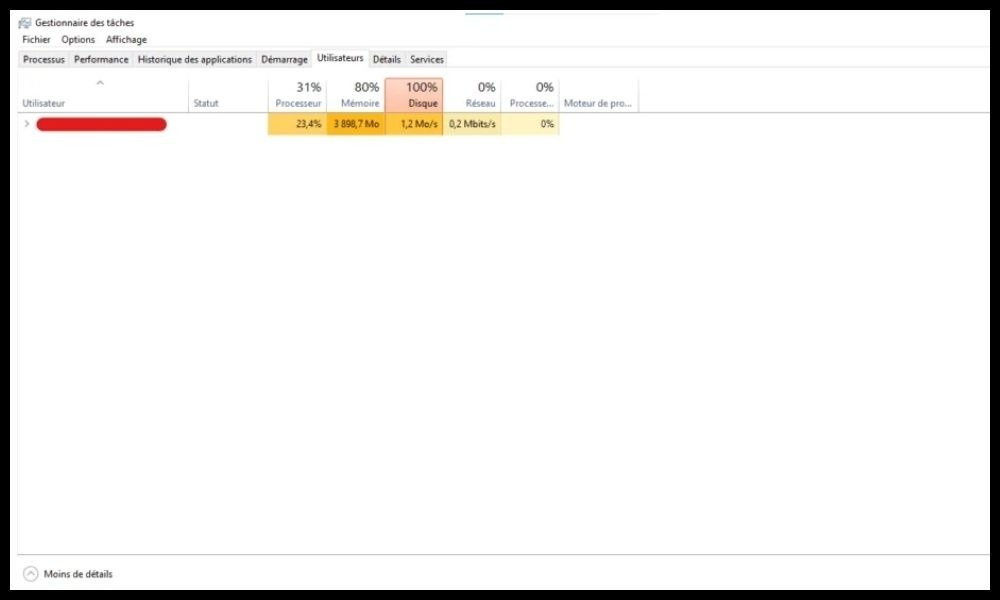
Method 3: Command Prompt
The command prompt allows you to open the old task manager by running a simple command.
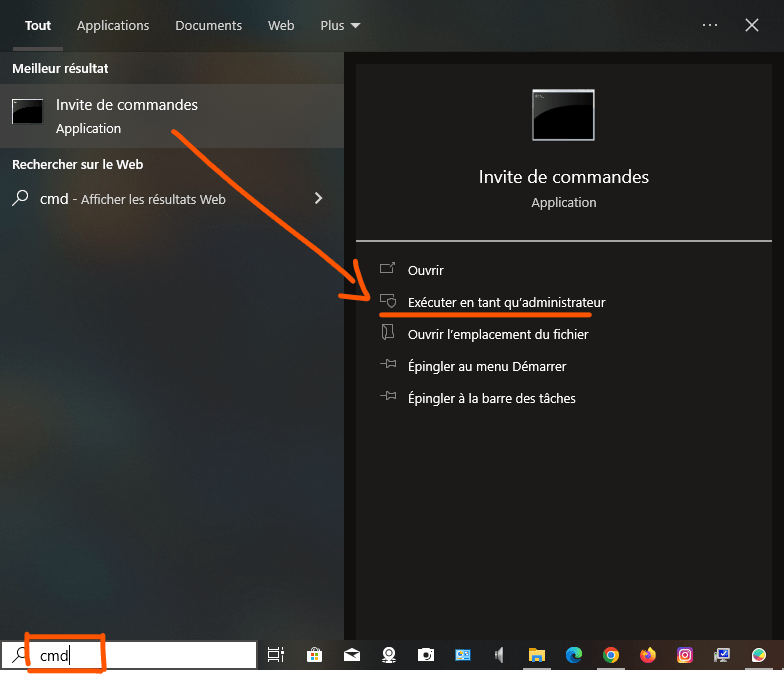
- Open the command prompt by pressing the Windows + R , then type "cmd" and press Enter .
- In the command prompt window, type the following command:
taskmgr -d
- Press Enter and the old task manager will open.
Method 4: Create a shortcut
You can create a shortcut on the desktop or in the taskbar for quick access to the old task manager.
To create a desktop shortcut:
- Right-click on an empty space on the desktop and select New > Shortcut .
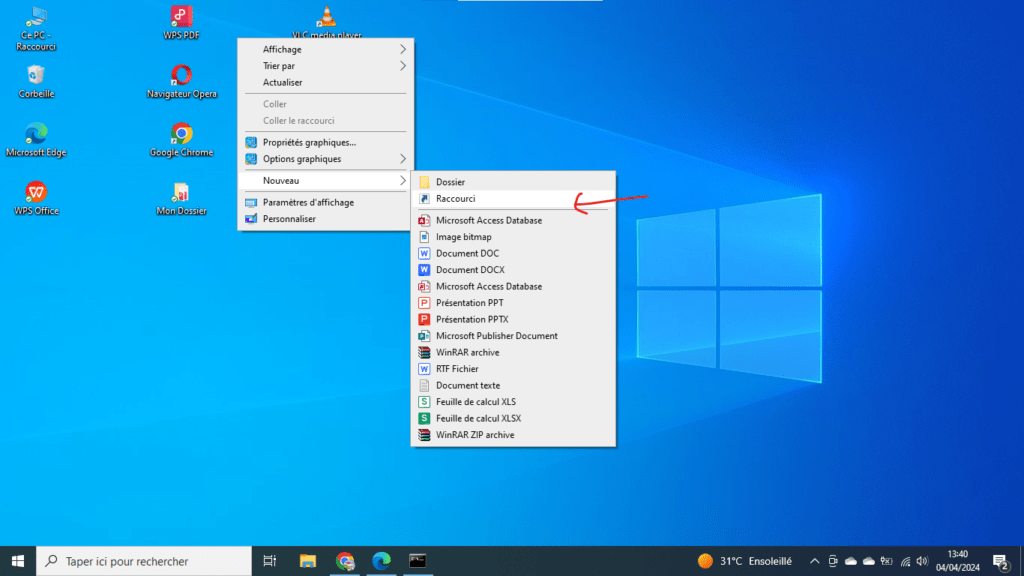
- In the Element Location , type the following command:
taskmgr -d
- Click Next .
- Give the shortcut a name, for example "Old Task Manager" .
- Click Finish .
To create a shortcut in the taskbar:
- Follow steps 1 to 4 of the Create a shortcut on the desktop .
- Right-click on the newly created shortcut and select Pin to taskbar .
Features of the old task manager

The old task manager offers several features not found in the new version, including:
- Displaying processes in a tree view : This feature allows you to easily visualize the hierarchy of processes currently running.
- Tabs for different types of processes : You can quickly switch between running processes, processes under the "Performance" tab, system processes, and application history processes.
- More options for managing processes : You can kill processes, suspend processes, set process priority, and view details for each process.
Conclusion
The legacy Task Manager is a powerful and flexible tool that can be useful for experienced users and system administrators to Windows Task Manager . If you prefer the interface and features of the legacy Task Manager, you can easily use it in Windows 11 by following one of the methods described above.
Remarks
- The old task manager is not updated with the new features of Windows 11.
- It is possible that some features of the old task manager will not be available in all editions of Windows 11.