
Are you using Windows 11 and the Wi-Fi option has mysteriously disappeared? Don't panic! This problem, while frustrating, is often easy to solve. In this article, we'll explore the various possible causes and offer step-by-step solutions, along with clear and simplified explanations to help you get your Wi-Fi connection in no time.
1. Run the Windows troubleshooting utilities
Start by running the troubleshooting utilities built into Windows 11. They can often automatically identify and fix Wi-Fi connection problems.
1.1 Internet Connection Troubleshooting Utility
- Click Start > Settings > Network & Internet > Status.
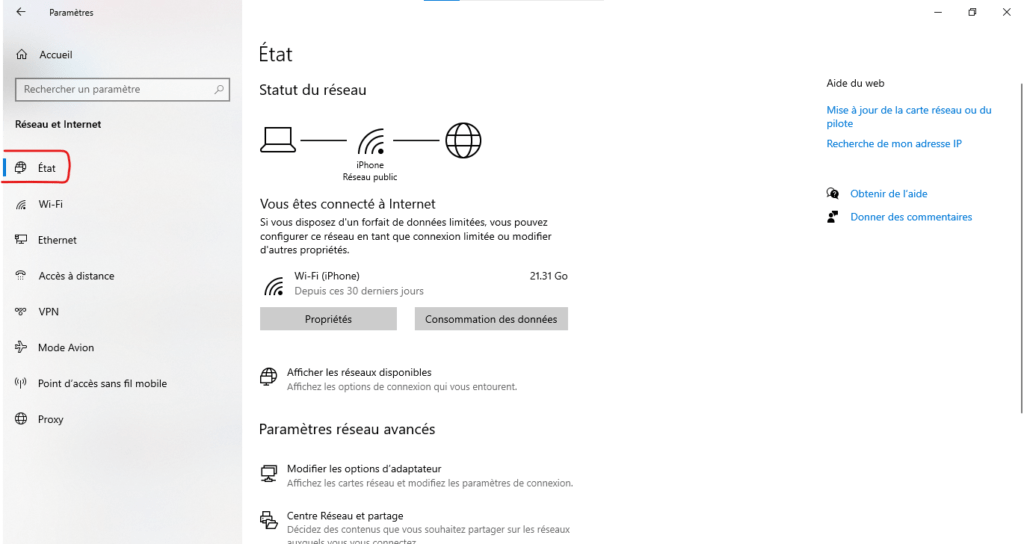
- Under Change your network settings, select Troubleshooting.
- Run the Internet connection troubleshooter .
1.2 Network Adapter Troubleshooting Utility
If the problem persists, run the network adapter troubleshooter:
- Open Device Manager (right-click on Start).
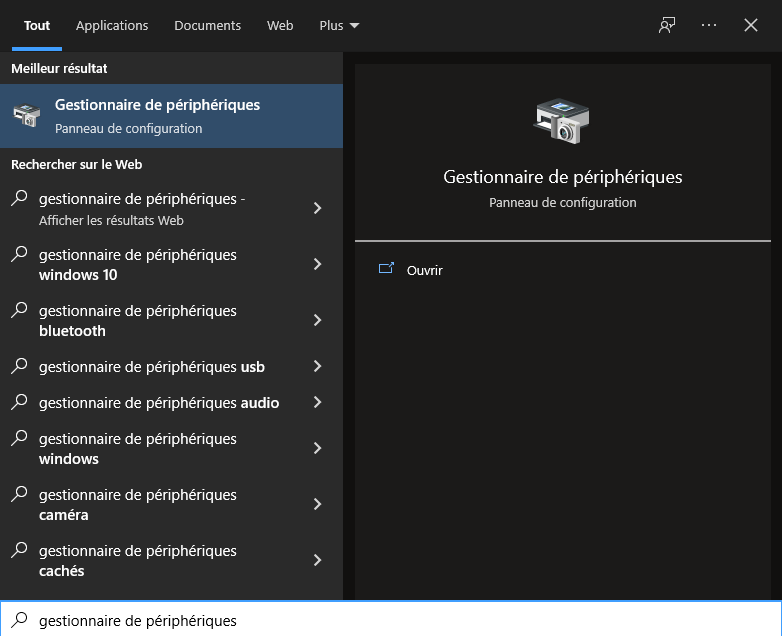
- Expand Network Adapters.
- Right-click on your network adapter and select Troubleshoot.
2. Enable the Wi-Fi adapter in network connections
Your Wi-Fi adapter may simply be disabled. Let's check its status:
- Click on the Network in the system tray.
- If Wi-Fi is off, click the Wi-Fi to turn it on.
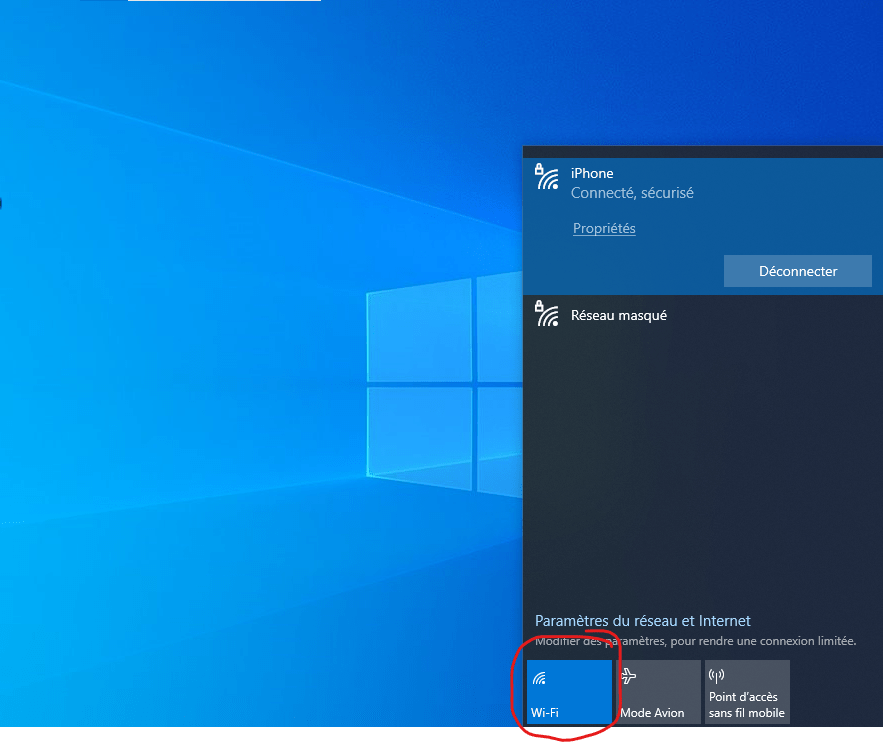
If the Wi-Fi option is unavailable, follow these steps:
- Open Settings > Network & Internet > Wi-Fi.
- Enable the "Show available networks" option .
- If your Wi-Fi network is visible, select it and click Connect.
3. Update your network card drivers
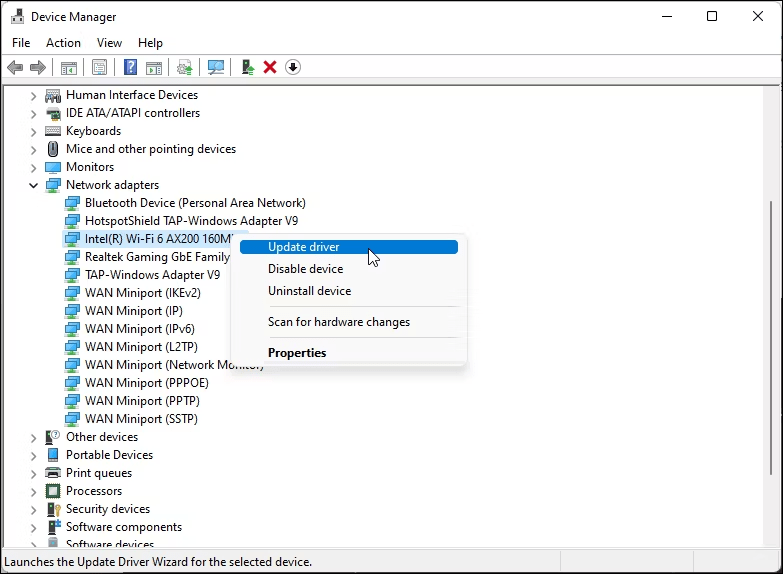
Outdated drivers can cause connectivity problems. Make sure your network card drivers are up to date:
3.1 Automatic driver updates
- Open Device Manager.
- Expand Network Adapters.
- Right-click on your network adapter and select Update driver.
- Choose Automatically search for updated drivers.
3.2 Manual driver update
If the automatic update fails, you can manually download and install the latest driver from your network card manufacturer's website.
4. Configure the power supply management settings of the network adapter
Windows may sometimes disable the Wi-Fi adapter to save power. Change these settings:
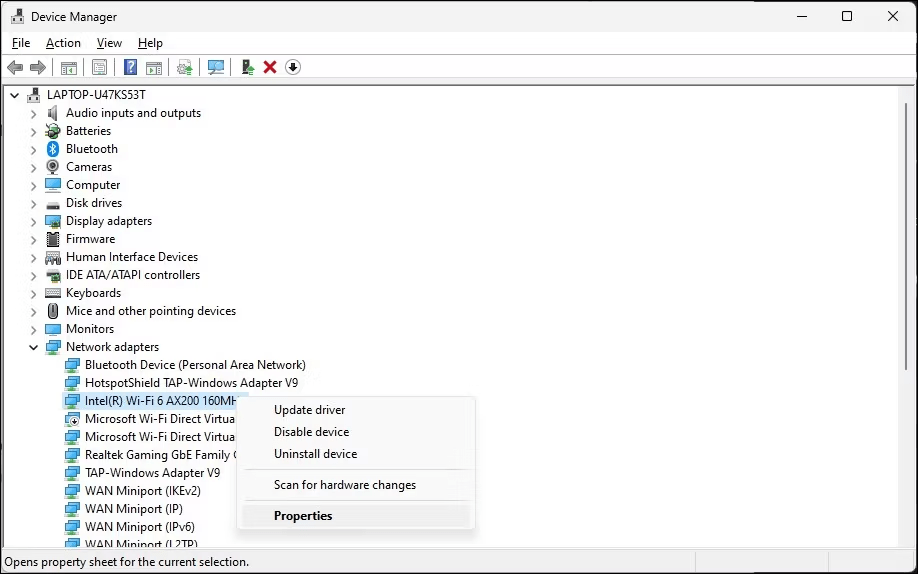
- Open Device Manager.
- Expand Network Adapters.
- Right-click on your network adapter and select Properties.
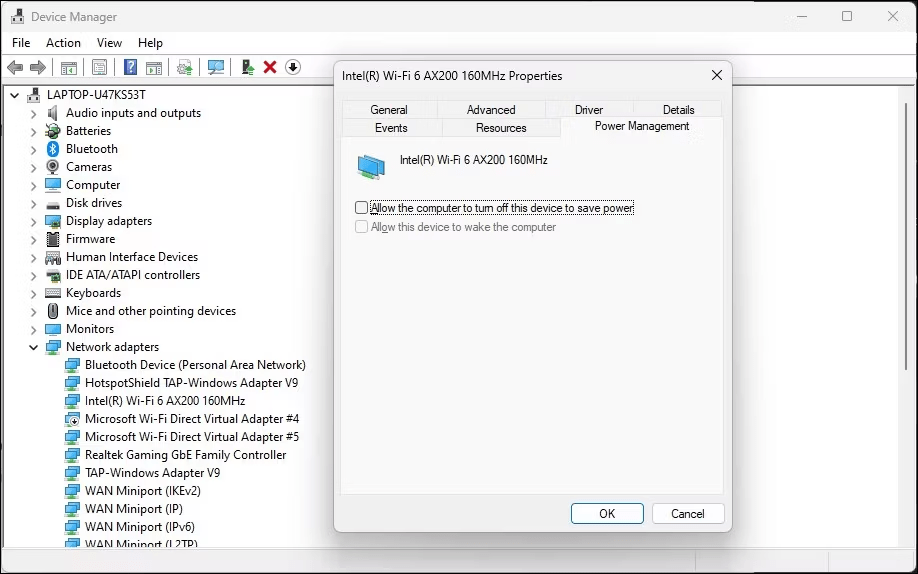
- In the Managementpower supply tab , uncheck the box Allow the computer to turn off this device to save power .
5. Enable the WLAN automatic configuration service
This service is crucial for managing Wi-Fi connections. Make sure it is enabled:
- Press Windows + R to open the Run.
- Type services.msc and press Enter.
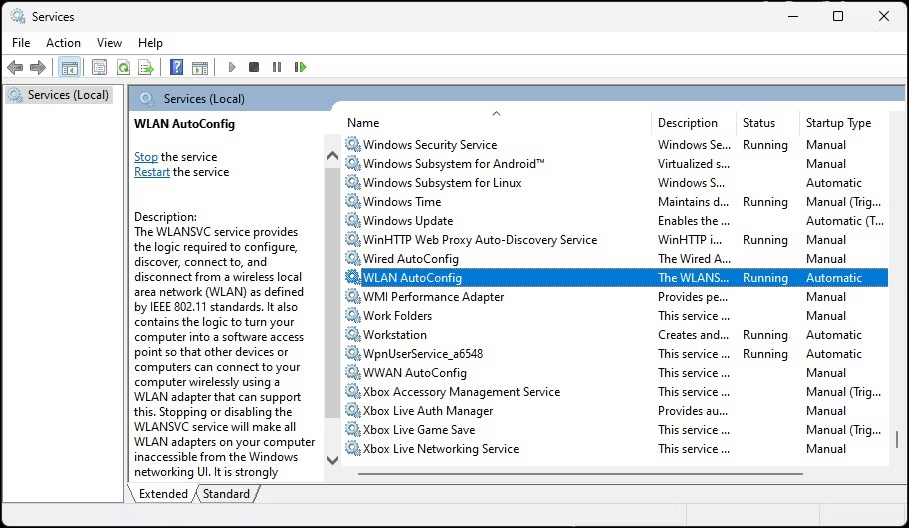
- Search for the WLAN Automatic Configuration service .
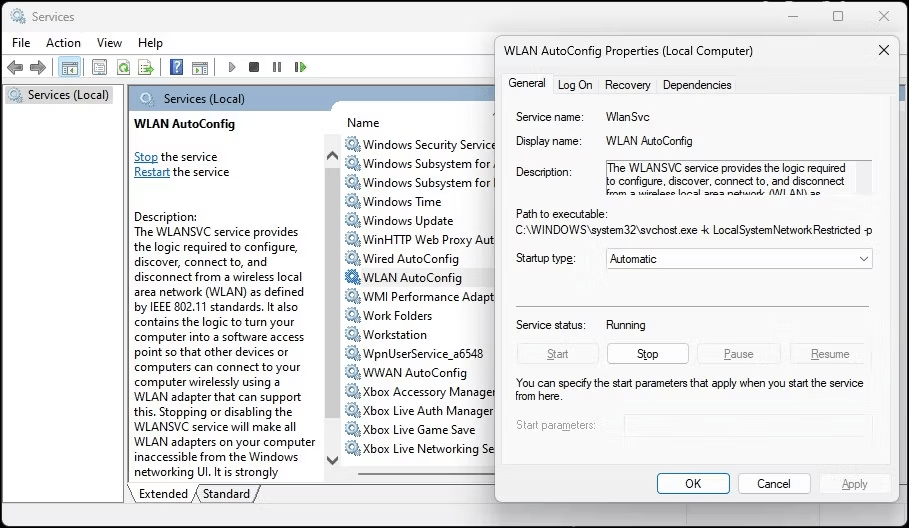
- Double-click on the service and make sure that the Startup Type is set to Automatic.
- Click Start if the service is stopped.
6. Reinstall the Wi-Fi device driver
Reinstalling the driver can resolve corruption issues:
- Open Device Manager.
- Expand Network Adapters.
- Right-click on your network adapter and select Uninstall device.
- Restart your computer.
- Windows will automatically reinstall the driver upon restart.
7. Reset the network device and network stack
7.1 Reset the network device
Step 1: Open the command prompt with administrative privileges
- Right-click the Start and select Command Prompt (Admin).
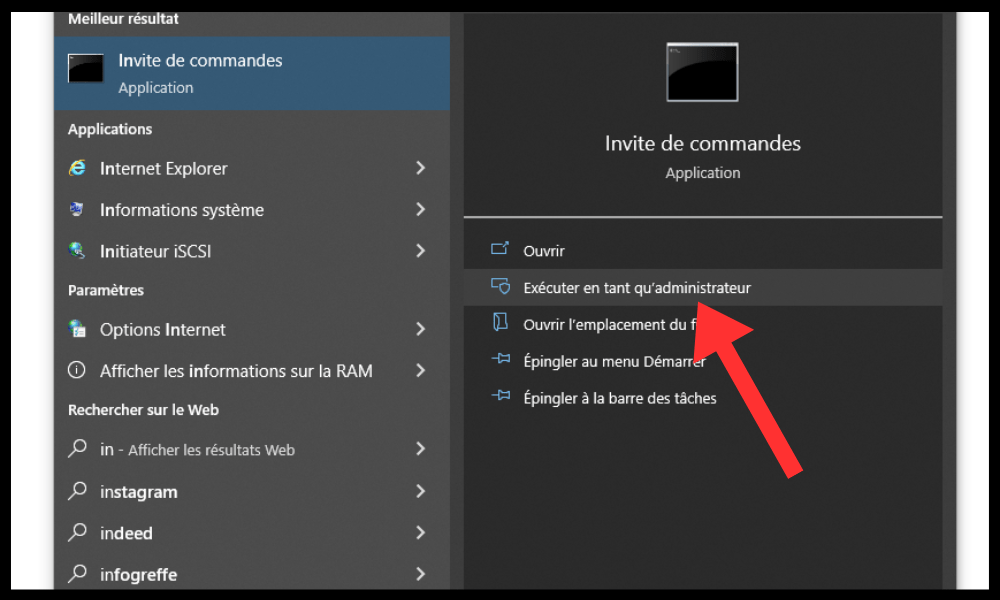
- If a User Account Control pop-up window appears, click Yes to allow the command prompt to run with elevated privileges.
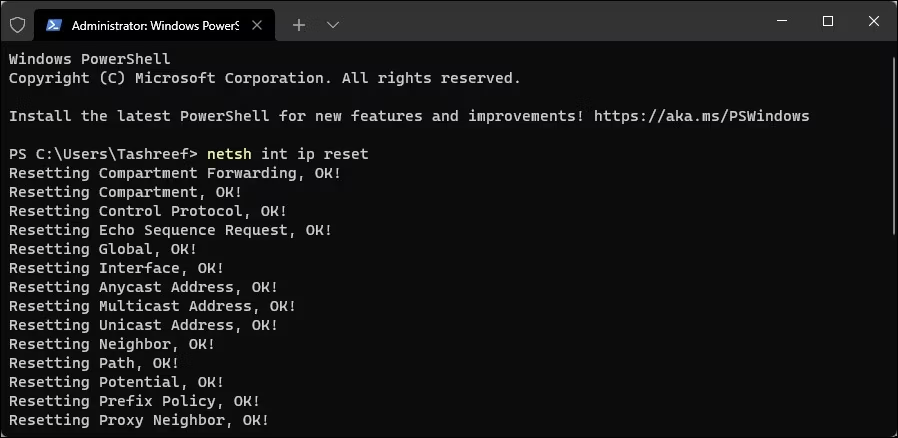
Step 2: Execute the reset command
- In the command prompt, type the following command:
netsh int ip reset c:\resetlog.txt
Explanation of the command:
netshnetwork configuration tool Windowsint: Network interfaceIP: Internet Protocolreset: Resets network settingsc:\resetlog.txt: Saves a reset log to theresetlog.txton the C:\ drive
Step 3: Restart the computer
Restart your computer for the changes to take effect.
7.2 Reset the network stack
- In the command prompt, type the following commands one by one, pressing Enter after each one:
netsh winsock reset netsh int ip reset all ipconfig /release ipconfig /renew ipconfig /flushdns
- Restart your computer.
8. Advanced solutions (If the previous solutions do not work)
If none of the above solutions resolve the problem, more advanced solutions may be necessary:
8.1 Check for hardware interference
Remove any USB or Bluetooth devices that may interfere with the Wi-Fi signal.
8.2 Modify the Windows Registry (Caution: Proceed with caution)
⚠️ Warning: Modifying the Windows can cause system problems. Only instructions provided by trusted technical sources should be followed. It is strongly recommended to create a system restore point before making these changes.
8.3 Reset Windows 11 (as a last resort)
If all other solutions fail, you can consider resetting Windows 11 to its default settings. Remember to back up your important data before proceeding with the reset.
Conclusion
By following these steps, you should be able to resolve the missing Wi-Fi option issue in Windows 11. If you are still experiencing difficulties, feel free to contact Microsoft technical support or your network card manufacturer for further assistance.