

Worldwide, over 1.5 billion people regularly use Gmail to send and receive emails. Despite the wide range of options and features available in the inbox , most people rarely think to look at it.
However, with these various features, we have the ability to secure our inbox protect our privacy at the same time . Here, we reveal four effective tips to keep your Gmail inbox safe . Ready? Let's go!
1. Block all persistent spam
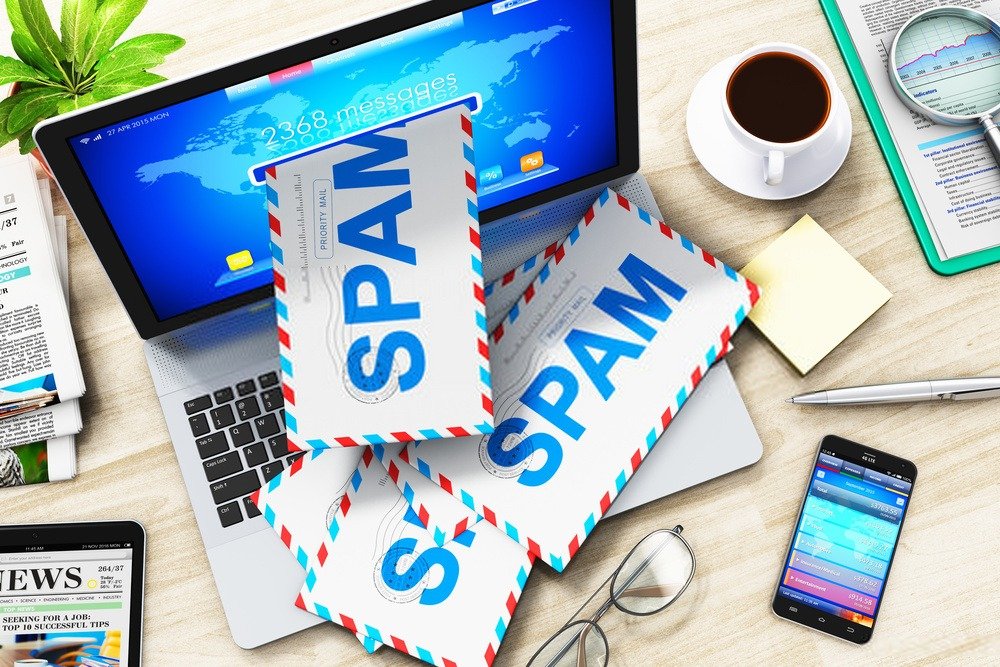
Gmail offers you the ability to easily block individual senders who pollute your inbox with messages commonly known as “ Spam ”.
Report Spam option in Gmail appear when you open this type of message. In that case, it will be easier, since you'll just have to click on the " Report Spam " function and the problem will be quickly resolved.
Of course, this option doesn't appear on all messages, so you'll need to use another method to block spammers. It's very simple; just follow these steps:
Step 1: Access your Gmail inbox and open an email
Step 2: Next, click on the three dots aligned in the right corner

Step 3: Block " option

Important note: Once you successfully complete these steps, you will find that all messages you receive from the same sender will be automatically moved to your Spam folder. You will no longer see them!
2. Speed up the cancellation sending time
Sometimes, we accidentally send an email to the wrong recipient. Gmail then offers you the option to cancel sending the message with the " Undo Send " option. If you're quick enough, you can recall the sent email before it reaches its intended recipient.
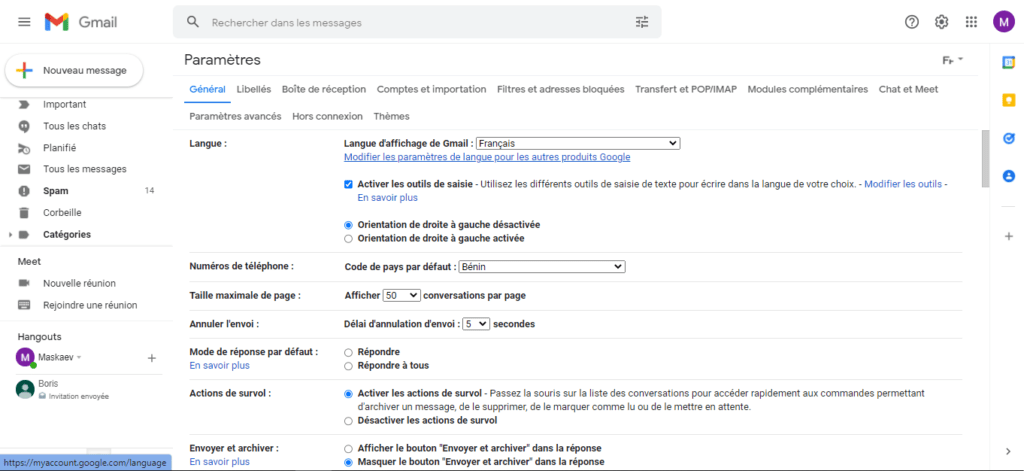
You should know that this method works by delaying the sending of the email by a few seconds. When you notice a typo in your text or an incorrect address in the To , simply click the " Cancel "
Unsend window appears for about 10 seconds. However, you can increase this duration to 20 or 30 seconds. This will give you more time to quickly review your message before sending it.
To do this, follow these steps:
Step 1: Click on the gear icon located in the top right corner of your Gmail inbox interface.

Step 2: Next, tap on " View all settings "

Step 3: Open the " General " tab and the "Cancel sending" dropdown menu.
Those extra few seconds will be extremely useful. Do it and you won't regret it!
3. Use confidential mode
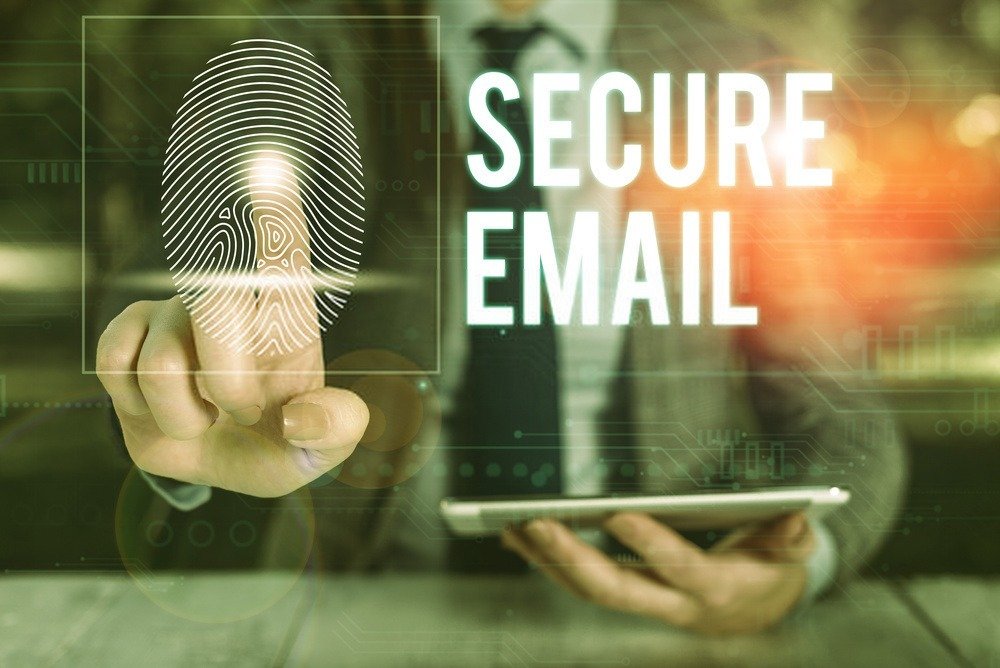
Confidential mode allows you to send and receive your emails securely. It prevents the recipient(s) from copying, forwarding, printing, or even downloading the messages.
It's even possible to configure confidential mode and have all your messages expire after a certain time. You can also protect access to your conversations with a password if you notice anything suspicious in your inbox.
How do I activate confidential mode? It's very simple… Try this method:
Step 1: Click on the small padlock at the bottom of the editing window

Step 2: Set the expiration time for the message you want to send
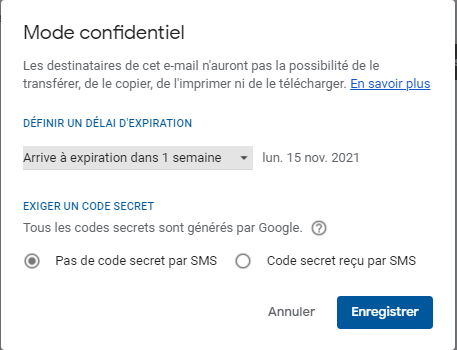
Note that it's worthwhile to activate this mode for all messages you don't want to be shared. Only the recipient will be able to read the message content. They might see the expiration date you added, but they won't be able to copy or save the message.
4. Permanently clear cached offline data
In its quest to provide better services to its customers, Google has integrated an offline option into Gmail. This means it works when you have an internet connection problem. However, this isn't necessarily a good thing, especially for your privacy.
Indeed, even without an internet connection, someone who has an idea of what they're looking for can find it thanks to Gmail's local cache, especially if they have direct access to your computer. If you're using a device shared with family, friends, or colleagues, make sure that this data is permanently deleted after you log out.
Here's how to delete cached offline data :
Step 1: Click on the gear icon (in the top right corner) on the inbox interface.
Step 2: Next, click on " View all settings " and " Offline ".
Step 3: Check the box " Delete offline data from my computer " next to the " Security "

Make sure to log out of Gmail when you're finished.
If you are confused, or if you notice something suspicious in your Gmail inbox, we invite you to check out our article which shows you: how to disconnect your Gmail account remotely to protect your privacy on the internet .


