
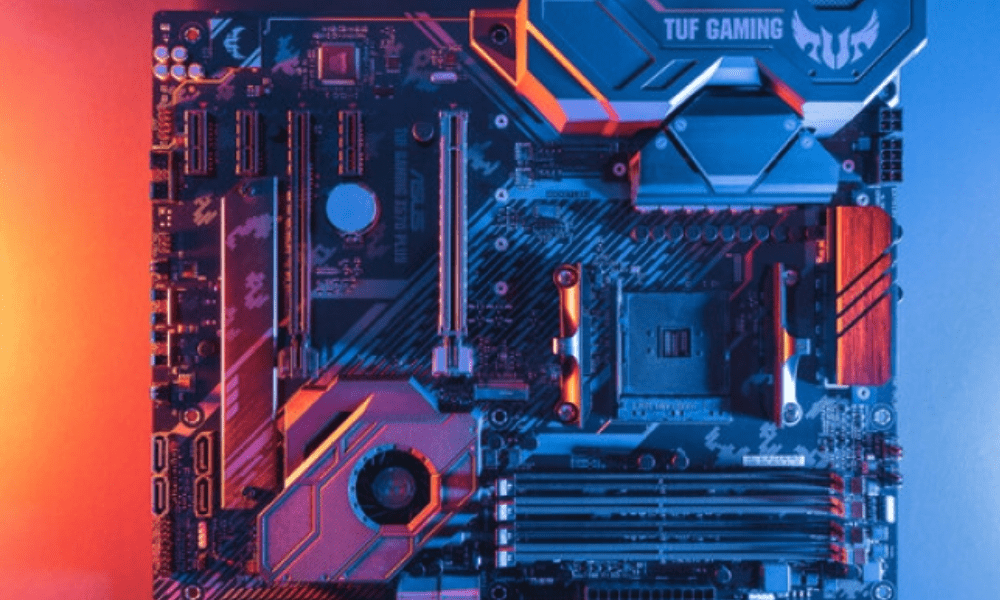
At the heart of your computer lies a crucial yet often overlooked component: the motherboard . This central circuit board houses the processor , RAM , graphics card , and other essential components, orchestrating their seamless communication to keep your machine running. But when should you consider replacing this key component? Is it necessary to keep up with the latest technological trends or simply to boost the performance of your aging PC?
In this comprehensive article, we'll explore the telltale signs that a motherboard upgrade is necessary, while demystifying the technical aspects to guide you toward an informed decision. Whether you're a seasoned user or a computer novice , this guide will provide you with the information and tools you need to navigate the complex world of motherboards and make the right choice for your PC.
1. Tell-tale signs of an obsolete motherboard
Is your motherboard sending you distress signals? Pay attention to the following symptoms, which could indicate it's time to consider an upgrade:
- Hardware incompatibility : Does your motherboard not support the latest processors, graphics cards, or memory modules? This can limit your future upgrade options and slow down your system's performance.
- Poor performance : Is your PC constantly lagging, even for simple tasks? Frequent crashes or endless loading times can be signs of an overloaded or outdated motherboard.

- Stability issues : Are you experiencing freezes , BSODs (blue screens of death), or random shutdowns? These stability problems can be caused by a faulty motherboard.
- Outdated features : Does your motherboard lack modern features such as USB-C ports, DDR4 RAM support, or NVMe connections? These technologies can significantly improve your PC's speed and capabilities.
2. Understanding the technical details: Aspects to consider when choosing a new motherboard
Let's now delve into the technical aspects of upgrading your motherboard. Here are the key elements to consider when choosing a new motherboard:
Format and socket
Make sure the new motherboard is compatible with your case's form factor and your processor socket. Common form factors include ATX , micro ATX, and mini-ITX.
Chipset

The motherboard chipset acts like a conductor, managing communication between the various components. Choose a recent chipset that supports your processor and offers the features you need.
Ports and connectivity
Check the number and type of ports available, such as USB, HDMI, Ethernet, and SATA. Make sure they meet your connectivity needs.
RAM
The motherboard must support the type and capacity of RAM you wish to use. Check the available memory slots and their compatibility with your desired RAM technology ( DDR4 , DDR5 , etc.).
Overclocking functions
If you plan to overclock your RAM or CPU, make sure the motherboard has the necessary cooling features and options.
3. How to change your motherboard step by step?

Caution : Before starting, make sure to unplug your computer from the power outlet and remove all connected peripherals. Also, discharge any static electricity by touching a grounded metal object.
Step 1: Gather the necessary tools and components
Before starting the installation process, make sure you have everything you need on hand:
- New motherboard
- Phillips screwdriver
- User manual for the new motherboard
- Your computer's user manual
- Anti-static wristband (optional)
Step 2: Open your computer case
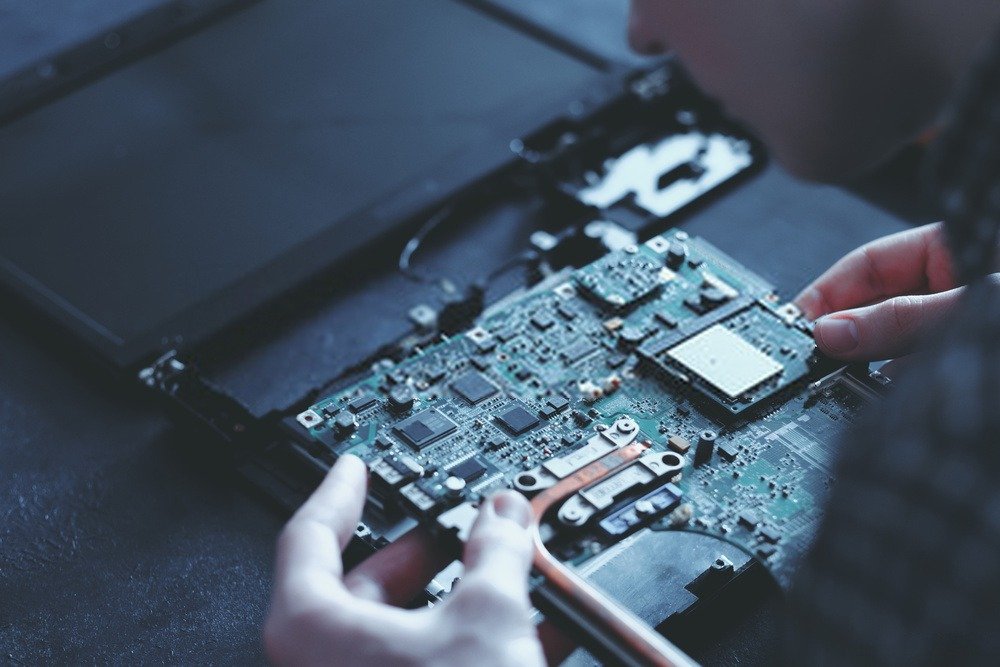
- Locate the screws that hold the side panels of your computer case together.
- Carefully remove the screws and store them in a safe place.
- Slide the side panels of the case and remove them completely.
Step 3: Remove the old motherboard
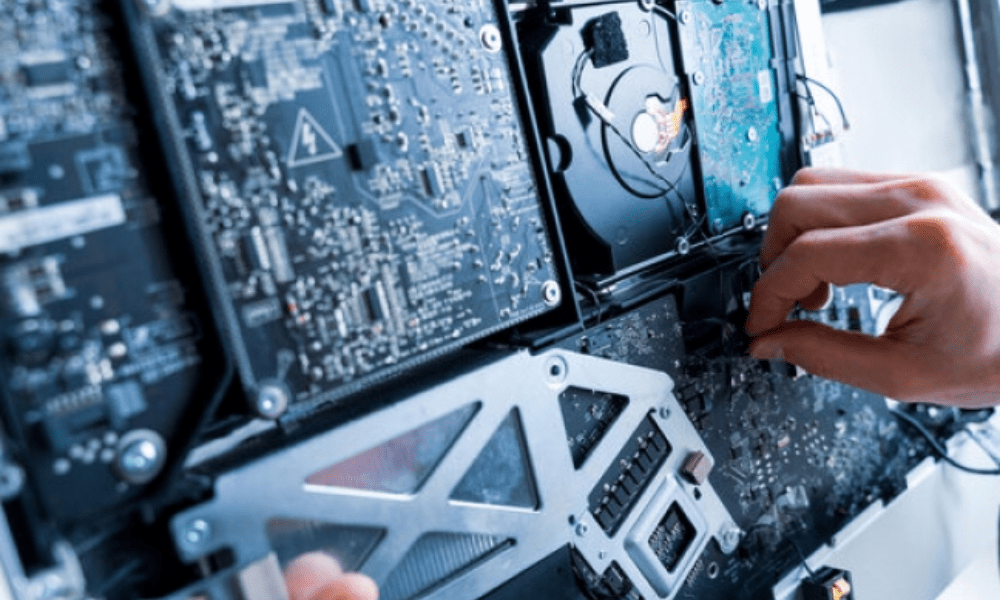
- Locate the screws that secure the motherboard to the case chassis.
- Carefully unscrew these screws and store them in a safe place.
- Identify the motherboard power supply connector (usually a 24-pin connector).
- Carefully disconnect the power supply connector from the motherboard .
- Disconnect all other cables and connectors connected to the motherboard, noting their location for later reconnection.
- Gently grasp the motherboard by the edges and carefully lift it out of the case chassis.
Step 4: Install the new motherboard
- Carefully align the new motherboard with the standoffs and screw holes in the case chassis.
- Carefully place the motherboard into the chassis.
- Screw the motherboard into the chassis using the screws you removed earlier.
- Reconnect the motherboard power supply connector .
- Reconnect all other cables and connectors that you unplugged, referring to your notes if necessary.
Step 5: Close the computer case
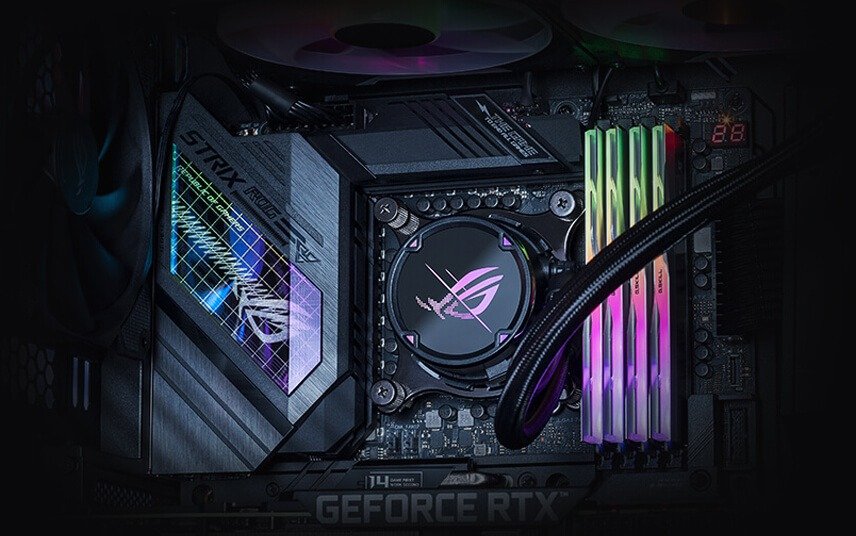
- Replace the side panels of the case onto the chassis.
- Screw the side panels in place using the screws you removed earlier.
Step 6: Install the operating system and drivers
- Turn on your computer and enter the BIOS/UEFI.
- Change the BIOS/UEFI settings to match your new motherboard and processor.
- Save the changes and exit the BIOS/UEFI.
- Install your operating system and the necessary drivers for your new motherboard.
Congratulations! You have successfully replaced your computer's motherboard. Enjoy the increased performance and improved features of your machine!


