When using your computer , you might wonder how much RAM is installed and how fast it is. RAM is a crucial component of your system because it determines how much data your computer can process simultaneously. In this article, we'll explain how to check your PC's RAM and how to find out its speed. Whether you're using Windows or Mac , we have detailed instructions to help you obtain this important information.
What is RAM?
RAM, or random access memory, is a form of temporary storage used by your computer to run applications and open files. Unlike your hard drive or SSD , which are permanent storage devices, RAM is much faster and allows for quick data access. When you open a program or file, it is transferred from your system storage to RAM for faster execution.
The amount of RAM in your PC determines how many tasks you can perform simultaneously. If you run out of RAM, your system may slow down and you could experience performance issues. That's why it's important to know how much RAM is installed in your PC.
How to check the amount of RAM on Windows
On Windows , you can use Task Manager to check the amount of RAM installed on your PC. Here are the steps to follow:
- Press Ctrl+Shift+Esc to open Task Manager.
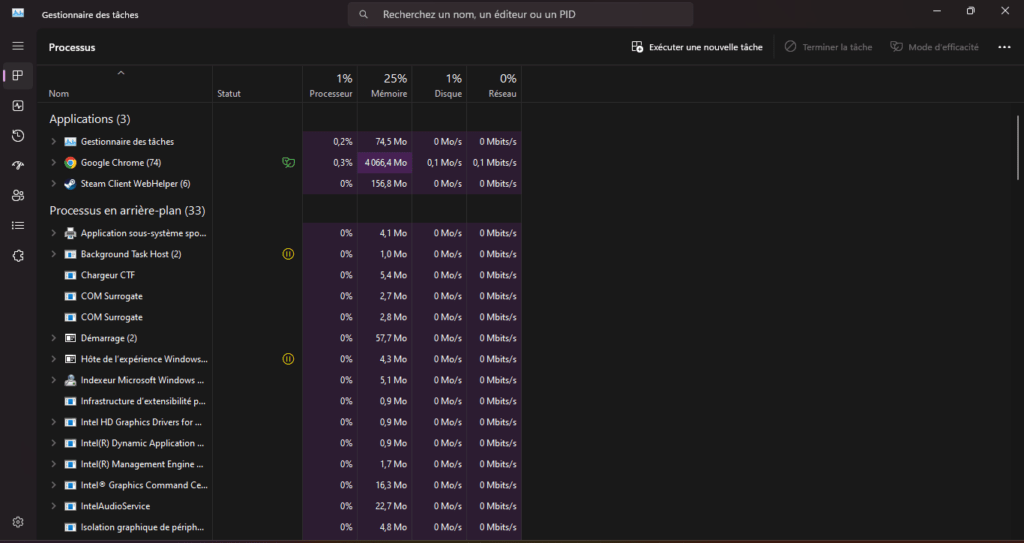
- Performance tab .
- Click on " Memory " in the left pane.
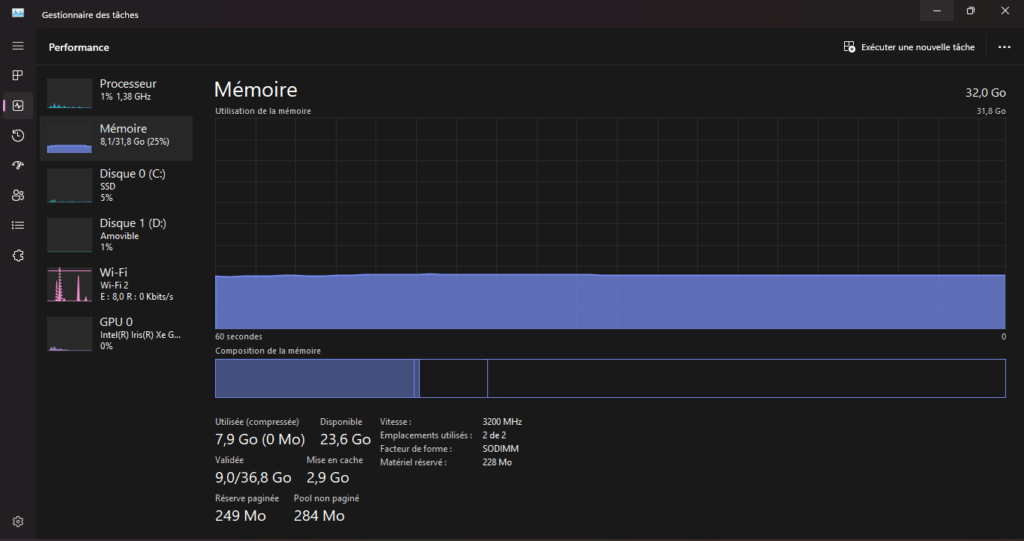
You will now see the total amount of RAM installed on your PC. Task Manager will also provide additional information such as the standard used, speed, form factor , and the number of physical memory slots used by your system. If you want to add more RAM, make sure you have free slots on your PC.
You can also find information about your RAM in the WindowsSettings app. Here's how:
- Start menu , search for " Settings " and open the application.
- Go to System > About .
- Information about your RAM will be listed under " Device Specifications ".
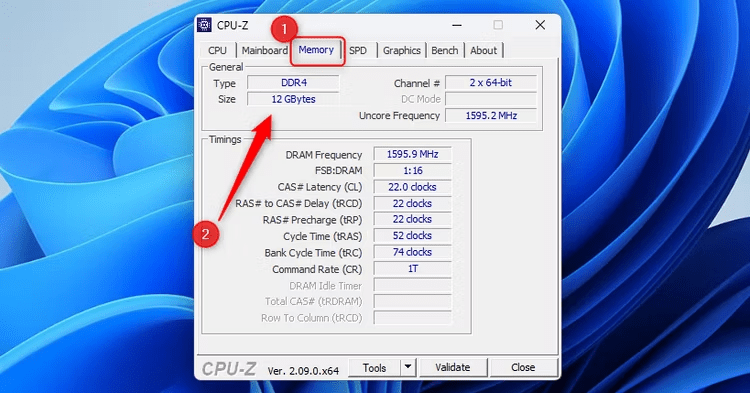
If you want more detailed information about your RAM timings, you can use a third-party tool such as CPU-Z. Download and install CPU-Z , launch it, and then click on the " Memory " tab to view this information.
How to check the amount of RAM on a Mac
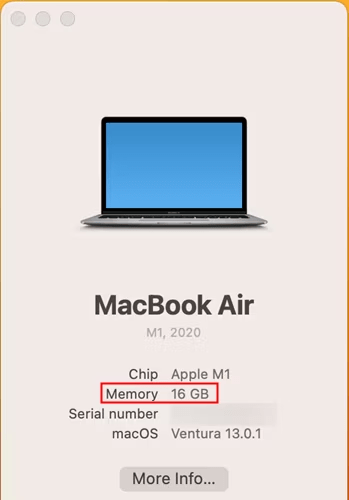
On a Mac, it's relatively easy to check the amount of RAM installed on your computer. Here are the steps to follow:
- Click on the Apple in the upper left corner of the screen.

- About This Mac option from the drop-down menu.
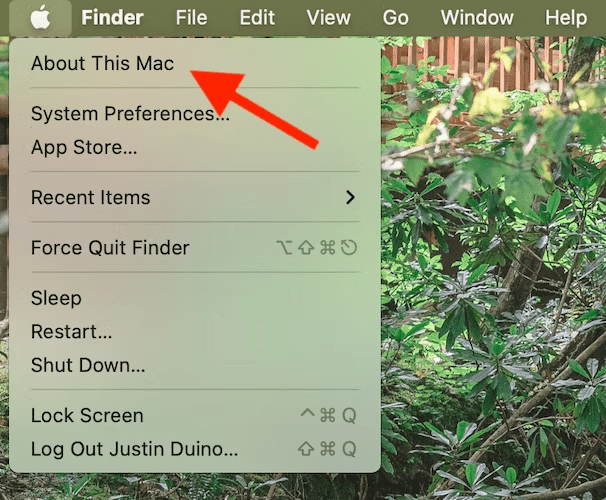
You will now see an overview of your computer's specifications, including the amount of memory in your Mac. If you want to know the type of RAM installed, click the " More Info " button. Scroll to the bottom of the window that appears, and then click " System Report ."
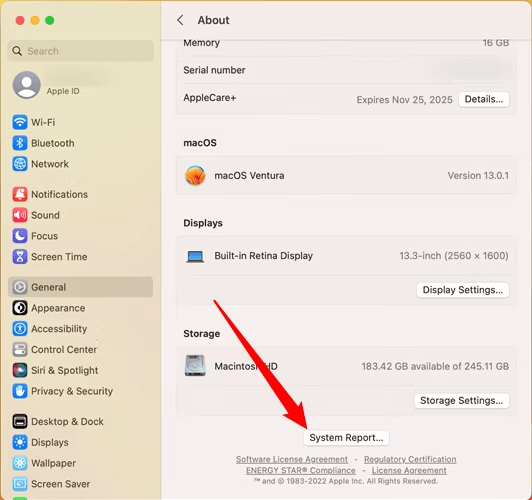
In the left column, select " Memory ". The amount of memory and the type of RAM will be displayed on the right side of the screen.
It's important to note that on newer Macs, the RAM is soldered to the motherboard and cannot be upgraded. Therefore, make sure you buy a Mac with enough RAM for your needs.
What is the speed of my RAM?
Your RAM speed, also called frequency, determines how quickly your computer can access data stored in memory. Faster RAM will allow your system to process tasks more quickly, which can improve your PC's overall performance.
On Windows , you can check your RAM speed using Task Manager or third-party tools such as CPU-Z. In Task Manager , follow the steps below:
- Open Task Manager by pressing Ctrl+Shift+Esc.
- Performance tab .
- Click on " Memory " in the left pane.
- Your RAM speed will be listed under " Speed ".
If you are using CPU-Z, launch the application and go to the " Memory " tab. There you will find detailed information about your RAM, including its frequency.
On a Mac, you can check your RAM speed using the " System Report " application. Here's how:
- Click on the Apple icon in the upper left corner of the screen.
- About This Mac option from the drop-down menu.
- Click on " System Report ".
- In the left column, choose " Memory ".
- Your RAM speed will be displayed on the right side of the screen.
It's important to note that your RAM speed is determined by a combination of your RAM's frequency and your motherboard's timing settings. Be sure to check your motherboard specifications to see which RAM speeds it supports.
What if you don't have enough RAM?
If you find that your PC is running low on RAM and this is affecting your system's performance, there are a few possible solutions:
- Add more RAM : If your computer has free memory slots, you can purchase additional RAM modules and install them yourself. Be sure to check your motherboard specifications to determine the type and maximum capacity of RAM it supports.
- Close unnecessary applications : Using many applications at the same time can lead to excessive RAM usage. Close the applications you don't need to free up memory.
- Optimize your system : Regularly perform maintenance on your PC, such as deleting temporary files, defragmenting the hard drive, and updating drivers. This can help free up memory and improve overall performance.

- Use memory management tools : There is software available that can help you optimize RAM usage on your PC. These tools can automatically close inactive applications or free up memory when needed.
By following these tips, you can optimize RAM usage on your PC and improve your system's performance.
Conclusion
RAM is a crucial component of your PC, and it's important to know how much RAM is installed in your system and its speed. On Windows , you can use Task Manager to check this information, while on a Mac, you can access the System Report . If you find that you're running low on RAM, consider adding more modules or optimizing your system to improve performance.
Remember that RAM is crucial for ensuring smooth and fast performance from your computer. By understanding how to check your RAM quantity and speed, you'll be able to make informed decisions to optimize your system.
FAQs
1. What is the difference between RAM and storage?
RAM is volatile memory used by your computer to run applications and open files. It allows for quick access to data, but it is temporary and is erased when you turn off your computer. Storage, on the other hand, refers to permanent storage devices such as hard drives and SSDs , which retain data even when the computer is turned off. Storage is used to store files and programs permanently.
2. How can I tell if I need more RAM?
If your computer is slow, freezes frequently, or takes a long time to perform tasks, it could be a sign that you need more RAM. You can also check RAM usage in Task Manager (on Windows ) or Activity Monitor (on Mac) to see if the RAM is consistently close to its maximum capacity. If it is, this may indicate that you need more RAM to improve your system's performance.
3. Can I mix different RAM speeds on my computer?
Ideally, it's best to use RAM modules of the same speed to avoid compatibility issues. However, some systems can operate with different RAM speeds, but this may result in a reduction in overall RAM speed. If you plan to add RAM to your system, it's recommended that you consult your motherboard specifications to determine the supported RAM speeds and try to match those speeds as closely as possible.
4. What is the difference between DDR3 and DDR4?
DDR3 and DDR4 are different RAM memory standards. DDR3 is the older standard, while DDR4 is the newer and faster standard. The main difference between the two is data transfer speed. DDR4 offers higher speeds and better energy efficiency compared to DDR3. However, to use DDR4, you need a DDR4-compatible motherboard. It's important to check your system specifications to determine which RAM standard is supported.
See also: The Best 16GB DDR4 RAM!
5. Can I use ECC RAM on my personal computer?
Error-Correcting Code RAM is a type of RAM primarily used in servers and professional workstations. It is designed to detect and correct memory errors, which is essential in critical environments where system stability is paramount. Most personal computers do not support ECC RAM , as it is not required for everyday use. Therefore, it is best to check your motherboard specifications to see if it supports ECC RAM before using it.