Siri, Apple's voice assistant, has become an indispensable tool for many iPhone, iPad, and Mac users. Whether you use it to set alarms, make calls, or control your smart home devices, it can simplify your life. However, Siri can sometimes encounter problems, such as not recognizing your voice or being unable to perform certain tasks. In these cases, resetting Siri might be the solution.
Fortunately, resetting Siri is a quick and easy process. In this article, we'll explain how to reset Siri on your iPhone, iPad, or Mac, providing detailed instructions and tips for each device.
Before we begin
Before resetting Siri, be sure to back up your device. You can do this using iCloud or iTunes. Also, make sure you know your Apple ID password, as you'll need it to reset Siri on some devices.
How to reset Siri on your iPhone or iPad
To reset Siri on your iPhone or iPad, follow these steps:
1. Access your device settings
2. Tap "Siri & Search".
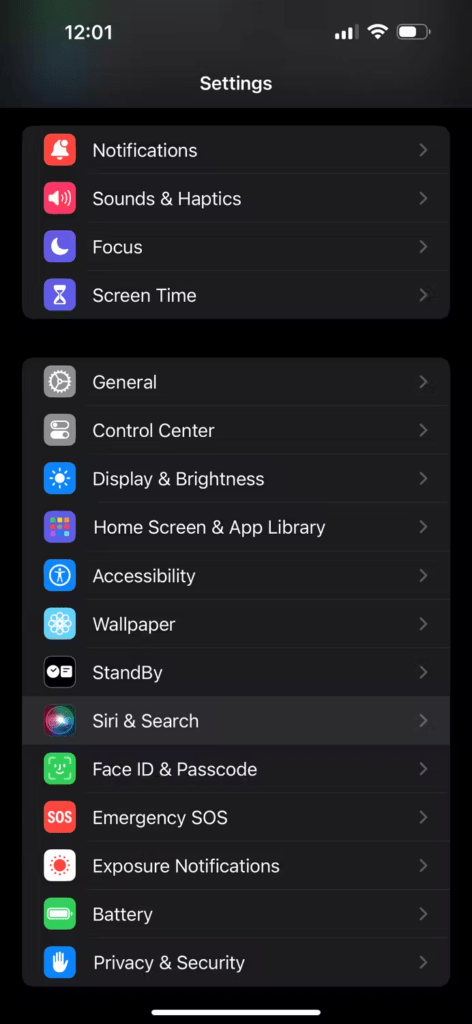
3. Scroll down and tap "Reset Siri".

4. Enter your Apple ID password when prompted.
5. Press "Confirm" to complete the reset
6. If you're using an iPhone X or later, you can also reset your voice recognition settings. To do this, tap " Learn to Say My Name " and follow the onscreen instructions.
How to reset Siri on your Mac
To reset Siri on your Mac, follow these steps:
1. Click on the Apple in the upper left corner of your screen.
2. Select System Preferences.
3. Click on Siri.
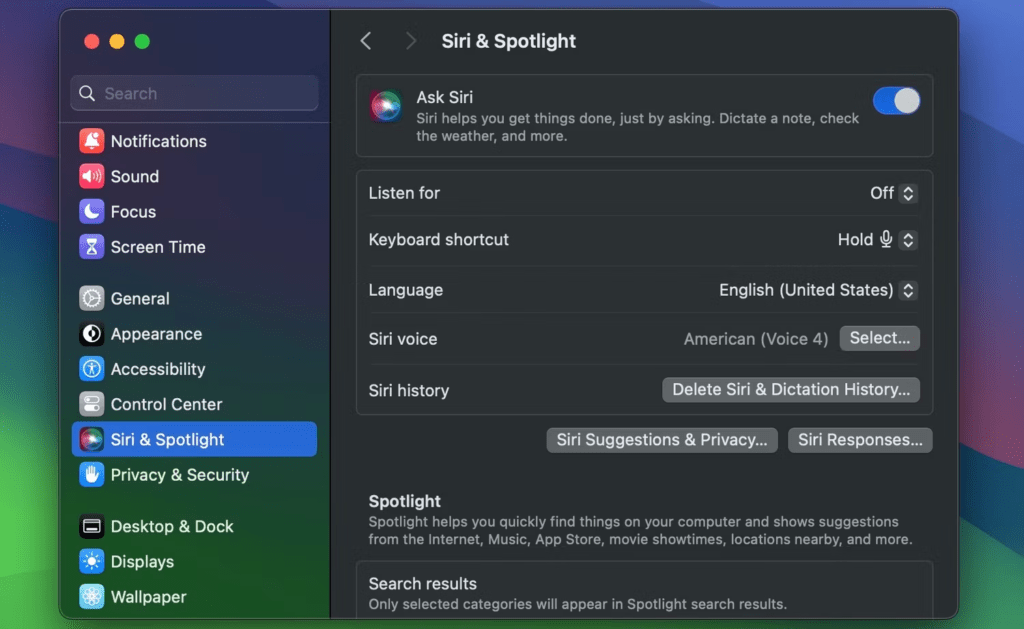
4. Select the "General" tab .
5. Click the "Reset Siri".
6. Enter your Apple ID password when prompted.
7. Click "Confirm" to complete the reset.
Once you've reset Siri, it should work normally. If you're still experiencing problems, you can try updating your device to the latest version of iOS, iPadOS, or macOS.
Additional tips
- If you are still experiencing problems with Siri after resetting it, you can try updating your device to the latest version of iOS, iPadOS, or macOS.
- You can also temporarily disable Siri and then re-enable it. To do this, open the Settings (iPhone or iPad) or System Preferences (Mac), go to Siri & Search, and then turn off the "Enable Siri".
Promotion
Did you know that Siri can help you order products on Amazon? Simply say, "Hey Siri, add X to my cart" to add a product to your Amazon cart. You can then use Siri to complete your order.
Conclusion
Resetting Siri is a simple process that can help you troubleshoot problems with the voice assistant or change its settings. By following the instructions above, you can easily reset Siri on your iPhone, iPad, or Mac.