Windows computer slowed down by pre-installed applications you never use? These unwanted programs, also known as bloatware, take up valuable storage space and can affect your system's performance. Fortunately, there are quick and easy ways to remove them.
What is Bloatware and which applications should you uninstall?
Bloatware is software pre-installed on your computer by the operating system manufacturer or developer. It can include productivity applications, games, utilities, and security software. While some bloatware can be useful, most is not and can be safely uninstalled.
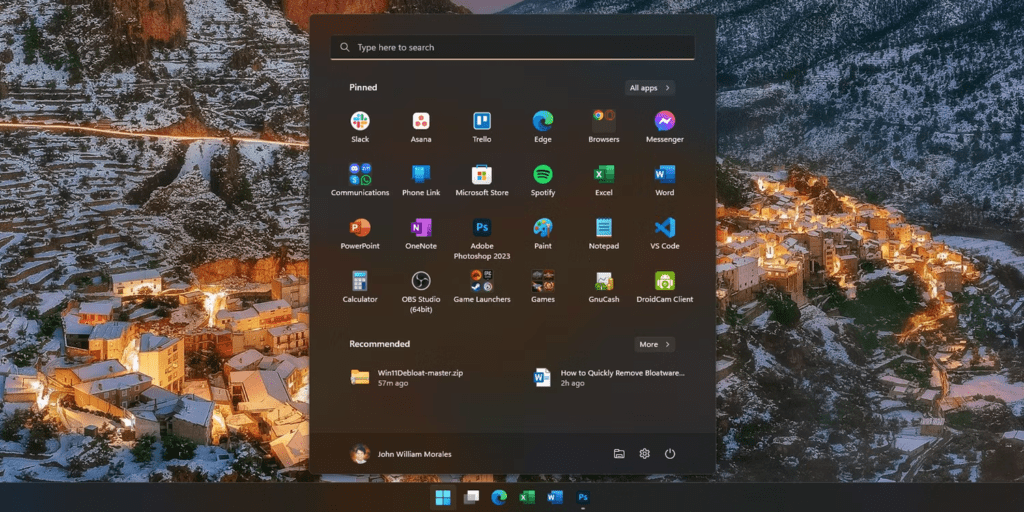
Here are some examples of common bloatware on Windows 11:
- Microsoft applications: 3D Builder, Alarms and Clock, Calculator, Mail and Calendar, Groove Music, Paint 3D, Photos, etc.
- Games: Candy Crush Saga, Bubble Witch 3 Saga, Microsoft Solitaire Collection, etc.
- Software trials: Microsoft Office 365, McAfee LiveSafe, etc.
It's important to note that uninstalling certain bloatware can affect your system's functionality. For example, uninstalling the " Photos " might prevent you from viewing photos stored on your computer. Before removing any bloatware, make sure you understand its purpose.
Uninstall Bloatware using Windows 11 settings
Windows 11 has a built-in tool that allows you to easily uninstall bloatware.
Here's how to proceed:
- Start menu and search for Settings .
- Click on Applications , then on Applications & features .
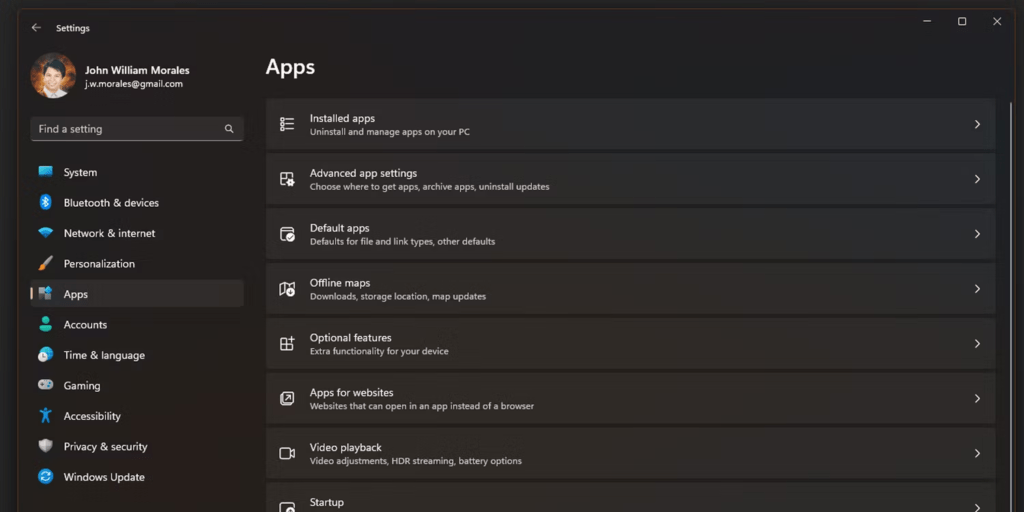
- Browse the list of applications and look for any bloatware you want to remove.
- Click on the application name, then on Uninstall .

- Follow the on-screen instructions to complete the uninstallation.
Remove pre-installed Windows 11 apps from the Start menu
Some pre-installed Windows 11 apps cannot be uninstalled using Settings. You can remove them from the Start menu by following these steps:
- Right-click on the application you want to remove in the Start menu.
- Select Uninstall from the context menu.
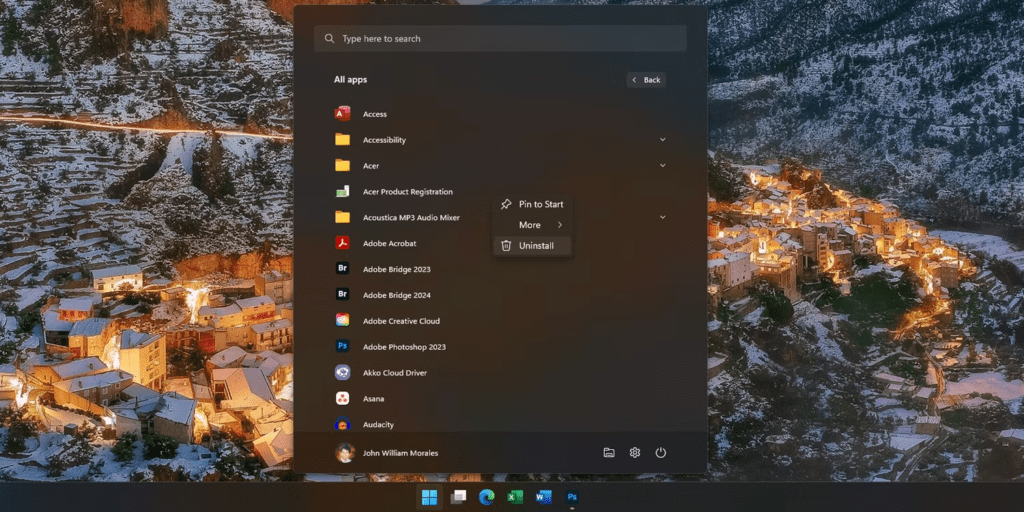
- Confirm the uninstallation in the pop-up window that appears.
Remove bloatware using Win11Debloat
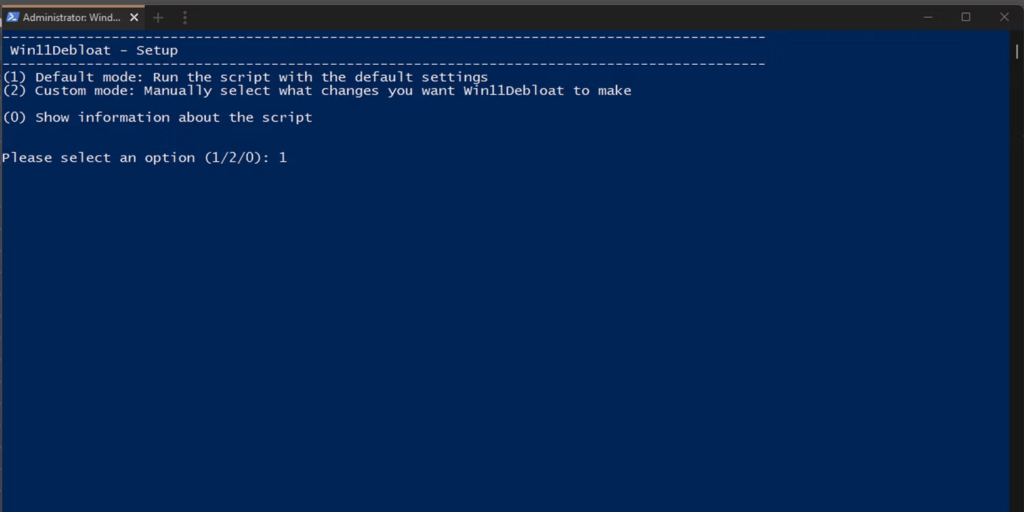
Win11Debloat is a free and open source tool that allows you to easily uninstall bloatware from Windows 11.
Here's how to use Win11Debloat:
- Download and install Win11Debloat from GitHub.
- Launch the application and click the Analyze .
- Win11Debloat will display a list of all bloatware detected on your system.
- The installer will then open in a new Windows PowerShell window. Type 1 or 2 to choose the bloatware removal method, and then press Enter.
- Select the bloatware you want to remove and click the Uninstall .
- Restart your computer after uninstalling the bloatware.
Warning: Win11Debloat is a powerful tool. Make sure you fully understand what you are doing before deleting any applications.
Conclusion
By following the instructions above, you can easily remove bloatware from Windows 11 and improve your computer's performance . Remember to be careful about the applications you uninstall and to back up your important data before you begin.