

How many times have you copied important text, only to lose it in the depths of your Android phone's clipboard ? Fortunately, there are ways to recover those precious fragments of data! This comprehensive article guides you step-by-step on how to view the clipboard history on your Android device, exploring both built-in options and third-party solutions.
1. Accessing the Clipboard History on a Samsung Keyboard
If you're using the default Samsung keyboard on your device, you have direct access to the built-in clipboard history. Here's how to use it:
To activate the Samsung keyboard toolbar:
- Go to Settings > General management > Default keyboard
- Select Samsung Keyboard , then the gear icon.
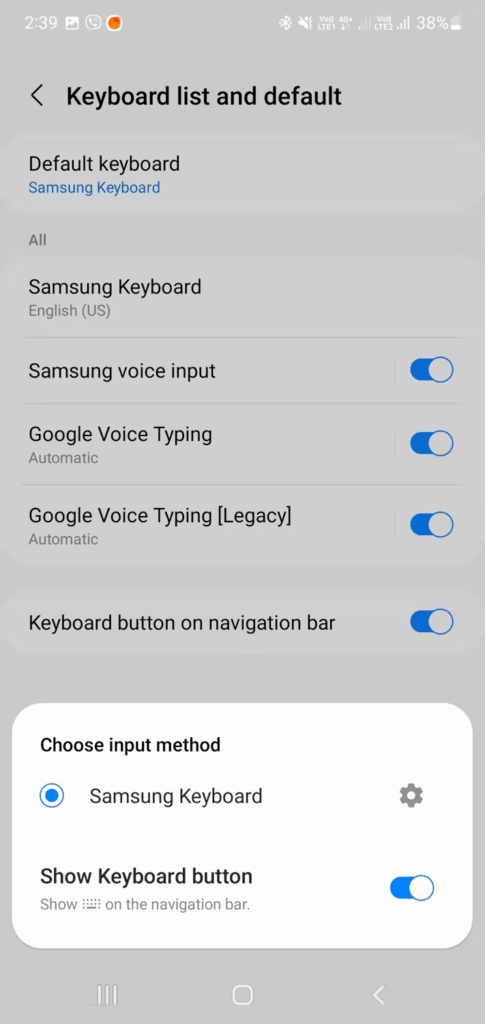
- Activate the toolbar in Style and Layout .
To use the clipboard:
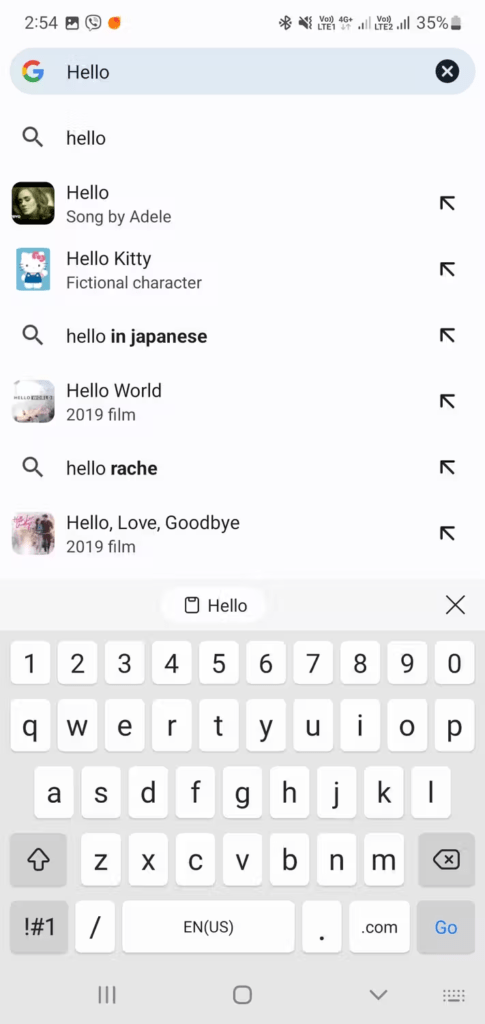
- Open the keyboard in an application, find the clipboard icon on the toolbar or below the three-dot menu, and drag it to the toolbar for quick access.
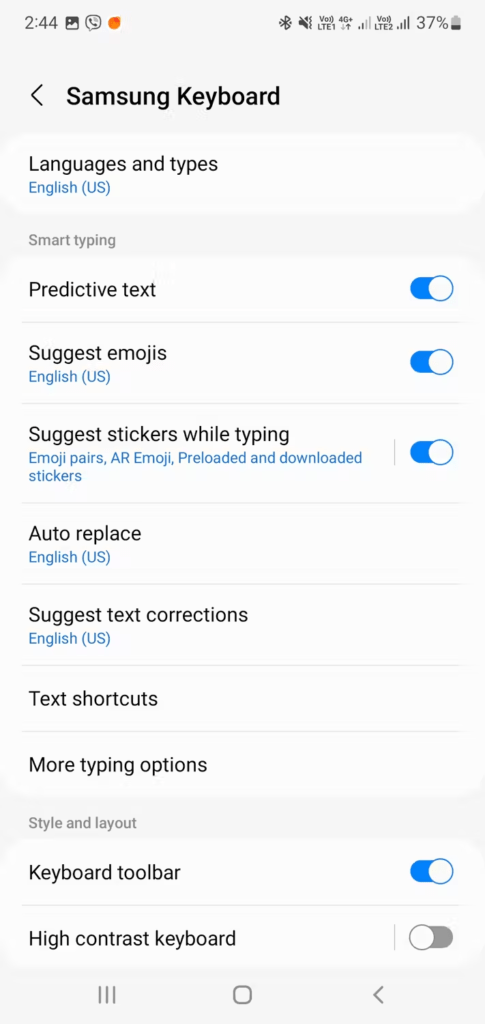
- Tap this icon to view copied items and pin or delete items via the corresponding icons.
Advanced features of the Samsung Clipboard
The Samsung keyboard offers additional features for managing your clipboard:
- Pinning items : You can pin important items to prevent them from being automatically deleted.
- Search history : Quickly find a copied item using the search bar.
- Manage settings : Customize how long items are kept in history and enable clipboard synchronization between your Samsung devices.
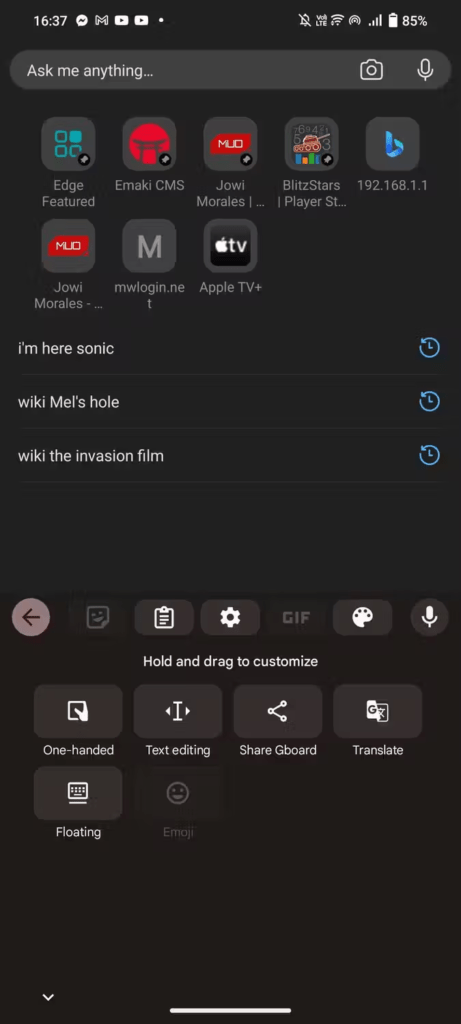
2. Check your Gboard clipboard history
Gboard, the Google keyboard, also offers a built-in clipboard manager. Here's how to access it:
- Open an application where you can enter text.
- Press the "G" icon on the keyboard.
- Select "Clipboard" from the menu.
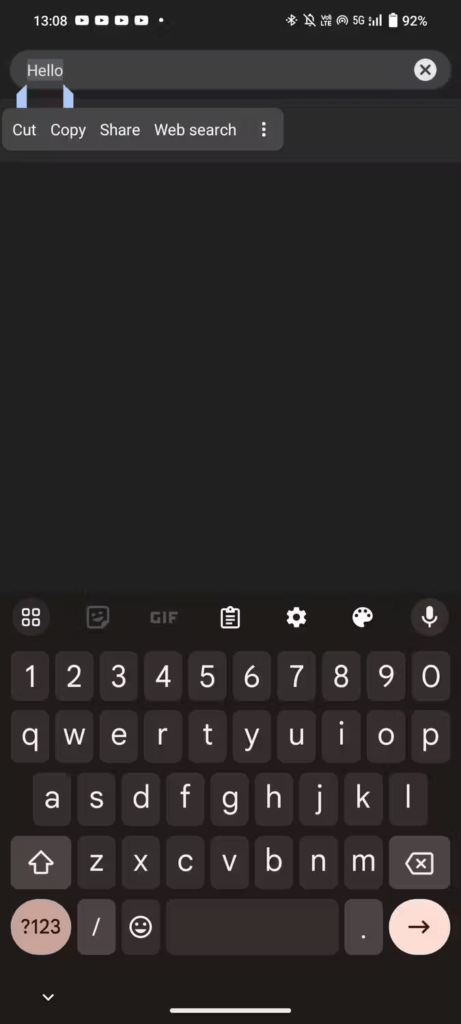
- You will see the history of your last copied items, with the option to paste, edit, or delete them.
Advanced features of the Gboard Clipboard
Gboard offers a few additional features:
- Text suggestion : Gboard can suggest words and phrases based on your clipboard history.
- Translator : Directly translate copied elements into another language.
- GIFs and Emojis : Access a vast library of GIFs and emojis to enrich your communications.
3. View your clipboard history on Microsoft SwiftKey
Microsoft SwiftKey, another popular keyboard, also has a clipboard manager. Here's how to use it:
- Open an application where you can enter text.
- Press the paperclip icon on the keyboard.
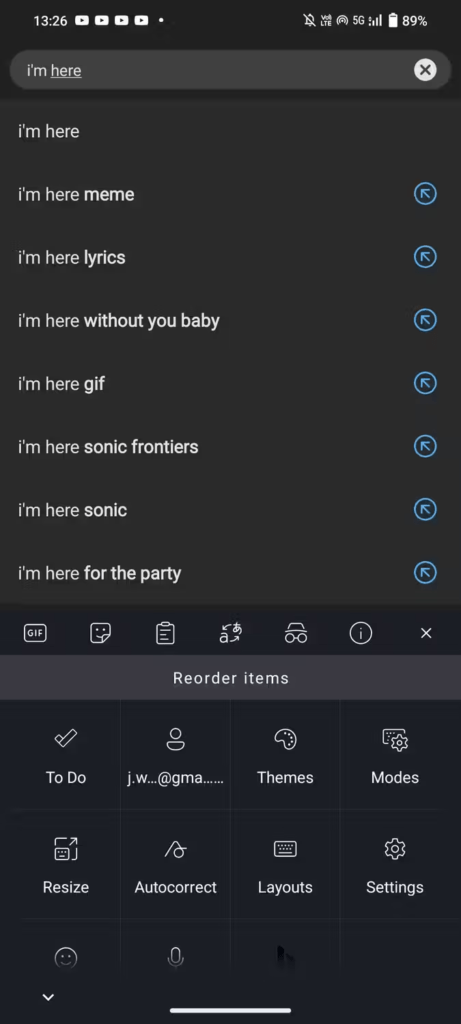
- You will see the history of your last copied items, with the option to paste, edit, or delete them.
Advanced features of the SwiftKey Clipboard
SwiftKey offers some interesting features:
- Clipboard synchronization : Synchronize your clipboard between your Android and Windows .
- Themes : Customize the appearance of the clipboard manager.
- Predictions : SwiftKey can predict the next words you will copy based on your history.
4. Use third-party clipboard managers to view your clipboard history
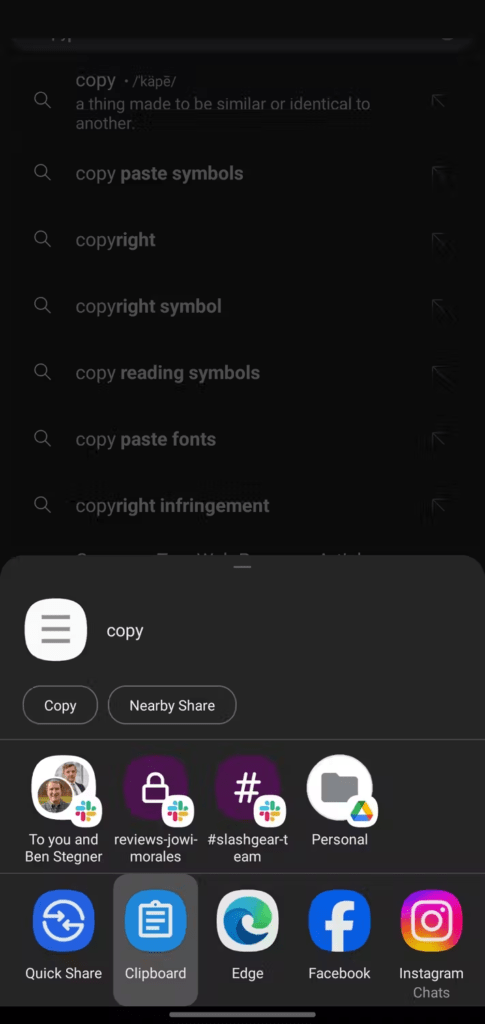
In addition to the native options, several third-party applications offer advanced features for managing your clipboard. Among the most popular are:
- Clipper : offers extensive history, synchronization between devices, and the ability to create snippet lists.
- Paste : allows you to organize your copied items by category and share them easily.
- Pushbullet : synchronizes your clipboard between your Android, Windows , and macOS devices.
See also: Where is the clipboard on iPhone
Optimizing clipboard history usage (Android)
Now that you know how to access the clipboard history on your Android device, here are some tips to optimize its use:
1. Regularly clear your history
A cluttered history can slow down your keyboard and make finding specific items more difficult. Regularly delete items you no longer use. Most clipboard managers offer a bulk deletion option.
2. Pin the important items
If you frequently copy information you use often ( addresses, phone numbers ), pin it to your clipboard manager. This will prevent it from being automatically deleted and make it easily accessible.
3. Use the search function
Most clipboard managers offer a search function. Use it to quickly find previously copied items, especially if you have a large history.
4. Enable clipboard synchronization (if available)
If you use the same keyboard on multiple devices, enable clipboard synchronization (available on some keyboards and third-party apps). This will allow you to access your clipboard history on all your connected devices.
5. Explore the advanced features
Many clipboard managers offer advanced features such as text conversion, language translation, and snippet creation . Take the time to explore these features to get the most out of your application.
6. Protect your privacy.
If you are copying sensitive information, make sure your clipboard manager has appropriate encryption to protect your data.
Conclusion
Managing your clipboard efficiently on Android is now possible thanks to both built-in options and available third-party solutions. Explore the different options and choose the one that best suits your needs so you never lose important text again.


