
When you Windows computer with other users , you may need to disconnect them from their session for various reasons: maintenance, security, resource optimization , etc.
This comprehensive guide explains, step by step, how to disconnect other Windows 11 users using different methods , each offering its own advantages and disadvantages.
Disconnect from other users using the task manager
The Task Manager is a tool built into Windows 11 that provides an overview of system processes and performance. It also allows users to easily and intuitively disconnect from other processes.
Steps to follow :
- Press Ctrl + Shift + Esc to open the task manager.
- Click on the Users .
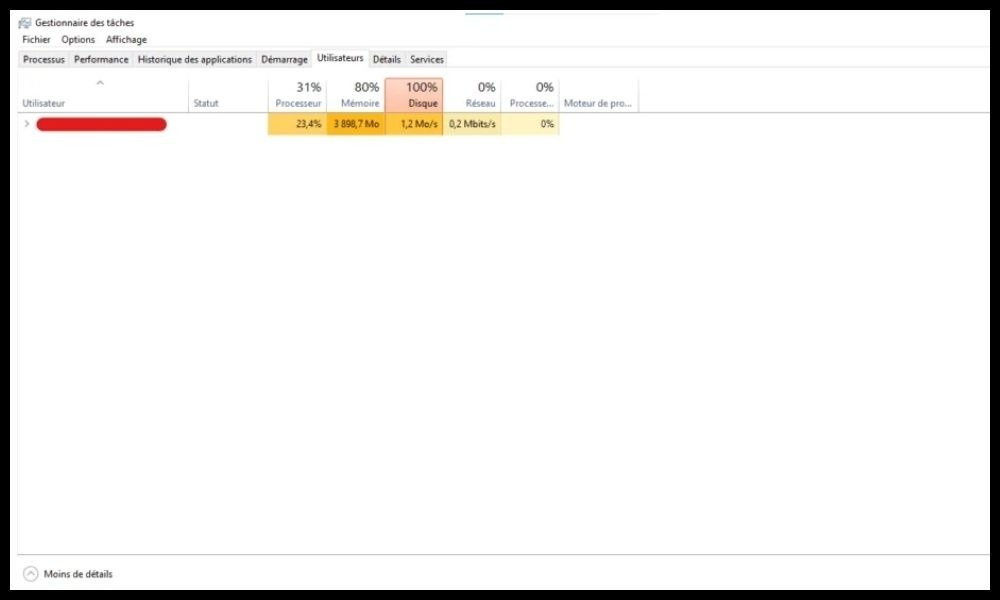
- Select the user you wish to disconnect.
- Click the Disconnect in the bottom right corner of the window.
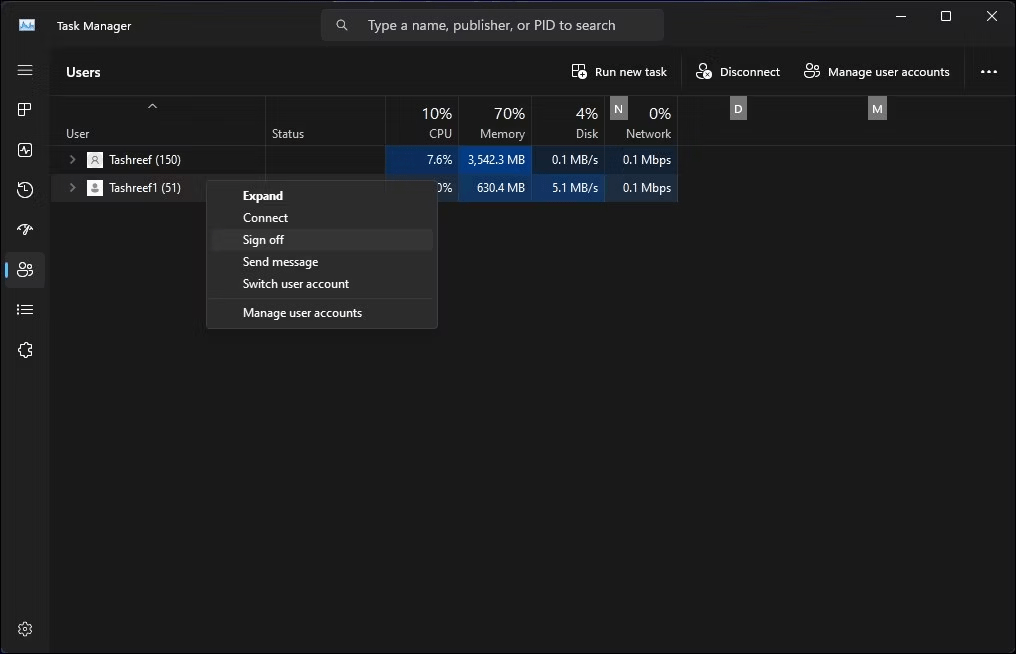
- Confirm your choice by clicking Disconnect in the pop-up window that appears.
Benefits :
- A simple and intuitive method.
- Quick access via keyboard shortcut.
- User-friendly graphical interface.
Disadvantages :
- Requires administrator privileges to disconnect other users.
- Does not allow users to be disconnected remotely.
Disconnect from other users using the command prompt
For more experienced users, the command prompt offers a powerful alternative for logging out other users. This method uses the `logoff` to log out a specified user.
Steps to follow :
- Open the command prompt as administrator.
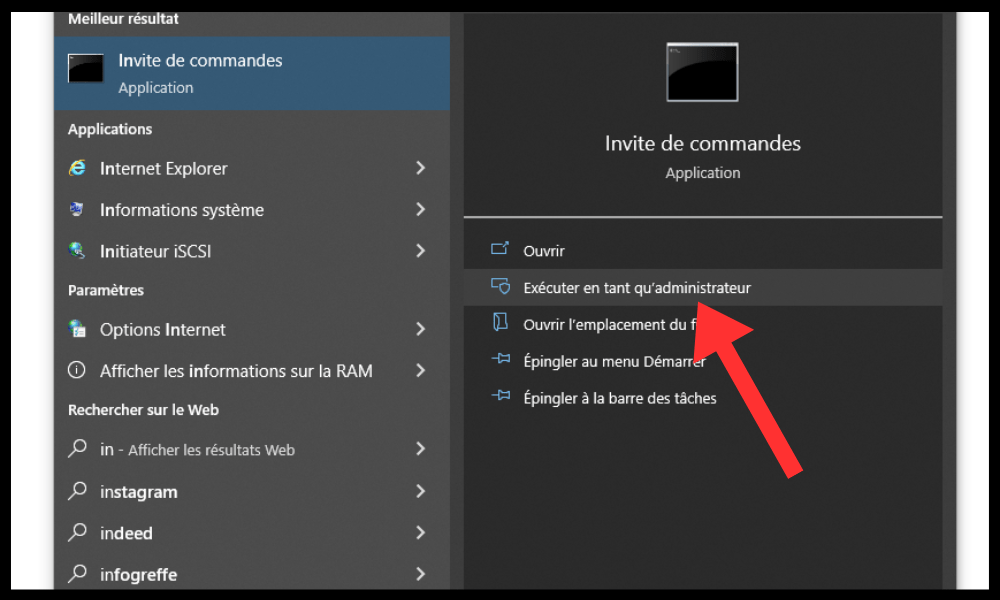
- Type the following command:
logoff<nom_utilisateur>
Replace
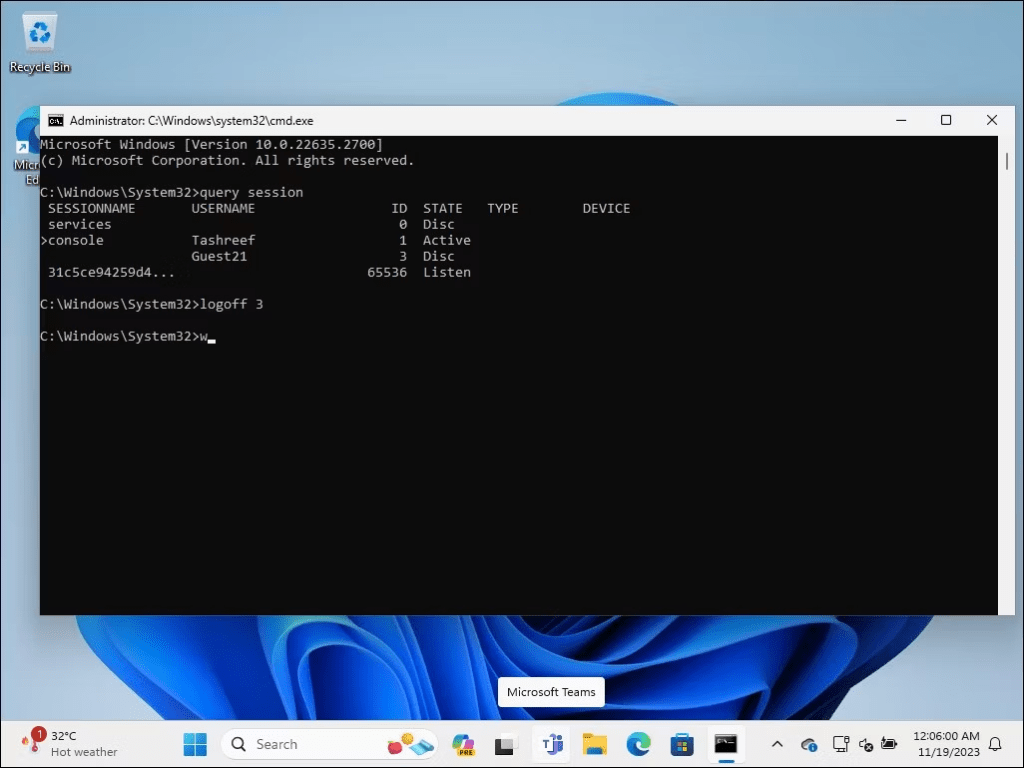
- Press Enter to execute the command.
Benefits :
- A powerful and flexible method.
- Allows users to be disconnected remotely.
- Does not require a graphical interface.
Disadvantages :
- Command syntax to learn.
- Less intuitive for novice users.
Disconnect from other users using Process Explorer
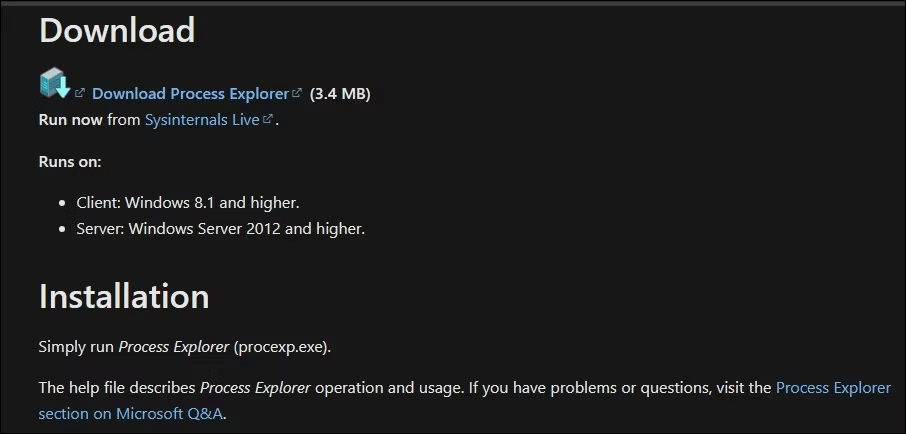
Process Explorer is an advanced tool developed by Microsoft that provides a detailed view of the processes running on your system. It allows you to disconnect users by terminating their session processes.
Steps to follow :
- Download and install Process Explorer from the Microsoft website .
- Launch Process Explorer and search for the winlogon.exe associated with the user you want to log out.
- Right-click on the winlogon.exe and select End Process from the context menu.

- Confirm your choice by clicking on Finish process in the pop-up window that appears.
Benefits :
- Offers a detailed view of processes and sessions.
- Allows you to disconnect users who are no longer responding.
Disadvantages :
- An advanced tool that can be intimidating for novice users.
- Requires an understanding of system processes.
Ask other users before disconnecting them

Before disconnecting another user, it is always courteous and respectful to ask them first. This helps avoid losing unsaved data or disrupting their work.
Advice :
- Send a message to the user via instant messaging or email.
- Make a voice announcement if you share the same physical space.
- Explain the reason for the disconnection and suggest an alternative if possible.
Conclusion
Logging other users out in Windows 11 is a simple and common operation. However, if you're looking for a more convenient and permanent way to access your session without entering a password, unlocking Windows without a password is an interesting alternative.