Typing in a foreign language, juggling symbols and accented characters… Your keyboard can become a real challenge if its configuration doesn't suit your needs. Fortunately, Windows 11 offers great flexibility for customizing your keyboard layout . Follow this comprehensive guide to easily add and change languages and keyboard layouts, and explore advanced options to optimize your typing experience
Add a new keyboard layout
1. Access language settings
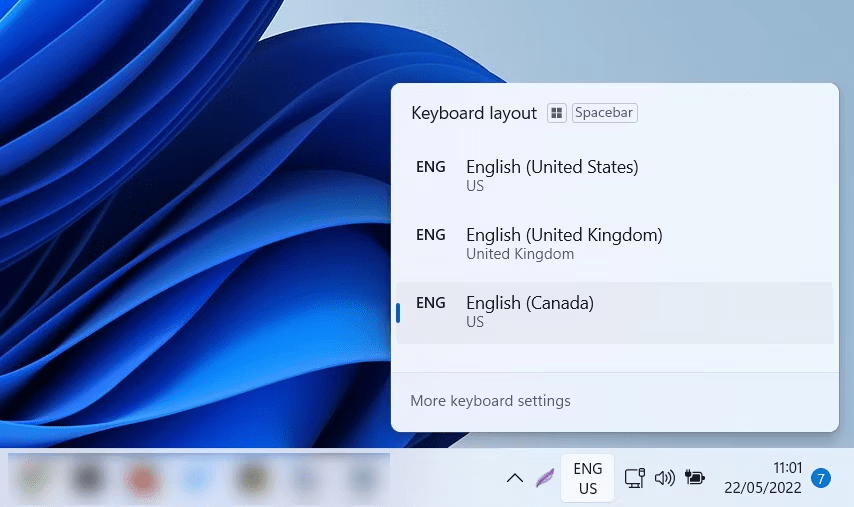
- Click on the language icon in the taskbar (FR, EN, etc.).
- Select " Language settings".
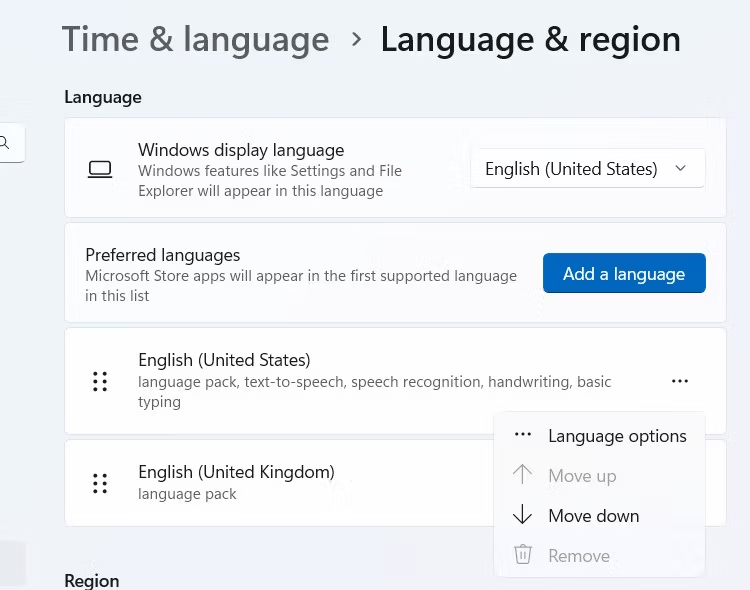
- In the " Preferred Languages" window, click on " Add a language".
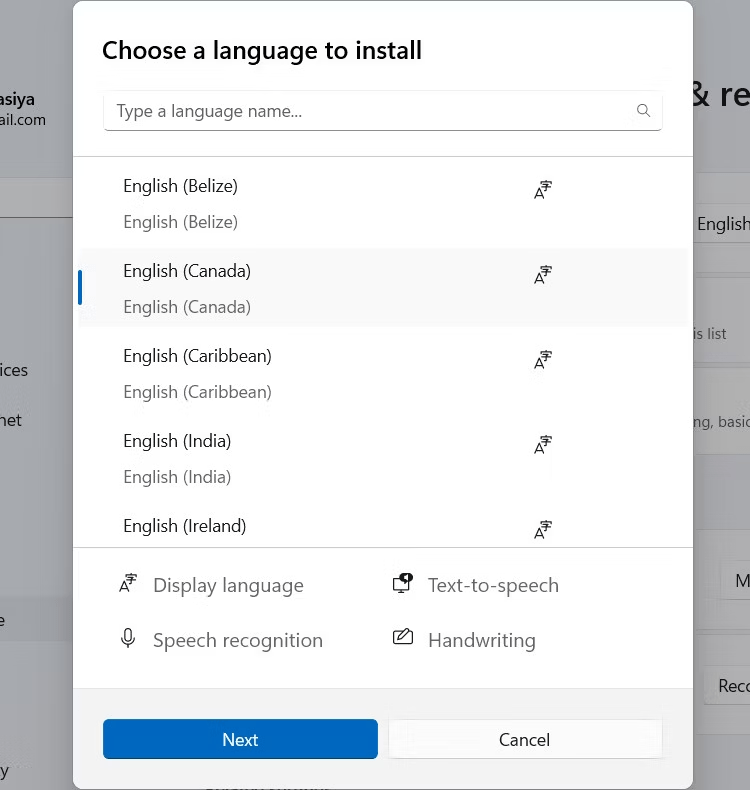
- Search for the desired language and select it.
- Click on " Next " then on " Install".
2. Choose the keyboard layout
- After installing the language, return to "Language Settings".
- Under " Preferred languages", click on the language you just added.
- Click on " Options".
- Under " Keyboards", click on " Add a keyboard".
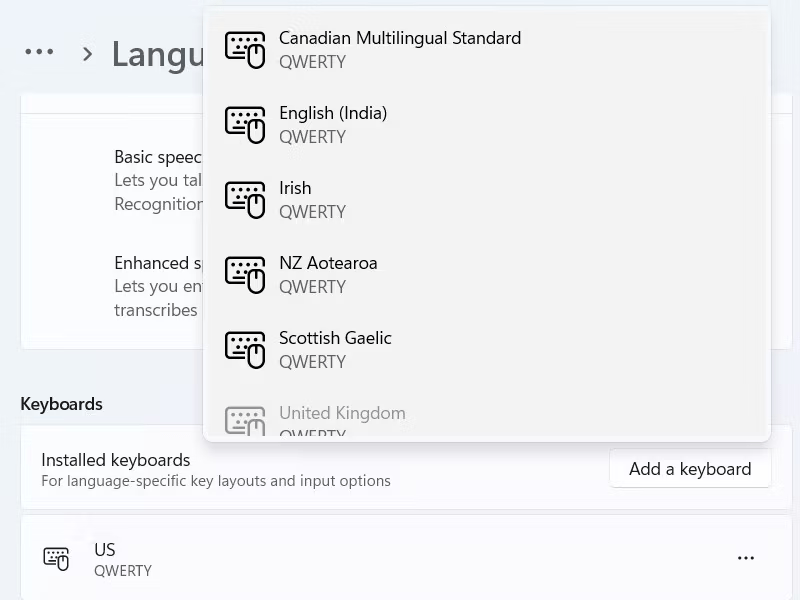
- Select your preferred keyboard layout.
- Click on " Add".
Change keyboard layout options
1. Switch between layouts
- Use the language icon in the taskbar.
- Press Windows key + Space (or Shift + Space).
2. Change keyboard shortcuts
- Go to " Settings > Time & Language > Language & Region".
- Click on " Administrative language".
- Select " Change keyboard options".
- Under " Switch between input methods", click on " Edit keyboard shortcuts".
3. Add symbols and accented characters
- Use the Windows + Shift + Space bar to display the special character table.
- You can also use language-specific keyboard shortcuts.
Advanced keyboard options
1. Prepare a keyboard for multilingual use
- Go to " Settings > Time & Language > Language & Region".
- Click on " Administrative language".
- Select " Add a language".
- Check the box " Install interface language pack".
- Restart your computer.
2. Use a Microsoft IME keyboard
- Download and install the Microsoft IME for the desired language.
- Go to " Settings > Time & Language > Language & Region".
- Under " Preferred keyboards", select the language with the IME.
- Click on " Options".
- Under " Keyboards", check the box " Use Microsoft IME keyboard".
3. Customize the keyboard layout
Download and use a keyboard layout tool like Microsoft Keyboard Layout Creator.
Conclusion
Mastering the various keyboard layout options in Windows 11 opens up a world of linguistic possibilities. Explore languages and symbols, learn how to type a lowercase and uppercase ð with an umlaut on the keyboard, optimize your typing, and boost your productivity. Don't hesitate to consult the additional resources and experiment with the different settings to find the configuration that works best for you.