
Have you ever experienced internet connection problems? Slowly loading web pages, applications that won't connect, or laggy online games? If so, you're not alone! Fortunately, there's a simple yet powerful tool for diagnosing network problems: the ping .
Windows in depth . We'll see what it does, how to use it, and how it can help you troubleshoot common network problems.
What does the Ping command do?
The ping command is a basic utility used to test connectivity between two devices on a network. It works by sending data packets (called " ICMP requests ") to a remote device and waiting for a response. If the remote device is reachable, it will respond to each ping request, indicating that the connection is active.
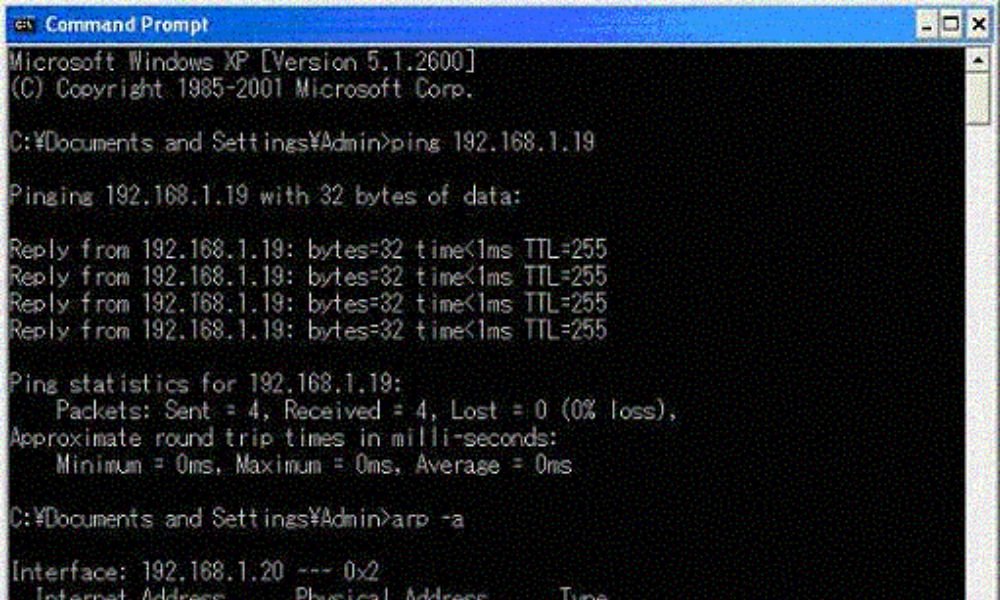
Here is some of the information that the ping command can provide:
- Latency: The time it takes for a data packet to reach the remote device and return.
- The number of packets sent and received: This helps determine if any packets were lost during transmission.
- The IP address of the remote device: This can be useful to identify the device with which you are experiencing problems.
How to use the Ping command in Windows
Using the ping command is very simple. Windows command prompt (type "cmd" in the search bar and press Enter) and type the following command:
ping<adresse_ip_ou_nom_d_hôte>

Replace
ping www.google.com
Here are some useful options you can use with the ping command:
- -t: Sends ping requests continuously until you press Ctrl+C.
- -n
: Specifies the number of ping requests to send. - -L
: Specifies the size of the data packets to be sent.
For more information about the ping command, see the Microsoft documentation: [Invalid URL removed]
When to use the Ping command?
Here are some situations in which you can use the Ping command:
- Troubleshooting network connection problems : If you are unable to connect to a website or another device, the Ping command can help you identify the source of the problem.

- Checking network latency : Latency is the time it takes for a data packet to travel from one point to another. The Ping command can help you measure network latency, which can be useful for online gaming or other latency-sensitive applications.
- Check if a device is active : You can use the Ping command to check if a device is powered on and connected to the network.
Interpreting the results of the Ping command
Here are some things to consider when interpreting the results of the Ping command:
- Packets sent/received : Indicates the number of data packets that were sent to the remote device and the number of packets that were received back.
- Loss : Indicates the percentage of data packets that were lost. A significant packet loss may indicate a network problem.
- Round-trip time (RTT) : Indicates the time it takes for a data packet to travel from your computer to the remote device and back. A high RTT may indicate a latency problem.
Advanced options for the Ping command
Here are some advanced options you can use with the Ping command:
- -t : Performs a continuous ping until you press Ctrl+C.
- -n : Specifies the number of data packets to send.
- -l : Specifies the size of the data packets to be sent.
- -a : Resolves the IP address into a hostname.

Conclusion
Windows user who wants to diagnose and resolve network problems. It's simple to use and can provide valuable information about your network connection.
Feel free to use the ping command the next time you experience internet connection problems.