Are you fed up with your slow and unstable Wi-Fi connection ? Before you rush out to buy a new router, know that a simple change to the settings of your current device may be enough to significantly improve the situation.
In this article, we will guide you step by step through the changes to make to your router settings in order to boost your Wi-Fi signal and enjoy a smooth and fast connection.
Causes of slow Wi-Fi
Before diving into the details of changing router settings, it's important to understand the causes of slow Wi-Fi. Several factors can contribute to this slowness, including:
- Interference : Wi-Fi signals can be disrupted by other electronic devices such as cordless phones, microwaves, or baby monitors. This interference can lead to a decrease in Wi-Fi speed.
- Congested channel : If you live in a densely populated area, it is possible that several Wi-Fi networks are using the same channel, which can lead to interference and a decrease in speed.
- Limited bandwidth : Some routers can be configured to limit the bandwidth allocated to each connected device. This can result in slow Wi-Fi if multiple devices are using the network simultaneously.
Changing router settings
Changing router settings might seem daunting for beginners, but don't worry, we'll guide you step by step. Here's how:
Step 1: Access the router's configuration interface
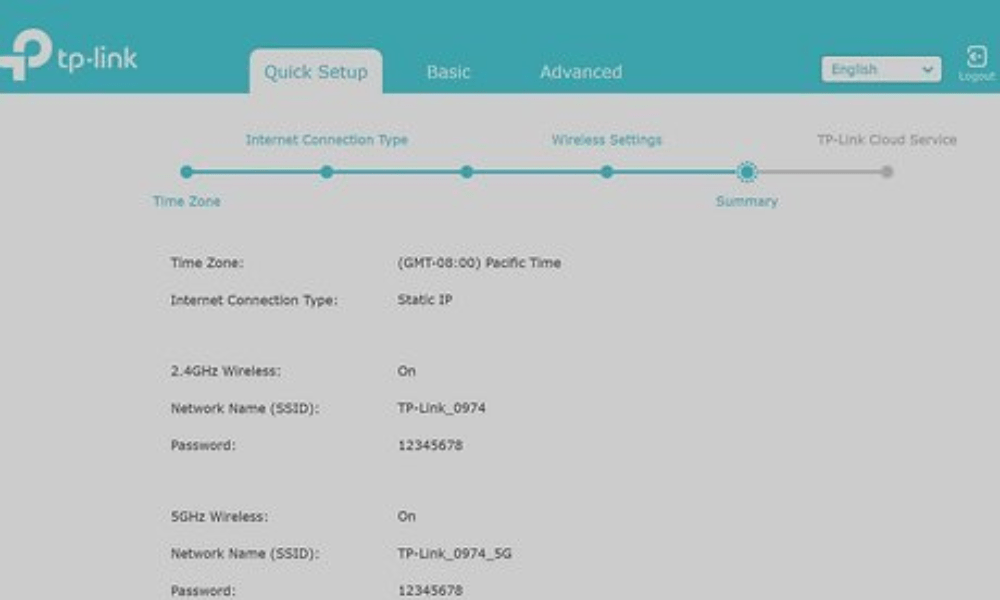
To change your router's settings , you need to access its configuration interface. To do this, open your web browser and enter your router's IP address in the address bar. The default IP address is usually " 192.168.1.1 ", but this can vary depending on your router's make and model. If you don't know your router's IP address , consult the user manual or search online for instructions specific to your model.
Step 2: Identify the current channel and bandwidth
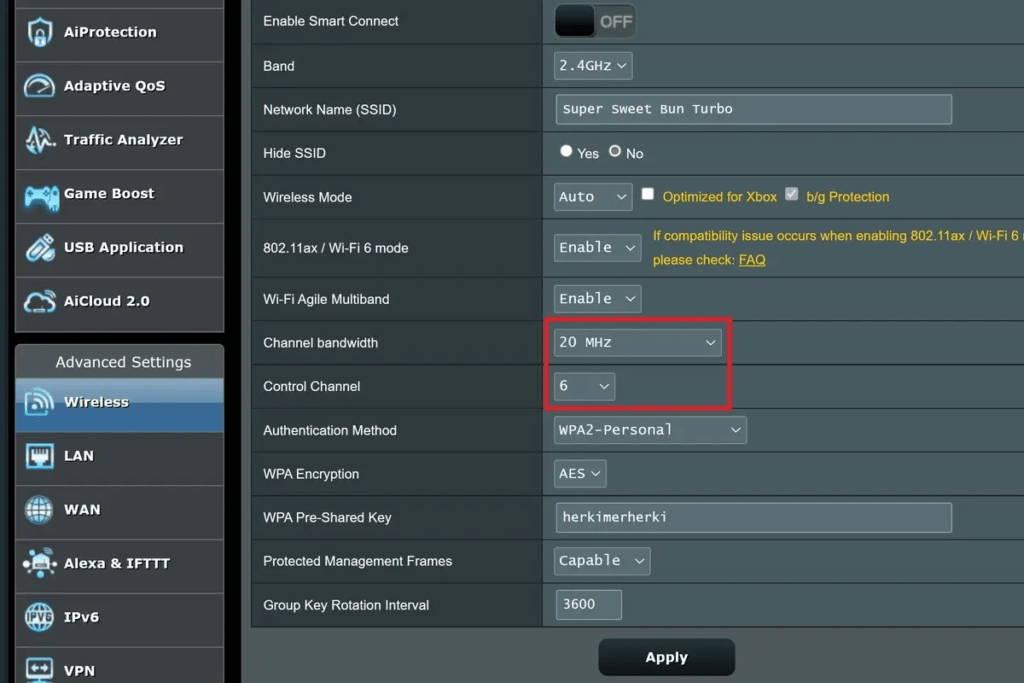
Once connected to the router's configuration , locate the channel and bandwidth settings. These settings may be located in different sections depending on the router manufacturer. Note the current channel and bandwidth settings, as you will need to change them later.
Step 3: Choose a new channel
Now that you know your current channel, it's time to choose a new one. To avoid interference, it's recommended to choose a channel that isn't being used by other nearby Wi-Fi networks. You can use an app like " Wi-Fi Analyzer " on your Android smartphone to analyze the channels used by surrounding networks. If you have a dual-band router , you can also choose a channel on the 5 GHz band , which is generally less congested than the 2.4 GHz band.
Step 4: Change the channel and bandwidth
Once you have selected a new channel, return to the router's configuration interface and adjust the channel and bandwidth settings accordingly. Be sure to save your changes before exiting the configuration interface.
Step 5: Perform speed tests

After changing your router settings, it's time to check if your Wi-Fi speed has increased. To do this, use an online speed test tool such as Speedtest.net. Connect to your Wi-Fi network and run the speed test to measure your download and upload speeds. Compare the results with those obtained before changing your router settings. If you see a significant improvement, congratulations! You've successfully resolved your slow Wi-Fi issue.
Other tips to solve the slow Wi-Fi problem
Adjust the signal strength
The strength of your router's Wi-Fi signal can also affect your connection speed. If you live in a small apartment, the default signal strength might be too high, which can cause interference.
In this case, you can try reducing the signal strength of your router. This option is usually available in your router's Wi-Fi settings.
Update your router's firmware

Router manufacturers regularly release firmware updates that may include bug fixes and performance improvements.
Make sure your router's firmware is up to date to take advantage of the latest Wi-Fi optimizations.
What should I do after changing the router settings?
In addition to changing your router settings, here are some other tips to improve your Wi-Fi connection:
- Reduce the number of devices connected to Wi-Fi : The more devices connected to your Wi-Fi network, the more bandwidth is used. Try disconnecting devices you are not using.
- Move the router closer to your devices : The closer the router is to your devices, the stronger the signal. If possible, try moving the router closer to the devices you use most often.
- Avoid obstacles : Thick walls, furniture, and electronic devices can block the Wi-Fi signal. Try placing your router in an open area, away from obstructions.
Conclusion
By following these tips and changing your router settings, you can significantly improve your Wi-Fi connection and enjoy a smoother, faster internet experience .
Keep in mind that if you continue to experience Wi-Fi problems after trying these solutions, you may need to contact your internet service provider or replace your router. Before doing so, however, we recommend using a good quality mobile network extender to try and boost your router's signal.