Are you a graphic or web designer who spends hours a day creating in front of your computer? Are you looking for a professional mouse to improve your performance and comfort? Then our comparison and buying guide for the best mice for graphic and web designers is just what you need. With it, you can complete your setup with an ergonomic mouse that's perfect for gripping, whether you're using a laptop or desktop computer.
Things to know before making a purchase
- There are several types of graphic designer mice. Indeed, some make 3D design than others, particularly thanks to the trackball.
- Web designer mice are distinguished by their unique design (ergonomics) and also by a higher-than-average number of buttons, including side buttons. Furthermore, since graphic designers are often working at their computers, they prefer a backlit setup and often invest in an RGB mouse.
- An ergonomic mouse never comes alone. Consider completing your setup with a mouse pad and a graphic designer's keyboard.
Comparison of the best mice for graphic and web designers

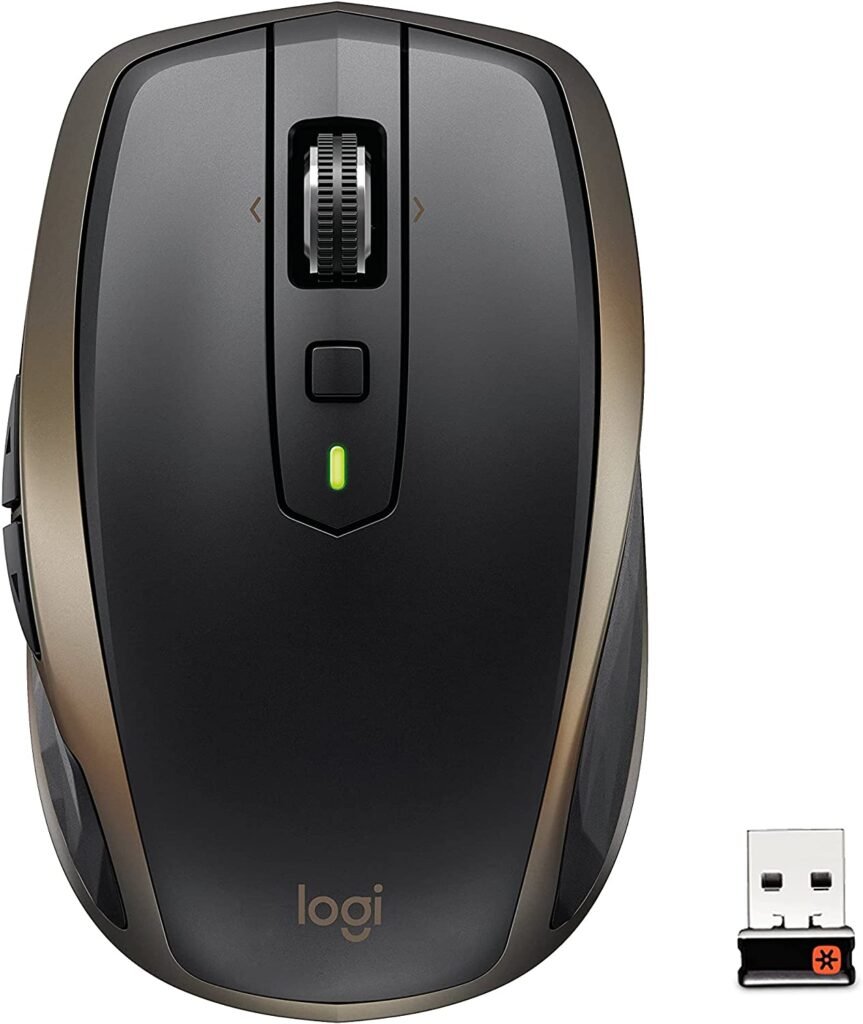
1. Logitech MX Anywhere 2: a mouse designed for experienced graphic designers!
Features and Reviews
Designed by Logitech, this MX Anywhere 2 mouse is wireless. Aesthetically, its design is ergonomic, with compact dimensions of 10 x 6 x 3.4 cm. Made of matte black plastic with a bronze trim, the side buttons are made of synthetic rubber.
Specifically designed for experienced users, the MX Anywhere 2 mouse is ideal for graphic and web designers. For €55.69, you can pair this mouse with up to three different devices, easily switching between them with a button. Enjoy fast scrolling through documents and other materials with the scroll wheel.
Compatible with both Bluetooth and the Unifying Mini Receiver, boost your productivity by taking your mouse with you wherever you go and working anywhere. With improved power supply management, the battery lasts up to 70 days. The Logitech mouse features a high-precision 1600 dpi Darkfield sensor with a tracking speed of 0.7 m/s.
The practical advantage of this mouse is that it works on all devices, allowing it to function on any surface. The pointer speed can be adjusted via the software or directly on the mouse.

2. Logitech M570: a high-quality and efficient mouse

Features and Reviews
Designed for right-handed users, the Logitech M570 is a wireless trackball mouse. Its ergonomically sculpted shape and stable base promote good posture for enhanced comfort during use. This mouse allows you to work all day without fatigue, as you don't need to move your arm to move the cursor.
Powered by a battery with an 18-month lifespan, it features programmable keys and a scroll wheel for navigating documents, as well as easily accessible Previous/Forward buttons for switching to another document. With its 2.4 GHz wireless connection, you can do away with cables and wired modes.
It works on almost any surface, whether hard or soft. Its dimensions are 14.5 x 9.5 x 4.5 cm (H x W x D), making it particularly suitable for small workspaces and busy desks. And for your added convenience, the M570 trackball features an adjustable laser sensor for high cursor speed and optimal control.
3. Trust Verto: the ideal mouse if you're a hard worker!
Features and Reviews
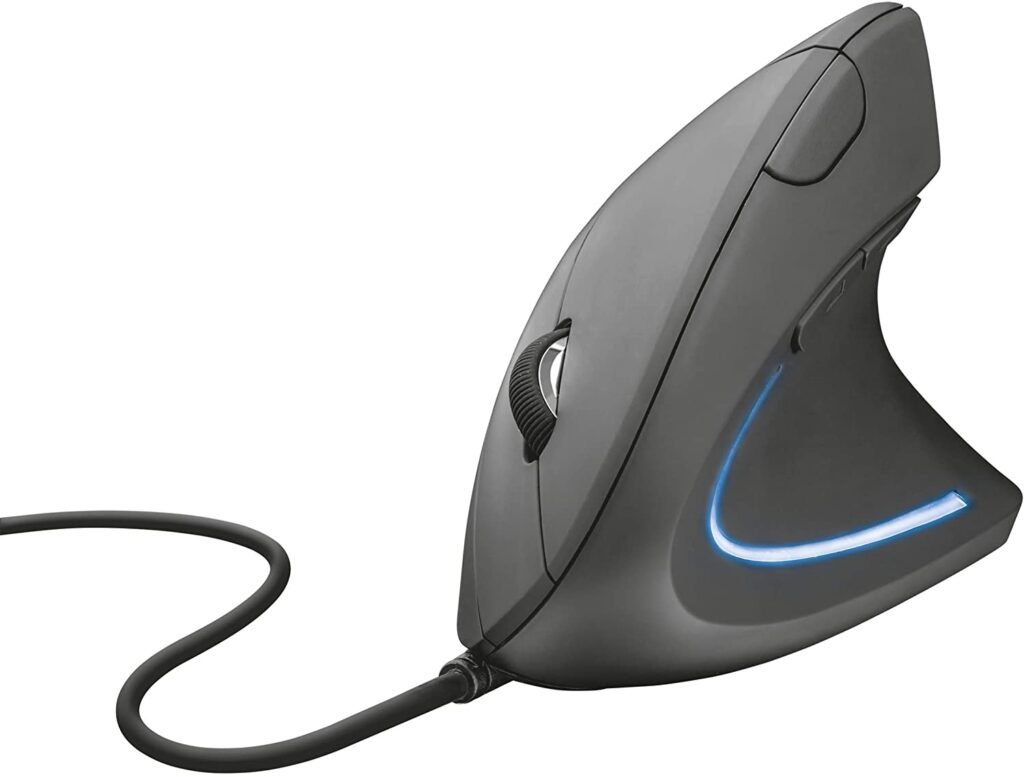
With this Trust Verto vertical mouse, you can work comfortably for extended periods without fatigue. Thanks to its ergonomic design, this mouse is designed to reduce strain on your arm and wrist, providing optimal comfort and allowing you to maintain the natural position of your hand while using it.
Featuring a comfortable thumb rest and a rubberized coating, the Trust Verto is easy to grip. This wired mouse has an adjustable 1000/1600 DPI optical sensor for precise control. It has six customizable buttons, and two thumb buttons are dedicated to forward/back navigation.
Measuring 6.3 x 7.5 x 12 cm, the Trust Verto weighs 89 g. It requires no installation; simply plug in the 1.5 m USB cable and you're ready to go. For added style, this mouse features blue LED lighting, making it very attractive.

4. RAZER Viper 8 kHz: an ambidextrous gaming mouse suitable for graphic designers
Features and Reviews
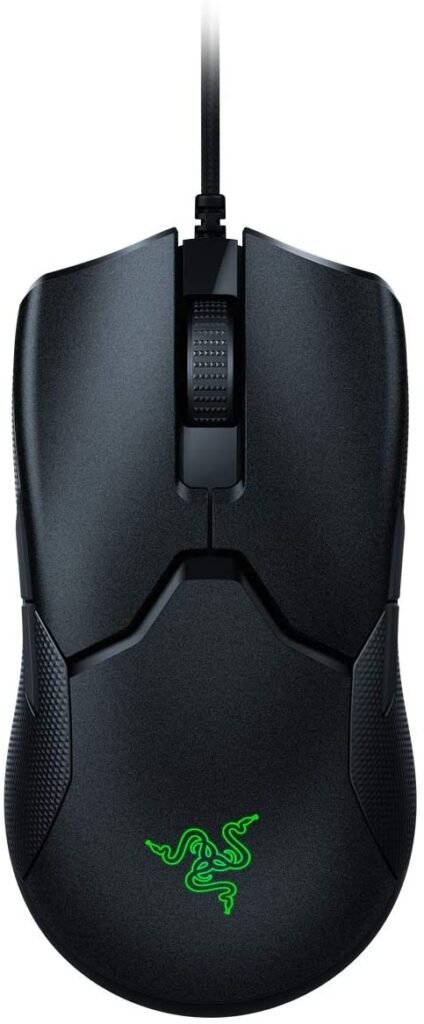
The Razer Viper 8 kHz is a wired optical mouse designed for gamers. Featuring a Razer Focus+ optical sensor with 20,000 DPI, this mouse offers unparalleled precision. Its ergonomic design and ultra-lightweight construction (71 g) provide a comfortable grip and easy handling, allowing gamers to easily track their opponents during intense gameplay.
Made of textured matte black plastic, this product is sleek and stylish. Ambidextrous, the Razer Viper 8 kHz features eight fully programmable Hyperesponse buttons. These buttons are equipped with highly responsive optical switches for a satisfying click. With a tracking speed of 16.51 m/s, this mouse enhances user performance and productivity.
Thanks to its onboard memory, Razer offers the ability to set five variable DPI levels via the button located on the underside of the mouse. Measuring 12.6 x 6.6 x 3.7 cm, the Speedflex USB cable is highly flexible. The Razer logo is backlit by an RGB lighting system compatible with Raze Synapse.

5. Microsoft Bluetooth Mobile Mouse 3600: a practical, wireless and compact mouse!
Features and Reviews
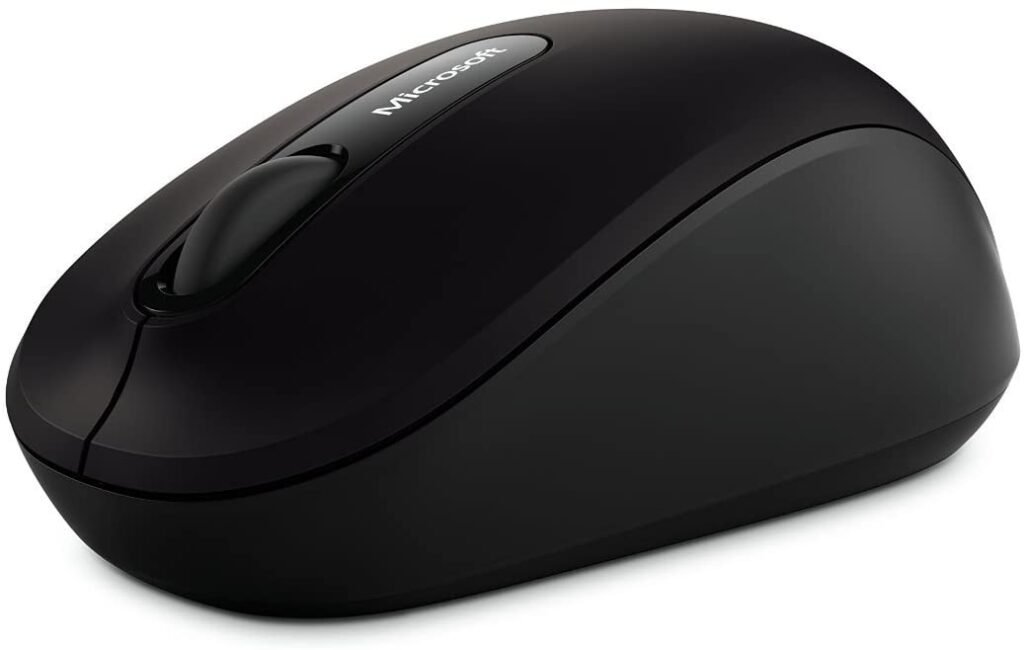
Manufactured by Microsoft, this Bluetooth wireless mouse, the Mobile Mouse 3600, is very practical thanks to its compact design, allowing you to work and use it wherever you are. Its ambidextrous shape makes it versatile enough for both left- and right-handed users.
Featuring two buttons and a multidirectional scroll wheel, the mouse's functionality is basic. Wireless connectivity via Bluetooth Smart technology eliminates the need for cables and transmitters to connect it to your PC or tablet; simply pair it to start using it.
Thanks to Microsoft's BlueTrack technology, this mouse adheres and adapts to any surface, using the power of optics and the precision of a laser to ensure smooth cursor movement. Powered by batteries, the charge lasts up to 6 months of use, and even when the battery level is low, an indicator light alerts you.
To turn it on or off, the mouse has a button to conserve battery power when not in use.

Here's what a graphic designer's mouse offers you!

- Improved user comfort. Indeed, they feature an ergonomic design allowing for a perfect grip. This reduces pain in the thumbs and wrists, which are common among web designers, programmers, graphic designers, and gamers.
- Macros. The side buttons or a DPI switch allow you to program macros. These are shortcuts (like on a keyboard). This means you can combine several key combinations into one, making your work easier. Thanks to this feature, graphic designers can work faster on videos, photos, or 3D animation.
- Design. We've talked about it, but apart from being ergonomic, mice for graphic designers and web designers are generally beautiful objects (like RGB mice), which we appreciate having in our PC setup.
Anyone who uses a laptop for drawing should have an ergonomic mouse that protects their joints and ensures a better grip, better handling, in short, more comfort.
We invite you to watch Anonimal's video after his 30 days of testing the ergonomic vertical mouse!
However, when buying a mouse designed for graphic designers, you can imagine that a designer's mouse is much more expensive than a basic model. Furthermore, we strongly advise you to choose a model from a well-known brand! For example, Logitech.
The only drawback, which isn't really one, is that a PC mouse for graphic designers requires an ergonomic mouse pad and a suitable keyboard.
Good to know: Are you tired of using a mouse to work on your drawings? Why not use a graphics tablet ?
What are the differences between a mouse for web designers and a regular mouse?
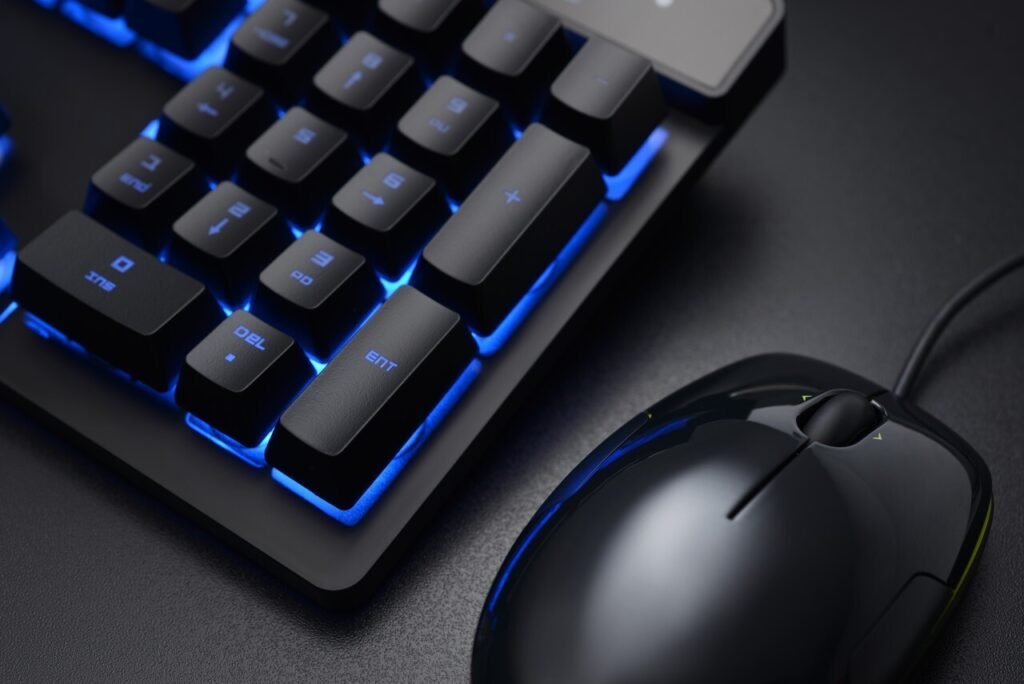
The difference lies in the advantages we listed above. In fact, technically everyone should invest in a more comfortable graphic designer's mouse. While some models are very specific to video, photo, and graphic design, we understand that.
The ability to program macros and create keyboard shortcuts using the side buttons is a significant difference between graphic designer mice and standard mice. Furthermore, these ergonomic mice are equipped with the latest sensor, DPI, and grip technologies. Therefore, they are essential for graphic and web designers.
Buyer's guide to choosing the right mouse for graphic designers
Are you still determined to invest in a graphic and web designer's mouse ? Do you want to improve your performance ? Gain more comfort and productivity? Then these computer mice are for you. However, there are many graphic mouse models on the market, some designed for drawing, others for animation, and still others for photo editing. With this buyer's guide, we aim to help you choose the best mouse for graphic and web designers that suits your needs.
Your mouse buttons for graphics
If you type "mouse for graphic design" or "mouse for design" into Google, you will find a variety of mice that have:
- An ergonomic shape
- More buttons than other PC mice
- An RGB or backlit design for the more eccentric
Obviously, all these technical features have a specific function, enabling high performance in graphic and web design. For example, the ergonomic shape increases your comfort and reduces fatigue and wrist pain, while the side buttons allow you to use keyboard shortcuts and program macros.
Furthermore, these high-tech mice are equipped with advanced sensors for improved precision, which is essential for graphic designers. All these features aim to enhance the quality of your work (and the condition of your hand afterward).
Several types of buttons can be found on a mouse used by graphic designers and designers, such as:
- The side buttons
- DPI modifier buttons
- The SHIFT and CTRL buttons
DPI Modifiers
A DPI modifier might be helpful, but first, what is DPI? DPI is your mouse's sensitivity. In other words, it's the speed at which your mouse moves on your computer screen. A DPI modifier allows you to change this setting with a single press.
What use is this to a graphic designer?
Whether you're editing photos or videos in Photoshop, adjusting your computer mouse's sensitivity allows you to achieve varying degrees of precision, from high-DPI for meticulous work to rougher, more detailed work. Generally, having worked for years with a standard graphic designer's mouse that maintains a constant DPIleads us to neglect this button. And yet, it's quite useful.
The SHIFT and CTRL buttons
To guarantee greater quality and productivity in your design work, PC mouse designers have developed a SHIFT button and a CTTL button on certain models. These allow you to perform keyboard shortcuts in record time, making life easier for graphic and web designers.
The side buttons
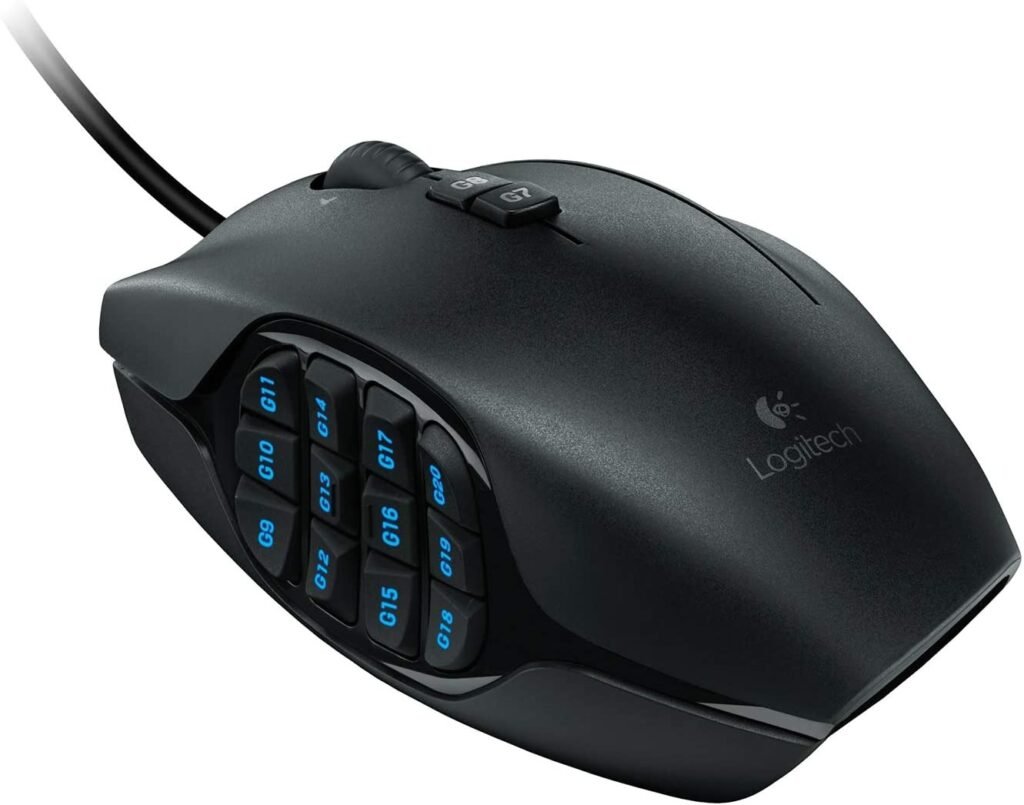
These buttons are located on the side of the thumb so they can be pressed with it. These side buttons are very popular with gamers on gaming mice because they allow keyboard shortcuts to be readily accessible. Mice equipped with side buttons typically have 12 numeric keys. However, this layout is quite rare on graphic design mice.
Indeed, while these side buttons would be useful for programming macros, particularly for performing specific actions in video or photo software, they take the place of a trackball, which many designers appreciate. And for good reason: the trackball is a gem for graphic designers. But we'll come back to that later.
In any case, depending on the model of your designer mouse, you will find different models of side buttons.
Good to know: There are, of course, mice with side buttons specifically designed for gaming! See MMO mice
The Trackball
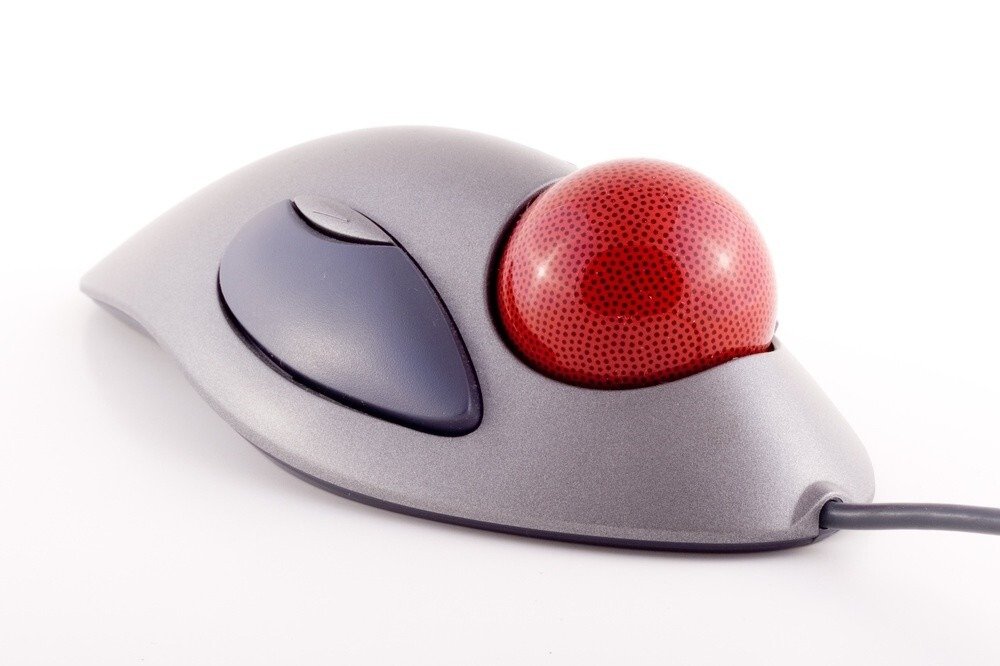
Here's a specific feature of mice for graphic designers and 3D designers. Because yes, the trackball is designed to aid in 3D design. Indeed, a trackball allows for better feedback on mouse direction and manipulation within a 3D plane.
Where using a trackball without 3D design makes no sense and makes cursor manipulation very strange, it makes perfect sense with 3D animation and three-dimensional modeling software.
This tool is popular with graphic designers and designers, so much so that some mice are composed solely of a trackball, as in the image above.
Moreover, the trackball changes the way we grip our mouse . Typically, the man in the photo holds his mouse with his fingertips because he can't fully grip it due to the ball. This highlights the benefits of an ergonomic mouse
An ergonomic mouse designed for your grip
Fatigue and pain in the fingers, hand, and wrist are a problem for graphic and web designers, who are among those who spend the most time in front of their ultrabooks, desktop computers, or laptops. First, learn to recognize your grip type:
- In the palm: the whole hand grasps the mouse
- With a claw grip: you grip the mouse as if you had claws.
- Fingertip control: for those using a trackball
Now, it's essential to switch to ergonomic mice for graphic design that will protect your wrist, reduce fatigue, and improve your performance. It would be a shame to have to take sick leave or put your business on hold because of wrist tendonitis.
Our FAQ!

We hope that reaching the end of this buyer's guide on the best mice for graphic and web designers has shed some light on the benefits of having one. However, some questions may still remain. What budget should I choose? Wired or wireless mouse? How do I complete my setup? We'll answer all these questions now!
Which should you choose: a wired mouse or a wireless mouse?
Whether you're a graphic designer or not, there are two main types of mouse, each with its own advantages and disadvantages. These mice are:
• Wireless mice (Bluetooth or with adapter)
• Wired mice
Choosing a wired mouse?
The advantages of a wired designer mouse
A wired mouse is a direct connection device. This means that latency is very low, making your mouse for graphic and web designers a highly responsive mouse. Latency is the time between pressing a key and the action appearing on the screen. Despite these advantages, wired mice have several drawbacks for design and graphics that can negatively impact user performance.
The disadvantages of a wired designer mouse
For high-performance latency, the cable is perfect. However, it's bulky and adds to the myriad of wires cluttering the desks of graphic designers and web designers. This compromises the comfort of your ergonomic professional graphic designer's mouse. Indeed, the cable is likely to get in your way and reduce the precision of your actions.
A wireless mouse is highly recommended for graphic designers and web designers. Whether Bluetooth-enabled or using an adapter, they will better meet your comfort and productivity needs, as only a mouse designed for graphic designers can.
Choosing a wireless mouse?
The advantages of a wireless mouse for graphic designers
Even if the latency is slightly longer, it won't be a problem for your work. However, the cable will be, which is why wireless mice don't have one, and it's a significant advantage. Comfort is optimal. With an ergonomic wireless mouse, you can work for hours without getting tired at all.
The disadvantages of a wireless mouse for graphic designers
While we highly recommend wireless mice, we can't ignore their drawbacks. First, be aware that you have:
• Bluetooth mice
• Mice with adapter
Depending on the type of wireless mouse you choose, you will encounter different drawbacks:
The battery of Bluetooth mice
The problem with Bluetooth mice for graphic designers is that the fun ends when the battery dies. These mice need to be recharged, which isn't practical when you're doing graphic design work.
A constantly occupied USB port
Mice with adapters, on the other hand, don't have this problem. However, the adapter in question constantly uses a USB port on your laptop or desktop computer. This is inconvenient if you want to connect multiple USB peripherals, such as a trackball.
Longer latency
While a wired mouse guarantees minimal latency, this isn't the case with wireless mice. The connection is made via an adapter or Bluetooth, meaning it's indirect. As a result, the mouse is less responsive. However, this isn't a problem for graphic designers and web designers who prioritize comfort above all else.
What should I add to my graphic design setup?
What are the prices for a designer mouse?
Therefore, designer mice are available in entry-level, mid-range, and high-end categories. This way, there's something for every budget. On average, expect to pay around €50 for a good ergonomic mouse perfect for graphic design, photography, 3D modeling, and video editing. Now you can confidently say you have the best mouse for graphic and web designers.