The space bar is one of the most frequently used keys on a keyboard. It allows you to separate words, insert line breaks, pause a video, or launch an internet search. But what if it stops working? How can you repair your keyboard and regain comfortable typing? Here are 10 possible solutions to this problem.
Solution 1: Check keyboard settings
The first thing to do is check if the problem is related to your keyboard settings. The space bar might be disabled or assigned to another function. To do this, follow these steps:
- Open the Start menu and click on Settings

- Click on Time and Language, then on Language

- Select your keyboard language and click Options

- Check that the keyboard layout is correct and that the space bar is not modified
- If necessary, change the settings or restore the default values
Solution 2: Clean the keyboard
The space bar may be blocked by dust, crumbs, or other debris. To clean the keyboard , you can use a soft cloth, a cotton swab, compressed air, or a vacuum cleaner. Here's how:

- Turn off your computer and unplug the keyboard if it is external
- Turn the keyboard over and shake it gently to dislodge any debris
- Use a soft cloth or a slightly damp cotton swab to clean the keys and the spaces between them
- Use a can of compressed air or a vacuum cleaner to blow or vacuum up any remaining dirt
- Allow the keyboard to dry completely before plugging it back in and turning your computer back on
Solution 3: Disassemble the key
If cleaning isn't enough, you can try removing the key from the keyboard to see if it's damaged or stuck. For this, you'll need a flathead screwdriver or a thin, flat object. Here's how:

- Turn off your computer and unplug the keyboard if it is external
- Insert the screwdriver or flat object under the key and slide it gently to lift it
- Remove the key and check its condition. If it is broken, you will need to replace it. If it is dirty, clean it with a soft cloth or a slightly damp cotton swab
- Also check the condition of the mechanism under the key. If it is damaged, you will need to replace it. If it is dirty, clean it with compressed air or a vacuum cleaner
- Replace the button by pushing it in until it clicks into place
- Reconnect the keyboard and turn your computer back on
Solution 4: Update your keyboard drivers
The problem may be due to outdated or corrupted drivers. Drivers are software programs that allow your computer to recognize and communicate with your peripherals. To update your keyboard drivers, follow these steps: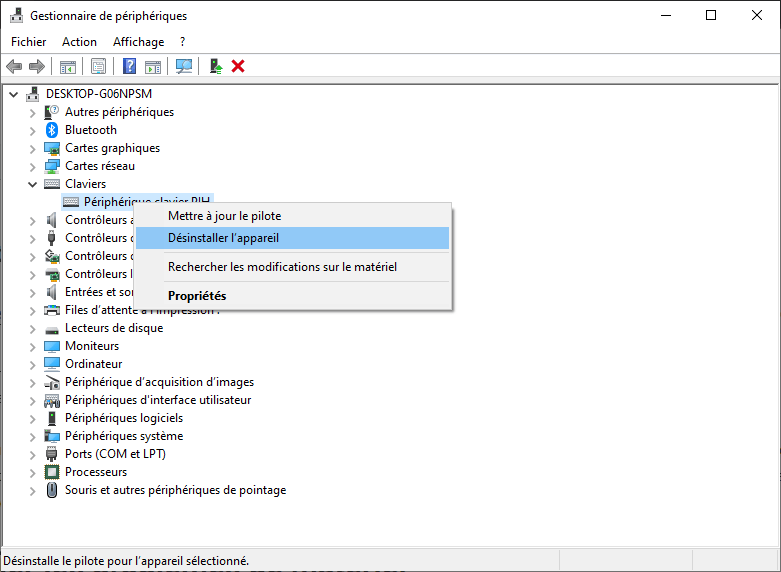
- Open Device Manager by right-clicking the Start menu and selecting Device Manager
- Expand the Keyboards category and right-click on your keyboard
- Select Update driver and follow the on-screen instructions
- Restart your computer and check if the space bar works
Solution 5: Uninstall and reinstall the keyboard drivers
If updating the drivers doesn't solve the problem, you can try uninstalling and reinstalling them. This will allow your computer to detect your keyboard again and assign it the correct drivers. To do this, follow these steps:
- Open Device Manager by right-clicking the Start menu and selecting Device Manager
- Expand the Keyboards category and right-click on your keyboard
- Select Uninstall device and confirm the uninstallation
- Restart your computer and wait for it to recognize your keyboard and install the drivers automatically
- Check if the space bar works
Solution 6: Test the keyboard on another computer
If none of the previous solutions work, you can test your keyboard on another computer. This will help you determine if the problem lies with the keyboard itself or your computer. To do this, follow these steps:

- Unplug your keyboard from your computer
- Plug it into another computer
- Test the space bar in a word processing program or on the internet
- If the space bar works, the problem is with your computer. You may need to contact a technician or reset your system. If the space bar doesn't work, the problem is with the keyboard. You may need to replace it.
Solution 7: Change the keyboard
If you've determined that the problem lies with the keyboard itself, you have no choice but to replace it. You can buy a new external or internal keyboard, depending on your computer model. You can also choose between a wireless or wired keyboard, depending on your preference. Here are some tips for choosing a good keyboard:
- Check the keyboard's compatibility with your operating system and computer model
- Choose an ergonomic keyboard that offers a good grip and respects the position of your hands and wrists
- Choose a quiet keyboard that doesn't make too much noise when you type
- Choose a backlit keyboard if you often work in the dark
- Compare prices and user reviews to find the best value for money
Solution 8: Use the virtual keyboard
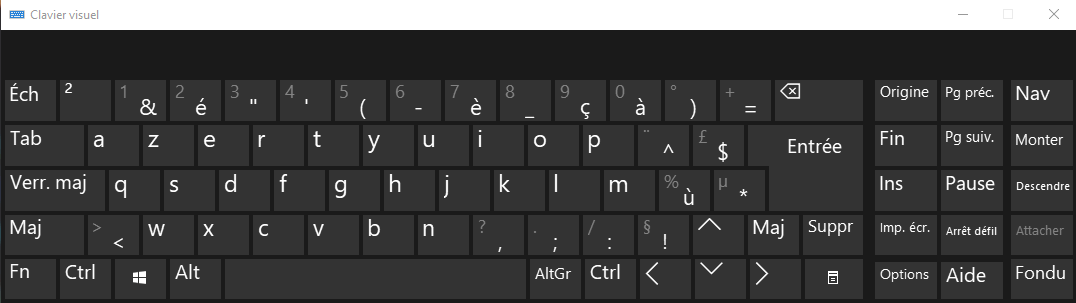
While you wait to replace your keyboard or repair your computer, you can use the virtual keyboard. This is a keyboard that appears on the screen and that you can control with your mouse or your finger if you have a touchscreen. To activate the virtual keyboard, follow these steps:
- Open the Start menu and click on Settings
- Click on Ergonomics options, then on Keyboard

- Enable the Use the on-screen keyboard option
- The virtual keyboard appears on the screen. You can use it to type text by clicking on the keys with the mouse or your finger.
Solution 9: Use speech recognition
Another temporary solution is to use voice recognition. This feature allows you to control your computer with your voice. You can dictate text, launch applications, search the internet, or perform simple commands. To activate voice recognition, follow these steps:
- Open the Start menu and click on Settings
- Click on Time & Language, then on Voice
- Enable the "Enable speech recognition" option

- A microphone appears on the screen. You can click it to start speaking or say “Start listening”
- You can view the list of available voice commands by saying “What are the commands?”
Solution 10: Use text replacement software
A final temporary solution is to use text replacement software. This type of software allows you to create keyboard shortcuts to automatically insert text. For example, you can set the Alt + Space combination to insert a space bar. Several such programs exist, such as PhraseExpress, AutoHotkey, and TextExpander. Here's how to use text replacement software:
- Download and install the software of your choice
- Open the software and create a new keyboard shortcut
- Enter the key combination you want to use and the text to insert
- Save the shortcut and test it in a word processing program or on the internet
Conclusion
The space bar is an essential key on a keyboard. If it stops working, you can try several solutions to repair your keyboard or work around the problem. We hope this article has been helpful and that you found a solution that works for you. If you have any questions or comments, please feel free to leave them below.
Keyboard comparison chart
| Keyboard type | Benefits | Disadvantages |
| External keyboard | Easy to change | Can take up space |
| Internal keyboard | Integrated into the computer | Difficult to change |
| Wireless keyboard | No cable needed | Requires batteries |
| Wired keyboard | No batteries required | Can get tangled |
| Ergonomic keyboard | Comfortable and prevents musculoskeletal disorders | Maybe expensive |
| Silent keyboard | Makes no noise | May lack responsiveness |
| Backlit keyboard | Allows you to work in the dark | May consume more energy |
FAQ
What should I do if my space bar stops working on my phone?
If your space bar is no longer working on your phone, you can try restarting your phone, updating your virtual keyboard, changing the language or keyboard, or resetting the keyboard settings.
How can I tell if my space bar is broken?
To determine if your spacebar is broken, you can remove the key and inspect it. If it's cracked, bent, or detached from the mechanism, it's likely broken. You can also test your keyboard on another computer to see if the problem persists.
How to fix a pop-out space bar?
If your space bar is skipping, i.e., inserting multiple spaces at once or not inserting any at all, you can try cleaning the keyboard, updating the keyboard drivers, uninstalling and reinstalling the keyboard drivers, or using text replacement software.
How do I change the space bar on an internal keyboard?
To replace the space bar on an internal keyboard, you'll need to open your computer and access the keyboard. You'll need a suitable screwdriver and a compatible new key. You'll then need to remove the broken key and replace it with the new one. Be aware that this operation can be delicate and may void your computer's warranty. It's advisable to consult a professional if you're unsure of yourself.
How do I enable or disable the space bar?
To enable or disable the space bar, you can use text replacement software. You can also create a keyboard shortcut that toggles the space bar's function. For example, you can set Ctrl + Space to toggle the space bar. This way, you can control when you want to use the space bar.