
Square brackets [ ] are punctuation marks used in pairs to enclose additional information, details, or examples in a text. They are also very useful for mathematicians and developers who use them to define intervals or lists. But how do you type square brackets on a Mac, when these symbols aren't visible on the Apple keyboard? Don't worry, there are simple and practical shortcuts to type them without wasting time. In this article, we'll show you how to type square brackets on a Mac using an Apple keyboard or the virtual keyboard viewer. Follow the guide!
Making brackets with an Apple keyboard
The shortcut for creating brackets on an Apple keyboard is relatively simple. Just press three keys simultaneously:
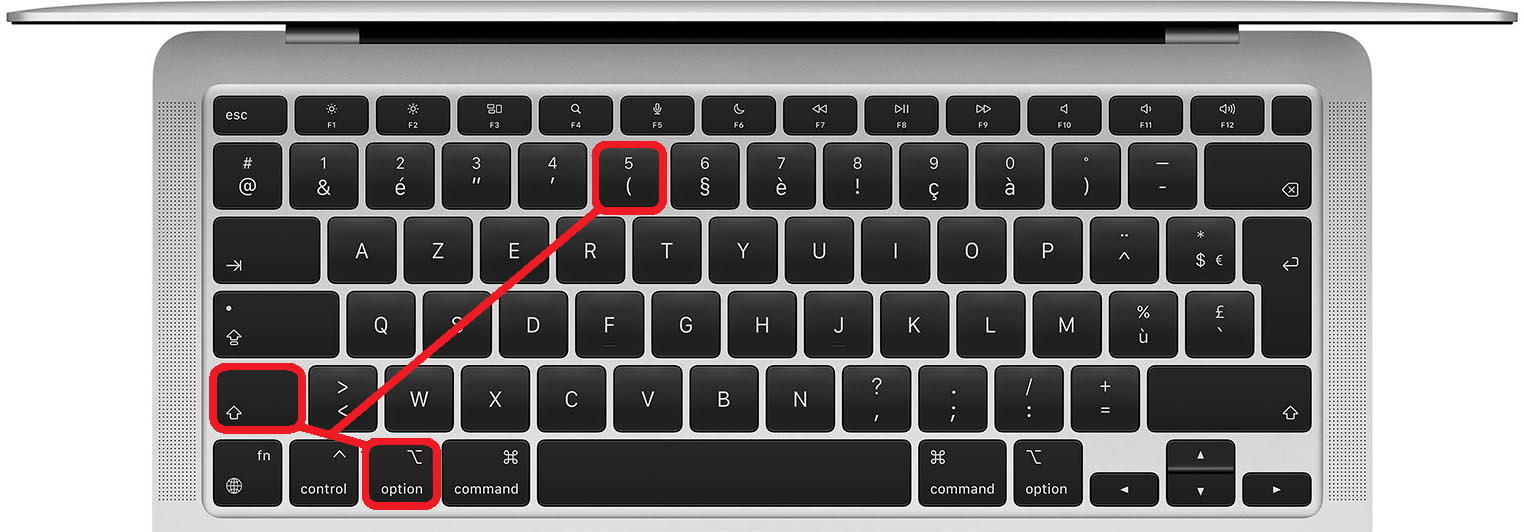
- To write an opening bracket [ , press Option or Alt (on older Macs) + Shift + ( (the five key).
- To write a closing bracket ] , press Option or Alt (on older Macs) + Shift + ) (the key to the right of zero).
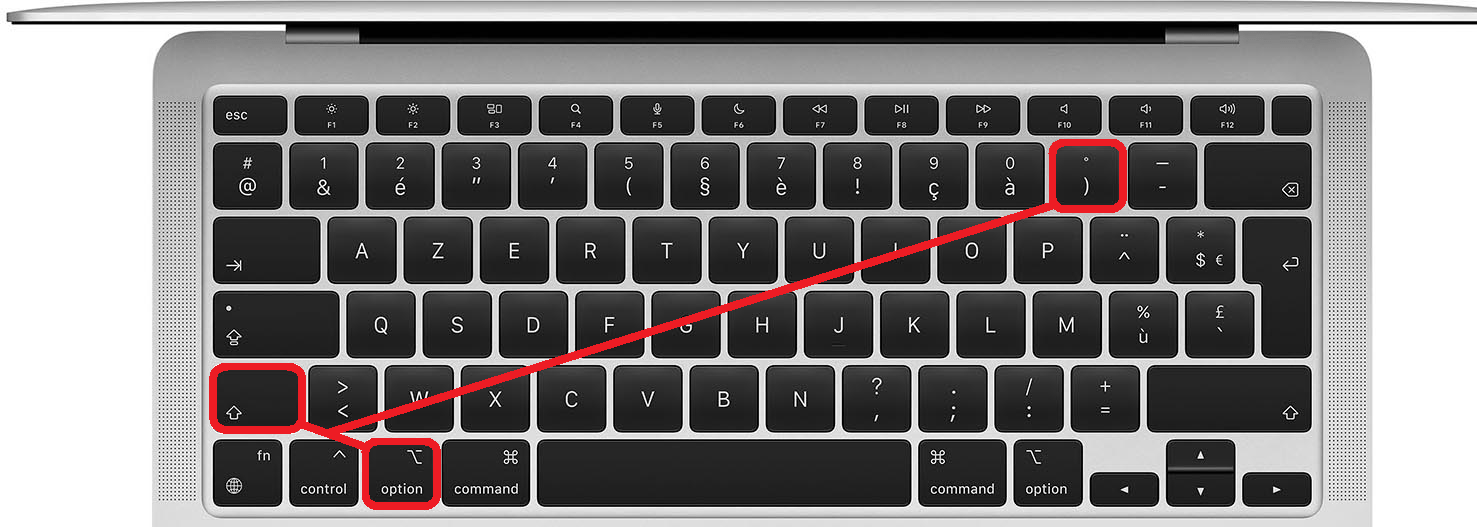
Actually, you just need to type a parenthesis while also pressing the Option or Alt key. Easy to remember, right?
Create brackets using the Apple keyboard viewer
If you're having trouble remembering the shortcut for square brackets, you can also use the virtual keyboard viewer. This tool allows you to display all the symbols you can type with your keyboard, even those not marked on the keys.

To display the keyboard viewer, follow these steps:
- Go to System Preferences > Keyboard > Input Sources and check the box “Show input menu in menu bar”.
- Click on the small keyboard icon in the menu bar (at the top) and choose “Show Keyboard Viewer”.
- Hold down the Option or Alt key and you will see brackets appear on the ( and ) keys.
- Click on the virtual keys to type the brackets.
You can also hold down the Option key or Alt + Shift to see other symbols such as curly braces { } or quotation marks « » .
What are the hooks used for?
Square brackets have several uses depending on the context. Here are a few examples:
- In French, brackets are used to insert additional information, details, or examples into a text. For example: “He bought a new car [a Peugeot 208].”
- In mathematics, square brackets are used to define intervals. For example: “[0 ; 1]” denotes the set of real numbers from 0 to 1 inclusive.
- In computer science, square brackets are used to define lists in certain programming languages such as Python or Swift. For example: “list = [1, 2, 3]” creates a list containing the elements 1, 2, and 3.
FAQ
Here are some frequently asked questions about brackets on Mac:
How do I type curly braces { } on a Mac?
To make curly braces { } on Mac, simply press Option or Alt + ( to make an opening brace and Option or Alt + ) to make a closing brace.
How do I type the Tilde symbol ~ on a Mac?
To make the Tilde symbol ~ on Mac, simply press Option or Alt + N at the same time.
How do I type the Euro symbol (€) on a Mac?
To type the Euro symbol € on a Mac, simply press Option or Alt + Shift + E simultaneously.
Where is the Cmd ⌘ key located on a Mac?
The Cmd key ⌘ is located to the left and right of the space bar on the Apple keyboard. It is used to perform keyboard shortcuts such as Cmd + C to copy or Cmd + V to paste.
How do I type quotation marks « » on a Mac?
To make quotation marks « » on Mac, simply press Option or Alt + Shift + ( to make an opening quotation mark and Option or Alt + Shift + ) to make a closing quotation mark.
Conclusion
You now know how to type brackets on a Mac easily and quickly. Whether using an Apple keyboard or the virtual keyboard viewer, you'll no longer have any trouble typing these useful symbols in many fields. Feel free to check out our other articles to learn how to type other special characters on a Mac. And if you're looking for a new keyboard to suit your needs, discover our selection of the Best Keyboards for Developers on our website!