
Is your computer keyboard stuck and you don't know how to unstick ? Don't panic, there are simple and effective solutions to this problem. Whether it's an external keyboard or one integrated into a laptop, it can sometimes get stuck due to an object lodged under a key, incorrect settings, a faulty driver, or a poor connection. In this article, we'll explain the possible causes of a stuck keyboard and how to fix it.
What are the causes of a locked keyboard?

A keyboard can lock up for different reasons, depending on whether it is an external keyboard or one integrated into a laptop:
- An object located under a key, such as a crumb, a paperclip, a safety pin, etc.
- Incorrect keyboard settings, such as enabling sticky keys or filter keys.
- A faulty or outdated keyboard driver.
- A faulty keyboard connection.
- An internal ribbon cable disconnected from the keyboard.
How to fix a stuck keyboard?
Depending on the cause of the problem, there are different methods to repair a stuck keyboard.
1. Disable Sticky Keys
Sticky Keys is an ergonomics feature that allows you to use the modifier keys (Ctrl, Alt, Shift) without having to hold them down. If you press the Shift key for 8 seconds, you activate Sticky Keys and an icon appears on the taskbar.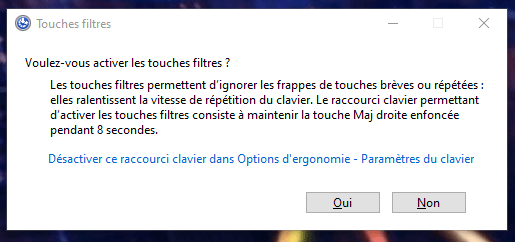
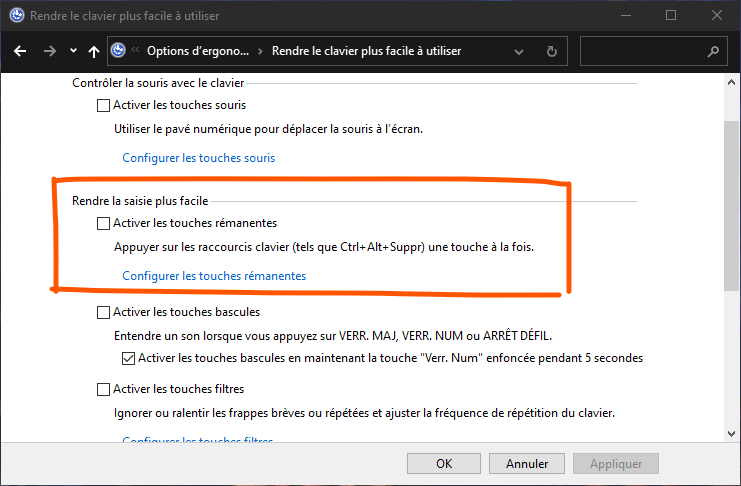
To disable Sticky Keys, you can:
- Press and hold the right and left Shift keys simultaneously for 5 seconds.
- Click on the Sticky Keys icon on the taskbar and uncheck the "Enable Sticky Keys" box.
- Open the Control Panel and click on “Ease of Access”. Under “Make the keyboard easier to use”, uncheck the “Turn on Sticky Keys” box.
You might like this article: Mechanical or membrane keyboard? Gamers, let the games begin!
2. Disable filter keys
Filter keys are an ergonomics option that allows you to ignore repeated or brief keystrokes. If you press the Shift key for 8 seconds, you activate filter keys and an icon appears on the taskbar.
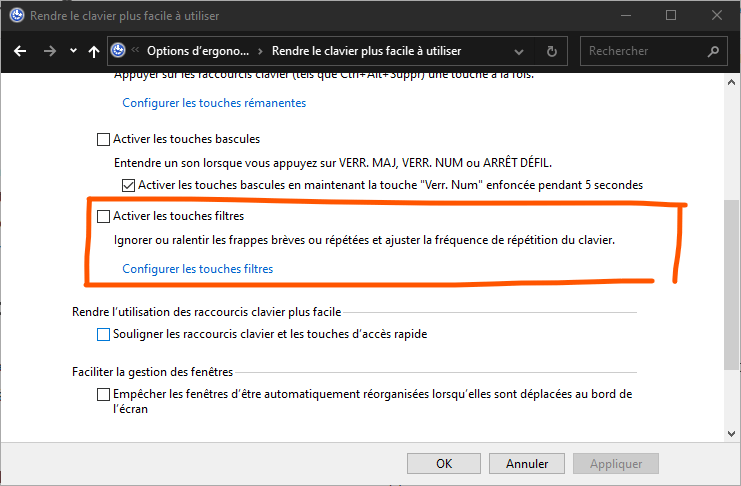
To disable the filter keys, you can:
- Press and hold the right and left Shift keys simultaneously for 5 seconds.
- Click on the filter keys icon on the taskbar and uncheck the "Enable filter keys" box.
- Open the Control Panel and click on “Ease of Access”. Under “Make the keyboard easier to use”, uncheck the “Turn on filter keys” box.
3. Reinstall the keyboard drivers
The keyboard is unresponsive due to a faulty or outdated driver. To get it working again, you may need to reinstall or update the driver. Follow these steps:
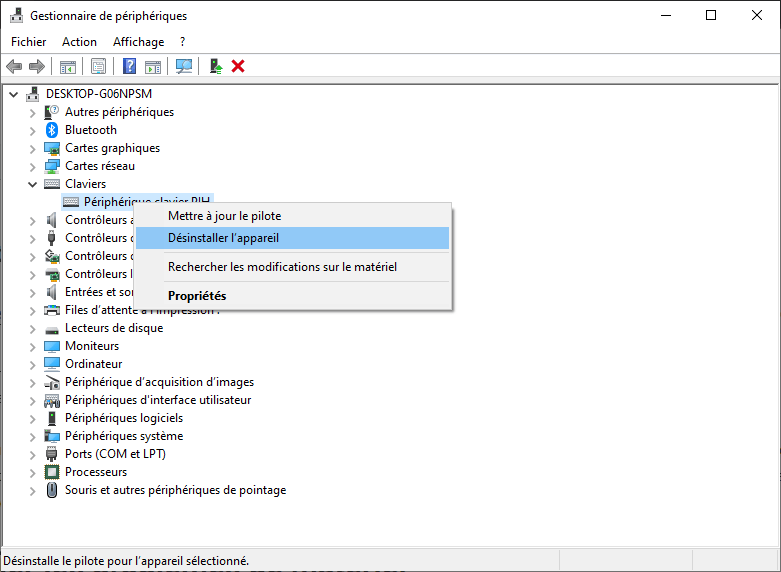
- Open Device Manager and expand the Keyboard category.
- Right-click on your keyboard name and choose Uninstall device.
- Restart your computer. Windows should automatically detect your keyboard and install the appropriate driver.
- If the problem persists, you can try downloading the latest driver from the keyboard or laptop manufacturer's website and installing it manually.
Check for hardware problems
If the previous methods haven't resolved the issue, your keyboard may be physically damaged or the connection to the computer may be faulty. Here are some checks to perform:
4. Check your connection
If you are using an external keyboard, make sure it is properly connected to the computer. Try a different USB or PS/2 port if possible. If you are using a USB hub, try connecting the keyboard directly to the computer. If you are using a wireless keyboard, check that the wireless adapter is fully inserted into the USB port.
5. Check the power supply switch on the wireless keyboard
If you are using a wireless keyboard, make sure it is turned on. Some wireless keyboards have a power supply switch located on the back or side of the keyboard. If the switch is off, flip it to the on position.
6. Check the batteries or the battery of the wireless keyboard
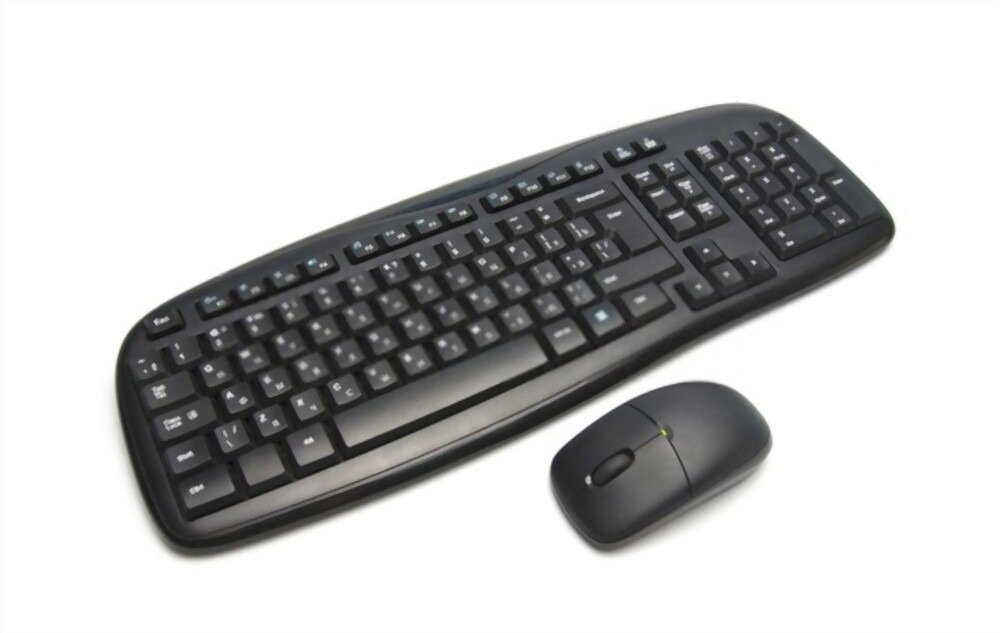
If you are using a wireless keyboard, check that the batteries are sufficiently charged. If they are low or depleted, replace them with new batteries.
7. Check the keyboard's wireless adapter
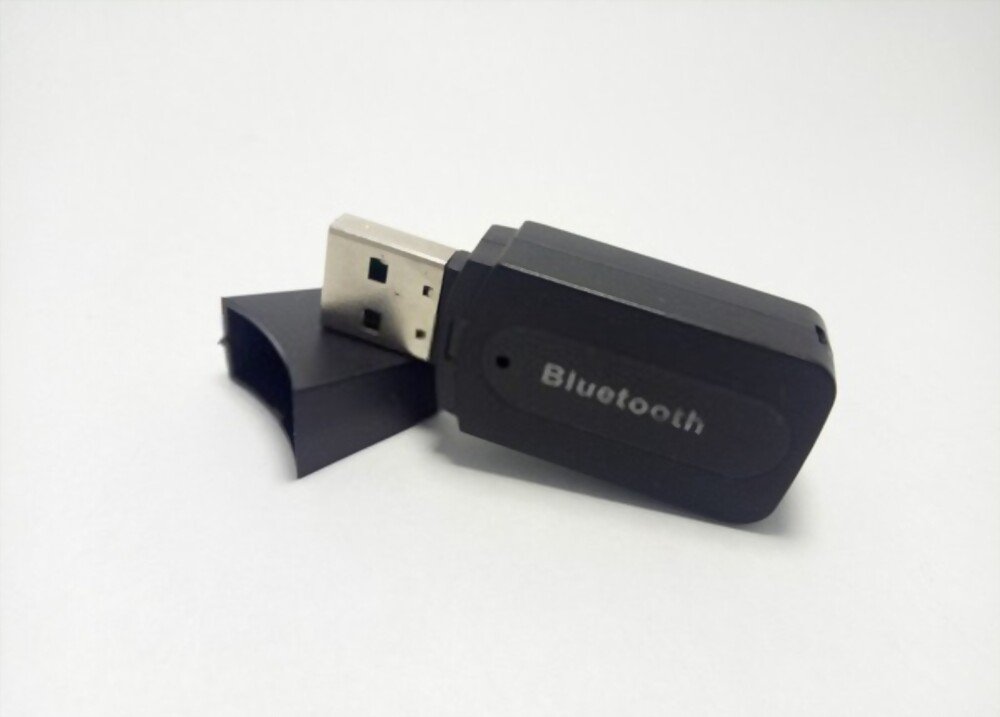
If you are using a wireless keyboard, check that the wireless adapter is properly connected to a USB port on your computer. Try a different USB port if possible. If you are using a Bluetooth adapter, make sure that Bluetooth is enabled on your computer and that the keyboard is paired with the computer.
Also read: How to clean your mechanical keyboard?
FAQ
How can I tell if my keyboard is locked?
If your keyboard is stuck, you may experience the following symptoms:
- Some keys do not work or produce incorrect characters.
- Some keys remain pressed or repeat.
- Some keyboard commands do not work or execute differently.
- A sticky key or filter key icon appears on the taskbar.
- An error message appears on the screen.
How do I unlock my keyboard?
To unlock your keyboard, you need to identify the cause of the problem and apply the appropriate method. You can consult our article to learn about the different methods for fixing a stuck keyboard.
How do I update my keyboard driver?
To update your keyboard driver, you can use Windows Device Manager or download the latest driver from the keyboard or laptop manufacturer's website.
How do I pair my Bluetooth keyboard with my PC?
To pair your Bluetooth keyboard with your PC, you need to enable Bluetooth on both devices and put them into pairing mode. Here are the steps to follow:
- On your Bluetooth keyboard, press and hold the pairing button or the Bluetooth button (which looks like a bow tie lying on its side) until the light flashes or you hear a beep.
- On your PC, select Start > Settings > Devices > Bluetooth & other devices > Add Bluetooth or other device > Bluetooth.
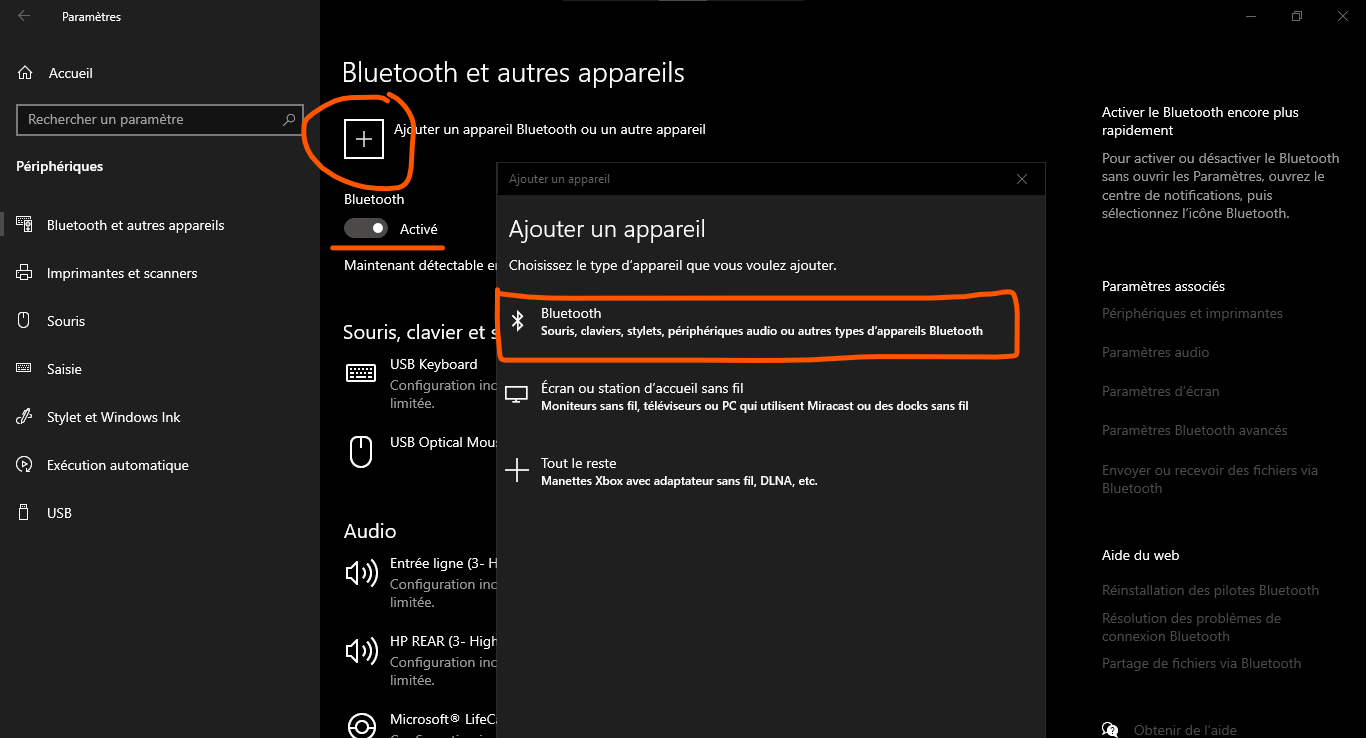
- Choose your keyboard from the list of detected devices and follow the on-screen instructions to complete the pairing.
Conclusion
A stuck computer keyboard can be very frustrating and prevent you from working or enjoying yourself. Fortunately, there are simple and effective solutions to this problem. Whether it's due to an object under a key, incorrect settings, a faulty driver, or a poor connection, you can unblock your keyboard by following the methods we've outlined in this article. We hope these tips will be helpful and that you'll be able to fully enjoy your keyboard.