
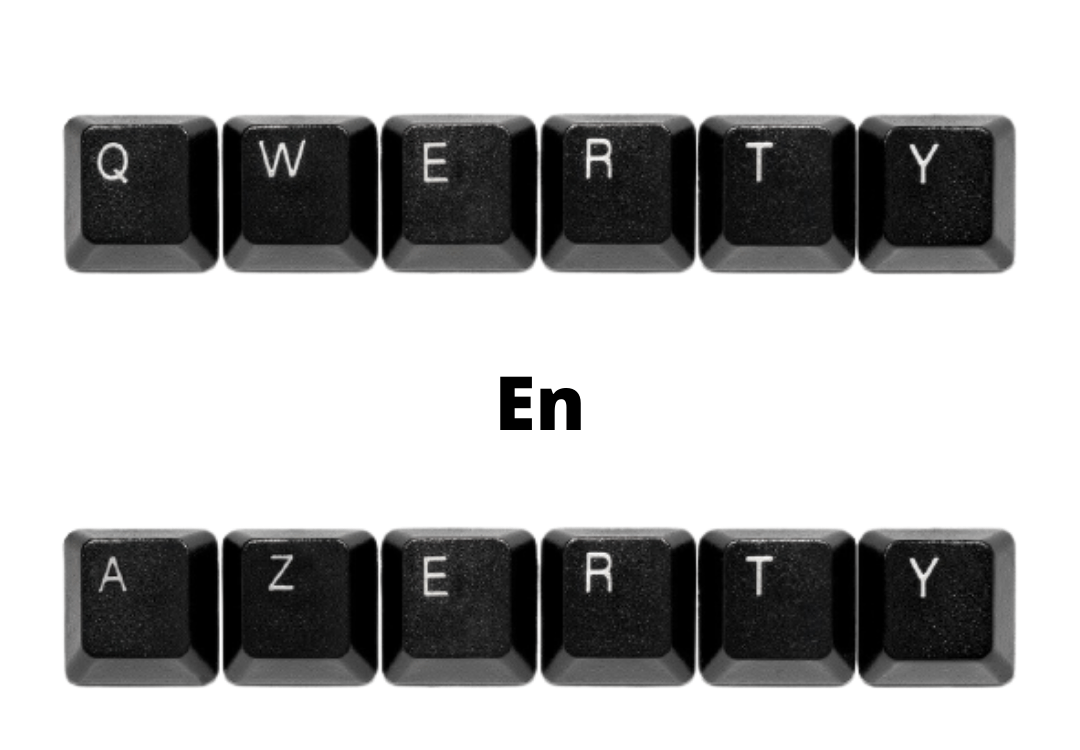
Have you accidentally switched your keyboard layout from AZERTY to QWERTY ? Is typing becoming very difficult because of this unintentional change? Don't panic, there are several methods you can use to easily fix the problem. In this tutorial, we'll explain how to switch a QWERTY keyboard back to AZERTY mode in Windows . Get comfortable and let's get started!
I- Use the language settings to switch back to AZERTY mode

Did you know that keyboard management in Windows is linked to the system language? By default, Windows supports English and French . Switching between them is very easy!
To start :
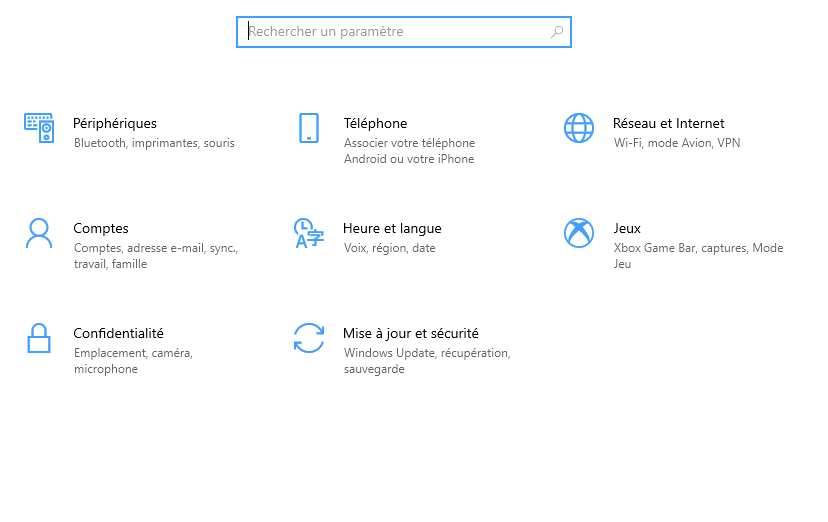
- Click the Start , then type Settings in the search bar.

- In the window that appears, find the Time and Language and then click on it.
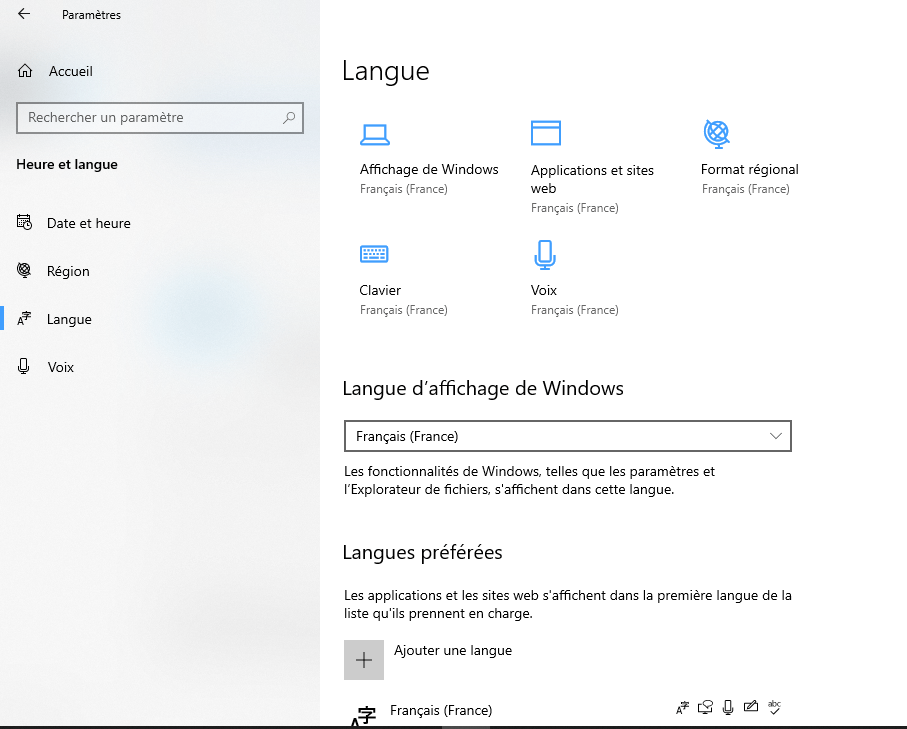
- Next, click on the Language .

4. Under the Windows display language , select French from the list and then press OK .
II- Reverting to the French AZERTY keyboard in Windows : use the Alt + Shift key combinations
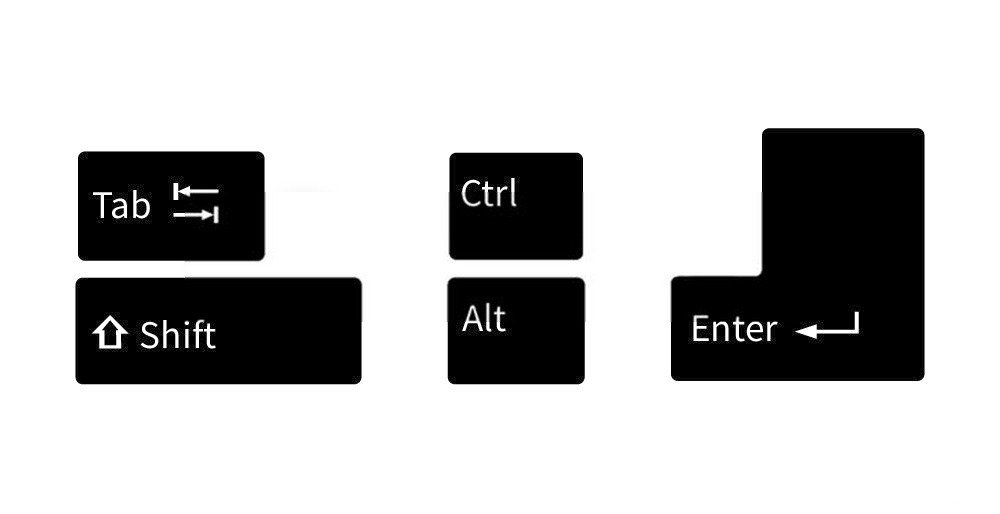
Whether in Windows 7, 8 or 10, simple key combinations allow you to switch from one language to another, and therefore from one keyboard to another.
Therefore, if you wish to return to AZERTY mode, simply press the two Alt + Shift on your keyboard.

For your information, the Alt + Shift combination allows you to switch the keyboard from French to English or vice versa in the version of Windows installed on your computer.
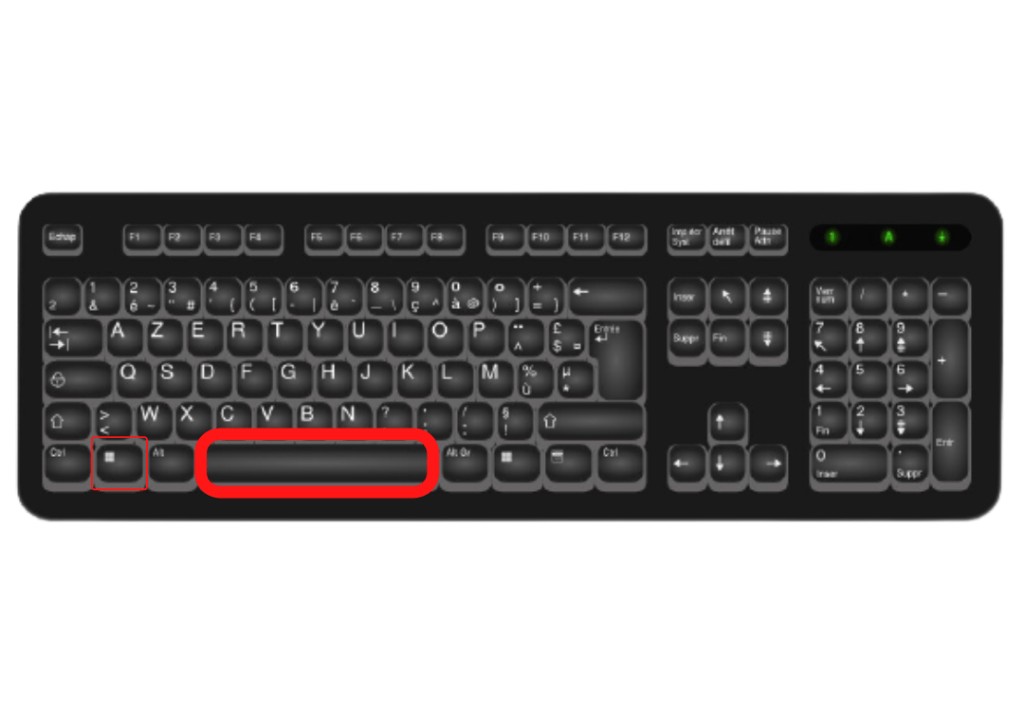
As for the Alt key , it is the one found on the left side of the keyboard and is often located between the Windows and the space bar.
III- Changing a language or keyboard in Windows : the various other shortcuts to use

The Alt+Shift key combination is not the only way to switch between keyboard layouts. In Windows 10, the Windows key + Spacebar performs (almost) the same function as Alt+Shift.
- The Windows key is located in the bottom left corner of the keyboard.
- The Windows key is indeed the button whose symbol is the small " Windowslogo window".
- Hold it down, then briefly press the space bar.
The main difference between the two shortcut keys is that Alt + Shift is used to switch between languages. Windows + Space , on the other hand, is used to switch between keyboard layouts.
If you haven't changed your Windowssettings before, the language you're using will always be displayed in the bottom right corner of the screen, near the clock in the taskbar. For example, you'll see FRA for French or ENG for English.
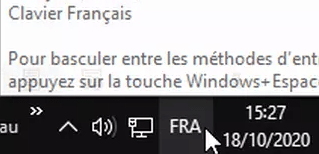
To change this, click on the FRA or ENG in the taskbar. A drop-down menu will appear, displaying the languages installed on your computer. Simply select the one you want.
Furthermore, there are key combinations that seem to work better with computers running Windows 7 or Windows 8. These include, among others:
- Shift + Alt Gr
- Shift + Alt
- Alt + Shift
IV- Eliminate the risk by locking your keyboard in AZERTY mode
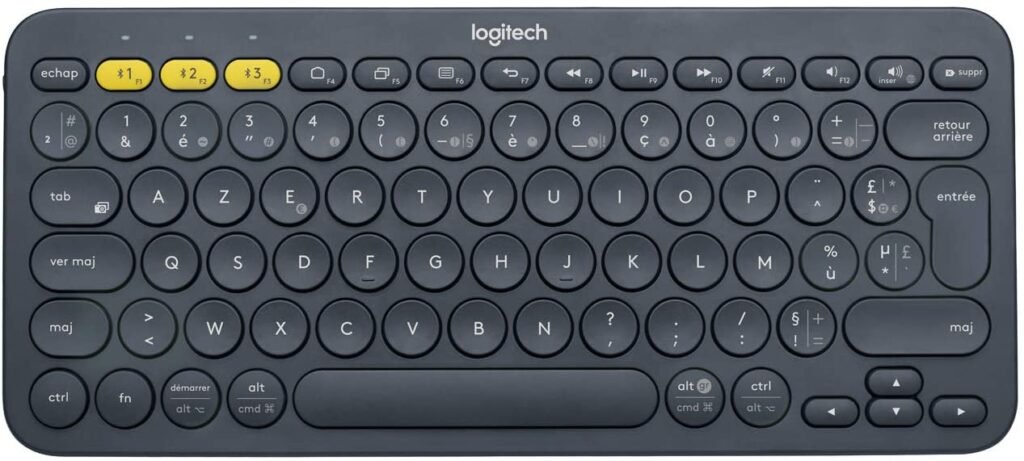
Once the situation is fully resolved, you can also modify or disable keyboard shortcuts, or even completely remove the English keyboard to prevent such errors from recurring! To do this:
- Click the Start button
- Go to Control Panel > Clock > Language & Region
- Next, click on Change keyboards
- Next, select the keyboard layout you wish to change ( for example, EN in QWERTY mode ).
- Click on " Delete ", then on " OK ".
There you go, it's done! This method will prevent your computer from switching to QWERTY mode next time.
If you are planning to replace your computer keyboard soon, we suggest you consider these different models:

What are the best mechanical keyboards on the market?

Did you know that mechanical keyboards are back in fashion after having been dethroned for a long time by membrane keyboards? Now, they are more robust, more precise and more comfortable than older models.
If you want to know the best mechanical keyboards to buy before the end of this year, feel free to consult our comparison of the best mechanical keyboards or the one focusing on the best cheap gaming keyboards currently available.


