
For a gamer, having a high-performance PC is essential! To run the most demanding games, building your own PC from scratch with the best components is crucial, but above all, it's done out of passion!
If this is your first time building a PC, start by choosing your motherboard. To understand it better and help you make the right choice, check out our complete guide!
What is a motherboard?

The motherboard is the main component of a computer . It's considered the heart of the entire system! It's therefore vital for a PC to function properly. Its primary role is to act as the foundation that connects all the important components of the computer. Essentially, it ensures the interconnection of the PC's components.
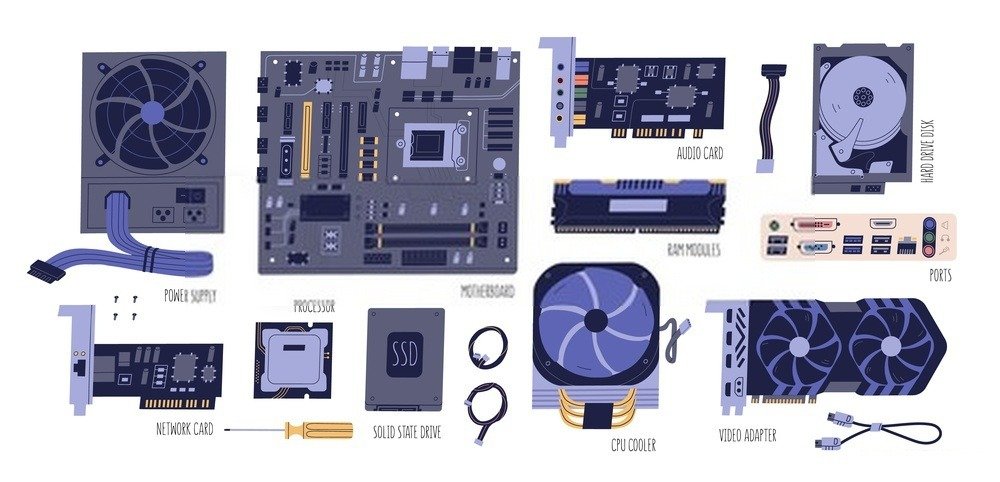
It incorporates lines called traces. These are narrow bands made of copper and aluminum foil. These lines provide the circuitry and connections between the various components that connect to the motherboard. They link elements such as the processor, connectors, memory, and others to the motherboard and the computer. In addition to these traces, the motherboard also has connectors for connecting to other computer components. In total, this is what you can find on a motherboard besides the traces.
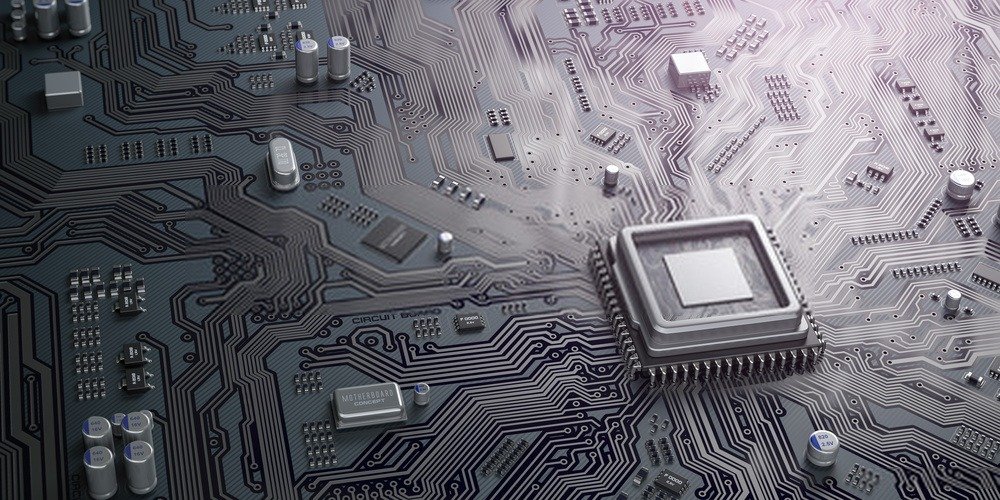
First, there's a socket for the processor . Then, it has connectors (2 to 6) for connecting to the RAM. The board also has a chipset for managing data transfers. In addition, there's a clock for managing task execution speed, a CMOS (which is a reserve and emergency memory), a battery, a BIOS (a program for managing the processor-peripheral interface), and expansion slots.
What should you know before buying a motherboard?
Buying a motherboard is often for those who want to build their own computers. This is the case when the models on the market aren't practical or powerful enough to meet the demanding needs of a gamer. However, building your own PC isn't easy. The most complicated part is choosing the motherboard. To choose one, you need to consider several criteria.
- First, you need to check if the motherboard is one of the latest updated versions on the market. An updated motherboard allows you to upgrade your computer if needed, since the processor will support it. Note that you should take this opportunity to buy a high-end processor, such as one from Intel.
- Next, you'll need a motherboard that supports at least DDR3 RAM . This is a recent RAM standard. This will ensure your computer runs smoothly and provides future upgrade potential.
- You must also consider the form factor . This will determine how well the motherboard fits into the PC case. It will also ensure that all the computer's components are connected to the motherboard.
- Choosing a good chipset is also crucial when purchasing a motherboard. It will be the primary administrator of the PC, handling all processes entering and leaving the motherboard.
- Another point to check is file compatibility. You need to verify, for example, if the motherboard is compatible with the videos you want to watch or download on the PC.
- Note that since this involves building a PC from scratch, you'll need to research the motherboard manufacturer. Check customer reviews to see what people have experienced. This will allow you to learn about the strengths and weaknesses of the motherboard you're considering buying.
- Don't forget to check the warranty on the product you're thinking of ordering. If the manufacturer offers a warranty, it will give you time to test it and see how good it is.
- And most importantly, keep in mind that the higher the motherboard, the more functional the PC will be. The quality of the motherboard will also guarantee the computer's longevity.
Form factors

In the world of computing, a form factor is the set of technical and physical characteristics of an element. It is also called the footprint factor.
This generally concerns the daughterboard, the power supply and the case, but especially the motherboard. For the latter, the form factor is characterized by the geometry of the board, the dimensions, the volume of the thermal zone, the ventilation, the chassis, the location of the mounting holes, electromagnetic interference, the electrical characteristics and the input/output connectors.
There are several form factors used for motherboards. Examples include PC XT, AT (Advanced Technology), Baby AT, LPX/Mini LPX (Low Profile eXtended), NLX, WTX/SWTX, and many others. However, the most commonly used form factors today are ATX, Mini ATX, Micro ATX, and E ATX.
- The ATX or Advanced Technology eXtended form factor emerged around 1995. This form factor has four RAM slots. It's an older model, but it's still used by various vendors today. In addition to the RAM slots, this form factor also has seven PCI-E slots.
- The mini ATX, on the other hand, has two RAM slots and one PCI-E slot. This form factor is smaller compared to the original ATX, as its dimensions generally do not exceed 284.5 x 208.2 mm.
- The micro ATX motherboard has 4 PCI-E slots. It's an even smaller version than the previous one.
- E-ATX is the most efficient form factor and is also the most advanced and modern. It is designed for computers that use multiple hardware components simultaneously, such as servers. This form factor has six RAM slots.
When choosing between these size factors for a PC build, you need to consider the number of RAM modules supported. For example, ATX and Mini ATX can support multiple RAM modules simultaneously, unlike Micro ATX. However, ATX is generally the best choice, as it can handle a wider range of configurations, unlike Mini and Micro ATX. Ultimately, though, the choice will depend on the PC's performance and intended use. If the computer is a gaming PC, an ATX, Mini, or Micro ATX motherboard won't be sufficient. It will need an E-ATX motherboard.
BIOS and UEFI BIOS
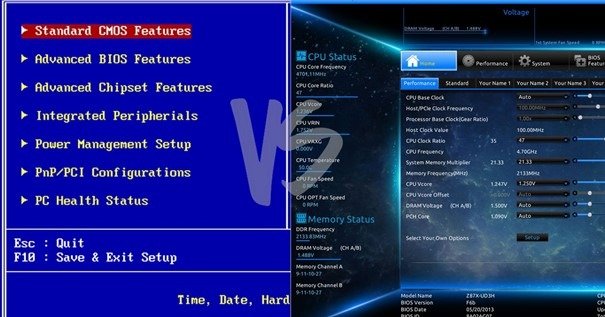
When we talk about BIOS or UEFI BIOS, we're talking about firmware . These are used on all kinds of motherboards. They differ in that they each have their own attributes. The choice between the two will generally depend on your needs.
The UEFI BIOS is a firmware that acts as an intermediary between the firmware (for desktop PCs) and the main workstation. It allows the operating system and other computer components to boot.
This system, compared to the traditional BIOS, is more efficient and advanced. It essentially stores the PC's memory in a file. This file is then stored in a specific area of the desktop: the EFI system. Since UEFI has its own specific partitioning, it can boot the system while simultaneously saving the BIOS settings. Therefore, with UEFI, a very fast boot time is possible.
The BIOS, for its part, is also a firmware. It differs from the UEFI due to its location. The BIOS is located on a chip on the motherboard. It is installed by default, therefore its settings do not change even during an unexpected shutdown. Its system is simpler and easier to understand. Its role is to ensure a successful boot by verifying that all components are functioning correctly.
Given the difference between the BIOS and the UEFI BIOS, gamers tend to prefer the faster and more efficient option. Furthermore, the BIOS has significant drawbacks, such as its limitation to 16-bit processor operation.
The BIOS also lacks sufficient storage space. It only has 1 MB, which is generally used for process validation. Consequently, the BIOS takes longer to load and slows down the PC's boot process. Another reason people prefer UEFI BIOS to the traditional BIOS is the range of features the BIOS cannot access.
Intel or AMD processor?
A processor, also called a CPU, is a type of central processing unit. It is therefore an important component of your computer. It controls and executes the functions requested by your PC. In the processor market, there are two leading manufacturers: Intel and AMD .
They are very well-known, and if you're planning to build your own PC , you've probably already heard of them. So, you're probably wondering: which processor should I choose between the two? To help you find the one that best suits your needs, let's look at their differences and their specific features.
AMD is known for manufacturing processors with good value for money. However, this reputation has changed in recent years. The last processor considered high-end, supplied by AMD, is the Ryzen 9.3959x. But very quickly, customers discovered the flaw of this product: it cannot be overclocked.
As for Intel, it stands out in terms of features and quality. You can buy one of its processors with complete confidence. One of the brand's latest models is the 9900k. It's an 8-core, 16-thread processor. And unlike AMD models, it's overclockable. Despite this, there's still one aspect that customers don't appreciate about Intel processors: the very limited memory and storage.
For a gaming PC, for example, given the need for ample storage, smooth performance, and responsiveness, customers often prefer AMD. Those simply seeking quality tend to favor Intel. Therefore, you can choose your processor based on your specific requirements, selecting either an Intel or AMD model.
Some basic information about CPU sockets
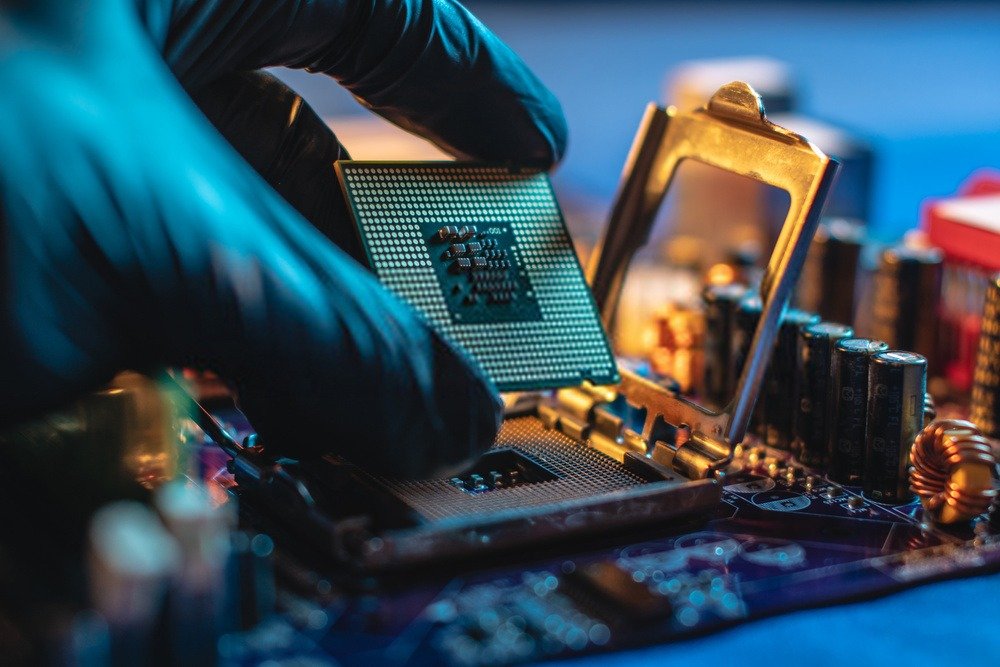
The socket is the component that connects the processor to the computer. It has a series of pins. The processor has holes that connect to the pins on the socket. This connection allows the processor to be attached to the motherboard. The part of the motherboard with the pins is called the "processor socket.".
Most sockets are compatible with most processors. However, some are not. Therefore, you must determine the processor socket type before choosing one. Like processors, sockets come from brands such as AMD and Intel. You will therefore need to choose a specific brand.
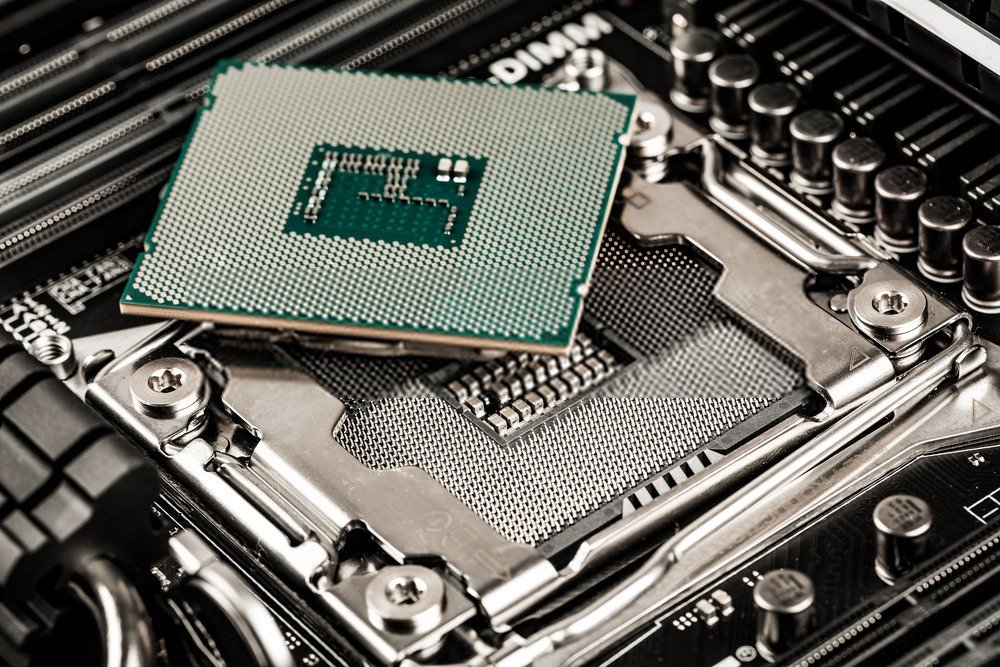
The processor you need depends on the PC's socket. If you have an Intel socket, you'll need an Intel processor. If you have an AMD socket, you'll need an AMD processor. You also need to consider the generation of both the socket and the CPU.
For example, an 8th generation CPU requires an 8th generation socket as well. Currently, AMD has not produced any new sockets and does not plan any new production for 2020. Intel, on the other hand, continues its research and is working on the production of new sockets.
Everything you need to know about the motherboard chipset

A motherboard contains interdependent chips called chipsets. Their main function is to control the data entering and leaving the board. These chips also connect the processor to the PC . The chipset of a motherboard is therefore a vital component. Without it, the PC cannot function.
Note, however, that a chipset must be compatible with the motherboard. If it isn't, the connection will cause a system failure. When purchasing, you will have access to two types of chipsets: overclocking chipsets and non-overclocking chipsets.
An overclocking chipset
Overclocking involves increasing the PC's clock speed. This allows for faster memory operation . It's a process that boosts a computer's performance and, at the same time, increases memory and RAM capacity. With this type of process, it's possible to push the PC far beyond the manufacturer's limits. This process is used for various reasons. For example, you can use it to upgrade your graphics card to play certain games.
A non-overclocking chipset
Many chipsets lack overclocking capabilities. These chipsets cannot be overclocked. In most cases, these chipsets are older , less advanced models. Forcing overclocking can damage your PC and cause various problems that are difficult to resolve. The best solution is to choose a newer model: an overclockable chipset.
Everything you need to know about motherboard and RAM compatibility
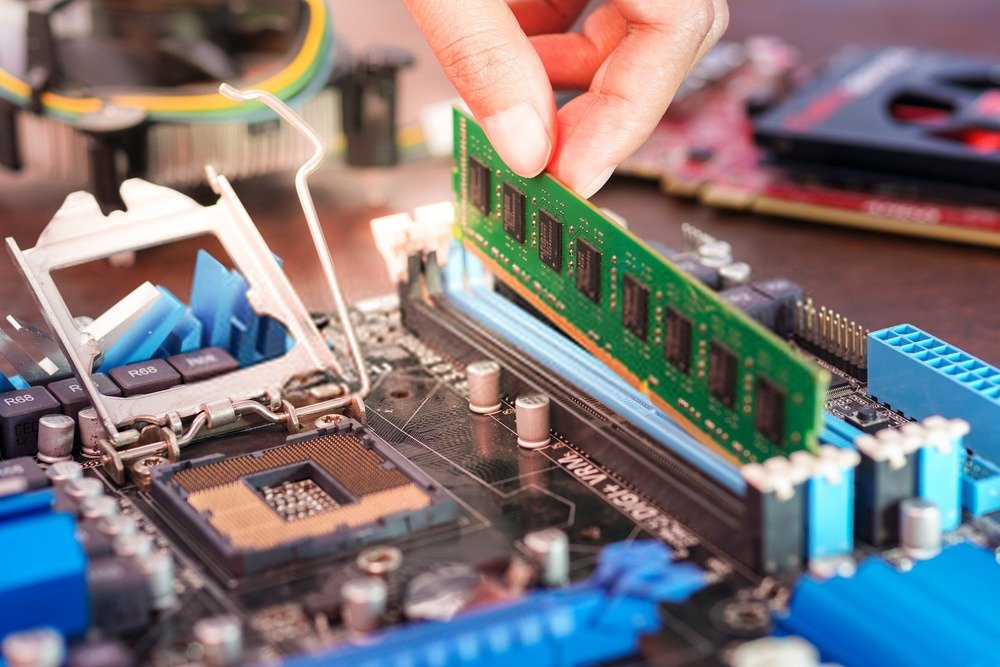
RAM, also called random access memory , is essentially the PC's memory. It can be modified, read, and otherwise accessed. It's used to store typical data as well as computer code. It's also used to run programs on the PC . Besides these functions, RAM also plays a role in improving the computer's speed and performance.
Given its capabilities, RAM is a crucial component for a PC. Therefore, choosing the right RAM is essential. The selection should be based on compatibility with the motherboard. Without proper compatibility, achieving a high-performance machine will be difficult. The most recent and advanced RAM is DDR3/DDR4.
Why is it necessary to have RAM that is compatible with the motherboard?
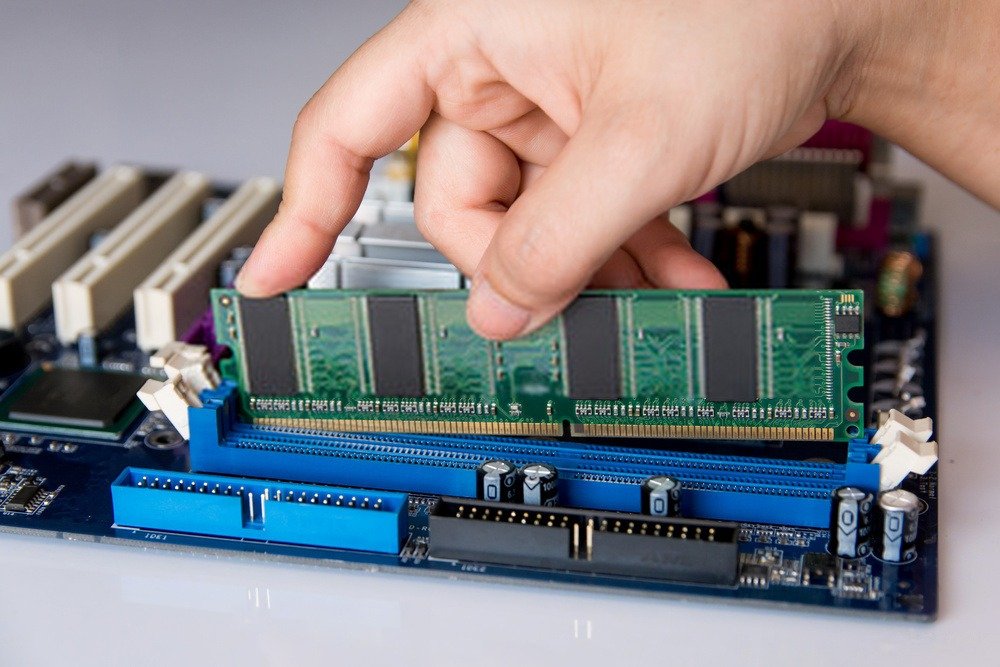
Although RAM may seem like just extra storage for a PC, it plays crucial roles. If it's not compatible with the motherboard, it will cause performance bottlenecks.
RAM contributes to the processor's speed. It provides easy access to data. The processor can therefore retrieve the necessary data directly from RAM, without going through the PC. Consequently, the more RAM available, the faster the PC will be. Meanwhile, the motherboard can provide the necessary computer functions.
The amount of RAM you need is determined by your motherboard. For example, if the motherboard is designed for a gaming PC, it will require more RAM. Note that it's possible to use RAM faster than the motherboard's speed rating, but not the other way around. Doing so risks overloading the system.
Let's take an example. A 2000 MHz DDR3 RAM module can be used on a motherboard compatible with 1600 MHz DDR3. However, a 1600 MHz DDR3 RAM module cannot be used on a 2000 MHz motherboard.
Why do we need more ports and slots on a motherboard?
Ports, also called slots, are the main connectors that link the motherboard to the computer's external components. These ports are essential for various functions. With ports, it's possible to connect many things to the motherboard.
On a motherboard, there are generally three different types of slots. There's a memory slot for connecting RAM to the motherboard. The more slots a motherboard has, the more RAM modules can be connected, thus increasing the PC's memory capacity. Then there are high-speed slots. These are typically used for connecting graphics cards, expansion cards, and so on. It's important to note that slots are for connecting the PC's internal components to the motherboard. Ports, on the other hand, are for connecting external components. These include USB ports, LED ports, audio ports, switch ports, and so forth.
The different ports and slots

The various ports and slots on a PC indicate which components are compatible with the motherboard, whether they are external or internal. Let's look at the different types of ports and slots, as well as their functions.
- DIMM slots for memory: These are DIMM or RAM slots. They are used to increase the performance and internal memory of the motherboard. The more RAM slots (memory slots) a computer has, the more memory it can hold. A computer can have a maximum of 8 memory slots at a time. The number of memory slots required depends on the desired memory capacity.
- SATA ports: These ports connect the PC's hard drive to the motherboard. A PC can have a maximum of 6 SATA ports. The hard drive that can be inserted into these ports can be up to one terabyte. If you need more storage, and therefore need to install more hard drives, you should choose a PC with multiple SATA ports.
- PCIe lanes: These are channels within the PC. They are connected to ports and are used to detect connected and running devices each time the PC starts up. These PCIe lanes indicate the direction of electrical traffic. They are, in a way, the brain of the motherboard.
- USB connectors: These are used to connect a USB device to the motherboard. They are connectors with pins located on the motherboard. There are generally four types: USB 3.1, 3.0, 2.0, and 1.0. These numbers indicate the port's data transfer speed. A USB 1.0 port typically offers a speed of 480 MB/s. A USB 2.0 port offers 5 GB/s. USB 3.0 and 3.1 ports offer speeds of up to 10 GB/s. Therefore, the higher the port's performance, the faster the data transmission.
- Display interface ports: These are digital ports. They are used to connect display components to the motherboard. They must be compatible with the monitor being used. These ports will also determine the graphics card (graphics card) chosen. Compatibility specifications must be respected when choosing the graphics card. It must match the digital display ports.
LAN and WIFI networking
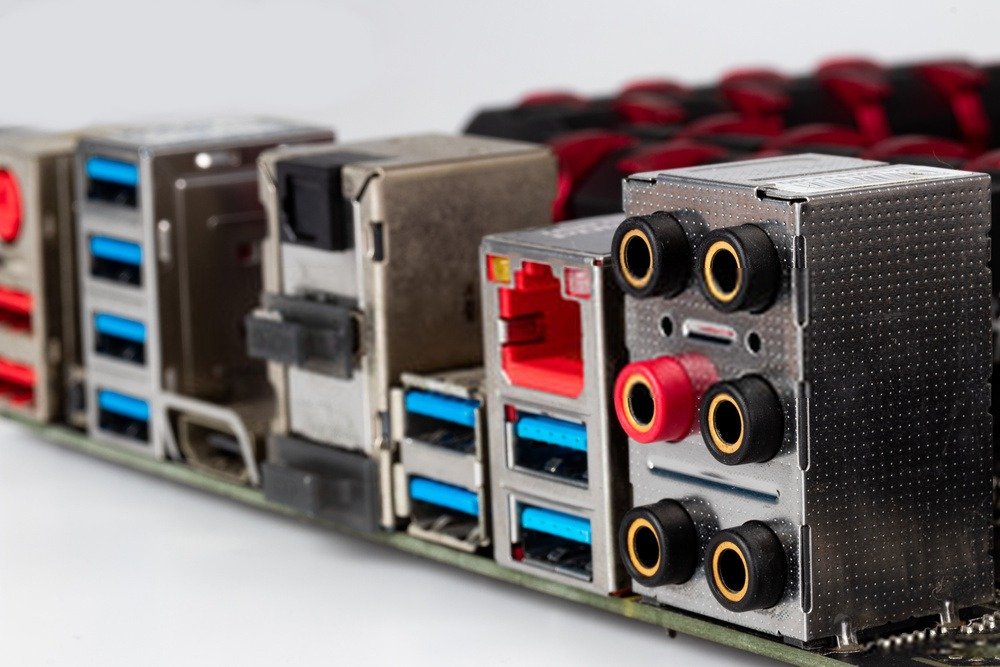
A LAN, or local area network, is an internet distribution system. It uses wired connections. Data can be distributed between multiple machines simultaneously. It is a very old distribution system.
How do you connect a LAN cable to a PC? This is done via the LAN port located on the motherboard. The LAN port allows programs to run on the computer. LAN is the default system and is more efficient than card-based models. The reason is simple: the default LAN is a component of the PC. Compatibility and synchronization are therefore more logical and straightforward compared to an external LAN device.
In addition to a wired connection, such as Ethernet, it's also possible to access the internet on your PC via Wi-Fi. After setting up the various components of your PC, you can begin integrating a home wireless network into the machine. Note that the Wi-Fi chip is also integrated into the motherboard.
It's possible to combine LAN and Wi-Fi on a PC for internet access. However, it's important to know that the connection you use will depend on the task at hand. For a gamer, for example, a LAN connection is best. It's faster, more responsive, and more efficient. For standard office work, a Wi-Fi connection is a good option since it eliminates the need for a wired connection.
SLI and CrossfireX

SLI is a brand name for multi-GPU technology. Developed by NVIDIA, this technology allows you to add two or more graphics cards to a PC, producing a single output. Connecting two graphics cards to a single PC allows you to benefit from the strengths of each. One possible advantage is increased processing power for graphics tasks.
There are several types of SLI cards. For example, there are 2-way and 3-way models. If you plan to use a 2-way SLI card, you must ensure it is compatible with your motherboard. For instance, if you use a 2-way SLI card with a quad-core i7 processor, you must choose a motherboard powerful enough to support it. Additionally, you will need to provide adequate cooling.
Regarding CrossfireX, it's also a card that isn't very different from SLI. The main difference is the manufacturer. CrossfireX was designed by AMD. NVIDIA is a very popular graphics card manufacturer. However, to be able to use standard video cards, it's advisable to use AMD's CrossfireX.
Regarding the connection, it is made by connecting the cards to a cable or a compatible point in the case of an SLI card. However, if it is a CrossfireX card, a PCIe 3.0 connection will be required, and a direct connection to the motherboard will be necessary.
Note that an SLI card will be more expensive than a CrossfireX card. This is because an SLI card requires a compatible motherboard. CrossfireX is more accessible since it doesn't require any verification, and therefore, generally, no compatibility requirements.
Integrated audio motherboard
Note that a PC needs a sound card. Its role is to reproduce the sound produced by a file (audio, video, etc.) through speakers or headphones, for example. However, some motherboards have integrated sound cards. The sound card is installed in a port that is usually located on the back of the computer. There may be several ports for inserting headphones or the cable that leads to the speakers. First, there are:
- A digital output. It is yellow or white. It is used for connecting to speakers.
- A sound input. It is blue and is intended for connection to a tape recorder, for example.
- A microphone port. It is pink and is for headphones.
- A green-tinted sound. It is compatible with high-end headphones.
- Firewire is a port used for PCs with high-end sound cards.
- Midi or Joystick are yellow ports. As the port names suggest, they are used for joystick connections.
What other features do you need?

When purchasing a motherboard, you should also consider additional features. The most important are:
- A power supply cable . This is a large, thick connector that will power the PC. When buying a power power supply good quality one, otherwise the PC will not function properly.
Among the high-end cables, you'll find, for example, the 24-pin ATX cable. This is a standard power supply connector that can be plugged into the motherboard. If necessary, invest heavily in a power supply cable, because without it, the PC will be useless.
What are the best motherboard brands?

When buying a motherboard, before choosing any of the components, features, and other details, you must select a brand. This step is often overlooked, with people assuming all brands are the same. However, it's an important point to consider, as the brand will determine the quality of the motherboard you choose.
It's worth noting that the best brand is the one most appreciated by gamers. Appreciated doesn't necessarily mean famous. A brand should be appreciated for the quality of its motherboards, not just because it's popular.
A brand's reputation can therefore say a lot about the quality of its motherboards. We've searched for brands with a good reputation and listed them below to help you choose.
- ASUS
- MSI
- Gigabyte Technology
These are brands that have received high ratings from customers after using their motherboards. The ratings were based on the quality of the motherboards offered. They are recognized by customers because their motherboards are high-end. In addition, the boards have multiple ports and slots. Furthermore, the boards are also made with good quality materials and are compatible with most PCs. The only drawback is the price.
What budget is needed for a motherboard?

The price of a motherboard is generally around €50. However, for high-end models, the price can reach €300 or €350. Let's take an example. The ASUS H110M-E/M2 motherboard , for instance, costs €350. Its specifications are listed below:
Chipset : It features a well-organized chipset
Stability : its components are of good quality, and the board is excellent in terms of regulation. Its PCB can have multiple layers. The construction is robust.
Expandability : This ASUS motherboard offers good RAM support. It also triples the number of PCIe slots.
Overclocking: It can be overclocked.
Conclusion
The features we've mentioned in this article are important. If you've taken note of the points we've presented, you'll be able to purchase an excellent motherboard on your own. You should pay particular attention to certain characteristics such as ports and slots, the material used in its construction, compatibility with other components, and other available features.