You're in the middle of a fierce game, your adrenaline is pumping, and suddenly… CRASH! Your screen goes black, your PC freezes, and you're faced with deafening silence. The cause? Your GPU is overheating .
Don't panic! This article is your lifeline. Discover:
- The ideal temperature for your graphics card
- Signs that indicate overheating
- Effective solutions for cooling your GPU
- Tips to prevent future overheating
Get ready to tame the heat and boost your PC's performance!
The ideal temperature depends on the type of graphics card (NVIDIA or AMD)

There are two major graphics card brands on the market: NVIDIA and AMD . Each brand offers different graphics card models with varying features and performance. Therefore, the ideal temperature for a graphics card will vary depending on the specific model you own.
In general, NVIDIA graphics cards tend to run cooler than AMD graphics cards because they are more energy-efficient. NVIDIA graphics cards have an average temperature of 60°C under load, while AMD graphics cards have an average temperature of 70°C under load.
However, these values are averages and may vary depending on your specific graphics card model. To find the ideal temperature for your graphics card , you can consult the manufacturer's official website or your graphics card's user manual.
Here you will find the technical specifications of your graphics card, as well as its maximum permissible temperature ( Tjunction or Tj Max ), which is the temperature from which the graphics card starts to protect itself by reducing its performance.
The optimal temperature depends on the graphics card usage (gaming, video editing, etc.)
The optimal temperature for a graphics card also depends on how you use it. The more you use your graphics card, the more it heats up. Therefore, it's normal for your graphics card to have a higher temperature when you're playing a graphically demanding video game than when you're browsing the internet or watching a movie.
In general, we can distinguish three levels of graphics card usage:
- Idle mode : This is when your computer is on but you are not using any applications that require significant graphics resources. In this case, your graphics card is under little load and its temperature is low. The optimal temperature for a graphics card at idle is between 30°C and 40°C .
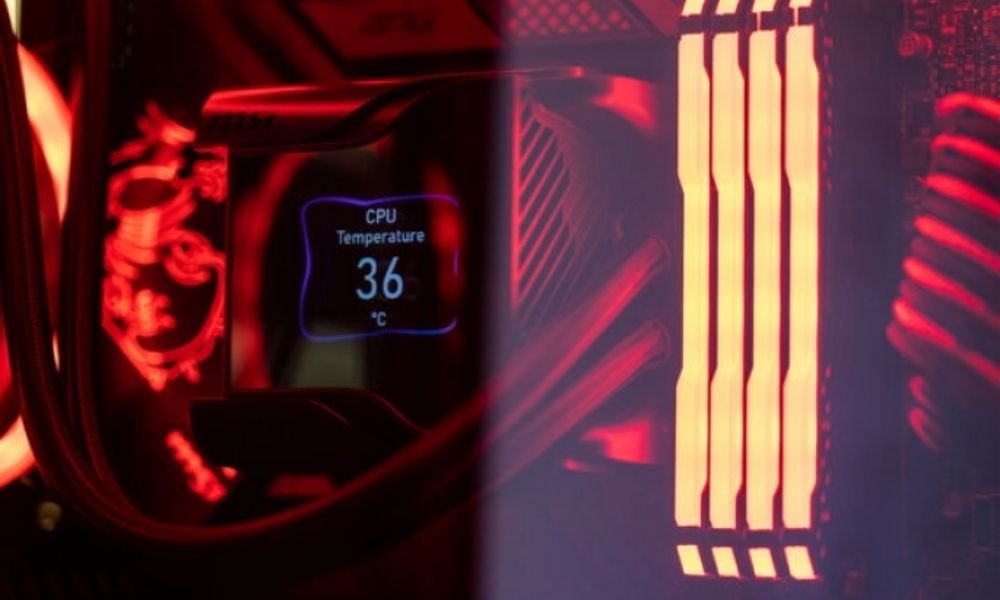
- Moderate load : This occurs when you use applications that require some graphics resources, such as web browsing, video streaming, or office applications. In this case, your graphics card is under moderate load and its temperature is moderate. The optimal temperature for a graphics card under moderate load is between 40°C and 60°C .
- High load : This occurs when you use applications that demand significant graphics resources, such as video games, video editing , or 3D rendering . In this case, your graphics card is under heavy load and its temperature is high. The optimal temperature for a graphics card under high load is between 60°C and 80°C .
These values are estimates and may vary depending on the type and model of your graphics card. You should also consider how long you use your graphics card: the longer you use it, the more heat it will get. Therefore, it is recommended to take regular breaks to allow your graphics card to cool down .
The maximum temperature that must not be exceeded to avoid overheating
Overheating is the main enemy of your graphics card. If your graphics card exceeds its maximum permissible temperature ( Tjunction or Tj Max ), it risks being damaged or causing problems on your computer. Therefore, you must avoid at all costs letting your graphics card reach this limit.
The maximum permissible temperature for a graphics card varies depending on the type and model of your graphics card. Generally, it is between 90°C and 105°C . You can check the maximum permissible temperature of your graphics card on the manufacturer's official website or in your graphics card's user manual.
In conclusion, the ideal temperature for a graphics card varies depending on the brand, usage, and GPU cooling. A temperature between 50°C and 80°C is generally considered acceptable for a graphics card under load. Above 90°C , there is a risk of overheating and hardware damage. Below 50°C , there is potential for performance gains by increasing the GPU clock speed or voltage.
How do I check the GPU temperature?
The first step in monitoring your graphics card's temperature is to measure it. There are several methods for doing this, each with its own advantages and disadvantages.
Use software
The simplest and most common method for checking GPU temperature is to use dedicated software. Many programs, both free and paid, allow you to monitor your graphics card's temperature in real time, as well as other parameters such as frequency, voltage, usage rate, and fan speed.
Among the most popular software programs are:
- MSI Afterburner : a free and comprehensive software that not only monitors GPU temperature but also allows you to overclock it, meaning you can increase its performance beyond the manufacturer's specifications. It is compatible with all brands of graphics cards and features an intuitive and customizable interface.
- GPU-Z : a free and lightweight software that displays all the information related to your graphics card, including its temperature. It can detect the exact model of your GPU, as well as its technical specifications. It also has a stability test feature to verify that your graphics card is functioning correctly.
- HWMonitor : a free and versatile software that allows you to monitor the temperature of all your computer's components, including the GPU. It also displays the minimum and maximum values reached by each parameter, which can be useful for detecting potential problems.
The advantage of software is that it's easy to use and provides a comprehensive overview of your graphics card's performance. The disadvantage is that it consumes system resources and can interfere with some games or applications.
Use the Windows Task Manager
Another way to check if your graphics card is overheating is to use your operating system's Task Manager. Here's how to do it in Windows :
- Open Task Manager by right-clicking in the taskbar or by searching for it in the Windows search bar

- Select the “ Performance ” tab at the top of the window.
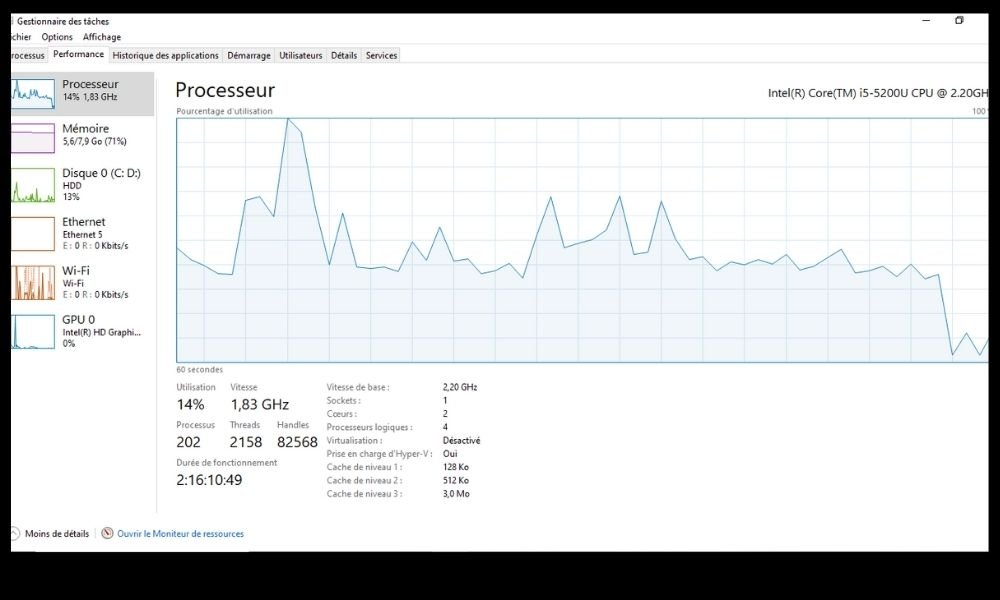
- On the left, click on “ Graphics card ” to display information about your GPU.
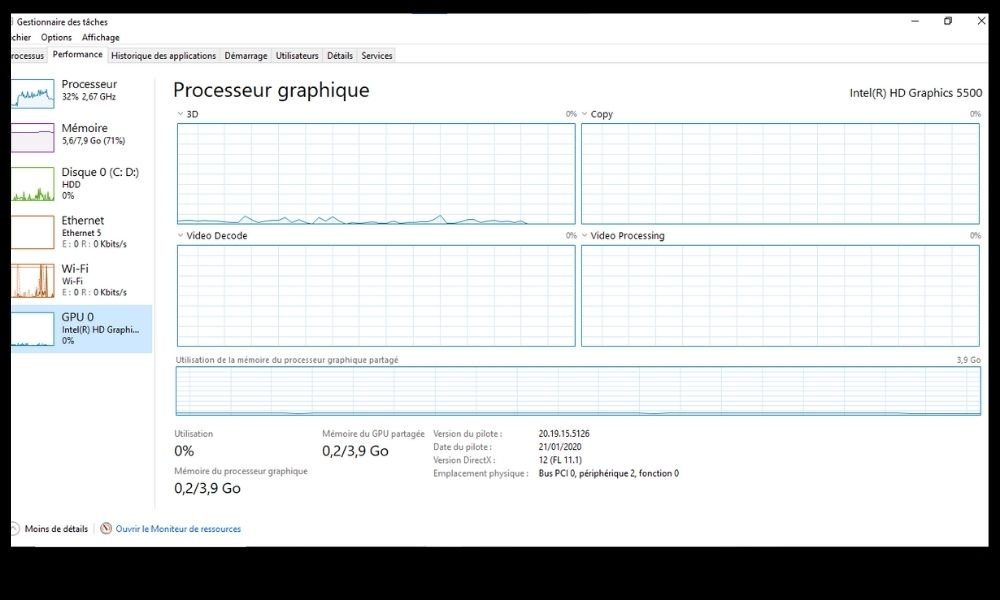
You will then see a graph that shows the current temperature of your graphics card, as well as other data such as its usage, frequency, or memory.
The advantage of this method is that it's simple and quick to use, and it allows you to monitor your graphics card's temperature in real time, along with other performance indicators. The disadvantage is that it doesn't provide information about the causes of your graphics card's temperature, nor about possible solutions to reduce it.
Use the manufacturer's tool
Another method for checking the GPU temperature is to use the tool provided by your graphics card manufacturer. This is usually software that allows you not only to monitor the GPU temperature, but also to manage its settings, such as fan speeds or overclocking.
For example, if you have an NVIDIA graphics card, you can use the NVIDIA Control Panel , which gives you access to various options for optimizing your GPU's performance. If you have an AMD graphics card, you can use AMD Radeon Software , which also allows you to customize your GPU settings.
The advantage of manufacturer tools is that they are specifically designed for your graphics card and are generally updated regularly. The disadvantage is that they may be less comprehensive or less compatible than independent software.
Use UEFI/BIOS
A third method for checking the GPU temperature is to use your computer's UEFI/BIOS ( Unified Extensible Firmware Interface/Basic Input Output System ). This is the program that manages your machine's startup and provides access to the basic settings of your components.
To access the UEFI/BIOS , you need to restart your computer and press a specific key, usually F2 , F10 , or Delete , depending on your PC model. Once in the UEFI/BIOS , you can navigate the menus and find the section that displays the temperature of your graphics card, as well as that of your CPU, hard drive, or memory.
The advantage of UEFI/BIOS is that it doesn't require installing any additional software and gives you access to reliable and accurate information. The disadvantage is that it's not user-friendly and doesn't allow you to monitor the GPU temperature in real time.
How to cool your GPU effectively?
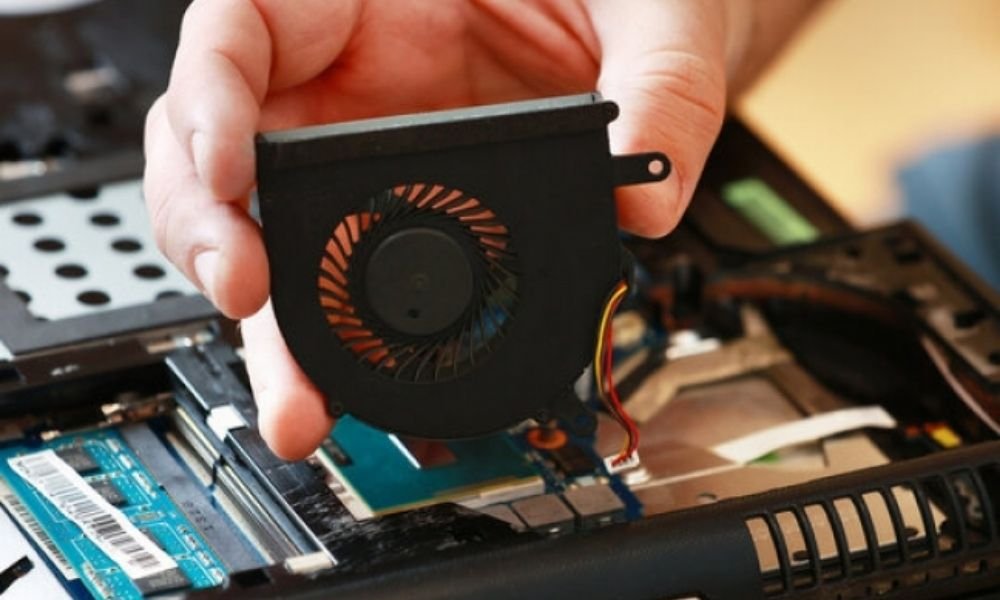
Here are some possible solutions to cool your GPU effectively:
Reduce the workload
The primary factor influencing GPU temperature is the workload you place on it. The more you use your graphics card, the hotter it gets. For example, if you're playing a graphically demanding video game like Cyberpunk 2077 or Red Dead Redemption 2, your GPU will reach higher temperatures than if you're streaming a movie or browsing the internet.
To reduce the GPU's workload and therefore its temperature, you can lower the graphics settings of the games or applications you use, such as resolution, textures, or visual effects. You can also close unnecessary programs running in the background that consume graphics resources.
Replace the original cooler
If your graphics card has the original cooler , meaning the one supplied by the manufacturer, you can replace it with a more efficient cooler. There are air coolers and liquid coolers specifically designed for graphics cards that offer better heat dissipation and improved fan control.
If you're interested, here's a list of the best laptop coolers right now!
To replace the stock cooler, you must carefully disassemble your graphics card, remove the old cooler, and apply a new layer of thermal paste to the GPU. Then, you must install the new cooler following the manufacturer's instructions. Be aware that this operation may void your graphics card's warranty and requires technical expertise.
Installing a water cooling kit
If you want to take things to the next level, you can install a water cooling kit for your graphics card. This is a complete liquid cooling system, which includes a cooling block, a radiator, a pump, a reservoir, and tubing. The water cooling kit allows you to efficiently cool your GPU, but also your CPU and other components if you wish.
To install a water cooling kit, you must choose a model compatible with your graphics card and case. You also need sufficient space to accommodate the radiator and reservoir. Next, you must assemble the kit following the manufacturer's instructions, ensuring the tubing is securely fastened and leak-proof. Be aware that this process is expensive and complex, and may also void your graphics card's warranty.
Use an external cooler
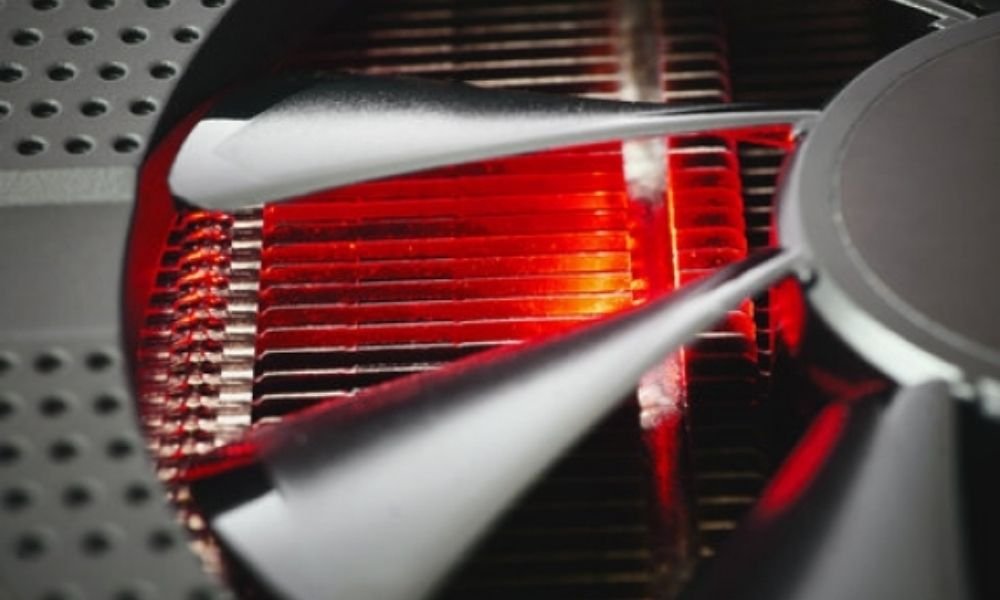
If you don't want to modify your graphics card or case , you can use an external GPU cooler. This device is placed under or next to your PC and blows cool air onto your graphics card. The external cooler can be powered by USB or a wall outlet .
To use an external cooler, you must choose a model that fits the size and shape of your PC. You must also ensure that the external cooler does not obstruct the case's air intake and exhaust vents. An external cooler is a simple and practical solution, but it's not very efficient or aesthetically pleasing.
Remove the dust
Another factor that influences GPU temperature is dust. Dust is a formidable enemy of graphics cards, as it accumulates on fans, heat sinks, and other PC components. This reduces cooling efficiency and increases GPU temperature .
To prevent excessive dust accumulation, you should regularly clean your PC with a soft cloth or a low-powered vacuum cleaner. You should also check that your case's dust filters are clean and properly positioned. You can also use compressed air to blow dust out of hard-to-reach areas.
FAQ
What are the symptoms of an overheating graphics card?
If your graphics card reaches or exceeds its maximum permissible temperature, you may experience the following symptoms:
- Performance drops : your graphics card will reduce its clock speed to limit heat output. This will result in decreased image quality and smoothness.
- Graphical artifacts : You may see defective pixels, lines, spots, or abnormal colors on your screen. This means your graphics card is having trouble processing images correctly.
- Crashes or blue screens : Your computer may freeze or display a blue screen with an error message. This means that your graphics card has stopped working or has caused a malfunction in your computer.
- Burns or fires : In extreme cases, your graphics card can reach temperatures so high that it can burn your fingers if you touch it, or melt other components of your computer. This can be dangerous for you and your hardware.
If you notice any of these symptoms, you must immediately stop using your computer and turn off your graphics card. Then you must identify the cause of the overheating and fix it.
What is the difference between TDP and GPU temperature?
The Thermal Design Power ) is a measure of the maximum thermal power that an electronic component, such as a GPU, can dissipate. TDP is expressed in watts (W) and indicates the amount of heat the cooling system must be able to remove for the component to function correctly.
The GPU temperature is a measure of the effective heat produced by the electronic component during operation. GPU temperature is expressed in degrees Celsius (°C) and indicates the component's heating level.
TDP and GPU temperature are two different but related concepts. Indeed, the higher a component's TDP, the more power it consumes and the more heat it produces. Thus, a GPU with a high TDP will tend to have a higher temperature as well . However, TDP is not the only factor that influences GPU temperature. Other factors come into play, such as workload, cooling, environment, and overclocking.
What is the impact of GPU temperature on PC performance?
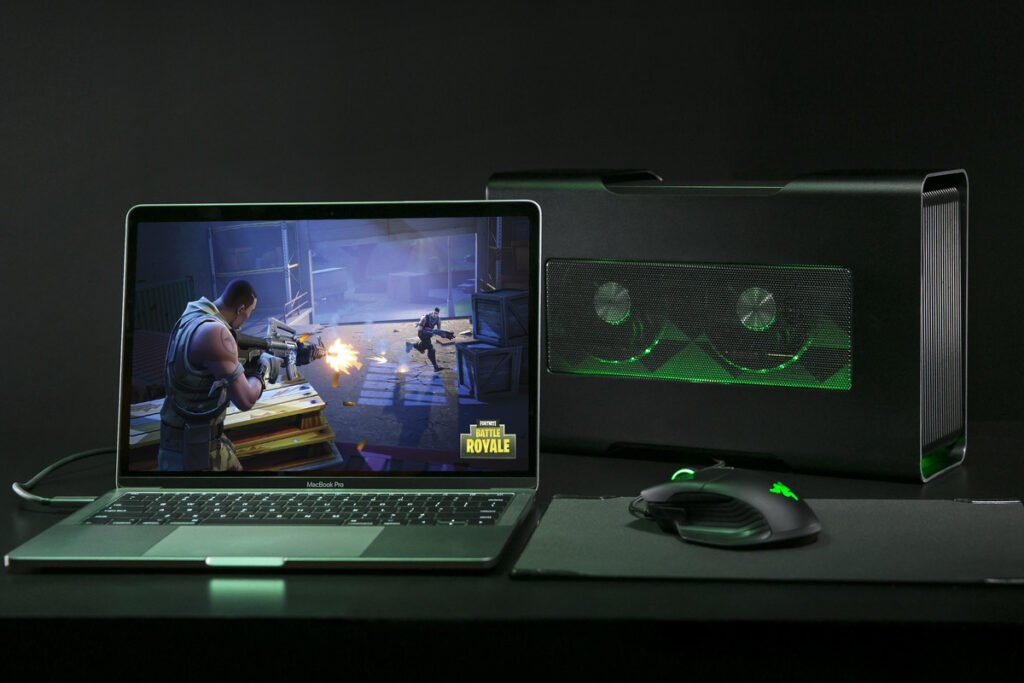
The GPU temperature has a direct impact on PC performance , especially for video games and graphics applications. If the GPU temperature exceeds a certain threshold, it will reduce its frequency or voltage to prevent overheating. This phenomenon is called throttling, or thermal limiting. It results in a decrease in GPU performance, which translates into a drop in frames per second (FPS) or a degradation in graphics quality.
To avoid throttling, it's essential to ensure the GPU temperature remains within an optimal range, which varies depending on the graphics card model. Generally, it's recommended not to exceed 80°C for a GPU. If the GPU temperature is too high, you should improve the cooling system or reduce the graphics settings of the game or application.
What are the best graphics card brands in terms of temperature?
There is no single answer to this question, as a graphics card's temperature depends on many factors, such as the model, cooling system, usage, and environment. However, graphics cards can be compared based on their TDP (Thermal Design Power), which indicates their thermal power and energy consumption.
Based on the TDP (Thermal Design Power), we can distinguish three main categories of graphics cards:
- Low TDP graphics cards (< 75 W) : These are low-power, energy-efficient graphics cards that do not require an power supply . They are suitable for laptops or compact desktop PCs. They run cool and are quiet. Examples: NVIDIA GeForce GT 1030, AMD Radeon RX 550 .
- Mid-TDP graphics cards (75–150 W) : These are moderately powerful and moderately energy-efficient graphics cards that require an power supply . They are suitable for standard desktop PCs. They generate moderate heat and are relatively quiet. Examples: NVIDIA GeForce GTX 1650 Super, AMD Radeon RX 580 .
- High TDP graphics cards (> 150 W) : These are very powerful and energy-intensive graphics cards that require one or more power supply . They are suitable for high-end desktop PCs or gaming PCs. They run very hot and are noisy. Examples: NVIDIA GeForce RTX 3080, AMD Radeon RX 6800 XT .
Therefore, depending on your budget , your use and your preference , you can choose the brand and model of graphics card that best suits you in terms of temperature.