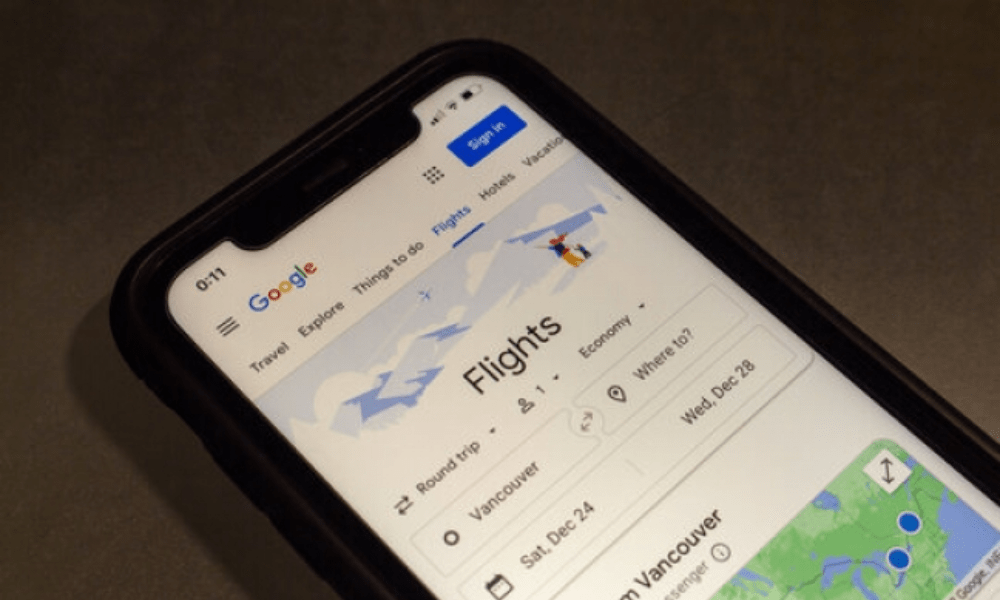
Google Flights is an online service that allows you to compare and book flights from different airlines. It offers numerous features that make it easy to find the flight best suited to your needs and budget. Do you want to travel, but don't know how to find the cheapest plane tickets?
You're in the right place! In this article, we'll explain how to use Google Flights to find the best flights, by following these steps:
1. Access Google Flights
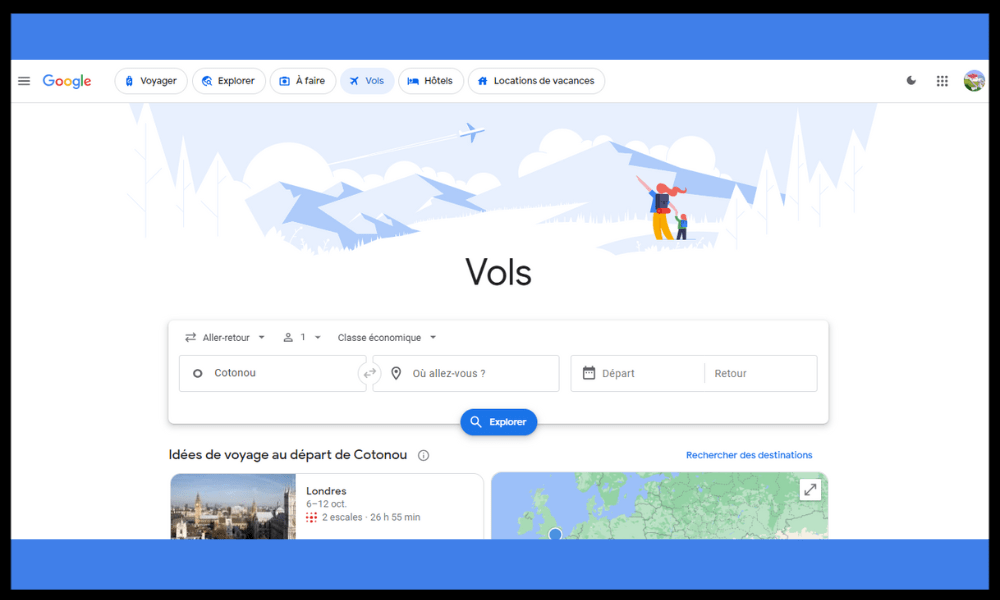
To access Google Flights, you can either type “Google Flights” into the Google search bar. You will then arrive at the Google Flights homepage, which looks like this:
2. Enter your travel information
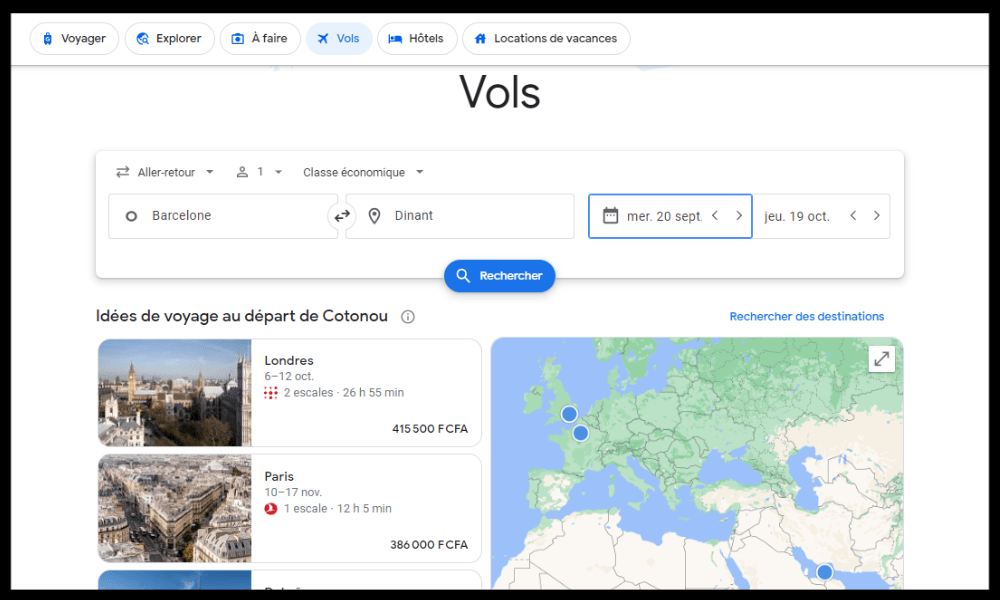
On the homepage, you can enter your basic travel information, such as your departure city, arrival city, dates, number of passengers, and travel class. You can also choose whether you want a round-trip, one-way, or multi-city flight. For example, if you want to travel from Paris to New York from October 10th to 20th, 2023, in economy class for two people, you can fill in the fields as follows:
3. Start the search and refine the results
Once you have entered your travel information, you can click the "Search" button to start the search. You will then see a list of flights matching your criteria, sorted by price (ascending). You can also view a map showing flight prices to different destinations from your departure city.
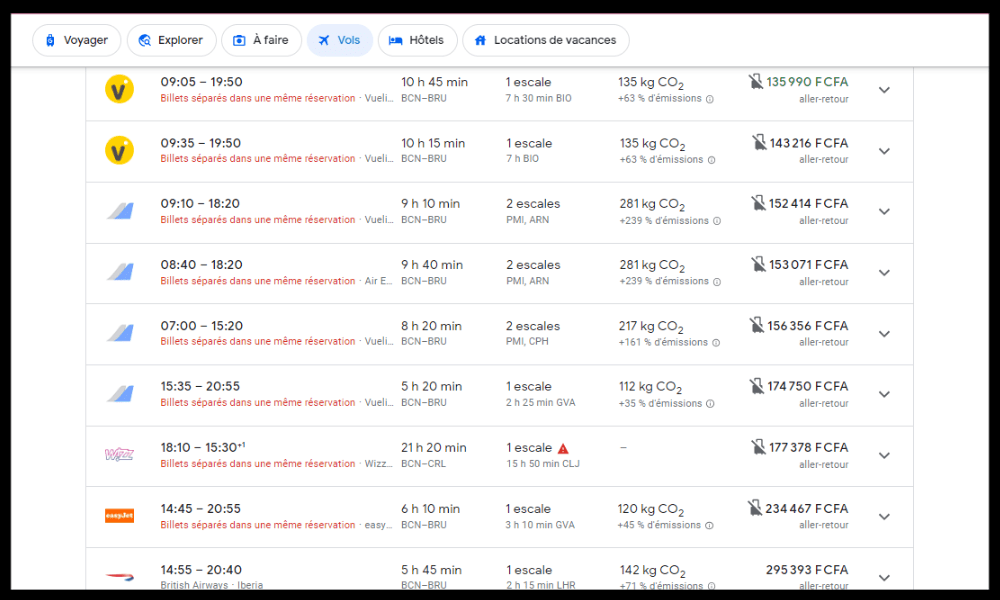
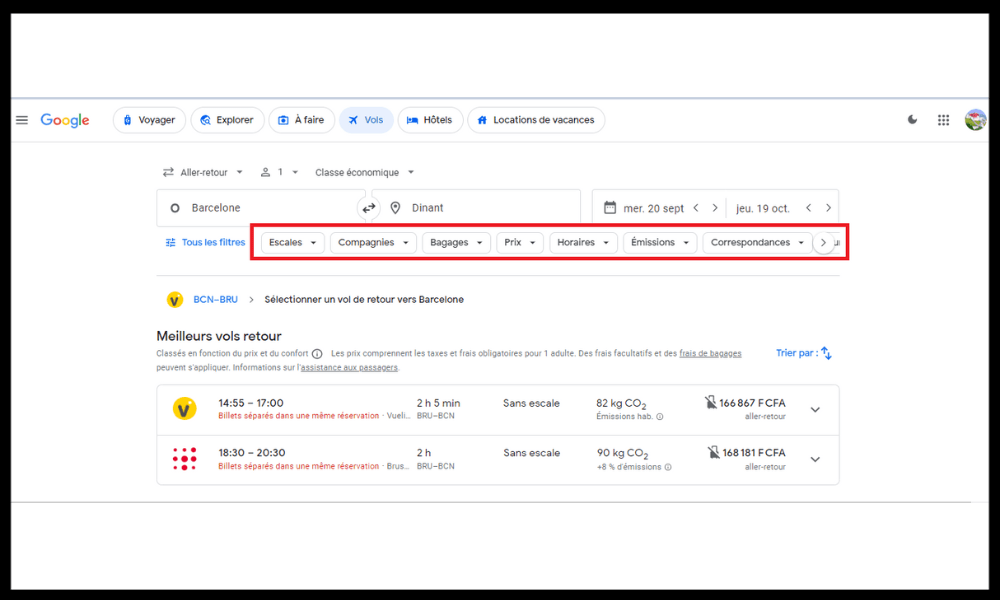
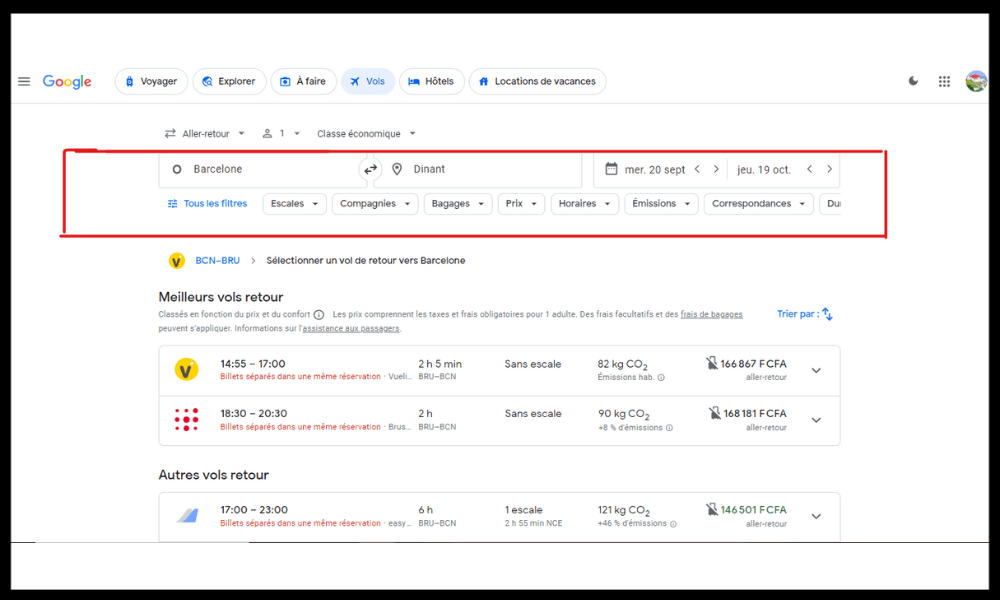
If you want to refine your results, you can use the filters at the top of the page. For example, you can filter flights by duration, smousever, airline, departure or arrival time, airport, or alliance. You can also sort flights by best value, duration, or number of smousevers.
4. Select the flight that suits you
Once you've found the flight that suits you, you can click on it to see more details, such as the flight number, aircraft type, layover time, and onboard services. You can also see the final price of the flight, which includes taxes and fees.
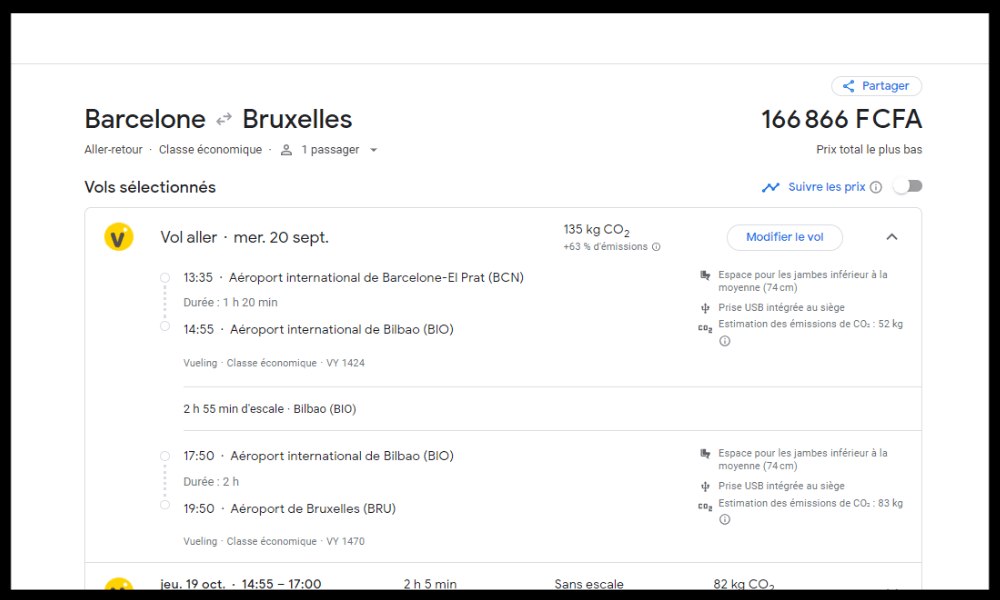
If the flight suits you, you can click the “Book” button to access the website of the airline or travel agency offering the flight. You can then finalize your booking by following the instructions.
Tips to optimize your use of Google Flights to find the best flights
1. Be flexible on the dates
One of the main factors influencing the price of an airline ticket is the departure and return dates. Generally, flights are more expensive during school holidays, weekends, and public holidays.
To find the cheapest flights, you need to be flexible with your travel dates and avoid peak periods. Google Flights makes this easier by offering a price calendar. This tool shows you the lowest price for each day of the month, allowing you to easily identify the best dates and adjust your travel plans accordingly.
To access the price calendar, simply click on the departure or return date in the search bar. A table will then appear with prices highlighted in green, orange, or red, depending on whether they are low, medium, or high. You can also hover your mouse over each date to see the corresponding flight details.
See also: How to find the altitude of a place using Google Maps?
2. Be flexible about the destination
If you don't have a specific destination in mind, or if you're open to other possibilities, Google Flights can help you find travel ideas based on your budget. Simply use the Explore. This interactive map shows you flight prices to various destinations worldwide. You can discover places you might not have considered visiting, or compare prices between different cities.
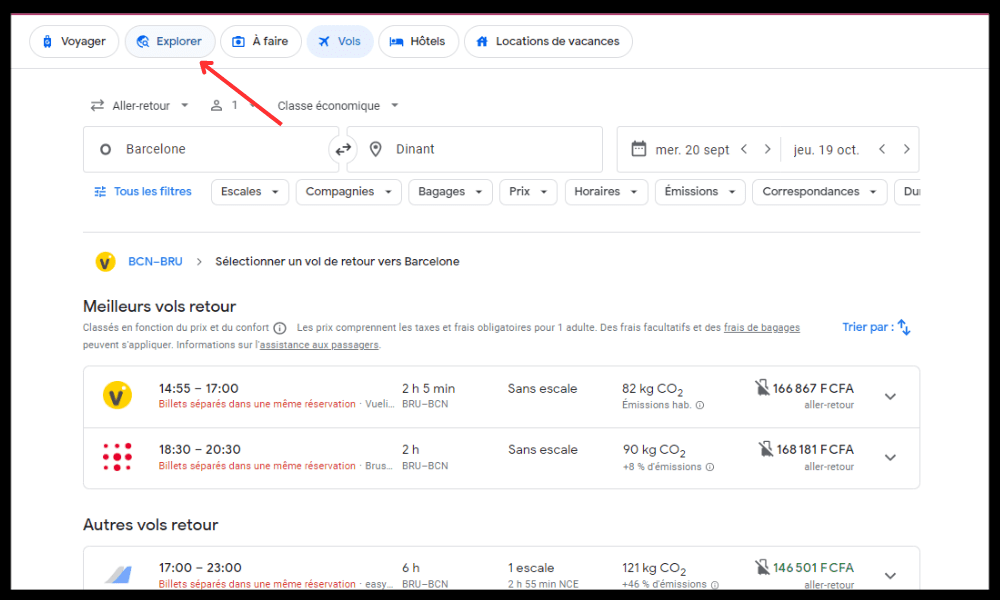
To access the Explore, simply click on the “Explore” tab in the top left corner of the Google Flights homepage. You can then enter your departure city, travel dates, and maximum budget. You will then see blue dots appear on the map, representing destinations within your budget. You can also filter the results by continent, country, or trip type (beach, culture, nature, etc.). Clicking on a blue dot will display the details of the corresponding flight.
3. Track prices and receive alerts
If you've spotted a flight that interests you but aren't ready to book right away, Google Flights can help you track price changes and receive alerts when fares shift. This way, you can take advantage of price drops or avoid price increases. Google Flights also tells you if the current price is lower, equal to, or higher than the historical average, and whether it's likely to rise or fall in the coming days.
To track prices and receive alerts, simply click the “Track prices” button in the top right corner of the results page. You will then need to sign in to your Google account if you haven't already. You will then see a graph displaying historical prices and forecasts.
You can also choose your preferred notification method: email or phone notification. You can track as many flights as you likeand view them at any time in the “My tracked flights” tab in the top right corner of the Google Flights homepage.
4. Take advantage of special offers
Google Flights also lets you take advantage of special offers from certain airlines or travel agencies. These are discounted flights, often available for a limited time or to specific destinations. Google Flights highlights these offers with a green " Deal " badge on the results page. You can also access a complete list of deals by clicking the " Deals " tab in the top left corner of the Google Flights homepage. There, you'll see flights categorized by type: last minute, weekend, long-haul, etc. You can also filter the offers by destination, date, or budget.
5. Compare travel options
Google Flights also lets you compare different travel options available to your destination. These include alternative modes of transport, such as train, bus, or car, which can sometimes be faster, cheaper, or more environmentally friendly than flying. Google Flights shows you the time, cost , and carbon footprint of each option, as well as the link to book. You can access this information by clicking the “Options” tab in the top right corner of the results page.
Google Flights also lets you compare accommodation options, such as hotels, apartments, or hostels. Google Flights displays prices, ratings, and user reviews for each option, along with a link to book. You can access this information by clicking the "Hotels" tab in the top right corner of the Google Flights homepage.
FAQ
What are the advantages of Google Flights compared to other flight comparison sites?
Google Flights offers several advantages over other flight comparison sites, such as:
- It is quick and easy to use
- It displays the final flight prices, with no hidden fees or commissions
- It offers innovative features, such as a price map, price calendar, explorer, and price tracking
- It includes information on Covid-19 related health measures, such as travel restrictions, testing or quarantine requirements, or flight cancellation or change policies
- It is compatible with all devices (computer, tablet, smartphone)
How do I use the price map on Google Flights?
The price map is a feature that allows you to see flight prices to different destinations from your departure city. To use it, you must:
- Click on the “Map” tab in the top left corner of the page
- Zoom in or out on the map to see more or fewer destinations
- Click on a destination to see details of the cheapest flight
- Modify your travel information (dates, number of passengers, class) if needed
- Click on “Show flights” to see more options
How do I use the price calendar on Google Flights?
The price calendar is a feature that allows you to see how flight prices have changed over time. To use it, you must:
- Click on the “Dates” tab in the top left corner of the page
- Choose a display mode (round trip, one way or multi-destination)
- Select a departure date and an arrival date
- See prices displayed under each date
- Adjust the dates if needed to find the best price
How do I use the explorer on Google Flights?
The explorer is a feature that lets you discover destinations based on your preferences and budget. To use it, you must:
- Click on the “Explore” tab in the top left corner of the page
- Choose a type of exploration (by continent, by country, by interest or by duration)
- A list of destinations with their prices and photos will appear
- Click on a destination to see more information and flight options
How to use price tracking on Google Flights?
Price tracking is a feature that allows you to receive email alerts when the prices of your selected flights change. To use it, you must:
- Select a flight that interests you
- Click on the “Enable price tracking” button at the bottom of the page

- Enter your email address if requested
- Receive alerts when the flight price increases or decreases
How do I cancel or change a flight booked with Google Flights?
Google Flights is not a flight booking site, but a flight comparison site. It redirects you to the website of the airline or travel agency offering the flight you selected. To cancel or change a flight booked through Google Flights, you must contact the airline or travel agency directly. You can find their contact information in the confirmation email you received after making your booking.
Conclusion
Google Flights is an essential tool for finding the best flights online. It allows you to search, compare, and book flights from hundreds of airlines and travel agencies. It also offers advanced features to optimize your searches and take advantage of the best deals. By following these tips, you can save time and money on your next trips. So don't wait any longer, and try Google Flights now!