Have you ever wondered how to mark a specific place on the map , even if it doesn't have an address or official name? For example, a natural spot where you had a picnic, a parking lot where you left your car, or an unusual place you discovered. If so, then you'll love the "dropped pin" feature in Google Maps.
A " dropped pin" is a symbol that appears on the map when you long-press on a location. It allows you to do several things with that location, such as share it, add it to your favorites, or start a route. It's a simple and convenient way to personalize your online mapping experience.
In this article, we will explain how to use an “abandoned pin” in Google Maps, whether on your computer or your smartphone.

How do I use Dropped Pin on my computer?
To use an “abandoned pin” on your computer, you must first access the Google Maps website (https://www.google.com/maps). Then, you must follow these steps:
- Choose your preferred map display mode (map, satellite, relief, etc.).
- Zoom in or out on the map to find the location you want to mark with a pin.
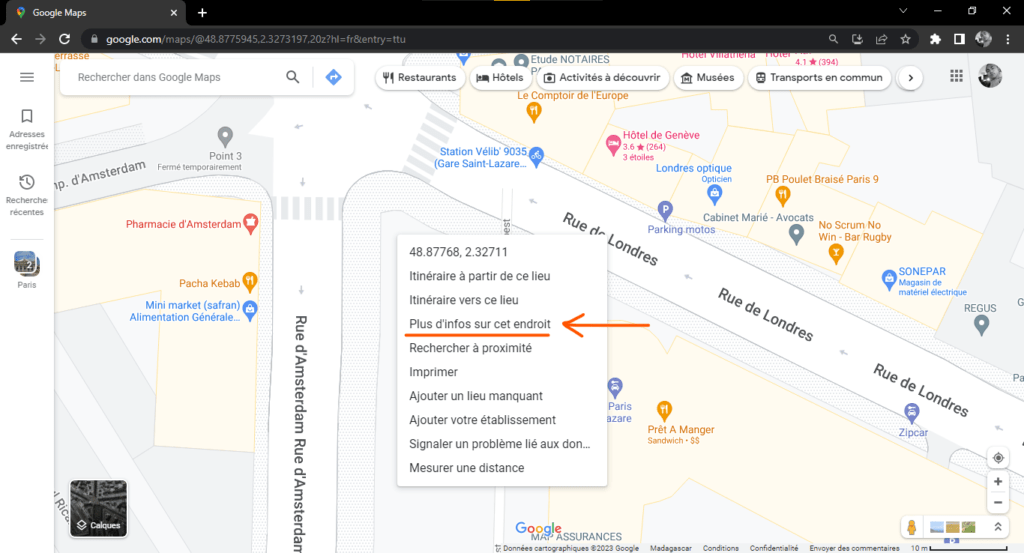
- Right-click on the chosen location. A context menu will appear.
- Select the “More info about this place” option. A window will open on the left of the map, with the coordinates of the location and a red pin that will be placed on the location.
- You can now use this pin to perform different actions:
- To get more information about the place, click on the place name (if it has one) or on the contact details. You will then see details such as photos, reviews, opening hours, telephone number, website, etc.
- To share the location with others, click the share icon (an arrow pointing to the right). You can then copy the location link, send it by email or message, or post it on social media.
- To add the location to your favorites, click on the heart icon. The location will then be saved to your “Saved” list, which you can view at any time by clicking on the hamburger icon (three horizontal lines) in the top left corner of the map.
- To start a route to or from this location, click on the blue arrow icon. You can then choose your mode of transport (car, bicycle, public transport, walking), and see the estimated time and distance of the journey.
How to use Dropped Pin on your smartphone?
To use an “abandoned pin” on your smartphone, you must first download and install the Google Maps app (available for free on Android and iOS). Then, you must follow these steps:
- Open the Google Maps application and grant it the necessary permissions (location, storage, etc.).
- Choose your preferred map display mode (map, satellite, relief, etc.).
- Zoom in or out on the map to find the location you want to mark with a pin.
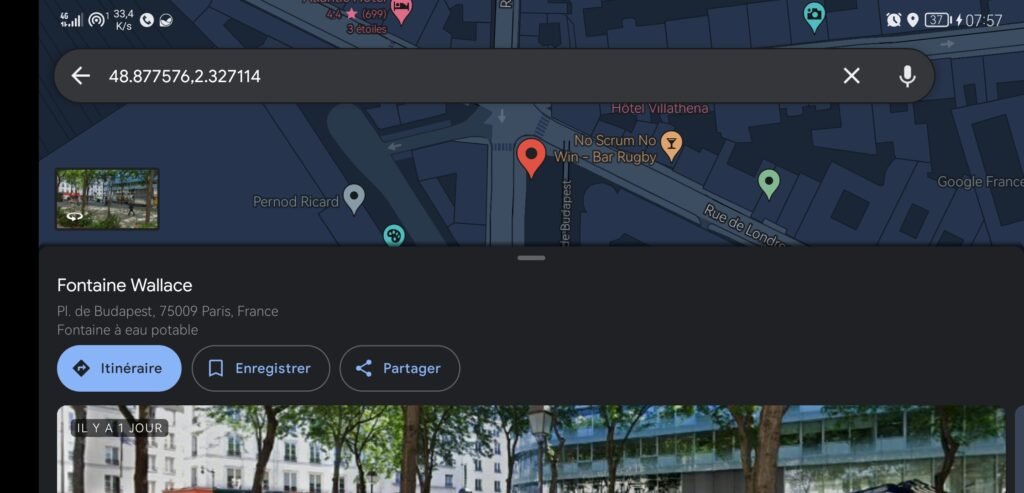
- Press and hold on the chosen location. A red pin will appear on the location, and a bar will appear at the bottom of the screen, with the name of the location (if it has one) or the coordinates.
- You can now use this pin to perform different actions:
- To get more information about the place, tap the bar at the bottom of the screen. You will then see details such as photos, reviews, opening hours, phone number, website, etc.
- To share the location with others, tap the share icon (a right-pointing arrow). You can then copy the location link, send it by email or message, or post it on social media.
- To add the location to your favorites, tap the heart icon. The location will then be saved to your “Saved” list, which you can view at any time by tapping the hamburger icon (three horizontal lines) in the top left corner of the screen.
- To start a route to or from this location, tap the blue arrow icon. You can then choose your mode of transport (car, bike, public transport, walking) and see the estimated time and distance of the journey.
What are the advantages of using an “abandoned pin” in Google Maps?

Using an “abandoned pin” in Google Maps offers several advantages:
- It allows you to mark a specific location, even if it doesn't have an address or official name. This can be useful if you want to find a place you've visited, if you want to indicate a meeting point for someone, or if you want to discover unusual places.
- It allows you to get information about the place, such as photos, reviews, opening hours, phone number, website, etc. This can be useful if you want to know more about a place before going there, or if you want to share your experience with other people.
- It also allows you to locate a phone number associated with a place on the map. This can be useful if you want to contact the owner of the place, if you want to check the availability of a service or product, or if you want to report a problem or anomaly.
- It allows you to share the location with other people via email, message, or social media. This can be useful if you want to invite someone to join you somewhere, recommend a place to someone, or show your friends where you are.
- It allows you to add the place to your favorites, so you can easily find it later. This can be useful if you want to create a list of places you like or want to visit.
- It allows you to plan a route to or from this location, choosing your mode of transport. This can be useful if you want to know how to get to a place, or how to get back from a place.
What are the disadvantages of using an “abandoned pin” in Google Maps?
Using an “abandoned pin” in Google Maps also has some drawbacks:
- It requires an internet connection to function. If you do not have access to the network or Wi-Fi, you will not be able to use this feature.
- It's not always accurate. Depending on the GPS signal strength or map display mode, the pin may not correspond exactly to the location you want to mark. Therefore, you should check that the pin is correctly positioned before using it.
- It's not permanent. If you close Google Maps or switch maps, the pin will disappear. So remember to save the location to your favorites if you want to keep it.
FAQ
How do I delete an “abandoned pin” in Google Maps?
To remove an abandoned pin from Google Maps, simply tap on a different location on the map, or close the window or bar displaying the location information. The pin will then disappear from the map. If you saved the location to your favorites, you can remove it by tapping the heart icon, then tapping the trash can icon.
How do I change the name of an “abandoned pin” in Google Maps?
If you want to change the name of an abandoned pin in Google Maps, you must first save it to your favorites by tapping the heart icon. Then, tap the hamburger icon (three horizontal lines) in the top left corner of the screen, and then tap the "Saved" option. You will then see a list of your favorite places. Tap the place whose name you want to change, and then tap the pencil icon. You can then enter the new name you want to give the place.
How to create a custom map with "abandoned pins" in Google Maps?
If you want to create a custom map with "abandoned pins" in Google Maps, you must first go to the Google My Maps website (https://www.google.com/mymaps). Then, you must follow these steps:
- Click on the “Create a new map” button.

- Give your card a name and a description.

- Choose your preferred map display mode (map, satellite, relief, etc.).
- Zoom in or out on the map to find the places you want to mark with pins.
- Left-click on the chosen location. A window will open on the right side of the map, displaying the location's coordinates and a blue pin that will be placed on the location.
- You can now customize this pin by giving it a name, description, color, icon, etc.
- Repeat the process for all the locations you want to add to your map.
You can also draw lines or shapes to connect or delimit areas on your map.
Once your map is complete, you can share it with others by clicking the “Share” button. You can then copy the map link, send it by email or message, or post it on social media.
Conclusion
You now know how to use an "abandoned pin" in Google Maps, whether on your computer or smartphone. This feature allows you to mark a specific location on the map and perform various actions with that pin. You can get information about the location, share it with others, add it to your favorites, or even get directions to or from that location. You can also create a custom map with "abandoned pins" to visualize and explore the world your way.
If you enjoy using Google Maps and discovering new places, you can also join the Google Local Guide program . This program rewards users who contribute to enriching Google Maps with their reviews, photos, videos, or questions. As a Local Guide, you can earn points, badges, perks, and access to exclusive events.
We hope you found this article helpful and learned something new. If you have any questions or comments, please feel free to leave them below. We'd be happy to answer them.