Following its recent reactivation after a shutdown, Google Spaces has re-emerged as Google's latest initiative aimed at attracting small teams, startups, and organizations. This feature isn't a separate app, but rather a service integrated into Gmail on the web. It's also accessible via Google Chat on mobile devices, desktops, and the best Chromebooks. With Google Spaces, you can create groups of people, share files, assign tasks, and collaborate effectively to get work done. Let's explore how to create a space and how to use it.
What is Google Spaces?
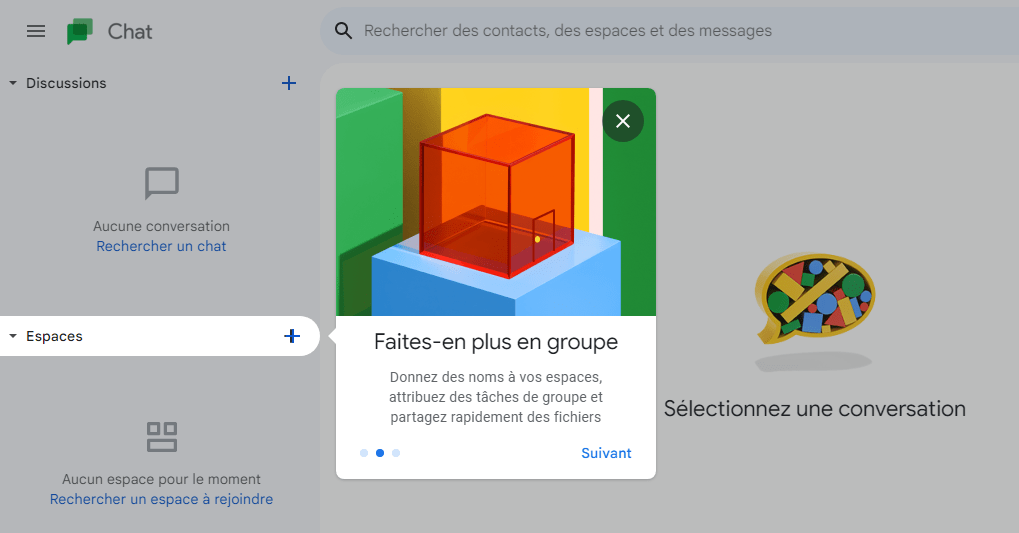
Last year, Google announced the integration of chat, files, tasks, and other Google services into Gmail as part of a major redesign. Gmail is no longer just for sending and receiving emails. It's now an integrated workspace where you can create new spaces for different discussions and topics, share files, and launch Google Meet group calls, all without leaving the Gmail tab.
Google Spaces lets you invite and chat with team members, collaborate on Google Docs, Sheets, and Slides, start a quick Meet call, and improve group productivity. You can also delete a Google Doc if you no longer need it.
How to use Google Spaces on Gmail?
Even though Google Spaces no longer exists as a standalone application, it's possible to use its features within Gmail thanks to its integration with Google Chat. Here's how:
Step 1: Activate Google Chat in Gmail

To use Google Spaces in Gmail, you need to enable Google Chat in your settings. To do this:
- Open Gmail on your web browser (desktop or mobile) and sign in with your Google account.
- Click the gear icon in the top right corner to open the side panel for settings.

- Click on View all settings.
- Go to the Chat and Dating tab at the top.
- Select the Google Chat option in the Chat section.

- Click on Save changes at the bottom.
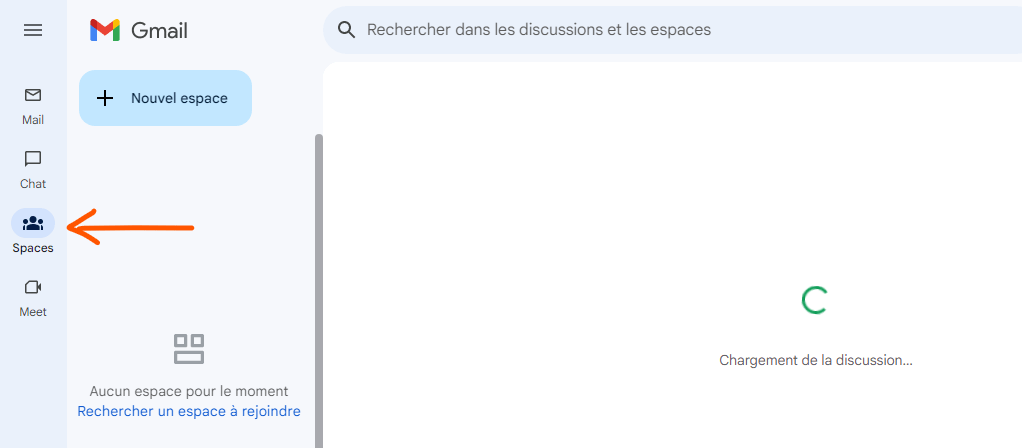
You will then see the Spaces section in the left menu which you can open.
Step 2: Create a space in Google Spaces
You can create a space in Google Spaces within Gmail just like you do in Google Chat. Your spaces sync so you can use them in both apps as long as you're signed in with the same Google account. This includes spaces you create and those you join.
- Click on the plus sign next to Spaces on the left side or on the Create or find a space link.
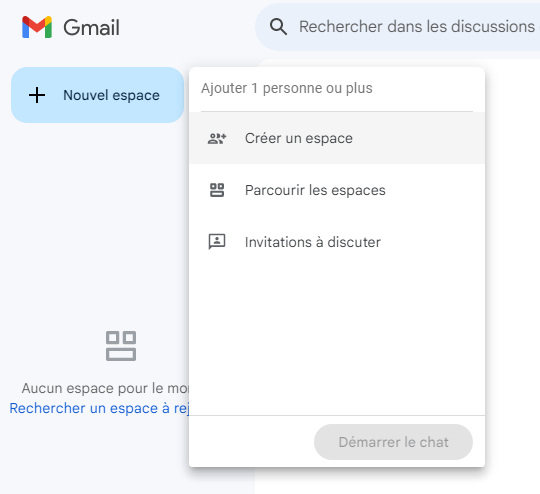
- Choose Create a space from the list.
- Give your space a name and (optionally) a description.
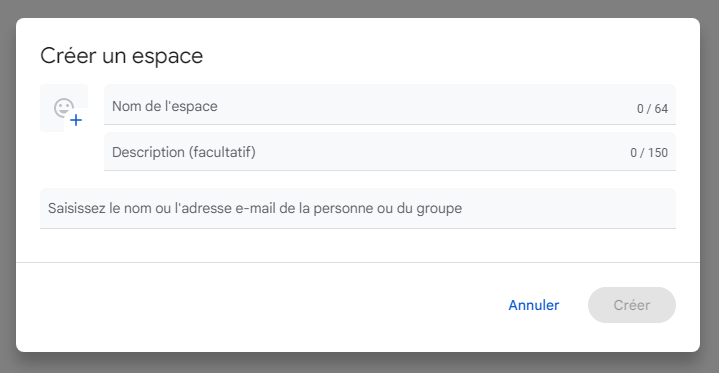
You can invite people to your space immediately by adding their names or email addresses. You can also add members later just as easily.
If you have a paid Google Workspace account, such as a business account, you can choose whether you want to create a restricted space that only people you invite can access, whether you want to use threaded replies, and whether you want to allow people outside your organization to join.
Click Create when you're finished. You'll see your new space in the Spaces section on the left in Gmail and Google Chat.
Step 3: Navigate a space
There are a few main tabs at the top of each space that make navigation easier. You'll see Chat, Files, and Tasks.

- Go to the Chat tab to chat with other members; this is the main area where all conversations take place. Similar to a text messaging app, you can see each person's message with their name and icon.
- Go to the Files tab to see all the files shared in the space; you can filter by file type (documents, images, PDF, etc.) or search by file name.
- Go to the Tasks tab to manage tasks assigned or created in the space; you can add, edit or delete tasks, as well as mark them as completed or not completed.
Step 4: Manage the members of a space
You can add or remove members from a space, as well as modify their roles and permissions.
- Open the space using the Spaces section on the left side of Gmail or Google Chat.
- Click the arrow next to the space name at the top to open the menu.

- Choose Manage members to display the list of current members.

- To add a member, click Add people and enter their name or email address. You can also copy the invitation link and share it with others.

- To remove a member, click on the three dots next to their name and choose Remove from group.
- To change a member's role, click the three dots next to their name and choose Edit role. You can choose between Owner (who can manage all aspects of the space), Manager (who can manage members and settings), or Member (who can participate in discussions).
Step 5: Manage discussions in Google Spaces
You can perform various actions on discussions in Google Space, such as replying, reacting, editing, or deleting a message.
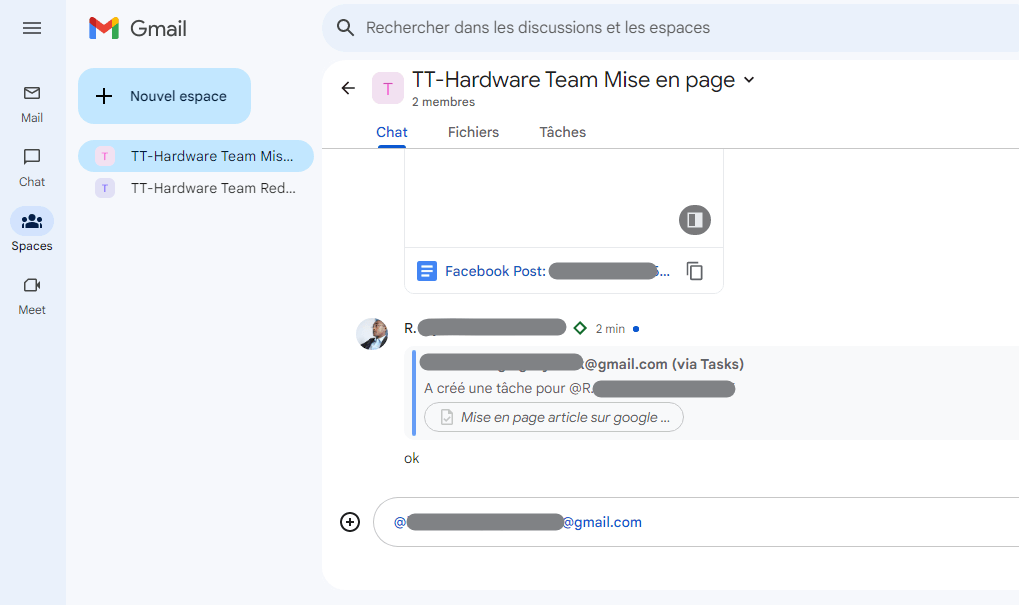
- Open the space using the Spaces section on the left side of Gmail or Google Chat.
- Go to the Chat tab to see the ongoing discussions.
- To reply to a message, click the Reply button below the message or type @ followed by the name of the person you want to reply to. If you are using threaded replies, your reply will appear below the original message. Otherwise, it will appear at the end of the thread.
- To react to a message, click the Emoji button below the message or type + followed by the name of the emoji you want to use. You can choose from a variety of emojis to express your feelings or opinions.
- To edit a message you've sent, click the three dots next to the message and choose Edit. You can then make the desired changes and click Save.
- To delete a message you've sent, click the three dots next to the message and choose Delete. The message will then be removed from the conversation.
How do I display members in Google Spaces?
You can display the list of members of a space, as well as their roles and statuses.

- Open the space using the Spaces section on the left side of Gmail or Google Chat.
- Click the arrow next to the space name at the top to open the menu.
- Choose Manage members to display the list of current members.
- You can see the name, icon, role (owner, manager or member) and status (online, away or busy) of each member.
- You can also see invited members who have not yet joined the space.
How do we define the rules for Google Spaces?
You can define the rules of your space to specify its purpose, expectations, and standards.
- Open the space using the Spaces section on the left side of Gmail or Google Chat.
- Click the arrow next to the space name at the top to open the menu.
- Choose "space details" to access the instructions page.

- You can write the rules for your space in the text field. For example, you can specify the topic of the space, the types of messages allowed or prohibited, guidelines for respect and courtesy, etc.

- Click Save when you are finished. The rules will be visible to all members of the space.
How do I manage Google Spaces notifications?
You can manage notifications for your spaces to control when and how you receive alerts.
- Open the space using the Spaces section on the left side of Gmail or Google Chat.
- Click the arrow next to the space name at the top to open the menu.
- Choose Notification settings to access notification options.

- You can choose between several notification modes:
- Everything : you receive a notification for every message sent in the space.
- @mentions only : you only receive a notification when someone mentions you in a message.
- None : you will not receive any notifications for this space.
- You can also enable or disable notification sounds and icon badges.
How do I assign tasks in Google Spaces?
You can assign tasks to other members of your space to organize your work or projects.
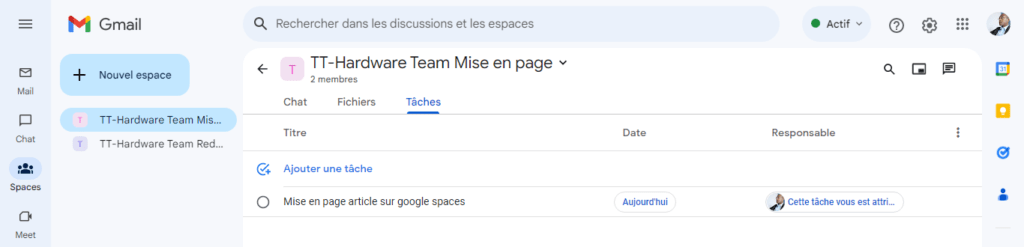
- Open the space using the Spaces section on the left side of Gmail or Google Chat.
- Go to the Tasks tab to access the task list.
- Click the + button in the bottom right corner to create a new task.
- Give your task a title and (optionally) a description, a due date and a reminder.
- Click Assign to and choose the member to whom you want to assign the task. You can also assign the task to yourself if you wish.
- Click Create when you're finished. The task will be added to the list and the assigned member will receive a notification.
How do I activate and use Google Spaces on my smartphone?
You can activate and use Google Spaces on your smartphone through the Gmail or Google Chat app.
Step 1: Download and install the Gmail or Google Chat app
To use Google Spaces on your smartphone, you need to download and install the Gmail or Google Chat app from the Play Store (Android) or the App Store (iOS).

- Open the Play Store or the App Store on your smartphone and search for Gmail or Google Chat.
- Select the app you want to install and tap Install (Android) or Get (iOS).
- Wait until the installation is complete and press Open to launch the application.
Step 2: Activate Google Chat in Gmail
If you use the Gmail app, you need to enable Google Chat in the settings. To do this:
- Open Gmail on your smartphone and sign in with your Google account if necessary.
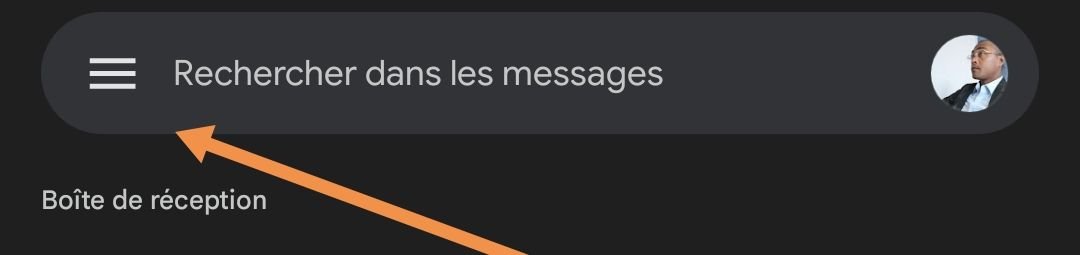
- Tap the menu in the top left corner (the three horizontal lines) and scroll down to Settings.
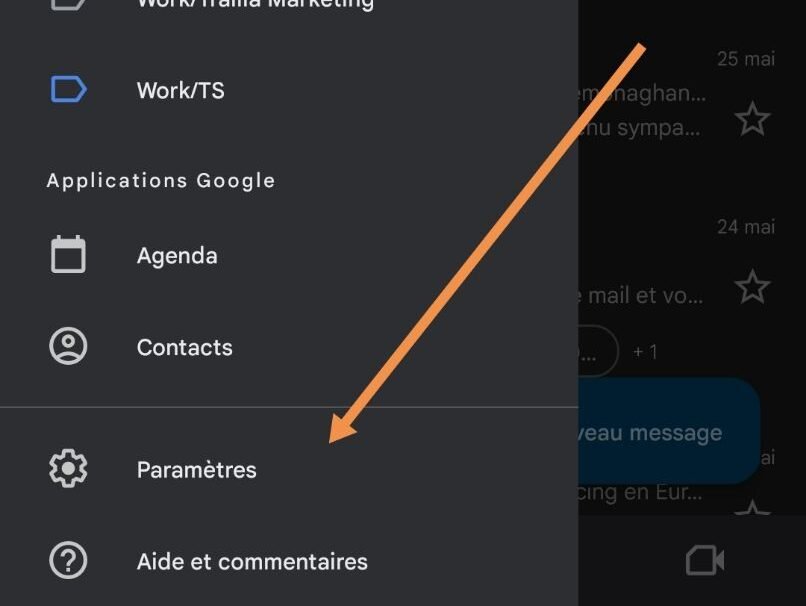
- Tap on your email account and then on General.
- Tap on Chat (in the Autoresponder section) and choose Activate.
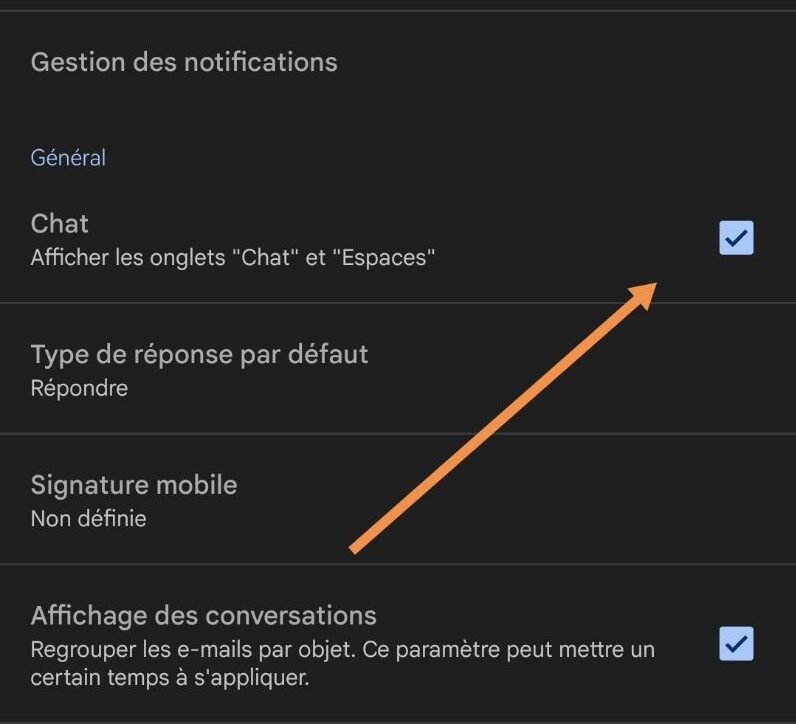
You will then see the Spaces section in the bottom right corner which you can open.
How to optimize the use of Google Spaces?
Google Spaces is a powerful tool for communication and collaboration within Google Workspace. But to get the most out of it, you need to know how to use it effectively. Here are some tips to optimize your use of Google Spaces:
- Use clear names and descriptions for your spaces : this will help you organize them and find them easily. Choose names that reflect the subject or project of the space, and descriptions that specify its purpose or intended use.
- Use emojis and reactions to express your emotions : this will make your discussions more lively and human. You can use emojis in your messages or react to other people's messages with emojis. They can also be used to give your opinion or show agreement without having to type a message.
- Use @mentions to draw attention : this allows you to notify the people involved in a message or question. You can mention a specific person with @ followed by their name, or mention everyone in the space with @all. But be careful not to overuse @mentions, as they can be distracting or annoying for other members.
- Use threaded replies to structure your discussions : this will help you maintain better readability and consistency in your conversations. You can use threaded replies if you have a paid Google Workspace account, such as a business account. To enable threaded replies, you must do so when creating the workspace by checking the corresponding box. Threaded replies allow you to respond directly to a message without interrupting the main thread of the discussion.
- Use tasks to manage your work : this will allow you to organize your work or projects within your spaces. You can create and assign tasks to other members of your space, as well as track their progress and due dates. You can also add descriptions, reminders, or subtasks to your tasks.
- Use Files to share your documents : this will allow you to easily share your documents with members of your workspace, without having to send them by email or use another service. You can share files from Google Drive, Google Photos, or your computer. You can also view a list of all shared files in the Files tab of your workspace, and filter or search them by name or type.
- Use the group rules to define the norms of your space : this will allow you to establish a clear and respectful framework for your discussions. You can create your space's rules in the Group Rules menu of your space. For example, you can specify the topic of the space, the types of messages allowed or prohibited, guidelines for respect and courtesy, etc.
- Use the notification settings to control your alerts : this will allow you to manage the notifications you receive for each space. You can choose between several notification modes:
- Everything : you receive a notification for every message sent in the space.
- @mentions only : you only receive a notification when someone mentions you in a message.
- None : You will not receive any notifications for this space. You can also enable or disable notification sounds and icon badges.
By using these tips, you can maximize your efficiency and make your teamwork smoother and more organized with Google Spaces.