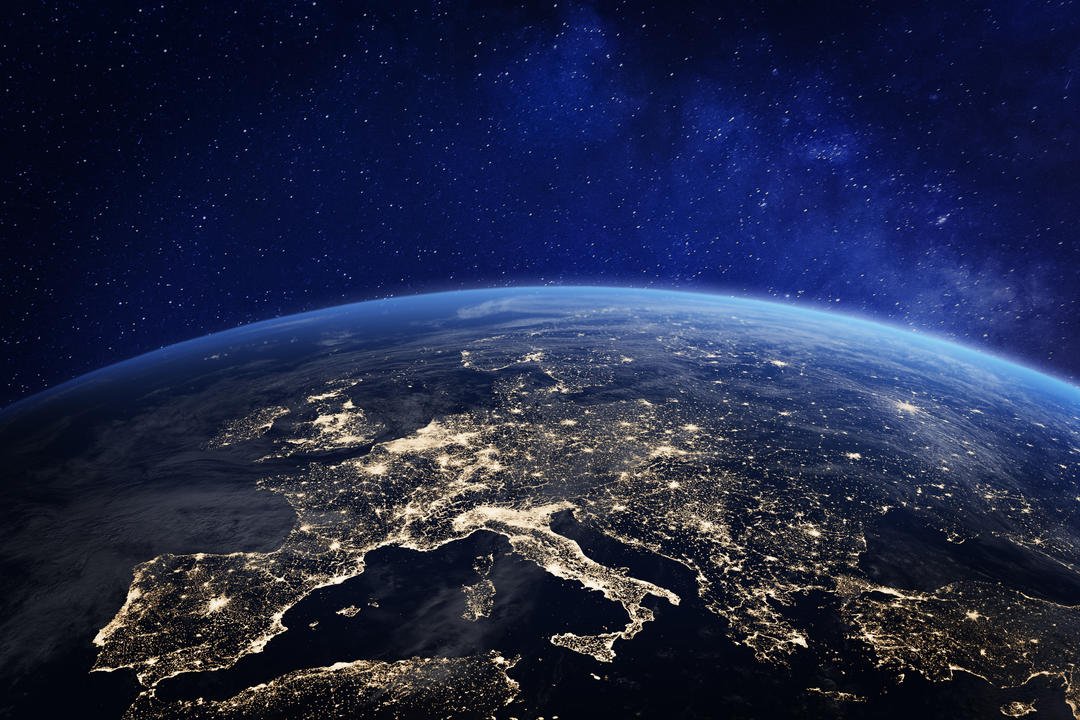
Google Earth is software that allows you to view the Earth from all angles , thanks to satellite images, maps, terrain and 3D buildings. You can thus explore distant places, admire natural or urban landscapes, measure distances, create routes, or even share your discoveries with other users.
But did you know there's a version of Google Earth that doesn't require any downloading or installation on your computer ? It's called Google Earth for Chrome, a web application that runs directly in your browser. With this version, you can access all of Google Earth's features without having to worry about disk space or operating system compatibility.
In this article, we will explain how to use Google Earth for free without downloading, what its advantages and disadvantages are, and how to make the most of its capabilities.
How to use Google Earth for free without downloading?
To use Google Earth for free without downloading, simply follow these steps:
- Open your Chrome browser and go to the website https://earth.google.com/web/.
- Accept the Google Earth terms of use and privacy policy.
- You arrive at a view of the globe which you can rotate, zoom in or out with your mouse or keyboard.
- You can also use the buttons located at the bottom right of the screen to change the view mode (planet, map or relief), enable or disable automatic globe rotation, or display the geographic coordinate grid.
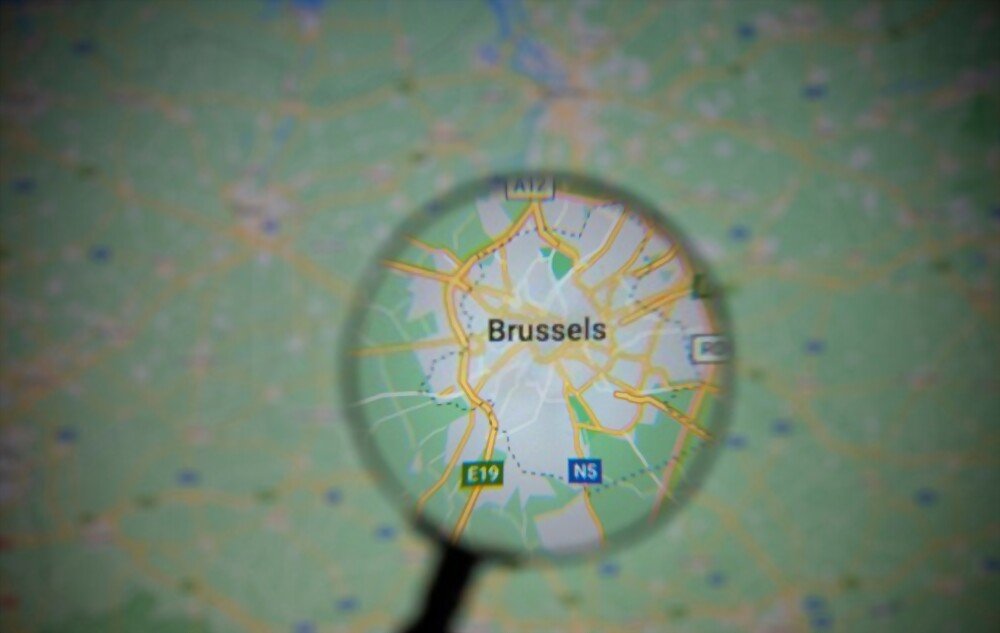
- To search for a specific location, use the search bar in the top left corner of the screen. You can type the name of a country, city, monument, address, or even the GPS coordinates of a precise point. Once you find the location, you can click on it to view more information, such as photos, videos, links, or statistical data.
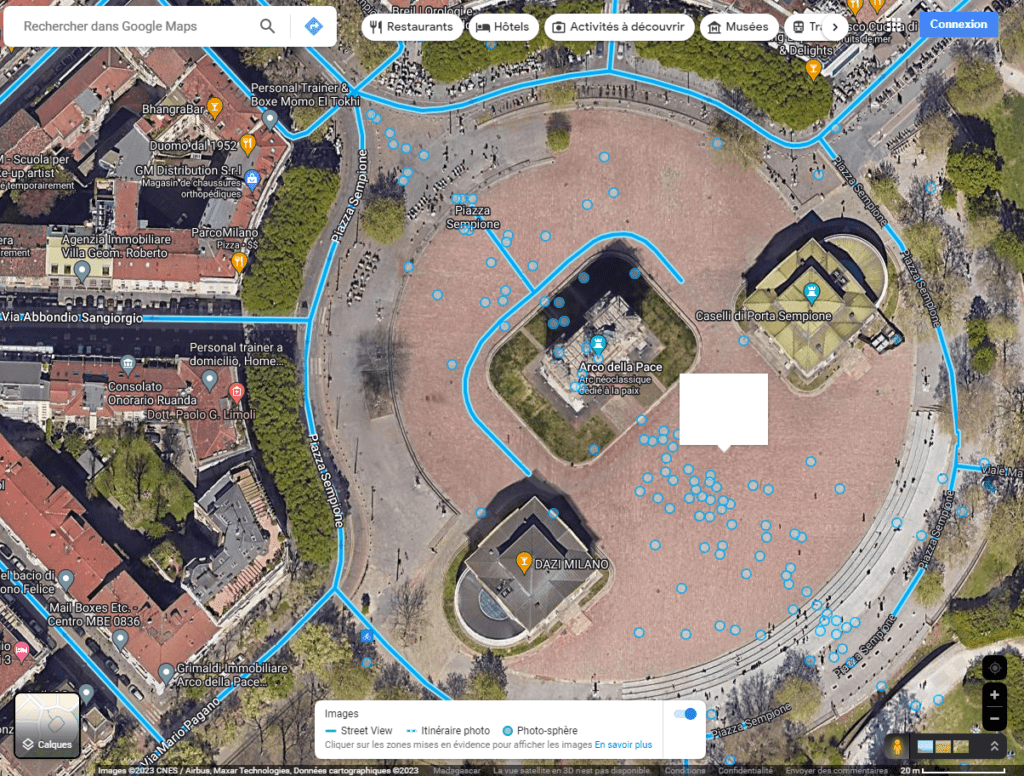
- To explore the area in 3D, click the 3D button located in the bottom left corner of the screen. You can then see buildings, bridges, trees, and mountains in relief. You can also use the Street View button to see the area at eye level, as if you were actually there.

- To discover unusual or remarkable places, click the Travel button located in the bottom left corner of the screen. This will take you to a selection of themed content, such as guided tours, quizzes, games, and interactive stories. You can choose from different categories, such as nature, culture, history, and education.
- To create your own custom maps, click the Projects button in the bottom left corner of the screen. You can then add markers, lines, shapes, or text to the map. You can also import KML or KMZ files containing geographic data. Finally, you can save your projects to your Google Drive account and share them with other users.
This article might interest you: Google Local Guide Program: What is it and how to participate?
What are the advantages and disadvantages of using Google Earth for free without downloading?
Free Google Earth without downloading offers several advantages compared to the classic version of the software :
- It is accessible from any computer connected to the Internet, without having to download or install anything.
- It is compatible with all operating systems (Windows, Mac OS X, Linux) and all types of devices (computers, tablets, smartphones), provided that the Chrome browser is used.
- It is updated automatically and benefits from the latest innovations of Google Earth, such as the Voyager feature or high-resolution images.
- It is faster and smoother than the classic version, thanks to the use of WebGL technology which allows 3D graphics to be rendered directly in the browser.
Free Google Earth without downloading also has some drawbacks compared to the classic version of the software :
- It requires a stable and fast internet connection to function properly. If your connection is slow or unstable, you may experience loading or image quality issues.
- It does not allow access to certain advanced features of Google Earth, such as offline mode, flight simulator, historical mode or sky mode.
- It does not allow you to change Google Earth's display settings, such as language, units of measurement, or time zone.

How can I best use Google Earth for free without downloading?
To get the most out of Google Earth for free without downloading, here are some tips and tricks:
- Use a powerful computer and a good quality screen to appreciate the details of the 3D images.
- Use a mouse or touchpad to easily control the globe view. You can also use the arrow keys on your keyboard to move around or the + and - keys to zoom in and out.
- Use keyboard shortcuts to quickly access different Google Earth features. For example, press R to reset the globe view, U to switch between 2D and 3D modes, G to show or hide the geographic coordinate grid, or L to show or hide the legend.
- Use the Share button in the top right corner of the screen to send a link to the location you are viewing via email, message, or social media. You can also copy the URL to your clipboard or download an image of the location by clicking the camera icon.
- Use the Print button in the top right corner of the screen to print a map of the location you are viewing. You can choose the format (portrait or landscape), size (A4 or letter), and orientation (north or current view) of the map. You can also add a title, legend, and logo to your map.
Comparison of the different versions of Google Earth
| Version | Download | Facility | Operating system | Features |
| Classic Google Earth | Yes | Yes | Windows, Mac OS X, Linux | All |
| Google Earth for Chrome | No | No | All (with Chrome) | Almost all |
| Google Earth for mobile | Yes | Yes | Android, iOS | Some |
This article might interest you: Find professionals on Google's Placewithedits
FAQs about free Google Earth without downloading
Here are some frequently asked questions about using Google Earth for free without downloading:
What are the alternatives to Google Earth for free without downloading?
There are other online services that allow you to view the Earth in 3D from your browser, without having to download or install any software. Here are a few examples:
- Bing Maps 3D: This is Microsoft's online mapping service, offering 3D functionality similar to Google Earth. You can view buildings, bridges, and monuments in 3D, as well as aerial imagery and StreetSide views. You can also calculate routes, search for points of interest, and create custom collections. To access Bing Maps 3D, go to https://www.bing.com/maps and click the 3D button located in the bottom right corner of the screen.
- Cesium is an open-source platform that allows you to create and visualize 3D geospatial applications. You can view the Earth in 3D using satellite imagery, maps, or 3D models. You can also explore historical sites, animated scenes, or scientific data. To access Cesium, go to https://cesium.com/ and click the Launch Cesium button located in the upper right corner of the screen.
- NASA WorldWind: This software, developed by NASA, allows you to view the Earth in 3D using satellite images, maps, and geophysical data. You can also see other planets and moons in the solar system, such as the Moon and Mars. To access NASA WorldWind, go to https://worldwind.arc.nasa.gov/web/ and click the Start WorldWind button located in the center of the screen.
How to update Google Earth for free without downloading?
Google Earth, available for free without download, updates automatically as soon as you open the web application in your Chrome browser. Therefore, you don't need to download or install anything to enjoy the latest versions and new features of Google Earth. If you experience any update issues, you can try clearing your browser's cache or ensuring you have the latest version of Chrome.
How to export or import data into Google Earth for free without downloading?
Google Earth, free and without downloading, allows you to export or import geographic data in KML or KMZ format. KML (Keyhole Markup Language) is an XML-based language used to represent geospatial data in Google Earth. KMZ is a compressed version of KML that reduces file size.
To export data from Google Earth for free without downloading anything, you must first create a custom project by clicking the Projects button in the bottom left corner of the screen. You can then add markers, lines, shapes, or text to the map. Once your project is complete, click the Export button in the top right corner of the screen. You can then choose the format (KML or KMZ) and the file name to export. You can then save the file to your computer or share it with other users.
To import data into the free version of Google Earth without downloading anything, you must first create a custom project by clicking the Projects button in the bottom left corner of the screen. Then, click the Import button in the top right corner. You can then choose the file (KML or KMZ) to import from your computer or from Google Drive. Once the file is imported, you can see the data displayed on the map.
Conclusion
Free Google Earth, without downloading, is more than just an online mapping service. It's a window to the world that lets you travel and discover the wonders of our planet. It's also an educational tool that allows you to learn new things and expand your general knowledge. Finally, it's a means of communication that lets you share your discoveries and emotions with other users.
With free Google Earth that requires no download, all you need is your Chrome browser to access all its features. You don't have to worry about downloading, installing, or updating the software. You simply enjoy the latest version and new features of Google Earth.
So don't wait any longer! Open your Chrome browser and go to https://earth.google.com/web/. You will then be transported to a 3D world, where you can explore, learn and share without limits.