Google Chrome is one of the most popular and efficient web browsers on the market. It offers a fast, secure, and customizable browsing experience. But sometimes, Chrome may fail to open or launch on your Windows 10 . This can be very frustrating, especially if you need to access important websites or your online data.
Fortunately, there are solutions to fix this problem and get Chrome working again . In this article, we'll explain the possible causes of this malfunction and show you how to fix it step by step.
What are the possible causes of the problem?

There are several reasons why Chrome might not open or launch on your PC . Here are the most common:
- A conflict with another software program or extension installed on your computer
- A compatibility issue with the version of Windows 10 you are using
- A corrupted or damaged user profile in Chrome
- Malware that blocks or infects Chrome
- A network or internet connection problem
- A faulty or incomplete installation of Chrome
How to fix Google Chrome when it won't open?
Depending on the cause of the problem, there are different methods to fix Google Chrome when it won't open. We recommend trying them in the following order:
1. Restart your PC

Sometimes, certain applications running on your computer can conflict with Google Chrome , causing it to stop opening . A simple restart can relaunch the programs that now open and resolve any related Google Chrome issues.
To restart your PC , click the Start button, then the Power , and choose Restart.
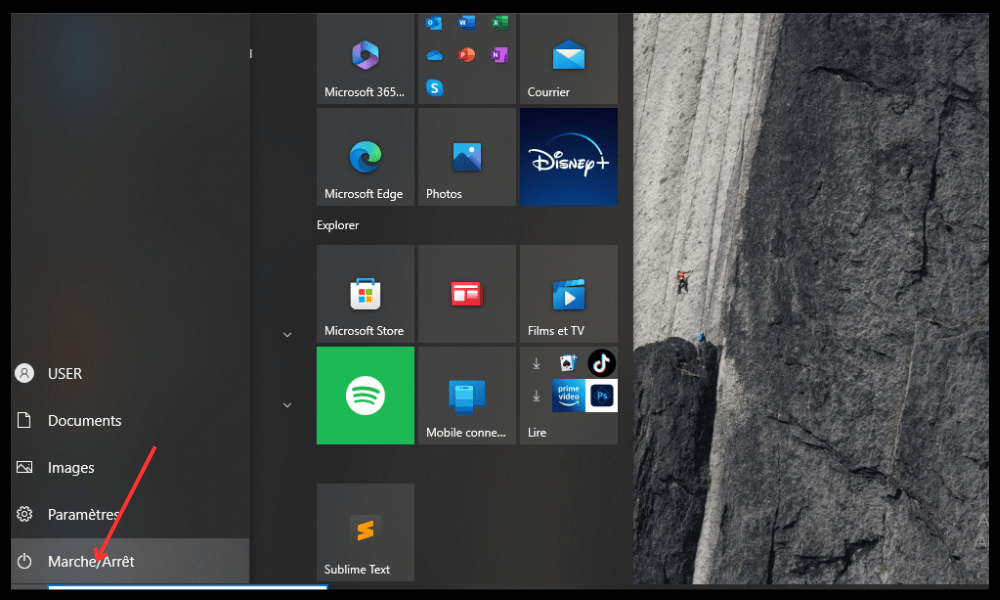
After restarting, try opening Chrome and see if the problem is resolved. If not, proceed to the next method.
2. Check if your antivirus software is blocking Chrome

antivirus software or firewall may be
To check if this is the case, try temporarily disabling your antivirus software or firewall and see if Chrome works. If it does, you need to add Chrome to the list of exceptions or allowed programs in your antivirus or firewall software.
To learn how to do this, consult the documentation or website of your antivirus or firewall software manufacturer.
Don't forget to reactivate your antivirus or firewall software after testing Chrome.
3. End Chrome processes using Task Manager
It's possible that Chrome is already open in the background, but it's not displaying on your screen. This could be due to a bug or a browser crash.
To resolve this issue, you need to close all Chrome processes running on your PC using Task Manager.
To do this, follow these steps:
- Press Ctrl + Shift + Esc simultaneously to open Task Manager.
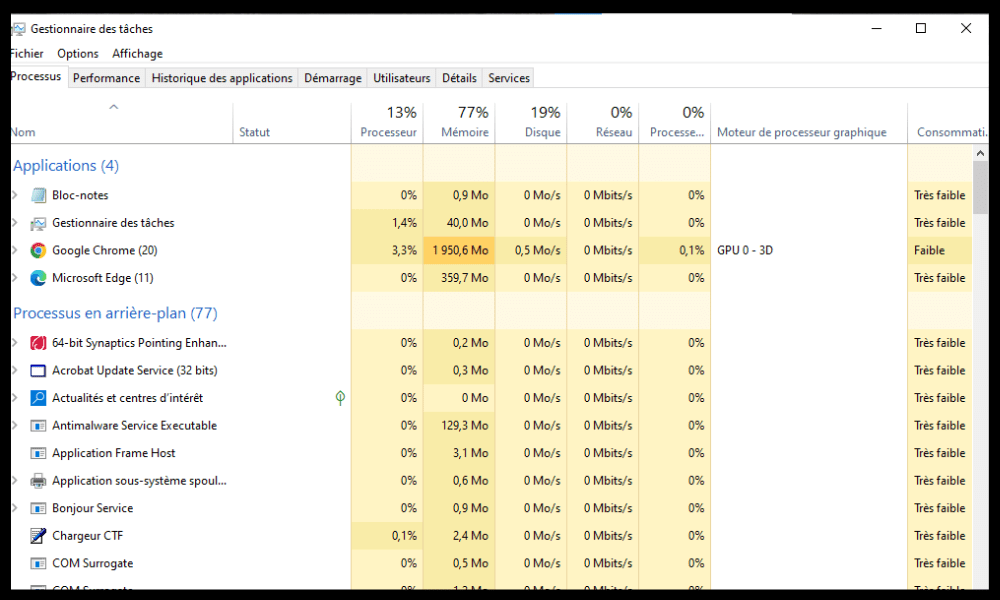
- In the Processes tab, look for any processes named Google Chrome or chrome.exe and right-click on them.
- Select End task for each Chrome process.

- Close Task Manager and restart Chrome.
If this method doesn't work, try the next one.
4. Reinstall Google Chrome
Your Chrome installation may be faulty or incomplete, which can cause browser malfunctions. In this case, you can try uninstalling and reinstalling Chrome on your PC.
To do this, follow these steps:
- Click the Start button, then click Settings.
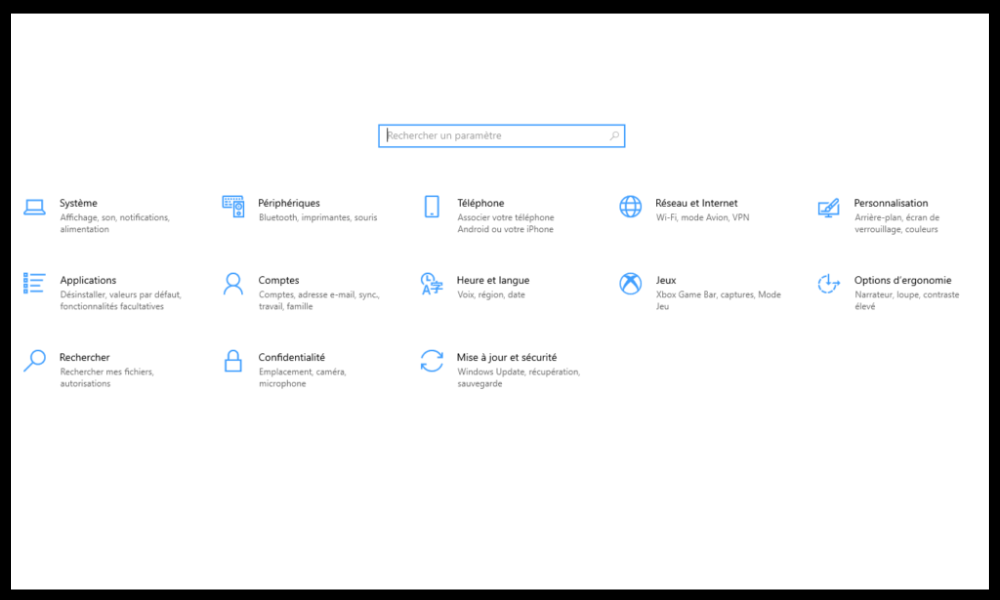
- Click on Applications, then on Applications & features.
- Find Google Chrome in the list of applications and click on it.
- Click Uninstall and follow the on-screen instructions to remove Chrome from your PC.

- Restart your PC.
- Download the latest version of Chrome from the official website: https://www.google.com/chrome/
- Install Chrome by following the on-screen instructions.
After reinstalling Chrome, try opening it and see if the problem is resolved. If not, proceed to the next method.
5. Delete the user profile in Chrome
Your Chrome user profile contains your personal settings, extensions, bookmarks, history, and other data. If your user profile is corrupted or damaged, it can prevent Chrome from opening or launching correctly .
To resolve this issue, you need to delete your user profile in Chrome and create a new one.
To do this, follow these steps:
- Press the Windows + R keys to open the Run dialog box.
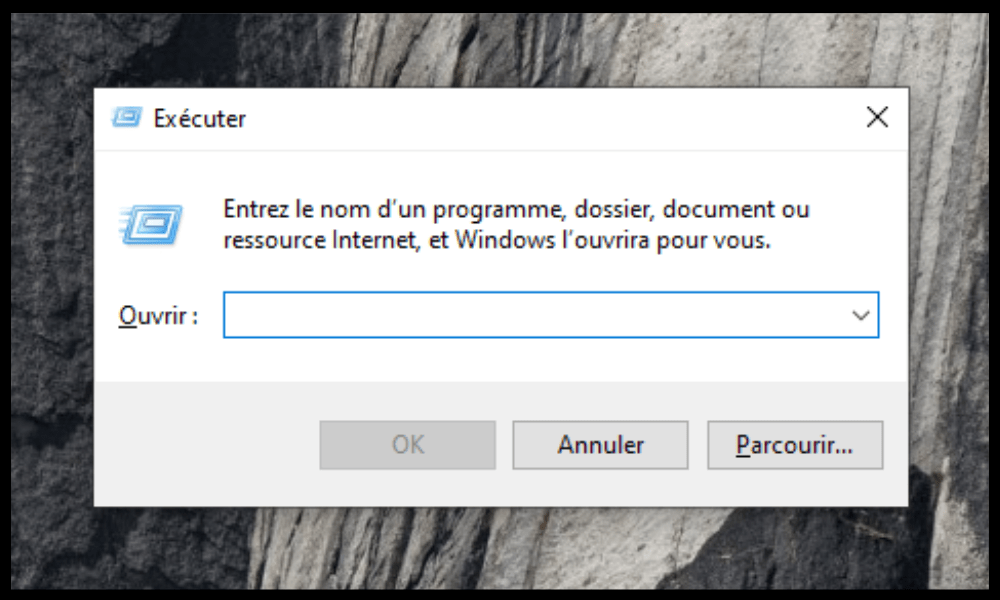
- Type %USERPROFILE%\AppData\Local\Google\Chrome\User Data and click OK.
- Locate the folder named Default and rename it to Backup Default.
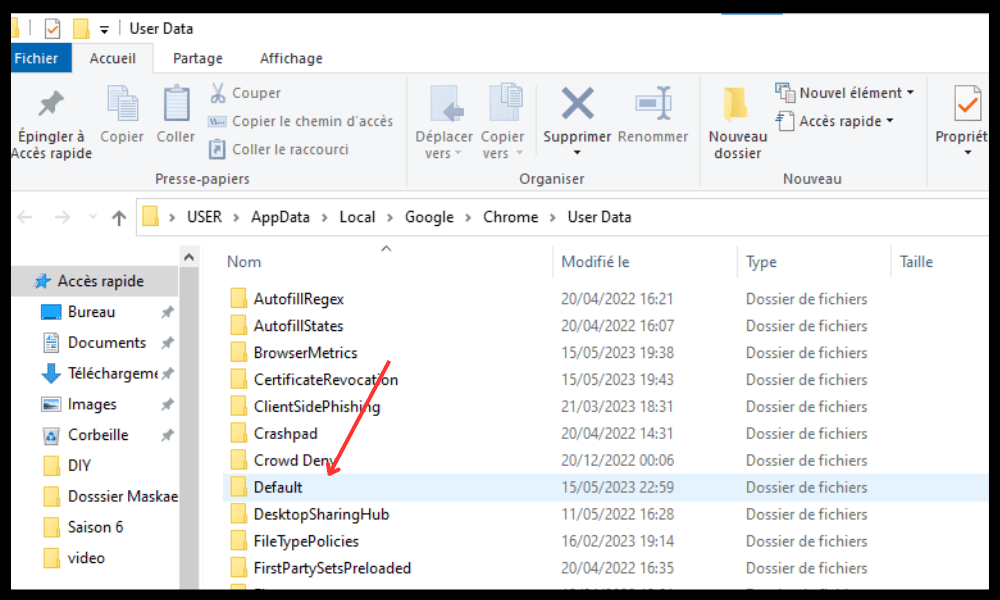
- Close the window and restart Chrome.
Chrome will create a new default user profile . You may need to sign back in to your Google accounts and reinstall your extensions.
If this method doesn't work, try the next one.
6. Reset the Chrome browser
If none of the previous methods work, you can try resetting the Chrome browser to its factory settings. This will erase all your personal data, extensions, settings, and preferences in Chrome. This may resolve issues related to Chrome not opening or launching.
To reset the Chrome browser, follow these steps:
- Open another web browser and type chrome://settings/resetProfileSettings in the address bar.
- Click on Reset settings.

- Confirm your choice by clicking on Reset settings.
After resetting Chrome, try opening it and see if the problem is resolved.
Summary table of methods to fix Google Chrome when it no longer opens
| Method | Description | Difficulty |
| 1. Restart your PC | Restart any software that might conflict with Chrome | Easy |
| 2. Check if your antivirus software is blocking Chrome | Add Chrome to the list of exceptions or allowed programs in your antivirus or firewall software | Easy |
| 3. End Chrome processes using Task Manager | Close all Chrome processes running in the background | Easy |
| 4. Reinstall Google Chrome | Uninstall and reinstall the latest version of Chrome | AVERAGE |
| 5. Delete the user profile in Chrome | Delete the Default folder that contains your personal data in Chrome and create a new user profile | AVERAGE |
| Reset the Chrome browser | Erase all your personal data, extensions, settings and preferences in Chrome and restore factory settings | Difficult |
FAQ about Google Chrome no longer opening
Here are some frequently asked questions from users who are experiencing problems with Google Chrome not opening or launching.
How do I open Google Chrome in safe mode?
safe mode allows you to launch the browser without any extensions or custom settings. This can help you identify the cause of the problem and resolve it.
To open Google Chrome in safe mode, follow these steps:
- Press the Windows + R keys to open the Run dialog box.
- Type chrome –incognito and click OK.
- Chrome will open in private browsing mode, which is similar to safe mode.
- If Chrome works in incognito mode, it means the problem is related to an extension or a custom setting. You can then try disabling or removing the suspect extensions or resetting Chrome's settings.
How do I update Google Chrome?
Updating Google Chrome can give you access to the latest browser features and bug fixes. It can also resolve certain compatibility or performance issues.
To update Google Chrome , follow these steps:
- Open Google Chrome and click on the three-dot menu in the top right corner.
- Click on Help, then on About Google Chrome.
- Chrome will check if an update is available and download it automatically if so.
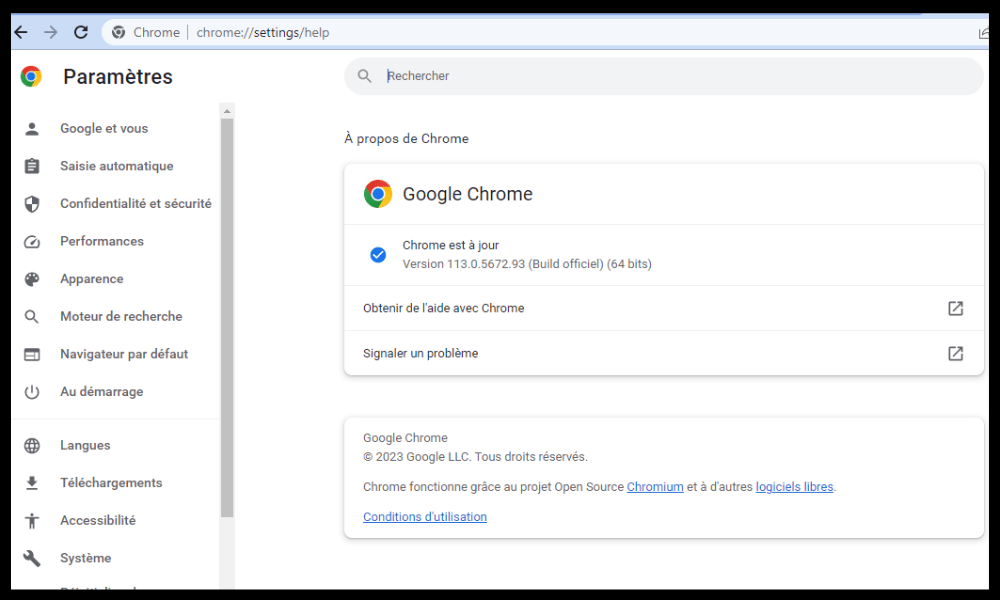
- Click Restart to apply the update.
How to fix Google Chrome when it's not displaying correctly?
may not display correctly on your screen, for example, if images are blurry, text is unreadable, or colors are distorted. This could be due to a problem with your screen resolution, zoom level, or cache.
To fix Google Chrome not displaying correctly , you can try these solutions:
- Adjust your PC's screen resolution by right-clicking on the desktop and selecting Display settings. Choose the resolution recommended by Windows and click Apply.
- Adjust Chrome's zoom by pressing Ctrl and + to zoom in or Ctrl and – to zoom out. You can also click the three-dot menu in the top right corner and use the zoom slider.
- Clear Chrome's cache by pressing Ctrl + Shift + Delete. Select the data you want to clear and click Clear data.
How to fix Google Chrome when it crashes or freezes?
Google Chrome may crash or freeze while you're browsing the web. This could be due to a memory, network, or website issue.
To fix Google Chrome crashing or freezing, you can try these solutions:
- Close any unnecessary tabs , extensions, and applications that are using up memory on your PC. You can use Task Manager to see which processes are resource-intensive and close them.
- Check your internet connection and make sure it's stable and fast. You can use an online speed test to measure your bandwidth. If your connection is slow or unstable, try restarting your modem or router, or contact your internet service provider.
- If your connection is slow or unstable , try restarting your modem or router, or contact your internet service provider to report the problem.
- Check if the website you're trying to visit is down or undergoing maintenance. You can use an online tool like Down For Everyone Or Just Me to find out. If the website is down, wait until it's back online or contact the webmaster for more information.
If these solutions do not work, you can try resetting the Chrome browser as explained in method 6.
Conclusion
Google Chrome is an excellent web browser, but it can sometimes encounter problems that prevent it from opening or launching. We hope this article helped you fix Google Chrome not opening or launching on your Windows search engines you think are to use with Chrome or instead of Chrome.