You've probably already encountered this problem: you're browsing the internet peacefully and suddenly, one or more web pages open without your consent , displaying unwanted advertisements, offers, or alerts. These pages are called - up windows , and they can be very annoying, or even dangerous if they contain malware or phishing attempts.
Fortunately, there are solutions to block pop-ups and prevent them from disrupting your online experience. In this article, we'll explain how to get rid of web pages that open on their own, depending on the browser you're using and the type of pop-up you're encountering.
What causes web pages to open on their own?

Web pages that open on their own can have several causes:
- Extensions have installed on your browser that display advertisements or notifications.
- Adware software that you have downloaded onto your computer, often unknowingly, by installing free software or clicking on a suspicious link.
- Websites - up windows and redirect users to other sites.
 How do I block web pages that open by themselves on Chrome?
Chrome is the most widely used browser in the world, but it's not immune to pop-up web pages. Here's how to block pop-ups in Chrome:
- Open Chrome and click on the three vertical dots in the top right corner of the window.
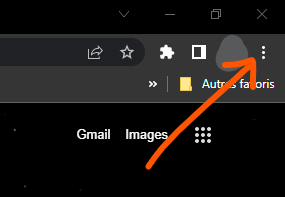
- Select Settings , then Privacy and security .

- Click on Site settings , then on Pop-ups and redirects .

- Activate the Blocked to prevent websites from opening pop-up windows.

If you want to allow certain sites to display pop-up windows, you can add them to the Allow by clicking the Add .
If you keep seeing web pages opening on their own in Chrome, you may have an extension or adware interfering with pop-up blocking. Here's how to detect and remove them:
- Open Chrome and click on the three vertical dots in the top right corner of the window.
- Select Extensions .

- Disable or remove any extensions you don't recognize or that have a bad reputation. You can also use a tool like AdwCleaner to scan your computer and remove adware.

 How do I block web pages that open by themselves on Edge?
Edge is the browser developed by Microsoft, the software giant, offering an alternative to Chrome and Firefox. Edge is a modern and fast browser that also includes a pop-up blocking feature. Here's how to block web pages that open on their own in Edge:
- Open Edge and click on the three horizontal dots in the top right corner of the browser window.

- Select Settings , then Cookies and site permissions .
- Under All permissions , select Pop-ups and redirects .
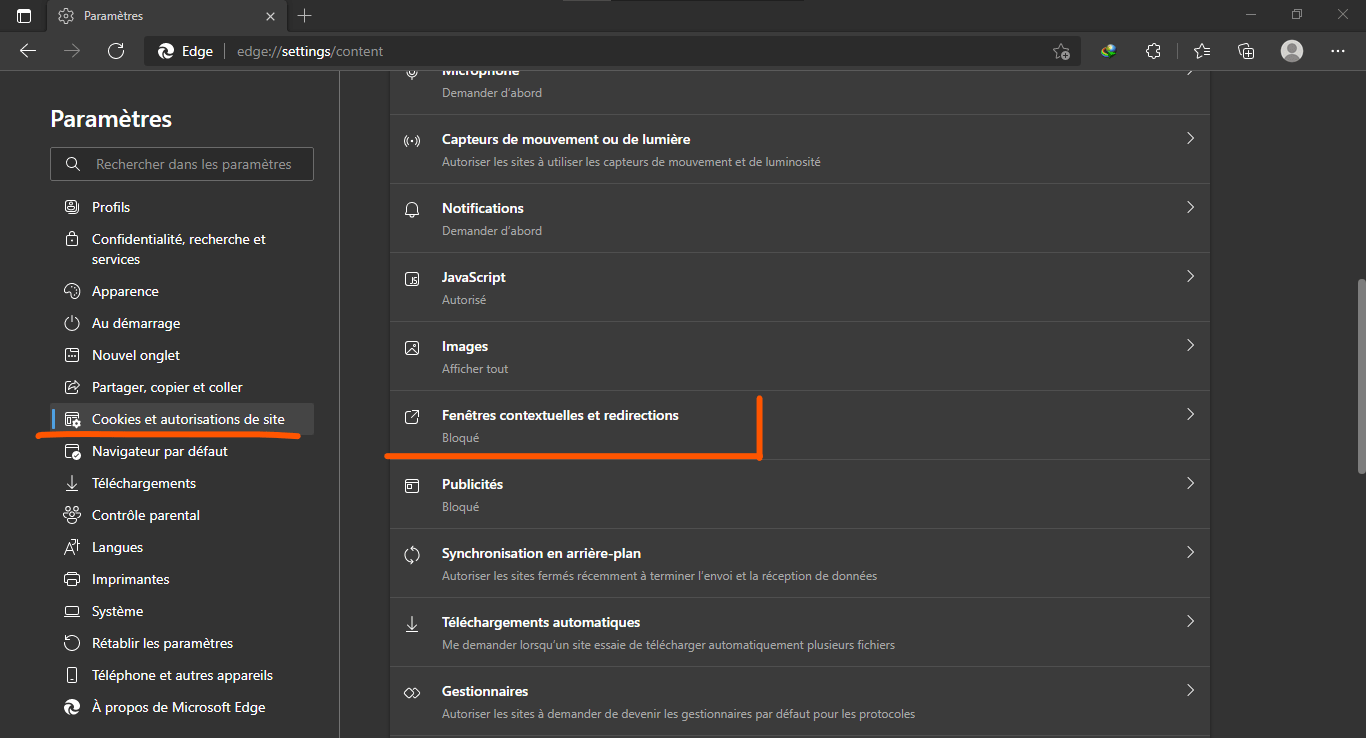
- Enable the Block button (recommended) to prevent websites from opening pop-up windows.
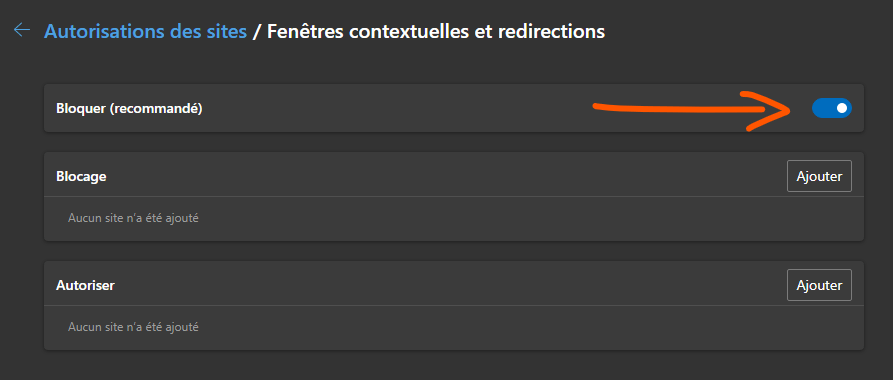
If you want to allow certain sites to display pop-up windows, you can add them to the Allow by clicking the Add .
If you keep seeing web pages opening on their own in Edge, you may have an extension or malware interfering with pop-up blocking. Here's how to detect and remove them:
- Open Edge and click on the three horizontal dots in the top right corner of the browser window.
- Select Extensions , then Manage Extensions , and disable or remove any extensions you don't recognize or that have a bad reputation. You can also use a tool like AVG AntiVirus FREE to scan your computer and remove malware.

 How do I block web pages that open by themselves in Firefox?
Firefox is a free and open-source browser that offers many features and customization options. Firefox also has a built-in pop-up blocker, which allows you to control the display of unwanted web pages. Here's how to block web pages that open on their own in Firefox:
- Open Firefox and click on the three-line menu in the upper right corner of the browser window.

- Select Settings , then Privacy and security .
- Scroll down to the Permissions , and check the box next to Block pop-up windows to enable the pop-up blocker.

If you want to allow certain sites to display pop-up windows, you can add them to the exceptions list by clicking the Exceptions to the right of Block pop-up windows .
If you keep seeing web pages opening on their own in Firefox, you may have an extension or malware interfering with pop-up blocking. Here's how to detect and remove them:

Open Firefox and click on the three-line menu in the upper right corner of the browser window.- Select Extensions , then Manage extensions , and disable or remove any extensions you don't recognize or that have a bad reputation. You can also use a tool like AdwCleaner to scan your computer and remove adware.
FAQ
How to get rid of web pages that open by themselves on Android?
If you use an Android smartphone or tablet, you may also encounter the problem of web pages opening on their own. These are often advertisements or redirects to malicious websites. To block them, you can follow these steps:
- Open the Chrome app on your Android device and tap the three vertical dots in the top right corner of the screen.
- Select Settings , then Site Settings .
- Tap Pop-ups and redirects Blocked button .
If you keep seeing web pages opening on their own on Android, you might have a malicious app causing them. To detect and remove it, you can follow these steps:
- Open your Android device's Settings Applications or Manage applications .
- Scroll through the list of installed applications and identify those that are suspicious or that you did not install intentionally.
- Tap on the application in question, then tap Uninstall .
You can also use an antivirus for Android , such as AVG AntiVirus FREE, to scan your device and remove malicious applications.
How do I remove web pages that open automatically when I start my browser?
Sometimes, web pages may open automatically when you start your browser, even if you haven't set them as your homepage. This can be caused by malware or an unwanted browser extension changing your browser settings. To remove web pages that open automatically when you start your browser, you can follow these steps:
- Open your browser and go to its settings.
- Look for the option that relates to the home page or the startup page.
- Change the homepage address or remove unwanted pages that appear at startup.
- Save the changes and restart the browser.
For example, in Edge, go to Settings , then On startup , then choose A specific page and enter the address of the page you want to see on startup.
If the problem persists, you may have malware or an unwanted browser extension that is modifying your browser settings. To detect and remove it, use a tool like AdwCleaner or AVG AntiVirus FREE.
How to block web pages that open on their own using a VPN?
A VPN is a service that allows you to protect your online privacy and security by masking your IP address and encrypting your traffic. A VPN can also help you access geo-restricted content or bypass censorship.
But can a VPN also block web pages that open on their own? The answer is: not directly. A VPN doesn't block pop-ups or ads generated by the websites you visit or by malware on your device. A VPN also doesn't modify your browser settings or extensions.
However, a VPN can offer indirect protection against pop-up web pages by preventing you from landing on malicious or dubious sites that use these techniques. For example, if you use a VPN to access a website that is blocked in your country, you will avoid going through proxy or mirror sites that may be infected or compromised.
In addition, some VPNs offer extra features that can help you block web pages that open on their own, such as:
- An ad and tracker blocker prevents websites from tracking you and showing you targeted or intrusive ads. For example, NordVPN offers CyberSec, a feature that blocks ads and malicious websites.
- An antivirus or anti-malware program detects and removes malicious programs that can modify your browser settings or inject advertisements onto the websites you visit. For example, Norton Secure VPN is integrated into Norton 360, a comprehensive security suite that includes an antivirus, a firewall, and a password manager.
- Parental controls or web filters allow you to block access to certain types of websites, such as pornographic, gaming, or violent sites. For example, Surfshark offers CleanWeb, a feature that blocks ads, trackers, and malicious or inappropriate websites.
To choose the best VPN for your needs, you must consider several criteria, such as:
- The speed and stability of the service depend on the number and location of servers, available bandwidth, and the encryption protocol used.
- The security and confidentiality of the service depend on the level of encryption, the no-logs policy, the presence of a kill switch, and compatibility with the WireGuard protocol.
- The ease of use and customer support of the service depend on the quality of the interface, the availability of applications for different operating systems and devices, and the responsiveness of customer service.
- The value for money of the service, which depends on the monthly or annual cost, promotional offers, money-back guarantees and payment options.