
Are you looking for a way to use your PS3 controller on your PC? Do you want to easily use your Dualshock 3 or Sixaxis controller on your Windows computer ? Perfect, we know how to help you!
In this article, you will discover:
- The different software programs you need to use to make your PS3 controller work on your computer
- The different steps to follow to successfully install and configure a PS3 controller on PC.
Without further ado, let's get down to business!
Good to know and everything you need before you begin

Before you begin, you must have the following items ready:
- A PS3 controller
If you don't have a good quality controller, it might not work. Therefore, we recommend choosing from one of the following models

- A PC with Windows
- A USB cable or a mini USB-to-USB converter.
After that, we invite you to download PS3 controller compatibility software .
You need specific software for your PC to recognize your controller. Several programs are available online, but the most efficient and easiest to use is scp server .
However, we've selected three for you to ensure your success. So follow the steps below!
SCP Server: The best PS3 controller compatibility software to install on your PC
Why choose SC Server to use your PS3 controller on PC?
SC Server is a free and open-source software that allows you to connect your PS3 controller to your PC via a USB cable or Bluetooth connection. It is compatible with Windows 7, 8, 10, and 11, and supports most PC games. It offers several advantages over other software:
SCP Server is software that emulates the Xbox 360 controller on your PC. It recognizes your PS3 controller as if it were an Xbox 360 controller, allowing you to use it with most PC games that are compatible with the latter. SCP Server is based on an open-source project called SCP Toolkit, which has not been updated since 2016 .
SCP Server offers several advantages over other similar software, such as:
- It is free and easy to install .
- It does not require any additional drivers or registry modifications.
- It supports wired and wireless PS3 controllers , as well as PS4 controllers .
- It allows you to customize the color of the diode and the sensitivity of the sticks and triggers .
- It is compatible with Windows 7, 8, 10 and 11 .
How do I install SCP Server on my PC?
To install SCP Server on your PC, you must follow these steps:
Step 1: Download and install scp server
- Plug in your Bluetooth dongle, do the same for your Dualshock 3 and let Windows install the default drivers.
- Download the archive of the latest version of SCP Drivers Package by clicking here .
- Extract the contents of the file to a folder of your choice.
- Run the ScpDriver.exe file as administrator.
- Check the “Install Bluetooth driver” box if you want to use your PS3 controller wirelessly, or uncheck it if you want to use it with a USB cable.
- Click on “Install”.
- Restart your computer.
Step 2: Connect your PS3 controller to your PC
If you want to connect your PS3 controller to your PC via a USB cable , simply plug the cable into your controller and a USB port on your PC . You should see a green icon appear in the taskbar indicating that your controller is connected.
To connect your PS3 controller to your PC via Bluetooth , you must first pair your controller with your PC. To do this, follow these instructions:
- Make sure your PC has a Bluetooth adapter compatible with SC Server. You can find a list of compatible adapters on the official website.
- Make sure Bluetooth is enabled on your PC.
- Press the “PS” and “Share” buttons on your PS3 controller simultaneously until the LED flashes rapidly.
- On your PC, open the control panel, click on “Devices and Printers”, then on “Add a device”.
- Select your PS3 controller from the list of available devices and click “Next”.
- Enter the PIN code “0000” if prompted and click “Next”.
- Wait until the pairing is complete. You should see a green icon appear in the taskbar indicating that your controller is connected.
Step 3: Configure your PS3 controller according to your preferences
Once your PS3 controller is connected to your PC, you can configure it to your preferences using the scp server interface. To do this, click the green icon in the taskbar and select “Open scp server”.
A window with several tabs will appear. You can navigate between the tabs to change your PS3 controller settings. Here are the main tabs and their functions:
- Controller : allows you to see the status of your PS3 controller, change its name, check its battery, etc.
- Profile : Allows you to create, edit, or delete profiles for each game. A profile is a set of personalized settings for your PS3 controller. You can choose the profile to use depending on the game you are playing.
- Buttons : Allows you to change the function of each button on your PS3 controller. You can choose from a list of predefined commands or create your own custom commands.
- Axes : Allows you to modify the sensitivity and response curve of each axis of your PS3 controller. You can adjust the precision and fluidity of your movements.
- Vibrations : Allows you to adjust the intensity and duration of your PS3 controller's vibrations. You can enable or disable vibrations as desired.
- Light : Allows you to change the color and brightness of your PS3 controller's LED. You can choose from a color palette or create your own custom color.
Step 4: Enjoy using your PS3 controller on your PC
Once you've configured your PS3 controller to your liking, you can enjoy your PC games with an enhanced gaming experience. Simply launch the game you want to play and select the corresponding profile in the SCP server. Your PS3 controller will be recognized as an Xbox 360 controller by the game, and you'll be able to play as if you were on a console.
How to optimize your gaming experience with SCP Server?
To optimize your gaming experience with SCP Server, you can follow these tips:
- Before playing, make sure your PS3 controller is fully charged. You can do this by checking the color of the LED on the controller. If it's red, the battery is low. If it's green, it's fully charged.
- Adjust the sensitivity of the analog sticks and triggers to your liking. You can do this using the ScpToolkit Settings Manager software, located in the ScpServer folder.
- Customize the appearance of your controller by changing the LED color. You can do this using the ScpToolkit Profile Manager software, which is also located in the ScpServer folder.
- Disable any other Bluetooth devices connected to your PC to avoid interference. You can do this by going to your PC's Bluetooth settings and disconnecting any unnecessary devices.
2. Lib-USB: Another PS3 controller compatibility software to install
Lib-USB is an electronic library that allows applications to control data transfer from USB devices on Unix and non-Unix systems, without necessarily requiring kernel-mode drivers. Here's how to install it:
Step 1: Download Lib-USB to your computer

Simply click on the link below to access the download address, then click on " Download ".
Link : https://www.clubic.com/telecharger-fiche72766-driver-pour-manette-ps3-sixaxis.html
Step 2: Install the Lib-USB driver on your PC

After downloading the software, you will need to install it on your computer. To do this, open the downloaded file and then follow the installation procedure.
How do I install a PS3 controller on my PC using the Lib-USB driver?
Downloading and installing the PS3 controller driver on a PC is one thing, knowing how to use it is another. Let's see how to do it with these steps:
Step 1: Connect your PS3 controller to your computer

To install a PS3 controller on a computer , simply plug it into your PC's USB port and wait for Windows to send a signal indicating that your new hardware is installed and ready to use.
Step 2: Restart your computer
If you successfully complete the first step, which is “ properly connecting your PS3 controller to your computer ” from a USB port , the next step will simply be to restart your computer.
Step 3: Activate and configure your PS3 controller
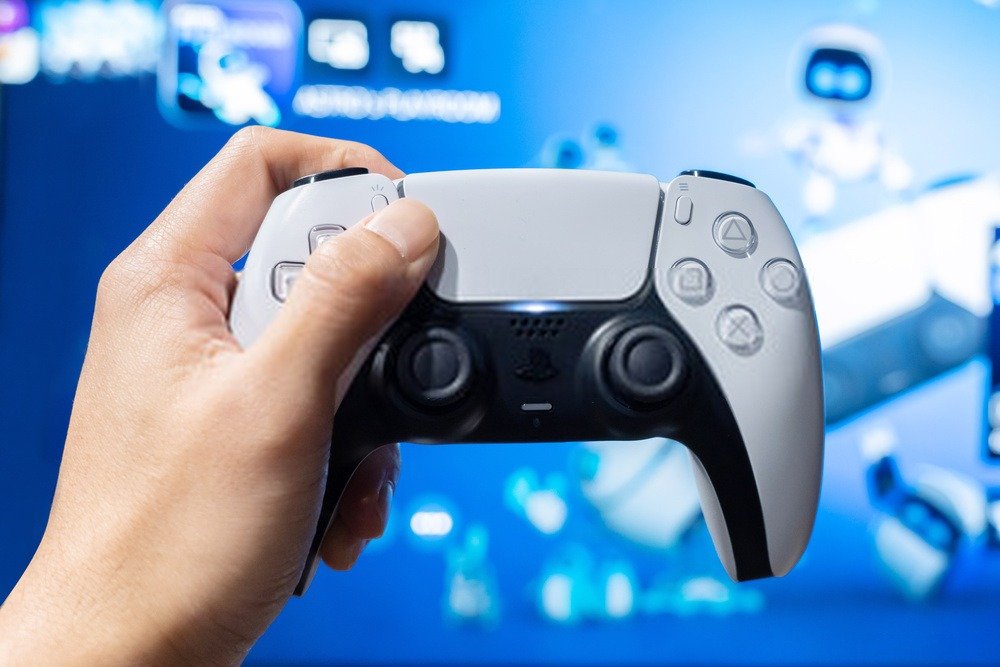
Once your machine has restarted, please press the power supply button on your PS3 controller. It should now work on your computer.
However, if your PS3 controller happens not to work, press the power power supply immediately after starting the game you want to play with your PS3 controller .
If you wish, you can also run a test program to check if your PS3 controller is compatible with your PC.
Step 4: Use the Lib-USB testing program to check the compatibility of your controller
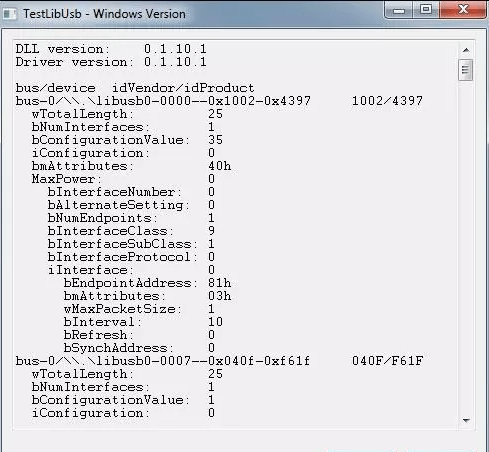
The following is an overview of the Lib-USB program, which is used to test the normal operation of the PS3 controller on your computer. All you have to do is connect your controller and access the TestLibUsb program to see the results.
3. MotioninJoy:
MotioninJoy is a small program that allows you to install and use a PS3 controller on your PC. It's very popular with many people who have already tried it.
How do I install a PS3 controller on my PC using the MotioninJoy driver?
Here's what it looks like in video:
If, however, you do not understand the process of installing a PS3 controller on PC using the MotioninJoy Driver, here's how to proceed:
Step 1: Download MotioninJoy on your PC
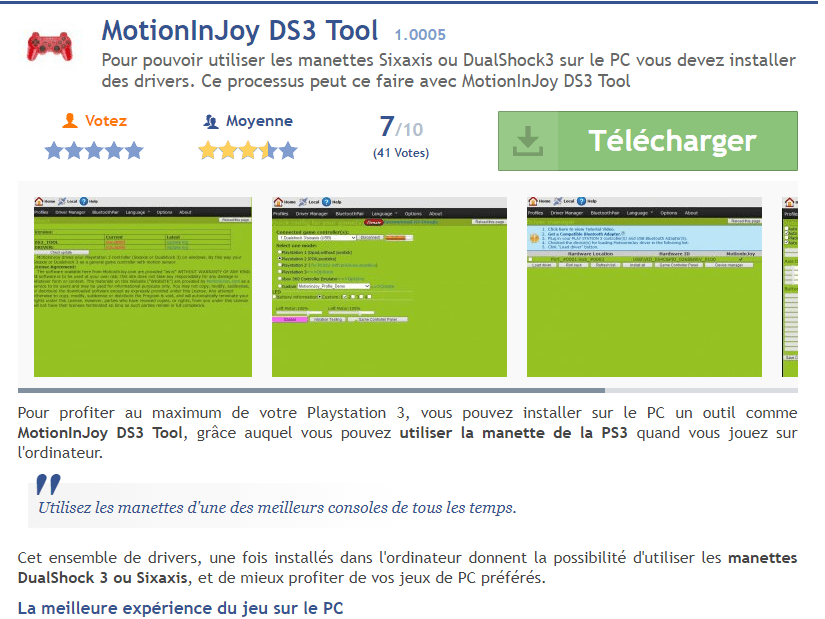
Click on the following link: https://motioninjoy-ds3-tool.fr.malavida.com/#gref
Click on " Download " now to start the download.
Step 2: Unzip the downloaded file

Once the download is complete, open your MotioninJoy file, which will appear in your downloads folder. Then, extract the MotioninJoy file and wait. After extraction, you will see that your file will create an .exe file with the same name.
Step 3: Access your file and complete the installation
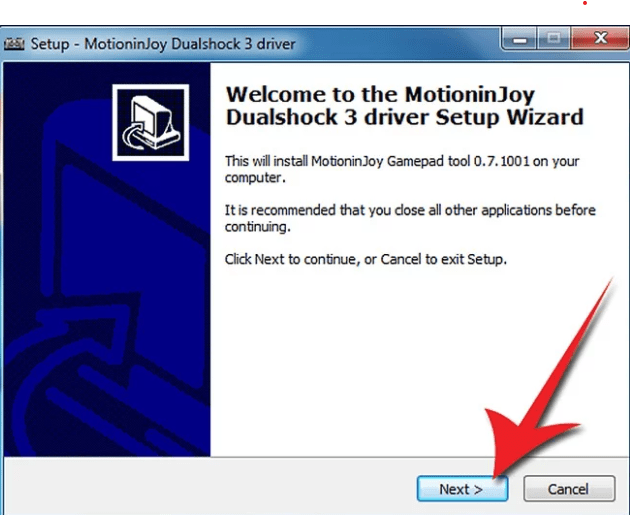
Open your .exe file and run it as administrator. The installation guide will open, and you simply need to follow the instructions to install MotioninJoy .
Important : On the last page of the installation guide, make sure that the " Run DS3 tool" is checked.
After installing the application, we recommend changing the language to avoid language issues when configuring your controller. To do this:
- Go to the " Language"
- Choose the language you understand
How do I configure and install my PS3 controller on my computer?
Step 1: Connect your PS3 controller to your PC
As mentioned earlier with the Lib-USB software, it's very important that you connect your PS3 controller to a USB port on your computer. We recommend using a mini USB-to-USB adapter if possible.
If you don't already own one, here are the best models on the market:
Step 2: In the MotioninJoy interface, select the " Driver Administration" to configure your Playstation 3 controller.
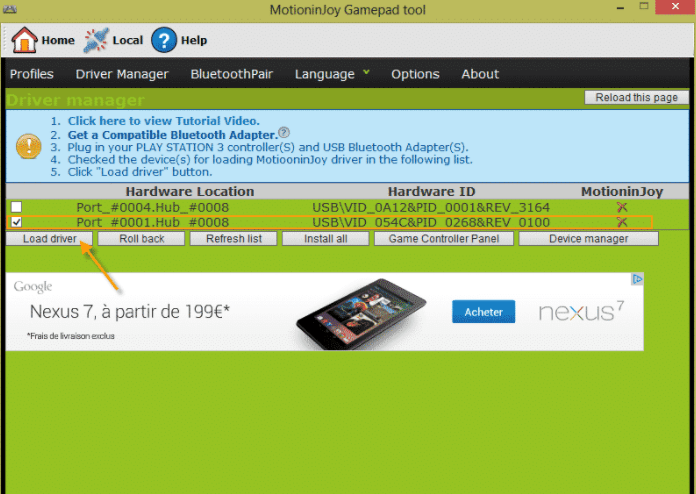
You will now be in the MotioninJoy application interface. Once your computer recognizes the PS3 controller, it will be displayed under the Devices section. If multiple devices are connected, your PS3 controller should be listed on the line displaying its Hardware ID.
Step 3: Select the box on this line and click on " Load Driver "
After that, all you have to do is check the box for the USB port used by your controller to complete its configuration.
Note : If you are not sure of the exact location of the USB port, we suggest you check all the boxes in the " Devices" section.
Step 4: Press the " Load " button located in the bottom left corner under the " Devices Windows operating system You will then be asked to authenticate the MotioninJoy connection.
Step 5: Finalize the operation

In the window that appears, select " Establish this connection anyway ." Your computer will then start the connection and display " Success: Installation complete ." From this point on, you can begin playing with your PS3 controller on your PC.
PS3 controller on PC: Important things to know after installation

Have you noticed that your controller stops working after a while or after your computer goes into sleep mode? Don't worry, we recommend that you:
- Disconnect it
- Reconnect it.
- Restart your computer while the PS3 controller remains powered on.