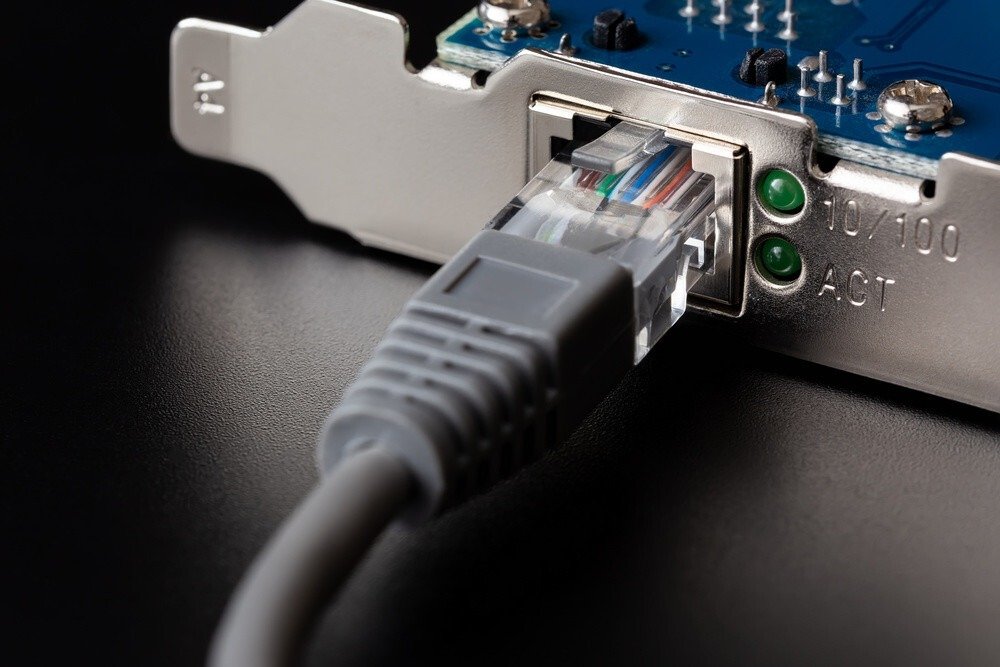
Every computer has a motherboard with a network card installed on it. However, a pre-installed network card can sometimes provide a poor-quality connection.
To enjoy a better wireless connection without the hassle of wires, the ideal solution is to get a more powerful Wi-Fi card . Choosing a high-quality Wi-Fi card will allow you to benefit from a smooth connection and take full advantage of your online gaming, content streaming, and seamless browsing.
With the variety of sizes and shapes available on the Amazon online store, choosing the best wifi card can be difficult, unless you are a tech enthusiast.
In this guide, primarily focused on Wi-Fi cards, we've selected the 6 best Wi-Fi cards of 2020. Afterward, we invite you to explore the world of Wi-Fi cards. How do you choose a Wi-Fi card ? Why choose a Wi-Fi card? Wi-Fi card or USB adapter ? How does a Wi-Fi card work? Continue reading this guide and comparison of Wi-Fi cards and choose what best suits your PC and your budget.
Comparison of the best Wi-Fi cards in 2020: top 6
Every aspect of our lives depends on a smooth and fast internet connection. And to have one, you need to make sure you have the best possible equipment. Wi-Fi cards are on everyone's lips, but which one should you choose? That said, even though the market is flooded with numerous models, they are not all created equal. Here is our comparison of the best Wi-Fi cards on Amazon.
1. TP-LINK TL-WN881ND: excellent value for money

Features and Reviews
If you don't have a high-speed internet connection and don't want to drill through your walls to run a fiber optic cable, this Wi-Fi card is the perfect solution. The TP-LINK TL-WN881ND promises speeds of up to 300 Mbps, making it ideal for online gaming, streaming, and internet calls. It features MIMO technology to enhance signal reception by adding multiple antennas. This contributes to strong signal integration and wide coverage, resulting in efficient and stable Wi-Fi. The adapter is a PCI Express 2.0 type. With this, you can establish a wireless network for your desktop and take advantage of a high-speed internet connection. The card complies with the IEEE 802.11n standard.
Easy to handle
Equipped with a CD-ROM, the TP-LINK TL-WN881ND Wi-Fi card is undeniably easy to use. The included CD makes installation a breeze. Beyond its straightforward setup, the Wi-Fi card, featuring WPS™ protection, offers enhanced security (WPS stands for Wi-Fi Protected Setup). While the software is easy to install, wireless connectivity, security features, and wireless networks are equally simple to set up.
Undeniable security and stability
Thanks to its WPA/WPA2 encryption, the TP-LINK TL-WN881ND Wi-Fi card offers an extremely secure wireless connection. With this level of security, the WEP system is now obsolete. Indeed, its level of protection is far less than that offered by WPA/WPA2. This encryption was developed using the expertise of the Wi-Fi Alliance, a group committed to securing wireless networks.
Regarding the stability of the TP-LINK TL-WN881ND Wi-Fi card, our opinion is quite positive. This card incorporates Clear Channel Assessment (CCA) technology. This reduces the risk of channel conflicts by selecting channels with exceptional clarity. Because it also benefits from channel grouping, it will improve the efficiency of your wireless network.

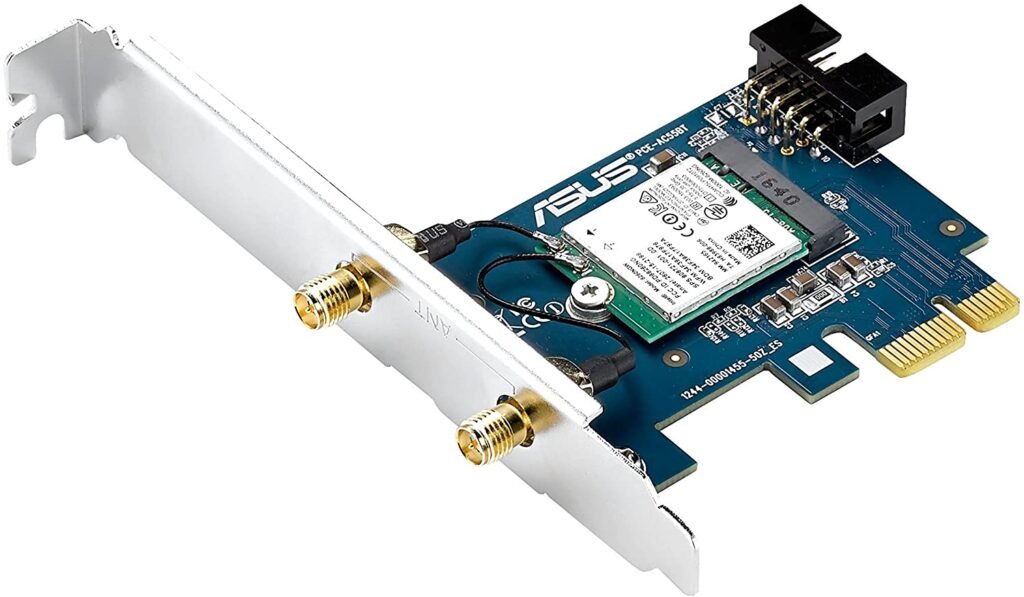
2. ASUS PCE-AC55BT: Highest Speed Wi-Fi Connection
Features and Reviews
This card is ideal for those who refuse to compromise on connection speed. The Asus PCE-AC55BT PCI Express card offers full compatibility with all the fastest Wi-Fi standards on the market, such as dual-band 802.11ac. Wireless N operates at speeds from 2.4 GHz to 300 GHz, and also at 5 GHz at 867 Mbps. Therefore, many gamers will be satisfied, even with a fiber optic connection. Wireless AC can reach speeds of up to 1200 Mbps at Gigabit speeds of 5 GHz. At this level, the Asus PCE-AC55BT Wi-Fi card and router must be compatible. The good news is that regardless of the existing compatibility level between the card and the router, the PCE-AC55BT will work.
Extended Wi-Fi coverage
Branded Asus, this Wi-Fi card, like traditional network cards, promises a high-speed connection. Its diverse and robust features ensure a stable and fast connection. Streaming, downloading, and VoLTE benefit from its powerful antenna and high bandwidth for extended Wi-Fi coverage.
It is undeniably easy to use thanks to a super intuitive user interface.
Other features
The PCE-AC55BT Wifi card integrates a dual-band Express 802.11 PCI adapter. It guarantees a throughput of up to 867 Mb/s, with a speed three times greater than that of the 802.11n standard.
Compatible with the latest Bluetooth Low Energy (BLE) products, it also incorporates a dual-mode Bluetooth 4.0 option. Furthermore, it features a Wireless Display WiDi system, allowing settings to be configured from a PC or television screen.

3. ASUS PCE-AC56 WiFi Card: High-power design for extended WiFi range

Features and Reviews
The Asus PCE-AC56 Wi-Fi card is by far the older sibling of the AC55BT Wi-Fi card. Compatible with an innovative 802.11ac chipset, it achieves speeds of up to 864 Mbps, allowing for seamless streaming. Unlike the previously mentioned Wi-Fi adapter, this card incorporates useful features to improve the stability of speeds and connections. The Air Radar option, for example, is an excellent tool for optimizing the wireless connection. Its performance also varies depending on the router's placement. Stability is further enhanced by a high-performance heatsink.
Design and conception
This Asus PCE-AC56 Wi-Fi card boasts a sleek design thanks to its aluminum heatsink, which effectively manages heat and ensures an exceptionally stable connection. The integrated heat sink efficiently dissipates power from the chipset. Furthermore, performance remains consistent even at low temperatures, meaning the Asus PCE-AC56 Wi-Fi card will maintain its efficiency even in warm weather.
The PCI Express interface of this Wi-Fi card ensures compatibility with any type of motherboard. Your desktop computer will be compatible, with speeds reaching up to 1.3 Gbps. Don't worry about clutter; there won't be any cables everywhere since the adapter plugs directly into the motherboard.

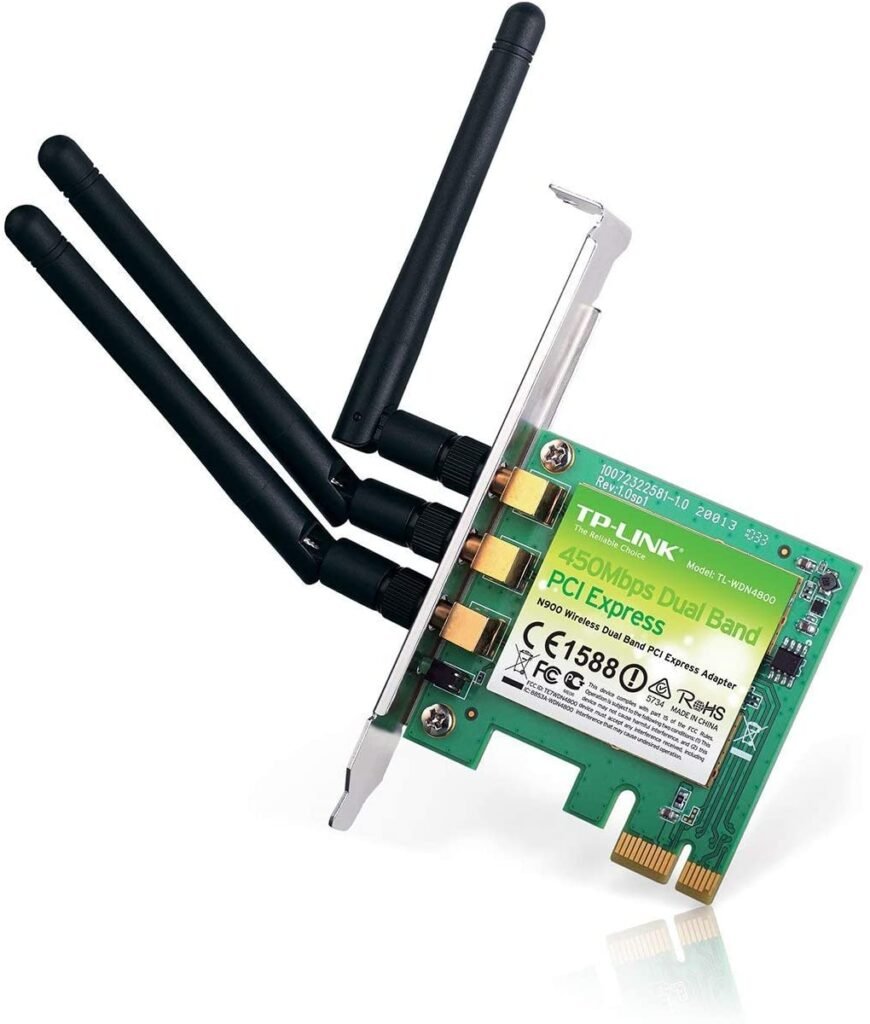
4. TP-Link TL-WDN4800 card: blazing-fast speeds via 450 Mbps Wireless N speed
Features and Reviews
TP-Link ranks this Wi-Fi card among the highest-performing. With speeds up to 450 Mbps, the manufacturer has set the bar very high. It surpasses its predecessor, the WN881ND, thanks to its dual-band compatibility and PCI-Express port for undeniable speed. However, while the WN881ND manages to do its job for just €15, the TP-Link TL-WDN4800 offers significantly more at €45. One reason for this is its third antenna, which optimizes stability and efficiency.
Dual-band compatibility
With its dual-band functionality, the TP-Link TL-WDN4800 Wi-Fi card can support two frequency bands: 2.4 GHz and 5 GHz. This feature makes it ideal for streaming online content, downloading torrents, and watching HD videos.
By ensuring a better multimedia experience, it offers one of the fastest wireless speeds on the market, reaching up to 450 Mbps. In addition, it has three antennas designed to further enhance signal efficiency.
Other features
With the TL-WDN4800, you can take advantage of a very high-speed internet connection. Simply connect it to your desktop PC. This dual-band PCI Express adapter is compatible with IEEE 802.11a/b/g/n.
As a result, it can support both 2.4GHz and 5GHz channels to deliver wireless speeds of up to 450 Mbps, making it the best compromise for those seeking a robust, stable, and high-performance Wi-Fi network. With this capability, the Wi-Fi card can handle bandwidth-intensive applications such as streaming high-definition video or online gaming.
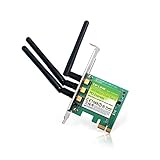
5. Hommie P02W-EU WiFi card with Bluetooth 4.2 5GHz: for smooth speed and a stable wireless signal
Features and Reviews
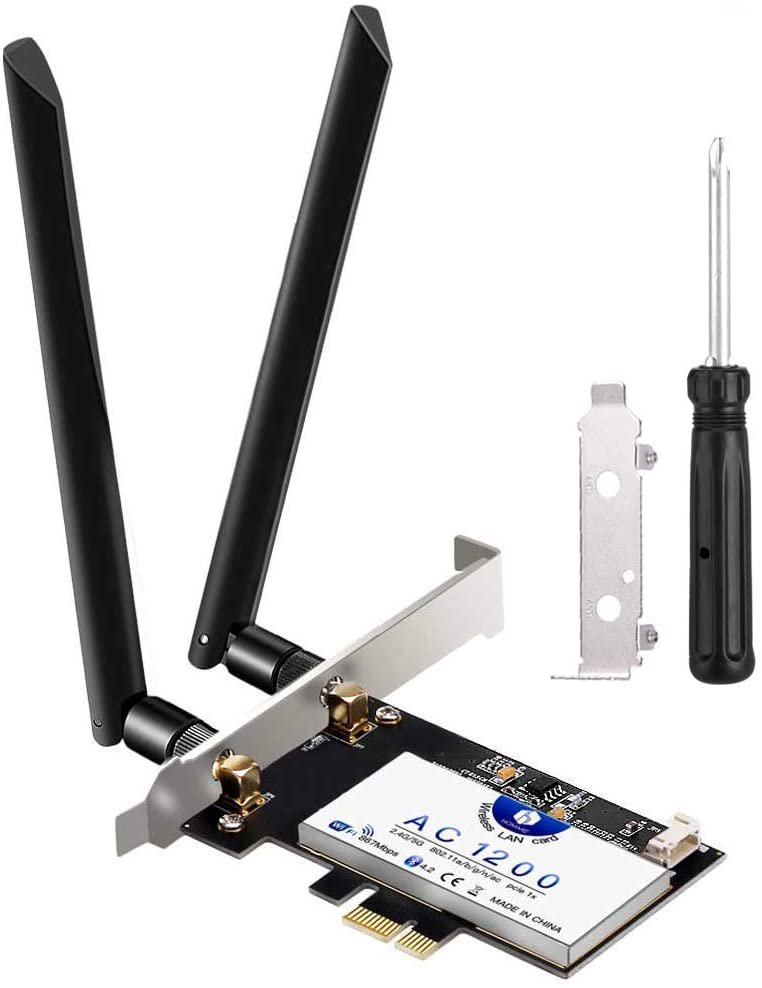
Designed for dual-band connectivity with an extra-wide range, this Hommie Wi-Fi card will be ideal if you're a 4K video enthusiast. And if so, you can also use it for seamless web browsing. This network card features a dual-band 802.11ac adapter, allowing you to choose between the 2.4 GHz and 5 GHz networks for a high-speed wireless connection. In terms of stability, the Hommie P02Z-EU is on par with other models in its generation. Our opinion on this is quite positive. It boasts two Wi-Fi antennas that ensure a stable connection. While the TP-Link TL-WDN4800 card offers three antennas for even greater stability, there's no need to dismiss the Hommie P02Z-EU for its remarkably stable connection, thanks to the Intel chip that provides a fast and reliable connection.
Easy to use
Whether you're a beginner or an expert, installing your Wi-Fi card on your PC will be a breeze. It's quite simple to use. With an easy-to-understand configuration, the package includes a CD-ROM to facilitate Wi-Fi installation.
First, install the PCI-E wireless adapter on your computer. Once installed, run the software installation from the included CD. Then, locate your network and connect to complete the installation process. You will need a suitable screwdriver to install and remove the adapter.
Other options
Unparalleled connection stability is guaranteed with the Hommie Wi-Fi card's CPE-E interface. To minimize connection drops, this Wi-Fi card features PCI-E/x1/x4/x8/x16 slots. You can then install the card in a computer to enjoy a wireless Wi-Fi signal for use with your phones and tablets.

6. Ziyiuod ZYT-7265 Wifi Card

Features and Reviews
The Ziyuuod ZYT-7265 Wi-Fi adapter features Bluetooth 4.2 technology. This allows your low-power devices to act as hubs and peripherals, enabling you to connect to headphones, mice, and keyboards. Furthermore, the AP option allows you to create a wireless connection for your mobile phones and tablets. The Wi-Fi adapter supports Windows 10/8.1 (32-bit and 62-bit) and Linux operating systems 4.2 and above.
Undeniable speed
Because this Ziyuuod ZYT-7265 adapter is equipped with a 5GHz band, it can deliver impressive speeds of up to 867 Mbps. This makes it ideal for a seamless experience with streaming, torrenting, and gaming. It also features a 2.4GHz band that can reach speeds of up to 300 Mbps.
Other features
This card is an excellent compromise for improving your online downloading and streaming experience. It allows you to watch 4K videos without any interruptions. What we appreciated most in this review of the Ziyuuod ZYT-7265 Wi-Fi card is its ease of installation. Simply plug it into your PC's PCI-E slot to get the best possible connection.
Buyer's guide: the essentials about Wi-Fi cards
The Wi-Fi card is now an essential part of our daily lives. Whether for professional or personal use, the Wi-Fi card has inevitably become a star in many businesses and homes. We need it for streaming, browsing online, downloading multimedia content, and much more.
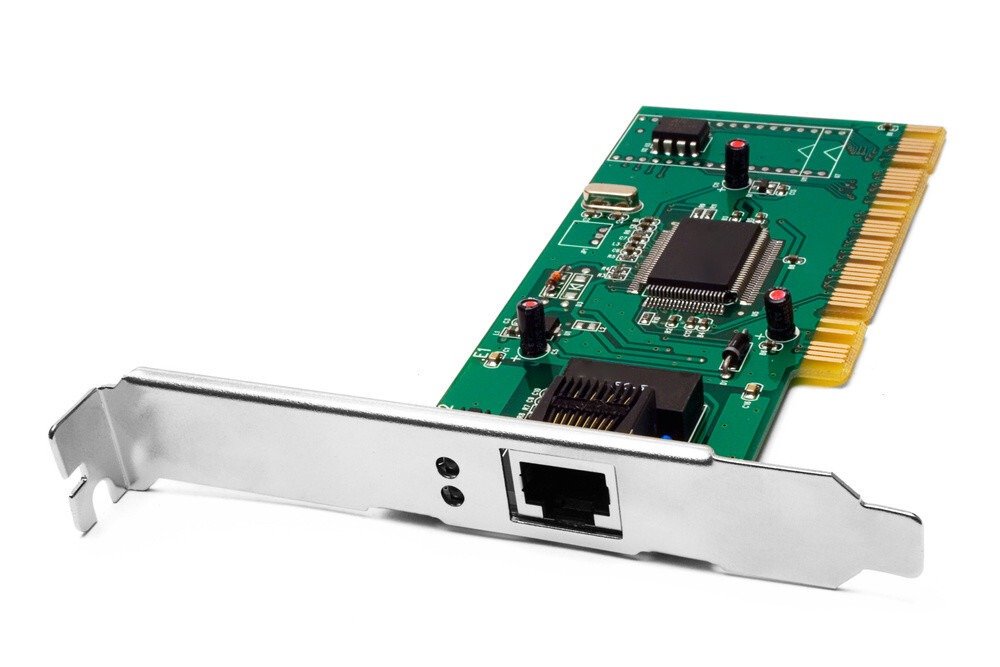
However, choosing a Wi-Fi card with subpar features can be disastrous. On the other hand, if you know how to select a high-quality Wi-Fi card, you'll avoid connection problems and say goodbye to the risk of interruptions while browsing the internet. User reviews of online Wi-Fi cards are quite positive. They are particularly pleased to use them without the hassle of cables or having to modify their homes to install fiber optics.
This guide will help you understand things more clearly. From the following information, you'll know what to expect from a Wi-Fi card and, more importantly, how to choose one that suits your needs. But before we get to that, let's explain what Wi-Fi is.
What is wifi?
Wi-Fi stands for Wireless Fidelity. It's a technology that allows multiple devices to connect simultaneously without the need for wires and cables. Wi-Fi operates on a fairly simple principle.
It uses radio waves and provides a high-speed connection between your computers and your internet router. Generally, Wi-Fi adheres to the IEEE 802.11 standard.
This standard encompasses the requirements for all wireless networks. These networks have benefited from improvements over the years, and each offers its own specific data rate.
For example, the 802.11b standard supports speeds ranging from 11 Mbps to 22 Mbps. However, the 802.11g standard is known to support speeds of up to 54 Mbps. The latest standard, 802.11ac, can achieve speeds of up to 1300 Mbps.
What you need to know is that Wi-Fi has many advantages. Mobility is the primary benefit of this technology. Thanks to Wi-Fi, you can browse the internet as you wish as long as you are in a covered area.
You don't need to bother with network cables. Once connected, the Wi-Fi signal is deployed within a defined area. If you are in a covered area, you can browse the internet smoothly and perform any task requiring an internet connection.
The Wifi card: What is it? What is its role?
The Wi-Fi card goes by several names. It's also known as a wireless internet card, local area network card, or LAN card. Computers sold on the market often have a weak connection. To optimize their connection speed, they are equipped with a Wi-Fi card or Wi-Fi adapter. This improves the performance of your wireless connection. With a Wi-Fi card, your computer's audio system will be enhanced, while also ensuring fast download speeds for 4K videos and images from connected devices.
It's important to note that Wi-Fi cards come in several variations. Depending on the installation medium, you'll find Wi-Fi cards on the market designed for desktop computers, laptops, or PDAs. Note that some computers come with pre-installed network cards. However, what you should know is that purchasing a new card will allow you to benefit from a faster and more extensive connection.
How does it work?

As we mentioned earlier, Wi-Fi cards are often pre-installed in computers. Known for their ease of installation, Wi-Fi cards simply need to be inserted into a slot on the computer's peripherals. If you want to understand how a Wi-Fi card works, you should first look into how Wi-Fi works. Fortunately, we covered that earlier.
Indeed, a Wi-Fi card does not transmit data via DSL, a telephone line, or a broadband cable. On the contrary, a Wi-Fi card relies on radio frequency data transmission. Whether it's the Wi-Fi card itself or simply the wireless router, the device requests data from an access point that receives the signal. The received information is then translated into radio waves. Subsequently, the Wi-Fi card broadcasts these radio waves over a specific area, thus facilitating access to the Wi-Fi signal.
The different types of Wi-Fi cards
You'll find a wide variety of Wi-Fi cards on the market. Among the main models available are Wi-Fi cards for desktop computers, laptops, and PDAs. The question of which Wi-Fi card models are best won't arise if you've ever visited a tech store.
Wi-Fi cards are categorized based on what is indicated on their label. There are PCI-signed Wi-Fi cards. These cards use the PCI (Peripheral Component Interconnect) protocol to establish a connection with the computer's processor via the bus.
PCI adapters come in various shapes and sizes. You can find mini PCI adapters compatible with laptops and wireless PCI adapters compatible with desktop PCs. If the bus is installed inside the device, the card must also be installed there.
There are cards with different slots, such as the ExpressCard or PC card. These are specifically designed for laptops. They are inserted from the side, unlike PCI Wi-Fi cards which are integrated into the main unit. Their slim design and lightweight construction make them a better fit on the side of the laptop.
Note that a USB Wi-Fi adapter can also act as a wireless adapter. Shaped like a standard USB flash drive, it plugs into the computer's USB port to provide increased internet access. Furthermore, Wi-Fi adapters for PDAs are also available.
How to choose the right Wi-Fi card?
The first mistake to avoid when choosing a Wi-Fi card is rushing into it. To avoid making a mistake, don't buy the first card that catches your eye in the store.
What are your actual needs? Do you have a laptop or a desktop computer? Is it necessary to choose the most expensive card to guarantee a better connection?
These are some of the questions you need to answer when choosing your Wi-Fi card. However, here are all the factors to consider when you want to buy a Wi-Fi card.
Connection speed
In addition to considering connection speed, you should also ensure that your Wi-Fi card is compatible with your modem or router. Doing so will greatly increase your chances of having a reliable wireless connection. For example, if you have a high-speed connection, it's best to get a lower-speed adapter. It's generally recommended to choose a Wi-Fi card with a higher speed than the adapter.
The standard of your wifi card
In the world of Wi-Fi cards, several standards exist. The most popular is 802.11b/g/n/ac. However, the choice shouldn't be made hastily. The standard you choose for your future Wi-Fi card will depend on the one integrated into your PC. By considering this aspect, you'll avoid discrepancies in efficiency and performance. Deciphering the markings on Wi-Fi cards is very simple.
Indeed, you may sometimes hear about Mbps or Gbps rather than MB/s or GB/s. Just so you know, 1 MB/s = 8 Mbps and 1 Gbps = 125 MB/s. In the world of Wi-Fi, there are several frequency types, and among the most well-known are 2.4 GHz and 5 GHz (the first frequency promises better range, while the second offers a fairly significant bandwidth).
The presence of MIMO technology
Thanks to this technology, the Wi-Fi card can allow the simultaneous connection of multiple antennas. This improves data exchange. Some cards can support up to four antennas.
And when you have a 150 Mbps connection and an antenna, MOMO technology can deliver speeds of up to 600 Mbps if you opt for a 4x4 or 3x3 configuration. However, let's admit that 2x2 MIMO technology is the most popular.
The format of your Wi-Fi card
As mentioned above, there are several types of Wi-Fi cards. To choose the one that best suits your needs, you must select one that is compatible with your PC and operating system. Some Wi-Fi cards will require driver configuration. Check this before making your purchase.
As a reminder, there are two types of Wi-Fi cards: those designed for desktop computers (PCI) and those intended for laptops (PC-Card or Mini Card).
Double or Single Band
If you've read our review of the TP-Link TL-WDN4800 Wi-Fi card, you'll understand that this question is no longer relevant. A dual-band Wi-Fi card is exactly what you need. It allows you to choose between 2GHz and 5GHz bands whenever you want.
With the first option, you will be able to access innovative and revolutionary games. The second option may be useful if you wish to download photos or videos.
The Wi-Fi card signal
A Wi-Fi card without a good signal is useless. To avoid mistakes when choosing this device, it's best to ensure it has an excellent signal. The adapter receives the signal from the router.
That's why the adapter itself needs to be of good quality. Furthermore, it must provide complete coverage for the office. To achieve this, choosing a Wi-Fi card with high-performance adapters is essential.
Furthermore, note that a better signal depends on the number of cards your adapter has and their positioning. If you choose a card with two antennas, your computer will get a decent signal, even if the router is in the next room.
Keep in mind that good signal reception can vary depending on the thickness of the wall. If your router is located a considerable distance away, a card with 3 or 4 antennas is ideal. Therefore, it is strongly recommended to prioritize adapters with MIMO technology, which will ensure perfect signal reception.
How do I install a Wi-Fi card on my computer?
Installing a Wi-Fi card is a fairly simple process. It's really not difficult if you're familiar with some basic computer maintenance techniques. If you've ever built a PC or installed a graphics card, you'll probably know how to do it.
For beginners, note that most Wi-Fi cards come with a CD-ROM to make setup easier. Simply insert it into the reader and follow the installation steps.
To make things easier for you, follow this step-by-step procedure:
- For safety reasons, first turn your PC off. Don't forget to unplug the power supply cable.
- Now, access the motherboard by opening the central panel of the computer unit. A screwdriver will be helpful for this.
- Locate an available slot for the Wi-Fi card (PCI Express or other). This slot is usually located at the bottom of the case. Once located, remove the back panel. Again, you will need a Phillips screwdriver.
- Remove the antennas from your wifi card, then insert it into the PCI-E port;
- Reattach the antennas to your wifi card, close your computer and start it up;
And there you have it, you now know how to install a wifi card on a PC .